mirror of
https://github.com/veeso/termscp.git
synced 2026-09-26 05:51:20 -07:00
 Christian Visintin
afbc74113f
Christian Visintin
afbc74113f
Deploy docs to GitHub Pages / deploy (push) Has been cancelled
Site / build-site (push) Has been cancelled
Install.sh / build (macos-latest) (push) Has been cancelled
Install.sh / build (ubuntu-latest) (push) Has been cancelled
CI / toolchain (push) Has been cancelled
CI / fmt (push) Has been cancelled
CI / install-scripts (push) Has been cancelled
CI / crates-ubuntu-latest (push) Has been cancelled
CI / crates-windows-latest (push) Has been cancelled
CI / doc (push) Has been cancelled
CI / deny (push) Has been cancelled
CI / crates-macos-latest (push) Has been cancelled
* ci: migrate project automation to Just

Centralize build, test, release, dependency, hook, and website commands in Just recipes. Pin workflow tooling, use the repository toolchain, and run the complete validation set in CI.

* ci: codex being codex

* docs: update CLAUDE.md for just task runner migration

Reflect the switch to just recipes for build/test/clippy/fmt, note
dprint replacing raw rustfmt, and add a cross-platform code requirement.

* fix: resolve clippy warnings breaking CI on ubuntu and windows

Use clone() instead of implicit to_string() on already-owned String
values, gate the windows-only unused make_file_at import behind
cfg(posix), and fix unused mut / manual assign-op in the windows-only
localhost test.

* fix: fmt
114 lines
5.3 KiB
Markdown
114 lines
5.3 KiB
Markdown
# Themes
|
|
|
|
termscp lets you set the colors for several components in the application. There
|
|
are two ways to customize termscp:
|
|
|
|
- From the **configuration menu**
|
|
- Importing a **theme file**
|
|
|
|
## Customize from the configuration menu
|
|
|
|
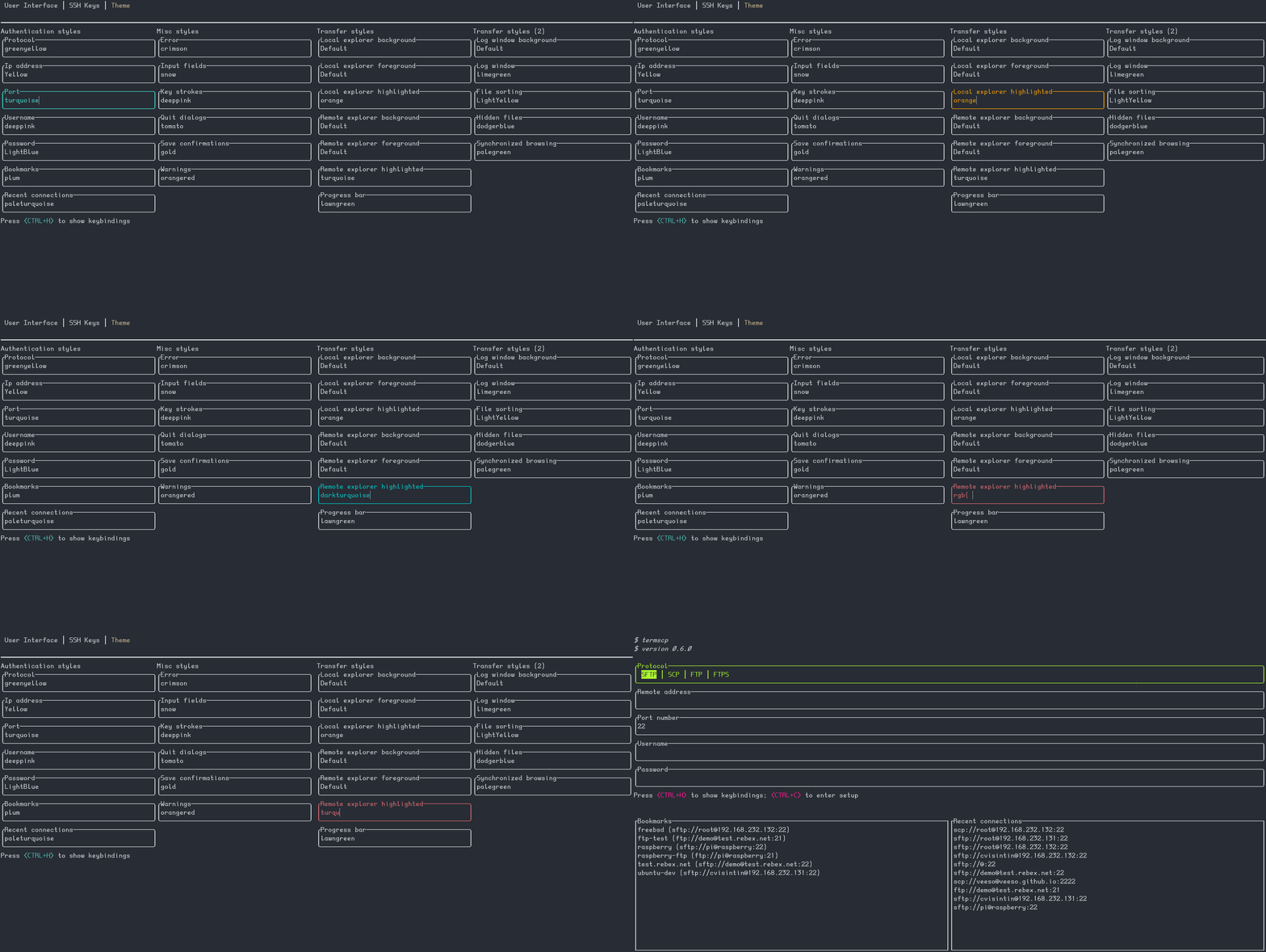
To customize termscp from the configuration menu, enter the configuration from
|
|
the auth screen by pressing `<CTRL+C>`, then press `<TAB>` twice to reach the
|
|
`themes` panel. Move with `<UP>` and `<DOWN>` to select the style you want to
|
|
change, as shown in the gif below:
|
|
|
|
|
|
|
|
## Import a theme file
|
|
|
|
You can also import theme files. You can take inspiration from, or directly use,
|
|
one of the themes bundled with termscp in the `themes/` directory of the
|
|
repository. Import a theme by running:
|
|
|
|
```sh
|
|
termscp theme <theme_file>
|
|
```
|
|
|
|
If everything is fine, termscp confirms the theme has been imported.
|
|
|
|
## Color syntax
|
|
|
|
termscp accepts the following color formats:
|
|
|
|
- Explicit hexadecimal: `#rrggbb`
|
|
- RGB: `rgb(r, g, b)`
|
|
- [CSS color names](https://www.w3schools.com/cssref/css_colors.asp) (such as
|
|
`crimson`)
|
|
- The special keyword `Default`, which uses the situational default foreground
|
|
or background color (foreground for texts and lines, background otherwise)
|
|
|
|
## Recovering from a theme that won't load
|
|
|
|
After an update, a saved theme can fail to load. This happens when a new key is
|
|
added to themes: the previously saved theme no longer contains that key. There
|
|
are two quick fixes:
|
|
|
|
1. Re-import the official theme. After each release the official themes are
|
|
patched, so download the updated theme from the repository and re-import it:
|
|
|
|
```sh
|
|
termscp theme <theme.toml>
|
|
```
|
|
|
|
2. Edit your theme by hand. If you use a custom theme, edit the file and add the
|
|
missing key. The theme is located at `$CONFIG_DIR/theme.toml`, where
|
|
`$CONFIG_DIR` is:
|
|
|
|
- FreeBSD/Linux: `$HOME/.config/termscp`
|
|
- macOS: `$HOME/.config/termscp`
|
|
- Windows: `%USERPROFILE%\.termscp`
|
|
|
|
Missing keys are reported in the CHANGELOG under `BREAKING CHANGES` for the
|
|
version you have just installed.
|
|
|
|
## Styles
|
|
|
|
The tables below describe each style field. Note that styles do **not** apply to
|
|
the configuration page, so it always remains usable in case you change something
|
|
by mistake.
|
|
|
|
### Authentication page
|
|
|
|
| Key | Description |
|
|
| ---------------- | ---------------------------------------- |
|
|
| `auth_address` | Color of the input field for IP address |
|
|
| `auth_bookmarks` | Color of the bookmarks panel |
|
|
| `auth_password` | Color of the input field for password |
|
|
| `auth_port` | Color of the input field for port number |
|
|
| `auth_protocol` | Color of the radio group for protocol |
|
|
| `auth_recents` | Color of the recents panel |
|
|
| `auth_username` | Color of the input field for username |
|
|
|
|
### Transfer page
|
|
|
|
| Key | Description |
|
|
| -------------------------------------- | ------------------------------------------------------------------------- |
|
|
| `transfer_local_explorer_background` | Background color of localhost explorer |
|
|
| `transfer_local_explorer_foreground` | Foreground color of localhost explorer |
|
|
| `transfer_local_explorer_highlighted` | Border and highlighted color for localhost explorer |
|
|
| `transfer_remote_explorer_background` | Background color of remote explorer |
|
|
| `transfer_remote_explorer_foreground` | Foreground color of remote explorer |
|
|
| `transfer_remote_explorer_highlighted` | Border and highlighted color for remote explorer |
|
|
| `transfer_log_background` | Background color for log panel |
|
|
| `transfer_log_window` | Window color for log panel |
|
|
| `transfer_progress_bar_partial` | Partial progress bar color |
|
|
| `transfer_progress_bar_total` | Total progress bar color |
|
|
| `transfer_status_hidden` | Color for status bar "hidden" label |
|
|
| `transfer_status_sorting` | Color for status bar "sorting" label; applies also to file sorting dialog |
|
|
| `transfer_status_sync_browsing` | Color for status bar "sync browsing" label |
|
|
|
|
### Misc
|
|
|
|
These styles apply to different parts of the application.
|
|
|
|
| Key | Description |
|
|
| ------------------- | ------------------------------------------- |
|
|
| `misc_error_dialog` | Color for error messages |
|
|
| `misc_info_dialog` | Color for info dialogs |
|
|
| `misc_input_dialog` | Color for input dialogs (such as copy file) |
|
|
| `misc_keys` | Color of text for key strokes |
|
|
| `misc_quit_dialog` | Color for quit dialogs |
|
|
| `misc_save_dialog` | Color for save dialogs |
|
|
| `misc_warn_dialog` | Color for warn dialogs |
|