Compare commits
419 Commits
| Author | SHA1 | Date | |
|---|---|---|---|

|
7ad7a1580d | ||
|
|
46f2954bc4 | ||
|
|
0c88f559e2 | ||
|
|
8a0979578a | ||
|
|
7ee28a00ae | ||
|
|
82330f870e | ||
|
|
54aecdc478 | ||
|
|
d5038a22ee | ||
|
|
c0bc493d21 | ||
|
|
1c75c7d386 | ||
|
|
251b125cbb | ||
|
|
efd2235ff3 | ||
|
|
1db2ff7ec5 | ||
|
|
4d5f3a6b63 | ||
|
|
62003308a7 | ||
|
|
cb037cfca9 | ||

|
15fffdf0c9 | ||
|
|
c1b245b4c9 | ||
|
|
d14225c0b9 | ||
|
|
d60be7dc80 | ||
|
|
146a1f3ed6 | ||
|
|
12fe10100b | ||

|
298d590306 | ||

|
8e6aae08b6 | ||
|
|
cb33ba114e | ||
|
|
6369ead491 | ||
|
|
ae350b4bfa | ||
|
|
cd5bb28fb7 | ||
|
|
f27a4e2a02 | ||
|
|
0f432d0375 | ||
|
|
8b67c59247 | ||
|
|
fdd7901f7e | ||
|
|
2eec7c4b2b | ||
|
|
64e3848c97 | ||
|
|
833cd7d3ba | ||
|
|
2f1b644a40 | ||
|
|
6a5c248d35 | ||
|
|
96df152220 | ||
|
|
a22c5025d7 | ||
|
|
cce0c92c0b | ||
|
|
90d7083b24 | ||
|
|
b3ab76e573 | ||
|
|
66913d5fc1 | ||
|
|
f5174ccac0 | ||
|
|
82489e7459 | ||

|
ad562a7b09 | ||
|
|
08c42e5acf | ||
|
|
aac9cf4fa0 | ||
|
|
a26b21da89 | ||
|
|
bb95c9a4d0 | ||
|
|
80dea3f71a | ||
|
|
0057a657d2 | ||
|
|
816270d545 | ||
|
|
2caa0432df | ||
|
|
e0d8b80cdf | ||
|
|
f094979ddb | ||
|
|
0c8144aaa8 | ||
|
|
3249e82873 | ||
|
|
66adad3135 | ||
|
|
f2e5bf4441 | ||
|
|
601b0595d4 | ||
|
|
c47fcb2225 | ||
|
|
550c7ca62a | ||
|
|
3256c276b4 | ||
|
|
04f43fff63 | ||
|
|
82e8c84000 | ||
|
|
31203d76ce | ||
|
|
572a948f2c | ||
|
|
b6ee49cfa6 | ||
|
|
0334c5db78 | ||
|
|
c45ebec261 | ||
|
|
ad2781b62c | ||
|
|
35dc11cce3 | ||
|
|
8d9e7443ec | ||
|
|
697ab225ea | ||
|
|
babbc5eadb | ||
|
|
f28dba7660 | ||
|
|
c5eba4b56a | ||
|
|
0b70819781 | ||
|
|
069fe8cae2 | ||
|
|
043f54e707 | ||
|
|
b635554e52 | ||
|
|
9e35616568 | ||
|
|
615dbda583 | ||
|
|
4b421a4a87 | ||
|
|
0fe06eb52b | ||
|
|
e8c6b8306f | ||

|
d1457253c4 | ||

|
1bcdaa5614 | ||
|
|
85dd67721f | ||
|
|
a25ee67cd3 | ||
|
|
67d48e7a79 | ||
|
|
49e69277af | ||
|
|
332284fec3 | ||
|
|
4897253932 | ||
|
|
6559c6b083 | ||
|
|
587d7da2cb | ||
|
|
7d55563556 | ||
|
|
53271966da | ||
|
|
ec4daf8e25 | ||
|
|
edd0842273 | ||
|
|
c1edc20462 | ||
|
|
ced7573241 | ||
|
|
24788fa894 | ||
|
|
dab98f4292 | ||
|
|
84cb775679 | ||
|
|
4e802f1dc5 | ||
|
|
b8efe6985f | ||
|
|
e047179ea0 | ||
|
|
197b3095b6 | ||
|
|
54c23079be | ||
|
|
a93dbde0c8 | ||
|
|
2a3d4f2670 | ||
|
|
e6ba4d8430 | ||
|
|
9284f101c8 | ||
|
|
685444655c | ||
|
|
027545f14c | ||
|
|
2e0322bc0e | ||
|
|
df7a4381c4 | ||
|
|
25dd1b9b0a | ||
|
|
a1a1631fd2 | ||
|
|
47f3ffef7b | ||
|
|
54b5583d1a | ||
|
|
30851a78e8 | ||
|
|
bc6b7b582e | ||
|
|
3927fb2a39 | ||
|
|
028f64a588 | ||
|
|
26ff496829 | ||
|
|
cb583f305c | ||
|
|
88b29d3183 | ||
|
|
02fdb27cc5 | ||
|
|
5fd53c1b2b | ||
|
|
696e3ae582 | ||
|
|
e7a29b7f1a | ||
|
|
e53120f3c2 | ||
|
|
3f463f4b73 | ||
|
|
83964026ec | ||
|
|
f79658a93c | ||
|
|
23fd37559e | ||
|
|
1fadc53743 | ||
|
|
0eaa898e15 | ||
|
|
0aeca76f63 | ||
|
|
8cf6c1fce3 | ||
|
|
736dd820a6 | ||
|
|
db73d1e45f | ||
|
|
6c31c1f2d8 | ||
|
|
fcce9b778b | ||
|
|
b309a55ed6 | ||
|
|
8b2b834818 | ||
|
|
9a63f5b2cc | ||
|
|
a7a116cb33 | ||
|
|
bc90fb1038 | ||
|
|
e307b6a8ac | ||
|
|
c9e8589689 | ||
|
|
e09682c219 | ||
|
|
967babbcb7 | ||
|
|
4973bf8cbe | ||
|
|
6421b74c66 | ||
|
|
463329a080 | ||
|
|
fd2144f8e9 | ||
|
|
18a579a204 | ||
|
|
58d5ea264f | ||
|
|
4b9d23cc3a | ||
|
|
f3e694d3d6 | ||
|
|
b9a0e516c6 | ||
|
|
198d421ab0 | ||
|
|
6caf34b17a | ||
|
|
f0a91b1579 | ||
|
|
c3e5663cf4 | ||
|
|
bcc6fcd2e7 | ||
|
|
3c3d681ca0 | ||
|
|
3e83c26cd5 | ||
|
|
ec841d5382 | ||
|
|
d2e4252487 | ||
|
|
7660dad4eb | ||
|
|
ddfa973c19 | ||

|
def0eb8586 | ||
|
|
c39ee82ac5 | ||
|
|
e1bde1971d | ||
|
|
79c90c5b97 | ||
|
|
06ffbaa2f4 | ||
|
|
63e7023342 | ||
|
|
88a0685097 | ||
|
|
ed3225ed84 | ||
|
|
96c997c38a | ||
|
|
c824d00986 | ||
|
|
c052796d52 | ||
|
|
1077204965 | ||
|
|
77476596f4 | ||
|
|
efd5443be4 | ||
|
|
8c88fbe10f | ||
|
|
06a67de14f | ||
|
|
8bb05406c8 | ||
|
|
3f31800158 | ||
|
|
f69489fc8f | ||
|
|
1f115dea92 | ||
|
|
f81424f1db | ||
|
|
1d09095ab9 | ||
|
|
bf6f25310c | ||
|
|
4c1e4fef7a | ||
|
|
ddd4824567 | ||
|
|
f31f58aa79 | ||
|
|
22bb143820 | ||
|
|
78b918087e | ||
|
|
91ce709d7b | ||
|
|
214ec0c5a5 | ||
|
|
0cb9254e63 | ||
|
|
4bbb339844 | ||
|
|
92b081c076 | ||
|
|
32ab0267fb | ||
|
|
8a0f190474 | ||
|
|
a189a4c754 | ||
|
|
b7b765c16e | ||
|
|
7713c6c21d | ||
|
|
c49184dcb1 | ||
|
|
fc3803991a | ||
|
|
f6011543c0 | ||
|
|
7390bb58c5 | ||
|
|
81482b47f4 | ||
|
|
6cb1dcaa43 | ||
|
|
78e4a4899c | ||
|
|
d15997cca0 | ||
|
|
1558f4ffe4 | ||
|
|
764cca73d1 | ||
|
|
1757eb5bec | ||
|
|
6cfac57162 | ||
|
|
d36d330244 | ||
|
|
4203de6d3f | ||
|
|
098e3c709a | ||
|
|
1a8e151efb | ||
|
|
6c8d22d396 | ||
|
|
a0ee1d886a | ||
|
|
bf6f1625ec | ||
|
|
3271377b7e | ||
|
|
f36bb65b45 | ||
|
|
c722982c39 | ||
|
|
e1109fff15 | ||
|
|
59c6567ff3 | ||
|
|
61f6901767 | ||
|
|
8277c80860 | ||
|
|
4093ba169c | ||
|
|
e3a9d253f7 | ||
|
|
80c67c8aa8 | ||
|
|
421969c3da | ||
|
|
e15b79750b | ||
|
|
37abe596c7 | ||
|
|
e6b44e1461 | ||
|
|
b9cb961da6 | ||
|
|
55c4b777fb | ||
|
|
2231727adb | ||
|
|
0a7e29d92f | ||
|
|
a105a42519 | ||
|
|
d20c2c786b | ||
|
|
14abed44a5 | ||
|
|
65fee64132 | ||
|
|
348688b5ce | ||
|
|
0cb84fc531 | ||
|
|
8a36c459d5 | ||
|
|
c7414ab070 | ||
|
|
d16f9e7ad8 | ||
|
|
3cbd2ed013 | ||
|
|
398f518b2f | ||
|
|
97a62def11 | ||
|
|
7ed49126a4 | ||
|
|
d976a34705 | ||
|
|
8b01c71819 | ||
|
|
1ee5e368f6 | ||
|
|
8fc71aae66 | ||
|
|
0589cc2f0c | ||
|
|
931a66498f | ||
|
|
8ec0a0289a | ||
|
|
2d8ce475f8 | ||
|
|
f8766722d4 | ||
|
|
1319e0b17b | ||
|
|
5e17bf0736 | ||
|
|
ca50bddc56 | ||
|
|
c78fc583b0 | ||
|
|
04cafc4181 | ||
|
|
f8300fa587 | ||
|
|
407ca567f1 | ||
|
|
320fd5c2dd | ||
|
|
e4c616245a | ||
|
|
5986130dfa | ||
|
|
19610479bd | ||
|
|
e3d2151bad | ||
|
|
89d205e946 | ||
|
|
15d13af7d5 | ||
|
|
3df8ed13a4 | ||
|
|
5a4a364250 | ||
|
|
00bee04c2c | ||
|
|
4475e8c24c | ||
|
|
5a49987338 | ||
|
|
76f1f1dcf3 | ||
|
|
0175cfbfb6 | ||
|
|
48483a5c99 | ||
|
|
71e4cc9413 | ||
|
|
a00c0117a2 | ||
|
|
c1bc81c664 | ||
|
|
1b7ef30a50 | ||
|
|
efad2b96db | ||
|
|
56a200499e | ||
|
|
1c58f1d623 | ||
|
|
6cdd56e22f | ||
|
|
53acb847bc | ||
|
|
2b006457c7 | ||
|
|
fbc1672e3d | ||
|
|
542123ce04 | ||
|
|
59eb7f7935 | ||
|
|
74482d6e2c | ||
|
|
529ac2f778 | ||
|
|
b73c3228e4 | ||
|
|
26f7c1f9d1 | ||
|
|
f078232499 | ||
|
|
8cd91f6df3 | ||
|
|
5670c0f975 | ||
|
|
99d4177e89 | ||
|
|
d07b1c86be | ||
|
|
fe494c52b1 | ||
|
|
bc50328006 | ||
|
|
90afe204b1 | ||
|
|
d981b77ed7 | ||
|
|
541a9a55b5 | ||
|
|
cd3fc15bcb | ||
|
|
4e50038b41 | ||
|
|
a8354ee38f | ||
|
|
c4907c8ce5 | ||
|
|
3c3c680b00 | ||
|
|
3a32f45334 | ||
|
|
8e1843f90b | ||
|
|
dc01de98dc | ||
|
|
971061d231 | ||
|
|
d04dd831e4 | ||
|
|
8dcfda9787 | ||
|
|
c938021bef | ||
|
|
3fcf0fb72a | ||
|
|
e99406fbe4 | ||
|
|
60073be993 | ||
|
|
d3df4c7020 | ||
|
|
adce92e312 | ||
|
|
4973545fe1 | ||
|
|
8425c97102 | ||
|
|
1876b8bdc7 | ||
|
|
99ff3a8e45 | ||
|
|
cae251905c | ||
|
|
f738ce90e0 | ||
|
|
2f2bb20550 | ||
|
|
591ede0507 | ||
|
|
09665fead3 | ||
|
|
60ee2f1c2b | ||
|
|
d6d8197869 | ||
|
|
b1da42b543 | ||
|
|
e874550d29 | ||
|
|
6cd9657446 | ||
|
|
2790c613aa | ||
|
|
7b868bc60b | ||
|
|
c1b3511c06 | ||
|
|
1e3c859ae0 | ||
|
|
faab67800f | ||
|
|
7f9d92cbe9 | ||
|
|
4e287a0231 | ||
|
|
8c9c331d7e | ||
|
|
37ce54051e | ||
|
|
f31b047671 | ||
|
|
aaff616332 | ||
|
|
cfc1b73c74 | ||
|
|
0d2967423b | ||
|
|
cb3681ffdd | ||
|
|
4c343c6f34 | ||
|
|
ff158add1f | ||
|
|
2c64cd5cce | ||
|
|
c43ab28fb0 | ||
|
|
dd00e1f55a | ||
|
|
2b3acee97c | ||
|
|
d96558c3df | ||
|
|
b8db557ffe | ||
|
|
300256b196 | ||
|
|
7ba1b316f7 | ||
|
|
822d41e885 | ||
|
|
0253572975 | ||
|
|
0328c1de81 | ||
|
|
c6ee9dedb9 | ||
|
|
88136811b9 | ||
|
|
7c816d0822 | ||
|
|
a5fe62e502 | ||
|
|
892be42988 | ||
|
|
c0eb98c3f9 | ||
|
|
1ddbd0aa4e | ||
|
|
4f1e505a7a | ||
|
|
dcec804681 | ||
|
|
a127f46a06 | ||
|
|
c8d277c51d | ||
|
|
42477d6893 | ||
|
|
4c1fb826be | ||
|
|
a0c29d1174 | ||
|
|
2f0b340fe0 | ||
|
|
cbe242bb94 | ||
|
|
a088c6dbd3 | ||
|
|
036aba2420 | ||
|
|
60269c7777 | ||
|
|
e90f561584 | ||
|
|
4bd18c1386 | ||
|
|
fe51185f74 | ||
|
|
a35395bd51 | ||
|
|
f1225b1ff3 | ||
|
|
63d727d5c5 | ||
|
|
46864ee23a | ||
|
|
46728d8bc3 | ||
|
|
daa9a7c012 | ||
|
|
0f595b8cbf | ||
|
|
26b001a5fc | ||
|
|
3704d2520d | ||
|
|
41e89605f0 | ||
|
|
065ea59114 | ||
|
|
64bb2ed101 | ||
|
|
c48c73909d | ||
|
|
68d113f335 | ||
|
|
8bb66b53e0 | ||
|
|
84c36f1789 | ||
|
|
2214c1dee3 |
2
.github/FUNDING.yml
vendored
@@ -1 +1 @@
|
||||
custom: ['https://www.buymeacoffee.com/veeso']
|
||||
ko_fi: veeso
|
||||
|
||||
5
.github/ISSUE_TEMPLATE/bug_report.md
vendored
@@ -28,6 +28,11 @@ A clear and concise description of what you expected to happen.
|
||||
- Protocol used
|
||||
- Remote server version and name
|
||||
|
||||
## Log
|
||||
|
||||
Report the snippet of the log file containing the unexpected behaviour.
|
||||
If there is any information you consider to be confidential, shadow it.
|
||||
|
||||
## Additional information
|
||||
|
||||
Add any other context about the problem here.
|
||||
|
||||
35
.github/ISSUE_TEMPLATE/copy.md
vendored
Normal file
@@ -0,0 +1,35 @@
|
||||
---
|
||||
name: Copy
|
||||
about: Report a typo/error in a repository document
|
||||
title: "[COPY] - ISSUE_TITLE"
|
||||
labels: documentation
|
||||
assignees: veeso
|
||||
|
||||
---
|
||||
|
||||
## Report
|
||||
|
||||
### DOCUMENT NAME
|
||||
|
||||
This sentence at row ROW_NUMBER doesn't seem right:
|
||||
|
||||
> Write down here the wrong sentence
|
||||
|
||||
and I think it should be changed to:
|
||||
|
||||
> Write down here the correct sentence
|
||||
|
||||
`Copy paste the template above for all the sentences to fix`
|
||||
|
||||
---
|
||||
|
||||
`Copy paste the template above for all the documents to fix`
|
||||
|
||||
## Additional information
|
||||
|
||||
> ❗ Report LANGUAGE checks only if it concerns the documents above
|
||||
> ❗ If the documents concerns more than one language, copy paste the checks below for each check you want to report
|
||||
> ❗ The PR mention regards the indicated language. If you check the box, I may add you to a PR where I need to translate a new section of the user manual/README or other documents. I promise I won't stress you anyway.
|
||||
|
||||
- [ ] I am C1/C2 speaker for this language: LANGUAGE
|
||||
- [ ] You can mention me in a PR in case a review for translations is needed
|
||||
23
.github/ISSUE_TEMPLATE/security.md
vendored
Normal file
@@ -0,0 +1,23 @@
|
||||
---
|
||||
name: Security report
|
||||
about: Create a report of a security vulnerability
|
||||
title: "[SECURITY] - ISSUE_TITLE"
|
||||
labels: security
|
||||
assignees: veeso
|
||||
|
||||
---
|
||||
|
||||
## Description
|
||||
|
||||
Severity:
|
||||
|
||||
- [ ] **critical**
|
||||
- [ ] high
|
||||
- [ ] medium
|
||||
- [ ] low
|
||||
|
||||
A clear and concise description of the security vulnerability.
|
||||
|
||||
## Additional information
|
||||
|
||||
Add any other context about the problem here.
|
||||
6
.github/PULL_REQUEST_TEMPLATE.md
vendored
@@ -32,3 +32,9 @@ Please select relevant options.
|
||||
- [ ] I have introduced no new *C-bindings*
|
||||
- [ ] The changes I've made are Windows, MacOS, UNIX, Linux compatible (or I've handled them using `cfg target_os`)
|
||||
- [ ] I increased or maintained the code coverage for the project, compared to the previous commit
|
||||
|
||||
## Acceptance tests
|
||||
|
||||
wait for a *project maintainer* to fulfill this section...
|
||||
|
||||
- [ ] regression test: ...
|
||||
|
||||
16
.github/actions-rs/grcov.yml
vendored
Normal file
@@ -0,0 +1,16 @@
|
||||
branch: false
|
||||
ignore-not-existing: true
|
||||
llvm: true
|
||||
output-type: lcov
|
||||
ignore:
|
||||
- "/*"
|
||||
- "C:/*"
|
||||
- "../*"
|
||||
- src/main.rs
|
||||
- src/activity_manager.rs
|
||||
- src/cli_opts.rs
|
||||
- src/support.rs
|
||||
- src/system/notifications.rs
|
||||
- "src/ui/activities/*"
|
||||
- src/ui/context.rs
|
||||
- src/ui/input.rs
|
||||
21
.github/workflows/aur-pub.yml
vendored
@@ -1,21 +0,0 @@
|
||||
name: aur-pub
|
||||
on:
|
||||
push:
|
||||
tags:
|
||||
- "*"
|
||||
jobs:
|
||||
aur-publish:
|
||||
runs-on: ubuntu-latest
|
||||
steps:
|
||||
- uses: actions/checkout@v2
|
||||
|
||||
- name: Publish AUR package
|
||||
uses: KSXGitHub/github-actions-deploy-aur@v2.2.3
|
||||
with:
|
||||
pkgname: termscp
|
||||
pkgbuild: ./dist/pkgs/arch/PKGBUILD
|
||||
commit_username: ${{ secrets.AUR_USERNAME }}
|
||||
commit_email: ${{ secrets.AUR_EMAIL }}
|
||||
ssh_private_key: ${{ secrets.AUR_KEY }}
|
||||
commit_message: Update AUR package
|
||||
ssh_keyscan_types: rsa,dsa,ecdsa,ed25519
|
||||
39
.github/workflows/coverage.yml
vendored
@@ -1,4 +1,4 @@
|
||||
name: coverage
|
||||
name: Coverage
|
||||
|
||||
on: [push, pull_request]
|
||||
|
||||
@@ -6,17 +6,32 @@ env:
|
||||
CARGO_TERM_COLOR: always
|
||||
|
||||
jobs:
|
||||
coverage:
|
||||
name: Generate coverage
|
||||
build:
|
||||
runs-on: ubuntu-latest
|
||||
|
||||
steps:
|
||||
- name: Checkout repository
|
||||
uses: actions/checkout@v2
|
||||
|
||||
- name: Run cargo-tarpaulin
|
||||
uses: actions-rs/tarpaulin@v0.1
|
||||
- uses: actions/checkout@v2
|
||||
- name: Install dependencies
|
||||
run: sudo apt update && sudo apt install -y libdbus-1-dev libssh2-1-dev libssl-dev
|
||||
- name: Setup nightly toolchain
|
||||
uses: actions-rs/toolchain@v1
|
||||
with:
|
||||
args: "--ignore-tests -- --test-threads 1"
|
||||
|
||||
- name: Upload to codecov.io
|
||||
uses: codecov/codecov-action@v1
|
||||
toolchain: nightly
|
||||
override: true
|
||||
- name: Run tests (nightly)
|
||||
uses: actions-rs/cargo@v1
|
||||
with:
|
||||
command: test
|
||||
args: --no-default-features --features github-actions --no-fail-fast
|
||||
env:
|
||||
CARGO_INCREMENTAL: "0"
|
||||
RUSTFLAGS: "-Zprofile -Ccodegen-units=1 -Cinline-threshold=0 -Clink-dead-code -Coverflow-checks=off -Cpanic=abort -Zpanic_abort_tests"
|
||||
RUSTDOCFLAGS: "-Zprofile -Ccodegen-units=1 -Cinline-threshold=0 -Clink-dead-code -Coverflow-checks=off -Cpanic=abort -Zpanic_abort_tests"
|
||||
- name: Coverage with grcov
|
||||
id: coverage
|
||||
uses: actions-rs/grcov@v0.1
|
||||
- name: Coveralls
|
||||
uses: coverallsapp/github-action@v1.1.1
|
||||
with:
|
||||
github-token: ${{ secrets.GITHUB_TOKEN }}
|
||||
path-to-lcov: ${{ steps.coverage.outputs.report }}
|
||||
|
||||
19
.github/workflows/install.yml
vendored
Normal file
@@ -0,0 +1,19 @@
|
||||
name: Install.sh
|
||||
|
||||
on: [push, pull_request]
|
||||
|
||||
env:
|
||||
CARGO_TERM_COLOR: always
|
||||
|
||||
jobs:
|
||||
build:
|
||||
runs-on: ubuntu-latest
|
||||
|
||||
steps:
|
||||
- uses: actions/checkout@v2
|
||||
- name: Install dependencies
|
||||
run: sudo apt update && sudo apt install -y curl wget
|
||||
- name: Install termscp from script
|
||||
run: |
|
||||
./install.sh -v=0.11.0 -f
|
||||
which termscp || exit 1
|
||||
7
.github/workflows/linux.yml
vendored
@@ -11,15 +11,18 @@ jobs:
|
||||
|
||||
steps:
|
||||
- uses: actions/checkout@v2
|
||||
- name: Install dependencies
|
||||
run: sudo apt update && sudo apt install -y libdbus-1-dev
|
||||
- uses: actions-rs/toolchain@v1
|
||||
with:
|
||||
toolchain: stable
|
||||
override: true
|
||||
components: rustfmt, clippy
|
||||
- uses: actions-rs/cargo@v1
|
||||
- name: Run tests
|
||||
uses: actions-rs/cargo@v1
|
||||
with:
|
||||
command: test
|
||||
args: --all-features --no-fail-fast
|
||||
args: --no-default-features --features github-actions --no-fail-fast
|
||||
- name: Format
|
||||
run: cargo fmt --all -- --check
|
||||
- name: Clippy
|
||||
|
||||
11
.github/workflows/macos.yml
vendored
@@ -11,9 +11,14 @@ jobs:
|
||||
|
||||
steps:
|
||||
- uses: actions/checkout@v2
|
||||
- uses: actions-rs/toolchain@v1
|
||||
with:
|
||||
toolchain: stable
|
||||
override: true
|
||||
components: rustfmt, clippy
|
||||
- name: Build
|
||||
run: cargo build --verbose
|
||||
run: cargo build
|
||||
- name: Run tests
|
||||
run: cargo test --verbose --features githubActions -- --test-threads 1
|
||||
run: cargo test --verbose --features github-actions
|
||||
- name: Clippy
|
||||
run: cargo clippy
|
||||
run: cargo clippy -- -Dwarnings
|
||||
|
||||
41
.github/workflows/website.yml
vendored
Normal file
@@ -0,0 +1,41 @@
|
||||
# Simple workflow for deploying static content to GitHub Pages
|
||||
name: Deploy static content to Pages
|
||||
|
||||
on:
|
||||
# Runs on pushes targeting the default branch
|
||||
push:
|
||||
branches: ["main"]
|
||||
|
||||
# Allows you to run this workflow manually from the Actions tab
|
||||
workflow_dispatch:
|
||||
|
||||
# Sets permissions of the GITHUB_TOKEN to allow deployment to GitHub Pages
|
||||
permissions:
|
||||
contents: read
|
||||
pages: write
|
||||
id-token: write
|
||||
|
||||
# Allow one concurrent deployment
|
||||
concurrency:
|
||||
group: "pages"
|
||||
cancel-in-progress: true
|
||||
|
||||
jobs:
|
||||
# Single deploy job since we're just deploying
|
||||
deploy:
|
||||
environment:
|
||||
name: github-pages
|
||||
url: ${{ steps.deployment.outputs.page_url }}
|
||||
runs-on: ubuntu-latest
|
||||
steps:
|
||||
- name: Checkout
|
||||
uses: actions/checkout@v3
|
||||
- name: Setup Pages
|
||||
uses: actions/configure-pages@v2
|
||||
- name: Upload artifact
|
||||
uses: actions/upload-pages-artifact@v1
|
||||
with:
|
||||
path: './site/'
|
||||
- name: Deploy to GitHub Pages
|
||||
id: deployment
|
||||
uses: actions/deploy-pages@v1
|
||||
11
.github/workflows/windows.yml
vendored
@@ -11,9 +11,14 @@ jobs:
|
||||
|
||||
steps:
|
||||
- uses: actions/checkout@v2
|
||||
- uses: actions-rs/toolchain@v1
|
||||
with:
|
||||
toolchain: stable
|
||||
override: true
|
||||
components: rustfmt, clippy
|
||||
- name: Build
|
||||
run: cargo build --verbose
|
||||
run: cargo build
|
||||
- name: Run tests
|
||||
run: cargo test --verbose --features githubActions -- --test-threads 1
|
||||
run: cargo test --verbose --features github-actions
|
||||
- name: Clippy
|
||||
run: cargo clippy
|
||||
run: cargo clippy -- -Dwarnings
|
||||
|
||||
3
.gitignore
vendored
@@ -21,3 +21,6 @@ dist/pkgs/arch/*.tar.gz
|
||||
|
||||
# Macos
|
||||
.DS_Store
|
||||
|
||||
dist/pkgs/
|
||||
dist/build/macos/openssl/
|
||||
|
||||
391
CHANGELOG.md
@@ -1,6 +1,17 @@
|
||||
# Changelog
|
||||
|
||||
- [Changelog](#changelog)
|
||||
- [0.11.0](#0110)
|
||||
- [0.10.0](#0100)
|
||||
- [0.9.0](#090)
|
||||
- [0.8.2](#082)
|
||||
- [0.8.1](#081)
|
||||
- [0.8.0](#080)
|
||||
- [0.7.0](#070)
|
||||
- [0.6.1](#061)
|
||||
- [0.6.0](#060)
|
||||
- [0.5.1](#051)
|
||||
- [0.5.0](#050)
|
||||
- [0.4.2](#042)
|
||||
- [0.4.1](#041)
|
||||
- [0.4.0](#040)
|
||||
@@ -16,6 +27,384 @@
|
||||
|
||||
---
|
||||
|
||||
## 0.11.0
|
||||
|
||||
Released on 20/02/2023
|
||||
|
||||
> 🦥 The lazy update
|
||||
|
||||
- **Transfers optimized**:
|
||||
- If local/remote file have the same "last modification time" (`mtime`), the file is not transferred
|
||||
- When the file is exchanged, all times attributes are set (if supported by the protocol)
|
||||
- **Default ssh config path**:
|
||||
- SSH configuration path is now `~/.ssh/config` by default
|
||||
- Added ARM64 Linux builds
|
||||
- **Bugfix**:
|
||||
- Fixed [Issue 126](https://github.com/veeso/termscp/issues/126)
|
||||
- Fixed [Issue 141](https://github.com/veeso/termscp/issues/141)
|
||||
- Dependencies:
|
||||
- Bump `remotefs-ssh` to `0.1.3`
|
||||
- Bump `self_update` to `0.35`
|
||||
- Bump `ssh2-config` to `0.1.4`
|
||||
- Bump `toml` to `0.7`
|
||||
|
||||
## 0.10.0
|
||||
|
||||
Released on 15/10/2022
|
||||
|
||||
> ⭐ 500 stars update ⭐
|
||||
> Thank you for supporting termscp and make it reaching 500 stars on Github
|
||||
|
||||
- **Changed keybindings for BACKTAB**: backtab will now change the explorer tab
|
||||
- To active the LOG PANEL, use `P`
|
||||
- **Yes/No dialogs** are now answerable by pressing `Y` or `N` on your keyboard ([Issue 121](https://github.com/veeso/termscp/issues/121))
|
||||
- **Use ssh2 config IdentityFile** as fallback for key based authentication
|
||||
- **Bugfix**
|
||||
- Fixed [Issue 122](https://github.com/veeso/termscp/issues/122)
|
||||
- Fixed version comparison when going above 0.9
|
||||
- Dependencies:
|
||||
- Bump `argh` to `0.1.9`
|
||||
- Bump `chrono` to `0.4.22`
|
||||
- Bump `keyring` to `1.2.0`
|
||||
- Bump `notify-rust` to `4.5.10`
|
||||
- Bump `open` to `3.0.3`
|
||||
- Bump `rpassword` to `7.0.0`
|
||||
- Changed `regex` to `lazy-regex 2.3.0`
|
||||
- Bump `remotefs-ftp` to `0.1.2`
|
||||
- Bump `remotefs-ssh` to `0.1.2`
|
||||
- Bump `self_update` to `0.32`
|
||||
- Bump `ssh2-config` to `0.1.3`
|
||||
- Bump `tuirealm` to `1.8.0`
|
||||
- Bump `tui-realm-stdlib` to `1.1.7`
|
||||
- Bump `unicode-width` to `0.1.10`
|
||||
- Added `version-compare 0.1.0`
|
||||
- Bump `whoami` to `1.2.3`
|
||||
- Bump `wildmatch` to `2.1.1`
|
||||
- Removed libssl dependency
|
||||
|
||||
## 0.9.0
|
||||
|
||||
Released on 18/06/2022
|
||||
|
||||
> 🏖️ Tenerife Update 🍹
|
||||
|
||||
- **Bookmark name as hostname for CLI arguments**
|
||||
- It is now possible to provide the name of the bookmark you want to connect to, instead of the address in command line arguments
|
||||
|
||||
To do so it is enough to run termscp as follows:
|
||||
|
||||
```sh
|
||||
termscp -b <bookmark-name>
|
||||
```
|
||||
|
||||
If the password is stored in the bookmark, it will be used, otherwise you will be prompted to type the password in.
|
||||
- **Remote directory path in authentication form and in bookmarks parameters**:
|
||||
- It is now possible to configure the directory path you want to enter when you connect to the remote host from the authentication form
|
||||
- This parameter can be stored into bookmarks as you already do with the other parameters
|
||||
- You can find this field scrolling down in the authentication form
|
||||
- **File system watcher**:
|
||||
- It is now possible to synchronize changes from a local path to the remote host
|
||||
- Press `<T>` to start synchronizing changes from the selected directory/file to the remote directory
|
||||
- The changes will be automatically applied to the remote host with a maximum delay of 5 seconds
|
||||
- These changes are (if possible) applied: file removed, file changed, file renamed
|
||||
- Press `<CTRL+T>` to show all the currently synchronized files
|
||||
- **Enhancements**:
|
||||
- Improved s3 auth form scrolling
|
||||
- **Bugfix**:
|
||||
- Fixed SSH key list showing `{hostname} at {username}` instead of `{username} at {hostname}`
|
||||
- Dependencies:
|
||||
- Updated `edit` to `0.1.4`
|
||||
- Updated `log` to `0.4.17`
|
||||
- Updated `magic-crypt` to `3.1.10`
|
||||
- Updated `open` to `2.1.3`
|
||||
- Updated `regex` to `1.5.6`
|
||||
- Updated `rpassword` to `6.0.1`
|
||||
- Updated `self_update` to `0.30.0`
|
||||
- Updated `simplelog` to `0.12.0`
|
||||
- Updated `toml` to `0.5.9`
|
||||
- Updated `tui-realm` to `1.6.0`
|
||||
|
||||
## 0.8.2
|
||||
|
||||
Released on 26/04/2022
|
||||
|
||||
- **Enhancements**
|
||||
- Write exitcode to log when termscp terminates
|
||||
- Bugfix:
|
||||
- [Issue 104](https://github.com/veeso/termscp/issues/104): Fixed termscp panics when displaying long non-ascii filenames
|
||||
|
||||
## 0.8.1
|
||||
|
||||
Released on 22/03/2022
|
||||
|
||||
- **Added support for S3 compatible backends**
|
||||
- Changed `AWS S3` to `S3` in ui
|
||||
- Added new `endpoint` and `new-path-style` to s3 connection parameters
|
||||
- Bugfix:
|
||||
- [Issue 92](https://github.com/veeso/termscp/issues/92): updated ssh2-config to 0.1.3, which solves this issue.
|
||||
- [Issue 99](https://github.com/veeso/termscp/issues/99): Fixed AltGr characters not allowed in auth form
|
||||
- Dependencies:
|
||||
- Updated `keyring` to `1.1.2`
|
||||
- Updated `notify-rust` to `4.5.6`
|
||||
- Updated `open` to `2.0.3`
|
||||
- Updated `rand` to `0.8.5`
|
||||
- Updated `regex` to `1.5.5`
|
||||
- Updated `remotefs-rs-aws-s3` to `0.2.0`
|
||||
- Updated `tui-realm` to `1.5.0`
|
||||
- Updated `tui-realm-stdlib` to `1.1.6`
|
||||
|
||||
## 0.8.0
|
||||
|
||||
Released on 06/01/2022
|
||||
|
||||
> ❄️ Winter update 2022 ⛄
|
||||
|
||||
- **Enhancements**:
|
||||
- **Synchronized browsing**:
|
||||
- From now on, if synchronized browsing is *enabled* and you try to enter a directory that doesn't exist on the other host, you will be asked whether you'd like to create the directory.
|
||||
- **Find** feature:
|
||||
- A "wait popup" will now be displayed while searching files
|
||||
- If find command doesn't return any result show an info dialog and not an empty explorer
|
||||
- It is now possible to keep navigating on the other explorer while "found tab" is open
|
||||
- ❗ It is not possible though to have the "found tab" on both explorers (otherwise you wouldn't be able to tell whether you're transferring files)
|
||||
- Files found from search are now displayed with their relative path from working directory
|
||||
- **Ui**:
|
||||
- Transfer abortion is now more responsive
|
||||
- Selected files will now be rendered with **Reversed, underlined and italic** text modifiers instead of being prepended with `*`.
|
||||
- Error popup message height is now calculated based on the content it must display.
|
||||
- **Midnight commander keys**
|
||||
- `<F1>`: Show help
|
||||
- `<F2>`: Save file as (actually I invented this)
|
||||
- `<F3>`: View file
|
||||
- `<F4>`: Open file (with text editor)
|
||||
- `<F5>`: Copy file
|
||||
- `<F6>`: Rename file
|
||||
- `<F7>`: Make directory
|
||||
- `<F8>`: Remove file
|
||||
- `<F10>`: Quit
|
||||
- Added footer with most used key bindings
|
||||
- ❗ `<TAB>` will now switch explorer tab (will do what `<LEFT>` and `<RIGHT>` currently do)
|
||||
- ❗ Use `<BACKTAB>` to switch between explorer tab and log tab. ❗ Backtab is `<SHIFT + TAB>`
|
||||
- **Tui-realm migration**:
|
||||
- migrated application to tui-realm 1.x
|
||||
- Improved application performance
|
||||
- Changed the buffer size to **65535** (was 65536) for transfer I/O
|
||||
- **Aws s3 connection parameters extension** 🦊:
|
||||
- Added `Access Key` to Aws-s3 connection parameters
|
||||
- Added `Security Access Key` to Aws-s3 connection parameters
|
||||
- Added `Security token` to Aws-s3 connection parameters
|
||||
- Added `Session token` to Aws-s3 connection parameters
|
||||
- **SSH Config**
|
||||
- Added `ssh config` parameter in configuration
|
||||
- It is now possible to specify the ssh configuration file to use
|
||||
- The supported parameters are described at <https://github.com/veeso/ssh2-config>.
|
||||
- If the field is left empty, **no file will be loaded**.
|
||||
- **By default, no file will be used**.
|
||||
- **Symlink command**:
|
||||
- You can now create symlinks, pressing `<K>` key on the file explorer.
|
||||
- **Less verbose logging**:
|
||||
- By default the log level is now set to `INFO`
|
||||
- It is now possible to enable the `TRACE` level with the `-D` CLI option.
|
||||
- Dependencies:
|
||||
- Added `unicode-width 0.1.8`
|
||||
- Updated `argh` to `0.1.7`
|
||||
- Updated `keyring` to `1.0.0`
|
||||
- Updated `magic-crypt` to `3.1.9`
|
||||
- Updated `open` to `2.0.2`
|
||||
- Updated `notify-rust` to `4.5.5`
|
||||
- Updated `self_update` to `0.28.0`
|
||||
- Updated `simplelog` to `0.11.1`
|
||||
- Updated `tempfile` to `3.2.0`
|
||||
- Updated `tui-realm` to `1.4.2`
|
||||
- Updated `tui-realm-stdlib` to `1.1.5`
|
||||
- Updated `whoami` to `1.2.1`
|
||||
- Updated `wildmatch` to `2.1.0`
|
||||
- Removed `rust-s3`, `ssh2`, `suppaftp`; replaced by `remotefs 0.2.0`, `remotefs-aws-s3 0.1.0`, `remotefs-ftp 0.1.0` and `remotefs-ssh 0.1.0`
|
||||
- Removed `crossterm` (since bridged by tui-realm)
|
||||
- Removed `textwrap` (unused)
|
||||
|
||||
## 0.7.0
|
||||
|
||||
Released on 12/10/2021
|
||||
|
||||
> 🍁 Autumn update 2021 🍇
|
||||
|
||||
- **Aws S3** 🪣
|
||||
- Added support for the aws-s3 protocol.
|
||||
- Operate on your bucket directly from the file explorer.
|
||||
- You can also save your buckets as bookmarks.
|
||||
- Aws s3 reads credentials directly from your credentials file at `$HOME/.aws/credentials` or from environment. Read more in the user manual.
|
||||
- **Auto update** ⬇️
|
||||
- Possibility to update termscp directly via GUI or CLI.
|
||||
- Install update via CLI running `(sudo) termscp --update`.
|
||||
- Install update via GUI from auth form: when the "new version message" is displayed press `<CTRL+R>`, then enter `YES` in the radio input asking whether to install the update.
|
||||
- **Notifications** 📫
|
||||
- termscp will now send Desktop notifications in these cases
|
||||
- on transfer completed (minimum transfer size can be specified in configuration; default 512MB)
|
||||
- on transfer error (same as above)
|
||||
- on update available
|
||||
- Added "notifications enabled" in configuration (Default enabled)
|
||||
- Added "Notifications: minimum transfer size": if transfer size is greater or equal than the specified value, notifications for transfer will be displayed.
|
||||
- **Prompt user when about to replace existing file on a file transfer** ❓
|
||||
- Whenever a file transfer is about to replace an existing file on local/remote host, you will be prompted if you're sure you really want to replace that file.
|
||||
- You may want to disable this option. You can go to configuration and set "Prompt when replacing existing files?" to "NO"
|
||||
- **❗ BREAKING CHANGES ❗**:
|
||||
- Added a new key in themes: `misc_info_dialog`: if your theme won't load, just reload it. If you're using a customised theme, you can add to it the missing key via a text editor. Just edit the `theme.toml` in your `$CONFIG_DIR/termscp/theme.toml` and add `misc_info_dialog` (Read more in manual at Themes).
|
||||
- Enhancements:
|
||||
- Reuse mounts in UI, in order to reduce executable size
|
||||
- File list can now be "rewinded", which means that moving with arrows will now allow you to go from top to bottom of the list pressing `<UP>` and viceversa pressing `<DOWN>`.
|
||||
- Bugfix:
|
||||
- Fixed [Issue 70](https://github.com/veeso/termscp/issues/70): Unable to type characters with `CTRL+ALT` (e.g. italian layout `CTRL+ALT+ò` => `@`) due to a crossterm issue. Fixed with tui-realm-stdlib `0.6.3`.
|
||||
- Dependencies:
|
||||
- Added `notify_rust 4.5.3`
|
||||
- Added `rust-s3 0.27-rc4`
|
||||
- Added `self_update 0.27.0`
|
||||
- Updated `argh` to `0.1.6`
|
||||
- Updated `dirs` to `4.0.0`
|
||||
- Updated `tui-realm-stdlib` to `0.6.3`
|
||||
- Removed `ureq`
|
||||
|
||||
## 0.6.1
|
||||
|
||||
Released on 31/08/2021
|
||||
|
||||
- Enhancements:
|
||||
- Now that tui-rs supports title alignment, UI has been improved
|
||||
- Added new `Directory already exists` variant for file transfer errors
|
||||
- Bugfix:
|
||||
- Fixed [Issue 58](https://github.com/veeso/termscp/issues/58):When uploading a directory, create directory only if it doesn't exist
|
||||
- Fixed [Issue 59](https://github.com/veeso/termscp/issues/59): When copying files with tricky copy, the upper progress bar shows no text
|
||||
- Dependencies:
|
||||
- Updated `bitflags` to `1.3.2`
|
||||
- Updated `bytesize` to `1.1.0`
|
||||
- Updated `crossterm` to `0.20`
|
||||
- Updated `open` to `2.0.1`
|
||||
- Added `tui-realm-stdlib 0.6.0`
|
||||
- Replaced `ftp4` with `suppaftp 4.1.2`
|
||||
- Updated `tui-realm` to `0.6.0`
|
||||
|
||||
## 0.6.0
|
||||
|
||||
Released on 23/07/2021
|
||||
|
||||
> 🍹 Summer update 2021 🍨
|
||||
|
||||
- **Open any file** in explorer:
|
||||
- Open file with default program for file type with `<V>`
|
||||
- Open file with a specific program with `<W>`
|
||||
- **Themes**:
|
||||
- You can now set colors for 26 elements in the application
|
||||
- Colors can be any RGB, also **CSS colors** syntax is supported (e.g. `aquamarine`)
|
||||
- Configure theme from settings or import from CLI using the `-t <theme file>` argument
|
||||
- You can find several themes in the `themes/` directory
|
||||
- **Keyring support for Linux**
|
||||
- From now on keyring will be available for Linux only
|
||||
- Read the manual to find out if your system supports the keyring and how you can enable it
|
||||
- libdbus is now a dependency
|
||||
- added `with-keyring` feature
|
||||
- **❗ BREAKING CHANGE ❗**: if you start using keyring on Linux, all the saved password will be lost
|
||||
- **In-app release notes**
|
||||
- Possibility to see the release note of the new available release whenever a new version is available
|
||||
- Just press `<CTRL+R>` when a new version is available from the auth activity to read the release notes
|
||||
- **Installation script**:
|
||||
- From now on, in case cargo is used to install termscp, all the cargo dependencies will be installed
|
||||
- **Start termscp from configuration**: Start termscp with `-c` or `--config` to start termscp from configuration page
|
||||
- Enhancements:
|
||||
- Show a "wait" message when deleting, copying and moving files and when executing commands
|
||||
- Replaced all `...` with `…` in texts
|
||||
- Check if remote host is valid in authentication form
|
||||
- Check if port number is valid in authentication form
|
||||
- From now on, if you try to leave setup without making any change, you won't be prompted whether to save configuration or not
|
||||
- Bugfix:
|
||||
- Fixed broken input cursor when typing UTF8 characters (tui-realm 0.3.2)
|
||||
- Fixed save bookmark dialog: you could switch out from dialog with `<TAB>`
|
||||
- Fixed transfer interruption: it was not possible to abort a transfer if the size of the file was less than 65k
|
||||
- Changed `Remote address` to `Remote host` in authentication form
|
||||
- Dependencies:
|
||||
- Added `argh 0.1.5`
|
||||
- Added `open 1.7.0`
|
||||
- Removed `getopts`
|
||||
- Updated `rand` to `0.8.4`
|
||||
- Updated `textwrap` to `0.14.2`
|
||||
- Updated `tui-realm` to `0.4.3`
|
||||
|
||||
## 0.5.1
|
||||
|
||||
Released on 21/06/2021
|
||||
|
||||
- Enhancements:
|
||||
- **CI now uses containers to test file transfers (SSH/FTP)**
|
||||
- Improved coverage
|
||||
- Found many bugs which has now been fixed
|
||||
- Build in CI won't fail due to test servers not responding
|
||||
- We're now able to test all the functionalities of the file transfers
|
||||
- **Status bar improvements**
|
||||
- "Show hidden files" in status bar
|
||||
- Status bar has now been splitted into two, one for each explorer tab
|
||||
- **Error message if terminal window is too small**
|
||||
- If the terminal window has less than 24 lines, then an error message is displayed in the auth activity
|
||||
- Changed auth layout to absolute sizes
|
||||
- Bugfix:
|
||||
- Fixed UI not showing connection errors
|
||||
- Fixed termscp on Windows dying whenever opening a file with text editor
|
||||
- Fixed broken input cursor when typing UTF8 characters (tui-realm 0.3.2)
|
||||
- Fixed [Issue 44](https://github.com/veeso/termscp/issues/44): Could not move files to other paths in FTP
|
||||
- Fixed [Issue 43](https://github.com/veeso/termscp/issues/43): Could not remove non-empty directories in FTP
|
||||
- Fixed [Issue 39](https://github.com/veeso/termscp/issues/39): Help panels as `ScrollTable` to allow displaying entire content on small screens
|
||||
- Fixed [Issue 38](https://github.com/veeso/termscp/issues/38): Transfer size was wrong when transferring "selected" files (with mark)
|
||||
- Fixed [Issue 37](https://github.com/veeso/termscp/issues/37): progress bar not visible when editing remote files
|
||||
- Dependencies:
|
||||
- Updated `textwrap` to `0.14.0`
|
||||
- Updated `tui-realm` to `0.4.2`
|
||||
|
||||
## 0.5.0
|
||||
|
||||
Released on 23/05/2021
|
||||
|
||||
> 🌸 Spring Update 2021 🌷
|
||||
|
||||
- **Synchronized browsing**:
|
||||
- Added the possibility to enabled the synchronized brower navigation
|
||||
- when you enter a directory, the same directory will be entered on the other tab
|
||||
- Enable sync browser with `<Y>`
|
||||
- Read more on manual: [Synchronized browsing](docs/man.md#Synchronized-browsing-)
|
||||
- **Remote and Local hosts file formatter**:
|
||||
- Added the possibility to set different formatters for local and remote hosts
|
||||
- **Work on multiple files**:
|
||||
- Added the possibility to work on **multiple files simultaneously**
|
||||
- Select a file with `<M>`, the file when selected will have a `*` prepended to its name
|
||||
- Select all files in the current directory with `<CTRL+A>`
|
||||
- Read more on manual: [Work on multiple files](docs/man.md#Work-on-multiple-files-)
|
||||
- **Logging**:
|
||||
- termscp now writes a log file, useful to debug and to contribute to fix issues.
|
||||
- Read more on [manual](docs/man.md)
|
||||
- **File transfer changes**
|
||||
- *SFTP*
|
||||
- Added **COPY** command to SFTP (Please note that Copy command is not supported by SFTP natively, so here it just uses the `cp` shell command as it does in SCP).
|
||||
- *FTP*
|
||||
- Added support for file copy (achieved through *tricky-copy*: the file is first downloaded, then uploaded with a different file name)
|
||||
- **Double progress bar**:
|
||||
- From now one two progress bar will be displayed:
|
||||
- the first, on top, displays the full transfer state (e.g. when downloading a directory of 10 files, the progress of the entire transfer)
|
||||
- the second, on bottom, displays the transfer of the individual file being written (as happened for the old versions)
|
||||
- changed the progress bar colour from `LightGreen` to `Green`
|
||||
- Enhancements
|
||||
- Added a status bar in the file explorer showing whether the sync browser is enabled and which file sorting mode is selected
|
||||
- Removed the goold old figlet title
|
||||
- Protocol input as first field in UI
|
||||
- Port is now updated to standard for selected protocol
|
||||
- when you change the protocol in the authentication form and the current port is standard (`< 1024`), the port will be automatically changed to default value for the selected protocol (e.g. current port: `123`, protocol changed to `FTP`, port becomes `21`)
|
||||
- Bugfix:
|
||||
- Fixed wrong text wrap in log box
|
||||
- Fixed empty bookmark name causing termscp to crash
|
||||
- Fixed error message not being shown after an upload failure
|
||||
- Fixed default protocol not being loaded from config
|
||||
- [Issue 23](https://github.com/veeso/termscp/issues/23): Remove created file if transfer failed or was abrupted
|
||||
- Dependencies:
|
||||
- Added `tui-realm 0.3.0`
|
||||
- Removed `tui` (as direct dependency)
|
||||
- Updated `regex` to `1.5.4`
|
||||
|
||||
## 0.4.2
|
||||
|
||||
Released on 13/04/2021
|
||||
@@ -88,7 +477,7 @@ Released on 28/02/2021
|
||||
- Added `EXTRA` and `LENGTH` parameters to format keys.
|
||||
- Now keys are provided with this syntax `{KEY_NAME[:LEN[:EXTRA]}`
|
||||
- **Check for updates**:
|
||||
- TermSCP will now check for updates on startup and will show in the main page if there is a new version available
|
||||
- termscp will now check for updates on startup and will show in the main page if there is a new version available
|
||||
- This feature may be disabled from setup (Check for updates => No)
|
||||
- Enhancements:
|
||||
- Default choice for deleting file set to "NO" (way too easy to delete files by mistake)
|
||||
|
||||
@@ -9,6 +9,7 @@ Please note we have a [code of conduct](CODE_OF_CONDUCT.md), please follow it in
|
||||
- [Open an issue](#open-an-issue)
|
||||
- [Questions](#questions)
|
||||
- [Bug reports](#bug-reports)
|
||||
- [Copy error](#copy-error)
|
||||
- [Feature requests](#feature-requests)
|
||||
- [Preferred contributions](#preferred-contributions)
|
||||
- [Pull Request Process](#pull-request-process)
|
||||
@@ -19,16 +20,16 @@ Please note we have a [code of conduct](CODE_OF_CONDUCT.md), please follow it in
|
||||
|
||||
## Project mission
|
||||
|
||||
TermSCP was born because, as a terminal lover and Linux user, I wanted something like WinSCP on Linux and on terminal. I my previous job I used SFTP/SCP pratically everyday and that made me to desire an application like termscp so much, that eventually I started to work on it in the spare time. I saw there was a very cool library to create terminal user interface (`tui-rs`), so I started to code it. I wrote termscp as an experiment, I designed kinda nothing at the time. I just said
|
||||
termscp was born because, as a terminal lover and Linux user, I wanted something like WinSCP on Linux and on terminal. I my previous job I used SFTP/SCP pratically everyday and that made me to desire an application like termscp so much, that eventually I started to work on it in the spare time. I saw there was a very cool library to create terminal user interface (`tui-rs`), so I started to code it. I wrote termscp as an experiment, I designed kinda nothing at the time. I just said
|
||||
|
||||
> Ok, there must be a `FileTransfer` trait somehow, I'll have more views, so I'll use something like Android activities, and there must be a module to interact with the local host".
|
||||
|
||||
And so in december 2020 I had the first version of termscp running and it worked, but was very simple, raw and minimal.
|
||||
A lot of things have changed since them, both the features the project provides and my personal view of this project.
|
||||
|
||||
Today I don't see TermSCP as a WinSCP clone anymore. I've also thought about changing the name as the time passed by, but I liked it and it would be hard to change the name on the registries, etc.
|
||||
Today I don't see termscp as a WinSCP clone anymore. I've also thought about changing the name as the time passed by, but I liked it and it would be hard to change the name on the registries, etc.
|
||||
|
||||
Right now I see TermSCP as a **rich-featured file transfer client for terminals**. All I want is to provide all the features users need to use it correctly, I want it to be **safe and reliable** and eventually I want people to consider termscp **the first choice as a file transfer client**.
|
||||
Right now I see termscp as a **rich-featured file transfer client for terminals**. All I want is to provide all the features users need to use it correctly, I want it to be **safe and reliable** and eventually I want people to consider termscp **the first choice as a file transfer client**.
|
||||
|
||||
### Project goals
|
||||
|
||||
@@ -45,6 +46,7 @@ Open an issue when:
|
||||
|
||||
- You have questions or concerns regarding the project or the application itself.
|
||||
- You have a bug to report.
|
||||
- You have a copy error to report. (Error in documentation; bad translation or sentence)
|
||||
- You have a feature or a suggestion to improve termscp to submit.
|
||||
|
||||
### Questions
|
||||
@@ -61,6 +63,7 @@ Don't set other labels to your issue, not even priority.
|
||||
|
||||
When you open a bug try to be the most precise as possible in describing your issue. I'm not saying you should always be that precise, since sometimes it's very easy for maintainers to understand what you're talking about. Just try to be reasonable to understand sometimes we might not know what you're talking about or we just don't have the technical knowledge you might think.
|
||||
Please always provide the environment you're working on and consider that we don't provide any support for older version of termscp, at least for those not classified as LTS (if we'll ever have them).
|
||||
If you can, provide the log file or the snippet involving your issue. You can find in the [user manual](docs/man.md) the location of the log file. Please, if you can, enable the **debug mode**, before submitting the log, in order to provide us with a better overview of the problem.
|
||||
Last but not least: the template I've written must be used. Full stop.
|
||||
|
||||
Maintainers will may add additional labels to your issue:
|
||||
@@ -68,7 +71,16 @@ Maintainers will may add additional labels to your issue:
|
||||
- **duplicate**: the issue is duplicated; the reference to the related issue will be added to your description. Your issue will be closed.
|
||||
- **priority**: this must be fixed asap
|
||||
- **sorcery**: it is not possible to find out what's causing your bug, nor is reproducible on our test environments.
|
||||
- **wontfix**: your bug has a very high ratio between the probability to encounter it and the difficult to fix it, or it just isn't a bug, but a feature.
|
||||
- **wontfix**: your bug has a very high ratio between the difficulty to fix it and the probability to encounter it, or it just isn't a bug, but a feature.
|
||||
|
||||
### Copy error
|
||||
|
||||
If you want to report a copy error, create an issue using the `copy` template.
|
||||
The `Documentation` label should already be set and the issue should already be assigned to `veeso`.
|
||||
|
||||
If you want to fix the copy by yourself you can fork the project and open a PR, otherwise I will fix it by myself.
|
||||
The copy issue is accepted **also if you're not a C1/C2 speaker**, but a speaker of that level in case the language is different from Italian/English is preferred.
|
||||
Please fullfil the form on the bottom of the template if you want.
|
||||
|
||||
### Feature requests
|
||||
|
||||
@@ -83,8 +95,6 @@ Said so, follow these steps:
|
||||
- Open an issue using the `feature request` template describing with accuracy your suggestion
|
||||
- Wait for the maintainer feedback on your idea
|
||||
|
||||
If you want to implement the feature by yourself and your suggestion gets approved, start writing the code. Remember that on [docs.rs](https://docs.rs/termscp) there is the documentation for the project. Open a PR related to your issue. See [Pull request process for more details](#pull-request-process)
|
||||
|
||||
It is very important to follow these steps, since it will prevent you from working on a feature that will be rejected and trust me, none of us wants to deal with this situation.
|
||||
|
||||
Always mind that your suggestion, may be rejected: I'll always provide a feedback on the reasons that brought me to reject your feature, just try not to get mad about that.
|
||||
@@ -96,10 +106,10 @@ Always mind that your suggestion, may be rejected: I'll always provide a feedbac
|
||||
At the moment, these kind of contributions are more appreciated and should be preferred:
|
||||
|
||||
- Fix for issues described in [Known Issues](./README.md#known-issues-) or [issues reported by the community](https://github.com/veeso/termscp/issues)
|
||||
- New file transfers: for further details see [Implementing File Transfer](#implementing-file-transfers)
|
||||
- Code optimizations: any optimization to the code is welcome
|
||||
- **New file transfers**: for further details see [Implementing File Transfer](#implementing-file-transfers). ⚠️ this is going to be deprecated SOON! We're moving the file transfers into another library. Please see [remotefs-rs](https://github.com/veeso/remotefs-rs).
|
||||
- **Code optimizations**: any optimization to the code is welcome
|
||||
- See also features described in [Upcoming features](./README.md##upcoming-features-). Open an issue first though.
|
||||
- A **logo** for the project: I'd really love to have a logo for termscp 💛
|
||||
- README/User manual **translations**: really appreciated atm. Please just add a folder into `docs/` with the language code. Language code with two characters is used in case the language is understandable by all the countries where this language is spoken (e.g. `it-CH`, `it-IT` are not really different, so I just created `it`, but there is a big difference from `zh-CN` and `zh-TW` for instance). Don't worry about flags in README, I will implement that part if it's too complicated.
|
||||
|
||||
For any other kind of contribution, especially for new features, please submit a new issue first.
|
||||
|
||||
@@ -115,7 +125,9 @@ Let's make it simple and clear:
|
||||
6. Report changes to the PR you opened, writing a report of what you changed and what you have introduced.
|
||||
7. Update the `CHANGELOG.md` file with details of changes to the application. In changelog report changes under a chapter called `PR{PULL_REQUEST_NUMBER}` (e.g. PR12).
|
||||
8. Assign a maintainer to the reviewers.
|
||||
9. Request maintainers to merge your changes.
|
||||
9. Wait for a maintainer to fullfil the acceptance tests
|
||||
10. Wait for a maintainer to complete the acceptance tests
|
||||
11. Request maintainers to merge your changes.
|
||||
|
||||
### Software guidelines
|
||||
|
||||
|
||||
3012
Cargo.lock
generated
115
Cargo.toml
@@ -1,17 +1,16 @@
|
||||
[package]
|
||||
authors = ["Christian Visintin"]
|
||||
authors = ["Christian Visintin <christian.visintin1997@gmail.com>"]
|
||||
categories = ["command-line-utilities"]
|
||||
description = "TermSCP is a SCP/SFTP/FTPS client for command line with an integrated UI to explore the remote file system. Basically WinSCP on a terminal."
|
||||
documentation = "https://docs.rs/termscp"
|
||||
edition = "2018"
|
||||
homepage = "https://github.com/veeso/termscp"
|
||||
description = "termscp is a feature rich terminal file transfer and explorer with support for SCP/SFTP/FTP/S3"
|
||||
edition = "2021"
|
||||
homepage = "https://termscp.veeso.dev"
|
||||
include = ["src/**/*", "LICENSE", "README.md", "CHANGELOG.md"]
|
||||
keywords = ["scp-client", "sftp-client", "ftp-client", "winscp", "command-line-utility"]
|
||||
license = "MIT"
|
||||
name = "termscp"
|
||||
readme = "README.md"
|
||||
repository = "https://github.com/veeso/termscp"
|
||||
version = "0.4.2"
|
||||
version = "0.11.0"
|
||||
|
||||
[package.metadata.rpm]
|
||||
package = "termscp"
|
||||
@@ -22,61 +21,73 @@ buildflags = ["--release"]
|
||||
[package.metadata.rpm.targets]
|
||||
termscp = { path = "/usr/bin/termscp" }
|
||||
|
||||
[package.metadata.deb]
|
||||
maintainer = "Christian Visintin <christian.visintin1997@gmail.com>"
|
||||
copyright = "2022, Christian Visintin <christian.visintin1997@gmail.com>"
|
||||
extended-description-file = "docs/misc/README.deb.txt"
|
||||
|
||||
[[bin]]
|
||||
name = "termscp"
|
||||
path = "src/main.rs"
|
||||
|
||||
[dependencies]
|
||||
bitflags = "1.2.1"
|
||||
bytesize = "1.0.1"
|
||||
chrono = "0.4.19"
|
||||
content_inspector = "0.2.4"
|
||||
crossterm = "0.19.0"
|
||||
dirs = "3.0.1"
|
||||
edit = "0.1.3"
|
||||
getopts = "0.2.21"
|
||||
hostname = "0.3.1"
|
||||
lazy_static = "1.4.0"
|
||||
magic-crypt = "3.1.7"
|
||||
rand = "0.8.3"
|
||||
regex = "1.4.5"
|
||||
rpassword = "5.0.1"
|
||||
ssh2 = "0.9.0"
|
||||
tempfile = "3.1.0"
|
||||
textwrap = "0.13.4"
|
||||
thiserror = "^1.0.0"
|
||||
toml = "0.5.8"
|
||||
whoami = "1.1.1"
|
||||
wildmatch = "2.0.0"
|
||||
argh = "^0.1"
|
||||
bitflags = "^1.3"
|
||||
bytesize = "^1.1"
|
||||
chrono = "^0.4"
|
||||
content_inspector = "^0.2"
|
||||
dirs = "^4.0"
|
||||
edit = "^0.1"
|
||||
filetime = "^0.2"
|
||||
hostname = "^0.3"
|
||||
keyring = { version = "^1.2", optional = true }
|
||||
lazy-regex = "^2.4"
|
||||
lazy_static = "^1.4"
|
||||
log = "^0.4"
|
||||
magic-crypt = "^3.1"
|
||||
notify = "^4.0"
|
||||
notify-rust = { version = "^4.5", default-features = false, features = [ "d" ] }
|
||||
open = "^3.0"
|
||||
rand = "^0.8.5"
|
||||
remotefs = "^0.2.0"
|
||||
remotefs-aws-s3 = { version = "^0.2.1", default-features = false, features = [ "find", "rustls" ] }
|
||||
rpassword = "^7.0"
|
||||
self_update = { version = "^0.35", default-features = false, features = [ "rustls", "archive-tar", "archive-zip", "compression-flate2", "compression-zip-deflate" ] }
|
||||
serde = { version = "^1", features = [ "derive" ] }
|
||||
simplelog = "^0.12"
|
||||
ssh2-config = "^0.1.4"
|
||||
tempfile = "^3.2"
|
||||
thiserror = "^1"
|
||||
toml = "^0.7"
|
||||
tui-realm-stdlib = "^1.2"
|
||||
tuirealm = "^1.8.0"
|
||||
unicode-width = "^0.1"
|
||||
version-compare = "^0.1"
|
||||
whoami = "^1.2"
|
||||
wildmatch = "^2.1"
|
||||
|
||||
[dependencies.ftp4]
|
||||
features = ["secure"]
|
||||
version = "^4.0.2"
|
||||
|
||||
[dependencies.serde]
|
||||
features = ["derive"]
|
||||
version = "^1.0.0"
|
||||
|
||||
[dependencies.tui]
|
||||
default-features = false
|
||||
features = ["crossterm"]
|
||||
version = "0.14.0"
|
||||
|
||||
[dependencies.ureq]
|
||||
features = ["json"]
|
||||
version = "2.1.0"
|
||||
[dev-dependencies]
|
||||
pretty_assertions = "^1.3"
|
||||
serial_test = "^0.9"
|
||||
|
||||
[features]
|
||||
githubActions = []
|
||||
default = [ "with-keyring" ]
|
||||
github-actions = [ ]
|
||||
with-keyring = [ "keyring" ]
|
||||
|
||||
[target."cfg(any(target_os = \"unix\", target_os = \"macos\", target_os = \"linux\"))"]
|
||||
[target."cfg(any(target_os = \"unix\", target_os = \"macos\", target_os = \"linux\"))".dependencies]
|
||||
[target."cfg(target_family = \"windows\")"]
|
||||
[target."cfg(target_family = \"windows\")".dependencies]
|
||||
remotefs-ftp = { version = "^0.1.2", features = [ "native-tls" ] }
|
||||
remotefs-ssh = "^0.1.3"
|
||||
|
||||
[target."cfg(target_family = \"unix\")"]
|
||||
[target."cfg(target_family = \"unix\")".dependencies]
|
||||
remotefs-ftp = { version = "^0.1.2", features = [ "vendored", "native-tls" ] }
|
||||
remotefs-ssh = { version = "^0.1.3", features = [ "ssh2-vendored" ] }
|
||||
users = "0.11.0"
|
||||
|
||||
[target."cfg(any(target_os = \"windows\", target_os = \"macos\"))"]
|
||||
[target."cfg(any(target_os = \"windows\", target_os = \"macos\"))".dependencies]
|
||||
keyring = "0.10.1"
|
||||
[profile.dev]
|
||||
incremental = true
|
||||
|
||||
[target."cfg(target_os = \"windows\")"]
|
||||
[target."cfg(target_os = \"windows\")".dependencies]
|
||||
path-slash = "0.1.4"
|
||||
[profile.release]
|
||||
strip = true
|
||||
|
||||
2
LICENSE
@@ -1,6 +1,6 @@
|
||||
MIT License
|
||||
|
||||
Copyright (c) 2021 Christian Visintin
|
||||
Copyright (c) 2020-2022 Christian Visintin
|
||||
|
||||
Permission is hereby granted, free of charge, to any person obtaining a copy
|
||||
of this software and associated documentation files (the "Software"), to deal
|
||||
|
||||
541
README.md
@@ -1,400 +1,237 @@
|
||||
# TermSCP
|
||||
# termscp
|
||||
|
||||
[](https://opensource.org/licenses/MIT) [](https://github.com/veeso/termscp) [](https://crates.io/crates/termscp) [](https://crates.io/crates/termscp) [](https://docs.rs/termscp)
|
||||
<p align="center">
|
||||
<img src="/assets/images/termscp.svg" width="256" height="256" />
|
||||
</p>
|
||||
|
||||
[](https://github.com/veeso/termscp/actions) [](https://github.com/veeso/termscp/actions) [](https://github.com/veeso/termscp/actions)
|
||||
<p align="center">~ A feature rich terminal file transfer ~</p>
|
||||
<p align="center">
|
||||
<a href="https://veeso.github.io/termscp/" target="_blank">Website</a>
|
||||
·
|
||||
<a href="https://veeso.github.io/termscp/#get-started" target="_blank">Installation</a>
|
||||
·
|
||||
<a href="https://veeso.github.io/termscp/#user-manual" target="_blank">User manual</a>
|
||||
</p>
|
||||
|
||||
~ Basically, WinSCP on a terminal ~
|
||||
Developed by Christian Visintin
|
||||
Current version: 0.4.2 (13/04/2021)
|
||||
<p align="center">
|
||||
<a href="https://github.com/veeso/termscp"
|
||||
><img
|
||||
height="20"
|
||||
src="/assets/images/flags/us.png"
|
||||
alt="English"
|
||||
/></a>
|
||||
|
||||
<a
|
||||
href="/docs/de/README.md"
|
||||
><img
|
||||
height="20"
|
||||
src="/assets/images/flags/de.png"
|
||||
alt="Deutsch"
|
||||
/></a>
|
||||
|
||||
<a
|
||||
href="/docs/es/README.md"
|
||||
><img
|
||||
height="20"
|
||||
src="/assets/images/flags/es.png"
|
||||
alt="Español"
|
||||
/></a>
|
||||
|
||||
<a
|
||||
href="/docs/fr/README.md"
|
||||
><img
|
||||
height="20"
|
||||
src="/assets/images/flags/fr.png"
|
||||
alt="Français"
|
||||
/></a>
|
||||
|
||||
<a
|
||||
href="/docs/it/README.md"
|
||||
><img
|
||||
height="20"
|
||||
src="/assets/images/flags/it.png"
|
||||
alt="Italiano"
|
||||
/></a>
|
||||
|
||||
<a
|
||||
href="/docs/zh-CN/README.md"
|
||||
><img
|
||||
height="20"
|
||||
src="/assets/images/flags/cn.png"
|
||||
alt="简体中文"
|
||||
/></a>
|
||||
</p>
|
||||
|
||||
<p align="center">Developed by <a href="https://veeso.github.io/" target="_blank">@veeso</a></p>
|
||||
<p align="center">Current version: 0.11.0 (20/02/2023)</p>
|
||||
|
||||
<p align="center">
|
||||
<a href="https://opensource.org/licenses/MIT"
|
||||
><img
|
||||
src="https://img.shields.io/badge/License-MIT-teal.svg"
|
||||
alt="License-MIT"
|
||||
/></a>
|
||||
<a href="https://github.com/veeso/termscp/stargazers"
|
||||
><img
|
||||
src="https://img.shields.io/github/stars/veeso/termscp.svg"
|
||||
alt="Repo stars"
|
||||
/></a>
|
||||
<a href="https://crates.io/crates/termscp"
|
||||
><img
|
||||
src="https://img.shields.io/crates/d/termscp.svg"
|
||||
alt="Downloads counter"
|
||||
/></a>
|
||||
<a href="https://crates.io/crates/termscp"
|
||||
><img
|
||||
src="https://img.shields.io/crates/v/termscp.svg"
|
||||
alt="Latest version"
|
||||
/></a>
|
||||
<a href="https://ko-fi.com/veeso">
|
||||
<img
|
||||
src="https://img.shields.io/badge/donate-ko--fi-red"
|
||||
alt="Ko-fi"
|
||||
/></a>
|
||||
</p>
|
||||
<p align="center">
|
||||
<a href="https://github.com/veeso/termscp/actions"
|
||||
><img
|
||||
src="https://github.com/veeso/termscp/workflows/Linux/badge.svg"
|
||||
alt="Linux CI"
|
||||
/></a>
|
||||
<a href="https://github.com/veeso/termscp/actions"
|
||||
><img
|
||||
src="https://github.com/veeso/termscp/workflows/MacOS/badge.svg"
|
||||
alt="MacOS CI"
|
||||
/></a>
|
||||
<a href="https://github.com/veeso/termscp/actions"
|
||||
><img
|
||||
src="https://github.com/veeso/termscp/workflows/Windows/badge.svg"
|
||||
alt="Windows CI"
|
||||
/></a>
|
||||
<a href="https://coveralls.io/github/veeso/termscp"
|
||||
><img
|
||||
src="https://coveralls.io/repos/github/veeso/termscp/badge.svg"
|
||||
alt="Coveralls"
|
||||
/></a>
|
||||
</p>
|
||||
|
||||
---
|
||||
|
||||
- [TermSCP](#termscp)
|
||||
- [About TermSCP 🖥](#about-termscp-)
|
||||
- [Why TermSCP 🤔](#why-termscp-)
|
||||
- [Features 🎁](#features-)
|
||||
- [Installation 🛠](#installation-)
|
||||
- [Cargo 🦀](#cargo-)
|
||||
- [Deb package 📦](#deb-package-)
|
||||
- [RPM package 📦](#rpm-package-)
|
||||
- [AUR Package 🔼](#aur-package-)
|
||||
- [Chocolatey 🍫](#chocolatey-)
|
||||
- [Brew 🍻](#brew-)
|
||||
- [Usage ❓](#usage-)
|
||||
- [Address argument 🌎](#address-argument-)
|
||||
- [How Password can be provided 🔐](#how-password-can-be-provided-)
|
||||
- [Bookmarks ⭐](#bookmarks-)
|
||||
- [Are my passwords Safe 😈](#are-my-passwords-safe-)
|
||||
- [Text Editor ✏](#text-editor-)
|
||||
- [How do I configure the text editor 🦥](#how-do-i-configure-the-text-editor-)
|
||||
- [Configuration ⚙️](#configuration-️)
|
||||
- [SSH Key Storage 🔐](#ssh-key-storage-)
|
||||
- [File Explorer Format](#file-explorer-format)
|
||||
- [Keybindings ⌨](#keybindings-)
|
||||
- [Documentation 📚](#documentation-)
|
||||
- [Known issues 🧻](#known-issues-)
|
||||
- [Upcoming Features 🧪](#upcoming-features-)
|
||||
- [Contributing and issues 🤝🏻](#contributing-and-issues-)
|
||||
- [Changelog ⏳](#changelog-)
|
||||
- [Powered by 🚀](#powered-by-)
|
||||
- [Gallery 🎬](#gallery-)
|
||||
- [Buy me a coffee ☕](#buy-me-a-coffee-)
|
||||
- [License 📃](#license-)
|
||||
## About termscp 🖥
|
||||
|
||||
---
|
||||
|
||||
## About TermSCP 🖥
|
||||
|
||||
TermSCP is basically a porting of WinSCP to terminal. So basically is a terminal utility with an TUI to connect to a remote server to retrieve and upload files and to interact with the local file system. It works both on **Linux**, **MacOS**, **BSD** and **Windows** and supports SFTP, SCP, FTP and FTPS.
|
||||
Termscp is a feature rich terminal file transfer and explorer, with support for SCP/SFTP/FTP/S3. So basically is a terminal utility with an TUI to connect to a remote server to retrieve and upload files and to interact with the local file system. It is **Linux**, **MacOS**, **FreeBSD**, **NetBSD** and **Windows** compatible.
|
||||
|
||||

|
||||
|
||||
---
|
||||
|
||||
### Why TermSCP 🤔
|
||||
|
||||
It happens quite often to me, when using SCP at work to forget the path of a file on a remote machine, which forces me to connect through SSH, gather the file path and finally download it through SCP. I could use WinSCP, but I use Linux and I pratically use the terminal for everything, so I wanted something like WinSCP on my terminal. Yeah, I know there is midnight commander too, but actually I don't like it very much tbh (and hasn't a decent support for scp).
|
||||
|
||||
## Features 🎁
|
||||
|
||||
- Different communication protocols support
|
||||
- SFTP
|
||||
- SCP
|
||||
- FTP and FTPS
|
||||
- Compatible with Windows, Linux, BSD and MacOS
|
||||
- Handy user interface to explore and operate on the remote and on the local machine file system
|
||||
- 📁 Different communication protocols
|
||||
- **SFTP**
|
||||
- **SCP**
|
||||
- **FTP** and **FTPS**
|
||||
- **S3**
|
||||
- 🖥 Explore and operate on the remote and on the local machine file system with a handy UI
|
||||
- Create, remove, rename, search, view and edit files
|
||||
- Bookmarks and recent connections can be saved to access quickly to your favourite hosts
|
||||
- Supports text editors to view and edit text files
|
||||
- Supports both SFTP/SCP authentication through SSH keys and username/password
|
||||
- Customizations:
|
||||
- ⭐ Connect to your favourite hosts through built-in bookmarks and recent connections
|
||||
- 📝 View and edit files with your favourite applications
|
||||
- 💁 SFTP/SCP authentication with SSH keys and username/password
|
||||
- 🐧 Compatible with Windows, Linux, FreeBSD, NetBSD and MacOS
|
||||
- 🎨 Make it yours!
|
||||
- Themes
|
||||
- Custom file explorer format
|
||||
- Customizable text editor
|
||||
- Customizable file sorting
|
||||
- SSH key storage
|
||||
- Written in Rust
|
||||
- Easy to extend with new file transfers protocols
|
||||
- Developed keeping an eye on performance
|
||||
- and many other parameters...
|
||||
- 📫 Get notified via Desktop Notifications when a large file has been transferred
|
||||
- 🔭 Keep file changes synchronized with the remote host
|
||||
- 🔐 Save your password in your operating system key vault
|
||||
- 🦀 Rust-powered
|
||||
- 👀 Developed keeping an eye on performance
|
||||
- 🦄 Frequent awesome updates
|
||||
|
||||
---
|
||||
|
||||
## Installation 🛠
|
||||
## Get started 🚀
|
||||
|
||||
If you're considering to install TermSCP I want to thank you 💛 ! I hope you will enjoy TermSCP!
|
||||
If you want to contribute to this project, don't forget to check out our contribute guide. [Read More](CONTRIBUTING.md)
|
||||
If you're considering to install termscp I want to thank you 💜 ! I hope you will enjoy termscp!
|
||||
If you want to contribute to this project, don't forget to check out our [contribute guide](CONTRIBUTING.md).
|
||||
|
||||
### Cargo 🦀
|
||||
If you are a Linux, a FreeBSD or a MacOS user this simple shell script will install termscp on your system with a single command:
|
||||
|
||||
```sh
|
||||
# Install termscp through cargo
|
||||
cargo install termscp
|
||||
curl --proto '=https' --tlsv1.2 -sSLf "https://git.io/JBhDb" | sh
|
||||
```
|
||||
|
||||
Requirements:
|
||||
> ❗ MacOs installation requires [Homebrew](https://brew.sh/), otherwise the Rust compiler will be installed
|
||||
|
||||
- Linux
|
||||
- pkg-config
|
||||
- libssh2
|
||||
- openssl
|
||||
|
||||
### Deb package 📦
|
||||
|
||||
Get `deb` package from [HERE](https://github.com/veeso/termscp/releases/latest/download/termscp_0.4.2_amd64.deb)
|
||||
or run `wget https://github.com/veeso/termscp/releases/latest/download/termscp_0.4.2_amd64.deb`
|
||||
|
||||
then install through dpkg:
|
||||
|
||||
```sh
|
||||
dpkg -i termscp_*.deb
|
||||
# Or even better with gdebi
|
||||
gdebi termscp_*.deb
|
||||
```
|
||||
|
||||
### RPM package 📦
|
||||
|
||||
Get `rpm` package from [HERE](https://github.com/veeso/termscp/releases/latest/download/termscp-0.4.2-1.x86_64.rpm)
|
||||
or run `wget https://github.com/veeso/termscp/releases/latest/download/termscp-0.4.2-1.x86_64.rpm`
|
||||
|
||||
then install through rpm:
|
||||
|
||||
```sh
|
||||
rpm -U termscp_*.rpm
|
||||
```
|
||||
|
||||
### AUR Package 🔼
|
||||
|
||||
On Arch Linux based distribution, you can install termscp using for istance [yay](https://github.com/Jguer/yay), which I recommend to install AUR packages.
|
||||
|
||||
```sh
|
||||
yay -S termscp
|
||||
```
|
||||
|
||||
### Chocolatey 🍫
|
||||
|
||||
You can install TermSCP on Windows using [chocolatey](https://chocolatey.org/)
|
||||
|
||||
Start PowerShell as administrator and run
|
||||
while if you're a Windows user, you can install termscp with [Chocolatey](https://chocolatey.org/):
|
||||
|
||||
```ps
|
||||
choco install termscp
|
||||
```
|
||||
|
||||
Alternatively you can download the ZIP file from [HERE](https://github.com/veeso/termscp/releases/latest/download/termscp.0.4.2.nupkg)
|
||||
|
||||
and then with PowerShell started with administrator previleges, run:
|
||||
|
||||
```ps
|
||||
choco install termscp -s .
|
||||
```
|
||||
|
||||
### Brew 🍻
|
||||
|
||||
You can install TermSCP on MacOS using [brew](https://brew.sh/)
|
||||
|
||||
From your terminal run
|
||||
NetBSD users can install termscp from the official repositories.
|
||||
|
||||
```sh
|
||||
brew install veeso/termscp/termscp
|
||||
pkgin install termscp
|
||||
```
|
||||
|
||||
---
|
||||
For more information or other platforms, please visit [veeso.github.io](https://veeso.github.io/termscp/#get-started) to view all installation methods.
|
||||
|
||||
## Usage ❓
|
||||
⚠️ If you're looking on how to update termscp just run termscp from CLI with: `(sudo) termscp --update` ⚠️
|
||||
|
||||
TermSCP can be started with the following options:
|
||||
### Requirements ❗
|
||||
|
||||
`termscp [options]... [protocol://user@address:port:wrkdir] [local-wrkdir]`
|
||||
- **Linux** users:
|
||||
- libdbus-1
|
||||
- pkg-config
|
||||
- **FreeBSD** or, **NetBSD** users:
|
||||
- dbus
|
||||
- pkgconf
|
||||
|
||||
- `-P, --password <password>` if address is provided, password will be this argument
|
||||
- `-v, --version` Print version info
|
||||
- `-h, --help` Print help page
|
||||
### Optional Requirements ✔️
|
||||
|
||||
TermSCP can be started in two different mode, if no extra arguments is provided, TermSCP will show the authentication form, where the user will be able to provide the parameters required to connect to the remote peer.
|
||||
These requirements are not forced required to run termscp, but to enjoy all of its features
|
||||
|
||||
Alternatively, the user can provide an address as argument to skip the authentication form and starting directly the connection to the remote server.
|
||||
|
||||
If address argument is provided you can also provide the start working directory for local host
|
||||
|
||||
### Address argument 🌎
|
||||
|
||||
The address argument has the following syntax:
|
||||
|
||||
```txt
|
||||
[protocol://][username@]<address>[:port][:wrkdir]
|
||||
```
|
||||
|
||||
Let's see some example of this particular syntax, since it's very comfortable and you'll probably going to use this instead of the other one...
|
||||
|
||||
- Connect using default protocol (*defined in configuration*) to 192.168.1.31, port if not provided is default for the selected protocol (in this case depends on your configuration); username is current user's name
|
||||
|
||||
```sh
|
||||
termscp 192.168.1.31
|
||||
```
|
||||
|
||||
- Connect using default protocol (*defined in configuration*) to 192.168.1.31; username is `root`
|
||||
|
||||
```sh
|
||||
termscp root@192.168.1.31
|
||||
```
|
||||
|
||||
- Connect using scp to 192.168.1.31, port is 4022; username is `omar`
|
||||
|
||||
```sh
|
||||
termscp scp://omar@192.168.1.31:4022
|
||||
```
|
||||
|
||||
- Connect using scp to 192.168.1.31, port is 4022; username is `omar`. You will start in directory `/tmp`
|
||||
|
||||
```sh
|
||||
termscp scp://omar@192.168.1.31:4022:/tmp
|
||||
```
|
||||
|
||||
#### How Password can be provided 🔐
|
||||
|
||||
You have probably noticed, that, when providing the address as argument, there's no way to provide the password.
|
||||
Password can be basically provided through 3 ways when address argument is provided:
|
||||
|
||||
- `-P, --password` option: just use this CLI option providing the password. I strongly unrecommend this method, since it's very unsecure (since you might keep the password in the shell history)
|
||||
- Via `sshpass`: you can provide password via `sshpass`, e.g. `sshpass -f ~/.ssh/topsecret.key termscp cvisintin@192.168.1.31`
|
||||
- You will be prompted for it: if you don't use any of the previous methods, you will be prompted for the password, as happens with the more classics tools such as `scp`, `ssh`, etc.
|
||||
- **Linux/FreeBSD** users:
|
||||
- To **open** files via `V` (at least one of these)
|
||||
- *xdg-open*
|
||||
- *gio*
|
||||
- *gnome-open*
|
||||
- *kde-open*
|
||||
- **Linux** users:
|
||||
- A keyring manager: read more in the [User manual](docs/man.md#linux-keyring)
|
||||
- **WSL** users
|
||||
- To **open** files via `V` (at least one of these)
|
||||
- [wslu](https://github.com/wslutilities/wslu)
|
||||
|
||||
---
|
||||
|
||||
## Bookmarks ⭐
|
||||
## Support the developer ☕
|
||||
|
||||
In TermSCP it is possible to save favourites hosts, which can be then loaded quickly from the main layout of termscp.
|
||||
TermSCP will also save the last 16 hosts you connected to.
|
||||
This feature allows you to load all the parameters required to connect to a certain remote, simply selecting the bookmark in the tab under the authentication form.
|
||||
If you like termscp and you're grateful for the work I've done, please consider a little donation 🥳
|
||||
|
||||
Bookmarks will be saved, if possible at:
|
||||
You can make a donation with one of these platforms:
|
||||
|
||||
- `$HOME/.config/termscp/` on Linux/BSD
|
||||
- `$HOME/Library/Application Support/termscp` on MacOs
|
||||
- `FOLDERID_RoamingAppData\termscp\` on Windows
|
||||
|
||||
For bookmarks only (this won't apply to recent hosts) it is also possible to save the password used to authenticate. The password is not saved by default and must be specified through the prompt when saving a new Bookmark.
|
||||
|
||||
> I was very undecided about storing passwords in termscp. The reason? Saving a password on your computer might give access to a hacker to any server you've registered. But I must admit by myself that for many machines typing the password everytime is really boring, also many times I have to work with machines in LAN, which wouldn't provide any advantage to an attacker, So I came out with a good compromise for passwords.
|
||||
|
||||
I warmly suggest you to follow these guidelines in order to decide whether you should or you shouldn't save passwords:
|
||||
|
||||
- **DON'T** save passwords for machines which are exposed on the internet, save passwords only for machines in LAN
|
||||
- Make sure your machine is protected by attackers. If possible encrypt your disk and don't leave your PC unlocked while you're away.
|
||||
- Preferably, save passwords only when a compromising of the target machine wouldn't be a problem.
|
||||
|
||||
To create a bookmark, just fulfill the authentication form and then input `<CTRL+S>`; you'll then be asked to give a name to your bookmark, and tadah, the bookmark has been created.
|
||||
If you go to [gallery](#gallery-), there is a GIF showing how bookmarks work 💪.
|
||||
|
||||
### Are my passwords Safe 😈
|
||||
|
||||
Well, kinda.
|
||||
As said before, bookmarks are saved in your configuration directory along with passwords. Passwords are obviously not plain text, they are encrypted with **AES-128**. Does this make them safe? Well, depends on your operating system:
|
||||
|
||||
On Windows and MacOS the passwords are stored, if possible (but should be), in respectively the Windows Vault and the Keychain. This is actually super-safe and is directly managed by your operating system.
|
||||
|
||||
On Linux and BSD, on the other hand, the key used to encrypt your passwords is stored on your drive (at $HOME/.config/termscp). It is then, still possible to retrieve the key to decrypt passwords. Luckily, the location of the key guarantees your key can't be read by users different from yours, but yeah, I still wouldn't save the password for a server exposed on the internet 😉.
|
||||
Actually [keyring-rs](https://github.com/hwchen/keyring-rs), supports Linux, but for different reasons I preferred not to make it available for this configuration. If you want to read more about my decision read [this issue](https://github.com/veeso/termscp/issues/2), while if you think this might have been implemented differently feel free to open an issue with your proposal.
|
||||
[](https://ko-fi.com/veeso)
|
||||
[](https://www.paypal.me/chrisintin)
|
||||
[](https://btc.com/bc1qvlmykjn7htz0vuprmjrlkwtv9m9pan6kylsr8w)
|
||||
|
||||
---
|
||||
|
||||
## Text Editor ✏
|
||||
## User manual 📚
|
||||
|
||||
TermSCP has, as you might have noticed, many features, one of these is the possibility to view and edit text file. It doesn't matter if the file is located on the local host or on the remote host, termscp provides the possibility to open a file in your favourite text editor.
|
||||
In case the file is located on remote host, the file will be first downloaded into your temporary file directory and then, **only** if changes were made to the file, re-uploaded to the remote host. TermSCP checks if you made changes to the file verifying the last modification time of the file.
|
||||
|
||||
Just a reminder: **you can edit only textual file**; binary files are not supported.
|
||||
|
||||
### How do I configure the text editor 🦥
|
||||
|
||||
Text editor is automatically found using this [awesome crate](https://github.com/milkey-mouse/edit), if you want to change the text editor to use, change it in termscp configuration. [View more](#configuration-️)
|
||||
|
||||
---
|
||||
|
||||
## Configuration ⚙️
|
||||
|
||||
TermSCP supports some user defined parameters, which can be defined in the configuration.
|
||||
Underhood termscp has a TOML file and some other directories where all the parameters will be saved, but don't worry, you won't touch any of these files, since I made possible to configure termscp from its user interface entirely.
|
||||
|
||||
termscp, like for bookmarks, just requires to have these paths accessible:
|
||||
|
||||
- `$HOME/.config/termscp/` on Linux/BSD
|
||||
- `$HOME/Library/Application Support/termscp` on MacOs
|
||||
- `FOLDERID_RoamingAppData\termscp\` on Windows
|
||||
|
||||
To access configuration, you just have to press `<CTRL+C>` from the home of termscp.
|
||||
|
||||
These parameters can be changed:
|
||||
|
||||
- **Default Protocol**: the default protocol is the default value for the file transfer protocol to be used in termscp. This applies for the login page and for the address CLI argument.
|
||||
- **Text Editor**: the text editor to use. By default termscp will find the default editor for you; with this option you can force an editor to be used (e.g. `vim`). **Also GUI editors are supported**, unless they `nohup` from the parent process so if you ask: yes, you can use `notepad.exe`, and no: **Visual Studio Code doesn't work**.
|
||||
- **Show Hidden Files**: select whether hidden files shall be displayed by default. You will be able to decide whether to show or not hidden files at runtime pressing `A` anyway.
|
||||
- **Check for updates**: if set to `yes`, termscp will fetch the Github API to check if there is a new version of termscp available.
|
||||
- **Group Dirs**: select whether directories should be groupped or not in file explorers. If `Display first` is selected, directories will be sorted using the configured method but displayed before files, viceversa if `Display last` is selected.
|
||||
|
||||
### SSH Key Storage 🔐
|
||||
|
||||
Along with configuration, termscp provides also an **essential** feature for **SFTP/SCP clients**: the SSH key storage.
|
||||
|
||||
You can access the SSH key storage, from configuration moving to the `SSH Keys` tab, once there you can:
|
||||
|
||||
- **Add a new key**: just press `<CTRL+N>` and you will be prompted to create a new key. Provide the hostname/ip address and the username associated to the key and finally a text editor will open up: paste the **PRIVATE** ssh key into the text editor, save and quit.
|
||||
- **Remove an existing key**: just press `<DEL>` or `<CTRL+E>` on the key you want to remove, to delete persistently the key from termscp.
|
||||
- **Edit an existing key**: just press `<ENTER>` on the key you want to edit, to change the private key.
|
||||
|
||||
> Q: Wait, my private key is protected with password, can I use it?
|
||||
> A: Of course you can. The password provided for authentication in termscp, is valid both for username/password authentication and for RSA key authentication.
|
||||
|
||||
### File Explorer Format
|
||||
|
||||
It is possible through configuration to define a custom format for the file explorer. This field, with name `File formatter syntax` will define how the file entries will be displayed in the file explorer.
|
||||
The syntax for the formatter is the following `{KEY1}... {KEY2:LENGTH}... {KEY3:LENGTH:EXTRA} {KEYn}...`.
|
||||
Each key in bracket will be replaced with the related attribute, while everything outside brackets will be left unchanged.
|
||||
|
||||
- The key name is mandatory and must be one of the keys below
|
||||
- The length describes the length reserved to display the field. Static attributes doesn't support this (GROUP, PEX, SIZE, USER)
|
||||
- Extra is supported only by some parameters and is an additional options. See keys to check if extra is supported.
|
||||
|
||||
These are the keys supported by the formatter:
|
||||
|
||||
- `ATIME`: Last access time (with default syntax `%b %d %Y %H:%M`); Extra might be provided as the time syntax (e.g. `{ATIME:8:%H:%M}`)
|
||||
- `CTIME`: Creation time (with syntax `%b %d %Y %H:%M`); Extra might be provided as the time syntax (e.g. `{CTIME:8:%H:%M}`)
|
||||
- `GROUP`: Owner group
|
||||
- `MTIME`: Last change time (with syntax `%b %d %Y %H:%M`); Extra might be provided as the time syntax (e.g. `{MTIME:8:%H:%M}`)
|
||||
- `NAME`: File name (Elided if longer than 24)
|
||||
- `PEX`: File permissions (UNIX format)
|
||||
- `SIZE`: File size (omitted for directories)
|
||||
- `SYMLINK`: Symlink (if any `-> {FILE_PATH}`)
|
||||
- `USER`: Owner user
|
||||
|
||||
If left empty, the default formatter syntax will be used: `{NAME:24} {PEX} {USER} {SIZE} {MTIME:17:%b %d %Y %H:%M}`
|
||||
|
||||
---
|
||||
|
||||
## Keybindings ⌨
|
||||
|
||||
| Key | Command | Reminder |
|
||||
|---------------|-------------------------------------------------------|-------------|
|
||||
| `<ESC>` | Disconnect from remote; return to authentication page | |
|
||||
| `<TAB>` | Switch between log tab and explorer | |
|
||||
| `<BACKSPACE>` | Go to previous directory in stack | |
|
||||
| `<RIGHT>` | Move to remote explorer tab | |
|
||||
| `<LEFT>` | Move to local explorer tab | |
|
||||
| `<UP>` | Move up in selected list | |
|
||||
| `<DOWN>` | Move down in selected list | |
|
||||
| `<PGUP>` | Move up in selected list by 8 rows | |
|
||||
| `<PGDOWN>` | Move down in selected list by 8 rows | |
|
||||
| `<ENTER>` | Enter directory | |
|
||||
| `<SPACE>` | Upload / download selected file | |
|
||||
| `<A>` | Toggle hidden files | All |
|
||||
| `<B>` | Sort files by | Bubblesort? |
|
||||
| `<C>` | Copy file/directory | Copy |
|
||||
| `<D>` | Make directory | Directory |
|
||||
| `<E>` | Delete file (Same as `DEL`) | Erase |
|
||||
| `<F>` | Search for files (wild match is supported) | Find |
|
||||
| `<G>` | Go to supplied path | Go to |
|
||||
| `<H>` | Show help | Help |
|
||||
| `<I>` | Show info about selected file or directory | Info |
|
||||
| `<L>` | Reload current directory's content | List |
|
||||
| `<N>` | Create new file with provided name | New |
|
||||
| `<O>` | Edit file; see [Text editor](#text-editor-) | Open |
|
||||
| `<Q>` | Quit TermSCP | Quit |
|
||||
| `<R>` | Rename file | Rename |
|
||||
| `<S>` | Save file as... | Save |
|
||||
| `<U>` | Go to parent directory | Upper |
|
||||
| `<X>` | Execute a command | eXecute |
|
||||
| `<DEL>` | Delete file | |
|
||||
| `<CTRL+C>` | Abort file transfer process | |
|
||||
|
||||
---
|
||||
|
||||
## Documentation 📚
|
||||
|
||||
The developer documentation can be found on Rust Docs at <https://docs.rs/termscp>
|
||||
|
||||
---
|
||||
|
||||
## Known issues 🧻
|
||||
|
||||
- `NoSuchFileOrDirectory` on connect (WSL): I know about this issue and it's a glitch of WSL I guess. Don't worry about it, just move the termscp executable into another PATH location, such as `/usr/bin`, or install it through the appropriate package format (e.g. deb).
|
||||
The user manual can be found on the [termscp's website](https://veeso.github.io/termscp/#user-manual) or on [Github](docs/man.md).
|
||||
|
||||
---
|
||||
|
||||
## Upcoming Features 🧪
|
||||
|
||||
- **Themes provider 🎨**: I'm still thinking about how I will implement this, but basically the idea is to have a configuration file where it will be possible
|
||||
to define the color schema for the entire application. I haven't planned this release yet
|
||||
- **Local and remote file explorer format 🃏**: From 0.5.0 you will be able to customize the file format for both local and remote hosts.
|
||||
- **Synchronized browsing of local and remote directories ⌚**: See [Issue 8](https://github.com/veeso/termscp/issues/8)
|
||||
- **Group file select 🤩**: Possibility to select a group of files in explorers to operate on
|
||||
For **2023** there will be two major updates during the year.
|
||||
|
||||
No other new feature is planned at the moment. I actually think that termscp is getting mature and now I should focus upcoming updates more on bug fixing and
|
||||
code/performance improvements than on new features.
|
||||
Anyway there are some ideas which I'd like to implement. If you want to start working on them, feel free to open a PR:
|
||||
|
||||
- Amazon S3 support
|
||||
- Samba support
|
||||
- Themes provider
|
||||
Along to new features, termscp developments is now focused on UX and performance improvements, so if you have any suggestion, feel free to open an issue.
|
||||
|
||||
---
|
||||
|
||||
@@ -403,30 +240,34 @@ Anyway there are some ideas which I'd like to implement. If you want to start wo
|
||||
Contributions, bug reports, new features and questions are welcome! 😉
|
||||
If you have any question or concern, or you want to suggest a new feature, or you want just want to improve termscp, feel free to open an issue or a PR.
|
||||
|
||||
An **appreciated** contribution would be a translation of the user manual and readme in **other languages**
|
||||
|
||||
Please follow [our contributing guidelines](CONTRIBUTING.md)
|
||||
|
||||
---
|
||||
|
||||
## Changelog ⏳
|
||||
|
||||
View TermSCP's changelog [HERE](CHANGELOG.md)
|
||||
View termscp's changelog [HERE](CHANGELOG.md)
|
||||
|
||||
---
|
||||
|
||||
## Powered by 🚀
|
||||
## Powered by 💪
|
||||
|
||||
TermSCP is powered by these aweseome projects:
|
||||
termscp is powered by these awesome projects:
|
||||
|
||||
- [bytesize](https://github.com/hyunsik/bytesize)
|
||||
- [crossterm](https://github.com/crossterm-rs/crossterm)
|
||||
- [edit](https://github.com/milkey-mouse/edit)
|
||||
- [keyring-rs](https://github.com/hwchen/keyring-rs)
|
||||
- [open-rs](https://github.com/Byron/open-rs)
|
||||
- [remotefs](https://github.com/veeso/remotefs-rs)
|
||||
- [rpassword](https://github.com/conradkleinespel/rpassword)
|
||||
- [rust-ftp](https://github.com/mattnenterprise/rust-ftp)
|
||||
- [ssh2-rs](https://github.com/alexcrichton/ssh2-rs)
|
||||
- [textwrap](https://github.com/mgeisler/textwrap)
|
||||
- [self_update](https://github.com/jaemk/self_update)
|
||||
- [tui-rs](https://github.com/fdehau/tui-rs)
|
||||
- [tui-realm](https://github.com/veeso/tui-realm)
|
||||
- [whoami](https://github.com/libcala/whoami)
|
||||
- [wildmatch](https://github.com/becheran/wildmatch)
|
||||
|
||||
---
|
||||
|
||||
@@ -450,18 +291,8 @@ TermSCP is powered by these aweseome projects:
|
||||
|
||||
---
|
||||
|
||||
## Buy me a coffee ☕
|
||||
|
||||
If you like termscp and you'd love to see the project to grow, please consider a little donation 🥳
|
||||
|
||||
[](https://www.buymeacoffee.com/veeso)
|
||||
|
||||
---
|
||||
|
||||
## License 📃
|
||||
|
||||
termscp is licensed under the MIT license since version 0.4.0.
|
||||
termscp is licensed under the MIT license.
|
||||
|
||||
You can read the entire license [HERE](LICENSE)
|
||||
|
||||
*Older version (0.1.0 ~ 0.3.3) are licensed under the [GPL-V3](http://www.gnu.org/licenses/gpl-3.0.txt) license*
|
||||
|
||||
10
SECURITY.md
Normal file
@@ -0,0 +1,10 @@
|
||||
# Security Policy
|
||||
|
||||
## Supported Versions
|
||||
|
||||
Only latst version of termscp has the latest security updates.
|
||||
Because of that, **you should always consider updating termscp to the latest version**.
|
||||
|
||||
## Reporting a Vulnerability
|
||||
|
||||
If you have any security vulnerability or concern to report, please open an issue using the `Security report` template.
|
||||

|
Before Width: | Height: | Size: 212 KiB After Width: | Height: | Size: 336 KiB |

|
Before Width: | Height: | Size: 223 KiB After Width: | Height: | Size: 231 KiB |

|
Before Width: | Height: | Size: 473 KiB After Width: | Height: | Size: 937 KiB |

|
Before Width: | Height: | Size: 504 KiB After Width: | Height: | Size: 3.2 MiB |
BIN
assets/images/flags/br.png
Normal file

|
After Width: | Height: | Size: 9.3 KiB |
BIN
assets/images/flags/cn.png
Normal file

|
After Width: | Height: | Size: 5.8 KiB |
BIN
assets/images/flags/de.png
Normal file

|
After Width: | Height: | Size: 5.1 KiB |
BIN
assets/images/flags/dk.png
Normal file

|
After Width: | Height: | Size: 5.9 KiB |
BIN
assets/images/flags/es.png
Normal file

|
After Width: | Height: | Size: 5.2 KiB |
BIN
assets/images/flags/fr.png
Normal file

|
After Width: | Height: | Size: 5.3 KiB |
BIN
assets/images/flags/it.png
Normal file

|
After Width: | Height: | Size: 5.1 KiB |
BIN
assets/images/flags/jp.png
Normal file

|
After Width: | Height: | Size: 6.2 KiB |
BIN
assets/images/flags/kr.png
Normal file

|
After Width: | Height: | Size: 8.7 KiB |
BIN
assets/images/flags/nl.png
Normal file

|
After Width: | Height: | Size: 5.2 KiB |
BIN
assets/images/flags/ru.png
Normal file

|
After Width: | Height: | Size: 5.1 KiB |
BIN
assets/images/flags/us.png
Normal file

|
After Width: | Height: | Size: 484 B |
BIN
assets/images/termscp-128.png
Normal file

|
After Width: | Height: | Size: 3.8 KiB |
BIN
assets/images/termscp-512.png
Normal file

|
After Width: | Height: | Size: 17 KiB |
BIN
assets/images/termscp-64.png
Normal file

|
After Width: | Height: | Size: 2.0 KiB |
BIN
assets/images/termscp-96.png
Normal file

|
After Width: | Height: | Size: 2.8 KiB |
1
assets/images/termscp.svg
Normal file

@@ -0,0 +1 @@
|
||||
<svg xmlns="http://www.w3.org/2000/svg" viewBox="0 0 500 500"><circle style="fill:#31363b" cx="250" cy="250" r="250"/><circle style="fill:#ea4444" cx="225" cy="40" r="7.344"/><circle style="fill:#eac944" cx="58.177" cy="22.745" r="7.344" transform="matrix(1, 0, 0, 1.031863, 191.822998, 16.530386)"/><circle style="fill:#34b938" cx="57.564" cy="22.269" r="7.344" transform="matrix(1, 0, 0, 1.031863, 217.43605, 17.021263)"/><polygon style="stroke:#000;fill:#f0f0f0" points="83.462 135.575 200 252.112 87.687 364.425 48.108 324.846 122.07 250.881 45.738 174.55"/><g transform="matrix(0.408921, 0, 0, 0.408921, 241.338654, 169.687912)"><polygon style="fill:#f0f0f0" points="196.4 0 292 49.2 388 98 292 147.2 196.4 196.4 100.8 147.2 4.8 98 100.8 49.2"/><polygon style="fill:#31363b" points="316 179.6 316 135.2 268 159.6 268 204 294.4 171.6"/><polygon style="fill:#f0f0f0" points="196.4 196.4 196.4 392.8 388 294.8 388 98 316 135.2 314.4 136 314.4 179.2 294.4 171.6 268 204 268 159.6"/><polygon style="fill:#f0f0f0" points="196.4 392.8 196.4 196.4 100.8 147.2 4.8 98 4.8 294.8"/><polygon style="fill:#31363b" points="76.8 61.2 268 159.6 314.4 136 316 135.2 124.8 36.8 100.8 49.2"/></g><rect style="fill:#f0f0f0" width="200" height="35.702" x="222.229" y="364.298" rx="10" ry="10"/></svg>
|
||||
|
After Width: | Height: | Size: 1.3 KiB |
BIN
assets/images/themes.gif
Normal file

|
After Width: | Height: | Size: 224 KiB |
@@ -1,7 +0,0 @@
|
||||
ignore:
|
||||
- src/main.rs
|
||||
- src/lib.rs
|
||||
- src/activity_manager.rs
|
||||
- src/ui/activities/
|
||||
- src/ui/context.rs
|
||||
- src/ui/input.rs
|
||||
30
dist/build/aarch64_centos7/Dockerfile
vendored
Normal file
@@ -0,0 +1,30 @@
|
||||
FROM centos:centos7 as builder
|
||||
|
||||
ARG branch
|
||||
ENV branch=$branch
|
||||
WORKDIR /usr/src/
|
||||
# Install dependencies
|
||||
RUN yum -y install \
|
||||
git \
|
||||
gcc \
|
||||
pkgconfig \
|
||||
gcc \
|
||||
make \
|
||||
dbus-devel \
|
||||
bash \
|
||||
rpm-build
|
||||
# Install rust
|
||||
RUN curl --proto '=https' --tlsv1.2 -sSf https://sh.rustup.rs > /tmp/rust.sh && \
|
||||
chmod +x /tmp/rust.sh && \
|
||||
/tmp/rust.sh -y
|
||||
# Clone repository
|
||||
RUN git clone --branch $branch https://github.com/veeso/termscp.git
|
||||
# Set workdir to termscp
|
||||
WORKDIR /usr/src/termscp/
|
||||
# Build for x86_64
|
||||
RUN source $HOME/.cargo/env && cargo build --release
|
||||
# Install cargo rpm
|
||||
RUN source $HOME/.cargo/env && cargo install cargo-rpm
|
||||
# Build pkgs
|
||||
RUN source $HOME/.cargo/env && cargo rpm init && cargo rpm build
|
||||
CMD ["sh"]
|
||||
31
dist/build/aarch64_debian9/Dockerfile
vendored
Normal file
@@ -0,0 +1,31 @@
|
||||
FROM debian:stretch
|
||||
|
||||
ARG branch
|
||||
ENV branch=$branch
|
||||
WORKDIR /usr/src/
|
||||
# Install dependencies
|
||||
RUN apt update && apt install -y \
|
||||
git \
|
||||
gcc \
|
||||
pkg-config \
|
||||
libdbus-1-dev \
|
||||
build-essential \
|
||||
bash \
|
||||
curl
|
||||
|
||||
# Install rust
|
||||
RUN curl --proto '=https' --tlsv1.2 -sSf https://sh.rustup.rs > /tmp/rust.sh && \
|
||||
chmod +x /tmp/rust.sh && \
|
||||
/tmp/rust.sh -y
|
||||
# Clone repository
|
||||
RUN git clone --branch $branch https://github.com/veeso/termscp.git
|
||||
# Set workdir to termscp
|
||||
WORKDIR /usr/src/termscp/
|
||||
# Install cargo deb
|
||||
RUN . $HOME/.cargo/env && cargo install cargo-deb
|
||||
# Build for x86_64
|
||||
RUN . $HOME/.cargo/env && cargo build --release
|
||||
# Build pkgs
|
||||
RUN . $HOME/.cargo/env && cargo deb
|
||||
|
||||
CMD ["bash"]
|
||||
47
dist/build/deploy.sh
vendored
@@ -1,47 +0,0 @@
|
||||
#!/bin/bash
|
||||
|
||||
if [ -z "$1" ]; then
|
||||
echo "Usage: deploy.sh <version>"
|
||||
exit 1
|
||||
fi
|
||||
|
||||
VERSION=$1
|
||||
|
||||
set -e # Don't fail
|
||||
|
||||
# Create pkgs directory
|
||||
cd ..
|
||||
PKGS_DIR=$(pwd)/pkgs
|
||||
cd -
|
||||
mkdir -p ${PKGS_DIR}/
|
||||
# Build x86_64_deb
|
||||
cd x86_64_debian9/
|
||||
docker build --tag termscp-${VERSION}-x86_64_debian9 .
|
||||
cd -
|
||||
mkdir -p ${PKGS_DIR}/deb/
|
||||
CONTAINER_NAME=$(docker create termscp-${VERSION}-x86_64_debian9 termscp-${VERSION}-x86_64_debian9)
|
||||
docker cp ${CONTAINER_NAME}:/usr/src/termscp/target/debian/termscp_${VERSION}_amd64.deb ${PKGS_DIR}/deb/
|
||||
# Build x86_64_centos7
|
||||
cd x86_64_centos7/
|
||||
docker build --tag termscp-${VERSION}-x86_64_centos7 .
|
||||
cd -
|
||||
mkdir -p ${PKGS_DIR}/rpm/
|
||||
CONTAINER_NAME=$(docker create termscp-${VERSION}-x86_64_centos7 termscp-${VERSION}-x86_64_centos7)
|
||||
docker cp ${CONTAINER_NAME}:/usr/src/termscp/target/release/rpmbuild/RPMS/x86_64/termscp-${VERSION}-1.el7.x86_64.rpm ${PKGS_DIR}/rpm/termscp-${VERSION}-1.x86_64.rpm
|
||||
# Build x86_64_archlinux
|
||||
|
||||
##################### TEMP REMOVED ###################################
|
||||
# cd x86_64_archlinux/
|
||||
# docker build --tag termscp-${VERSION}-x86_64_archlinux .
|
||||
# # Create container and get AUR pkg
|
||||
# cd -
|
||||
# mkdir -p ${PKGS_DIR}/arch/
|
||||
# CONTAINER_NAME=$(docker create termscp-${VERSION}-x86_64_archlinux termscp-${VERSION}-x86_64_archlinux)
|
||||
# docker cp ${CONTAINER_NAME}:/usr/src/termscp/termscp-${VERSION}-x86_64.tar.gz ${PKGS_DIR}/arch/
|
||||
# docker cp ${CONTAINER_NAME}:/usr/src/termscp/PKGBUILD ${PKGS_DIR}/arch/
|
||||
# docker cp ${CONTAINER_NAME}:/usr/src/termscp/.SRCINFO ${PKGS_DIR}/arch/
|
||||
# # Replace termscp-bin with termscp in PKGBUILD
|
||||
# sed -i 's/termscp-bin/termscp/g' ${PKGS_DIR}/arch/PKGBUILD
|
||||
##################### TEMP REMOVED ###################################
|
||||
|
||||
exit $?
|
||||
53
dist/build/freebsd.sh
vendored
Executable file
@@ -0,0 +1,53 @@
|
||||
#!/bin/sh
|
||||
|
||||
if [ -z "$1" ]; then
|
||||
echo "Usage: freebsd.sh <version>"
|
||||
exit 1
|
||||
fi
|
||||
|
||||
VERSION=$1
|
||||
|
||||
set -e # Don't fail
|
||||
|
||||
# Go to root dir
|
||||
cd ../../
|
||||
# Check if in correct directory
|
||||
if [ ! -f Cargo.toml ]; then
|
||||
echo "Please start freebsd.sh from dist/build/ directory"
|
||||
exit 1
|
||||
fi
|
||||
|
||||
# Build release
|
||||
cargo build --release && cargo strip
|
||||
# Make pkg
|
||||
cd target/release/
|
||||
PKG="termscp-v${VERSION}-x86_64-unknown-freebsd.tar.gz"
|
||||
tar czf $PKG termscp
|
||||
sha256sum $PKG
|
||||
# Calc sha256 of exec and copy to path
|
||||
HASH=`sha256sum termscp | cut -d ' ' -f1`
|
||||
sudo cp termscp /usr/local/bin/termscp
|
||||
mkdir -p ../../dist/pkgs/freebsd/
|
||||
mv $PKG ../../dist/pkgs/freebsd/$PKG
|
||||
cd ../../dist/pkgs/freebsd/
|
||||
rm manifest
|
||||
echo -e "name: \"termscp\"" > manifest
|
||||
echo -e "version: $VERSION" >> manifest
|
||||
echo -e "origin: veeso/termscp" >> manifest
|
||||
echo -e "comment: \"A feature rich terminal UI file transfer and explorer with support for SCP/SFTP/FTP/S3\"" >> manifest
|
||||
echo -e "desc: <<EOD\n\
|
||||
A feature rich terminal UI file transfer and explorer with support for SCP/SFTP/FTP/S3\n\
|
||||
EOD\n\
|
||||
arch: \"amd64\"\n\
|
||||
www: \"https://veeso.github.io/termscp/\"\n\
|
||||
maintainer: \"christian.visintin1997@gmail.com\"\n\
|
||||
prefix: \"/usr/local/bin\"\n\
|
||||
deps: {\n\
|
||||
libssh: {origin: security/libssh, version: 0.9.5}\n\
|
||||
}\n\
|
||||
files: {\n\
|
||||
/usr/local/bin/termscp: \"$HASH\"\n\
|
||||
}\n\
|
||||
" >> manifest
|
||||
|
||||
exit $?
|
||||
39
dist/build/linux-aarch64.sh
vendored
Executable file
@@ -0,0 +1,39 @@
|
||||
#!/bin/bash
|
||||
|
||||
if [ -z "$1" ]; then
|
||||
echo "Usage: $0 <version>"
|
||||
exit 1
|
||||
fi
|
||||
|
||||
VERSION=$1
|
||||
|
||||
set -e # Don't fail
|
||||
|
||||
# Create pkgs directory
|
||||
cd ..
|
||||
PKGS_DIR=$(pwd)/pkgs
|
||||
cd -
|
||||
mkdir -p ${PKGS_DIR}/
|
||||
# Build aarch64_deb
|
||||
cd aarch64_debian9/
|
||||
docker buildx build --platform linux/arm64 --build-arg branch=${VERSION} --tag termscp-${VERSION}-aarch64_debian9 .
|
||||
cd -
|
||||
mkdir -p ${PKGS_DIR}/deb/
|
||||
mkdir -p ${PKGS_DIR}/aarch64-unknown-linux-gnu/
|
||||
CONTAINER_NAME=$(docker create termscp-${VERSION}-aarch64_debian9 /bin/bash)
|
||||
docker cp ${CONTAINER_NAME}:/usr/src/termscp/target/debian/termscp_${VERSION}_arm64.deb ${PKGS_DIR}/deb/
|
||||
docker cp ${CONTAINER_NAME}:/usr/src/termscp/target/release/termscp ${PKGS_DIR}/aarch64-unknown-linux-gnu/
|
||||
# Make tar.gz
|
||||
cd ${PKGS_DIR}/aarch64-unknown-linux-gnu/
|
||||
tar cvzf termscp-v${VERSION}-aarch64-unknown-linux-gnu.tar.gz termscp
|
||||
rm termscp
|
||||
cd -
|
||||
# Build aarch64_centos7
|
||||
cd aarch64_centos7/
|
||||
docker buildx build --platform linux/arm64 --build-arg branch=${VERSION} --tag termscp-${VERSION}-aarch64_centos7 .
|
||||
cd -
|
||||
mkdir -p ${PKGS_DIR}/rpm/
|
||||
CONTAINER_NAME=$(docker create termscp-${VERSION}-aarch64_centos7 /bin/bash)
|
||||
docker cp ${CONTAINER_NAME}:/usr/src/termscp/target/release/rpmbuild/RPMS/aarch64/termscp-${VERSION}-1.el7.aarch64.rpm ${PKGS_DIR}/rpm/termscp-${VERSION}-1.aarch64.rpm
|
||||
|
||||
exit $?
|
||||
39
dist/build/linux-x86_64.sh
vendored
Executable file
@@ -0,0 +1,39 @@
|
||||
#!/bin/bash
|
||||
|
||||
if [ -z "$1" ]; then
|
||||
echo "Usage: $0 <version>"
|
||||
exit 1
|
||||
fi
|
||||
|
||||
VERSION=$1
|
||||
|
||||
set -e # Don't fail
|
||||
|
||||
# Create pkgs directory
|
||||
cd ..
|
||||
PKGS_DIR=$(pwd)/pkgs
|
||||
cd -
|
||||
mkdir -p ${PKGS_DIR}/
|
||||
# Build x86_64_deb
|
||||
cd x86_64_debian9/
|
||||
docker build --build-arg branch=${VERSION} --tag termscp-${VERSION}-x86_64_debian9 .
|
||||
cd -
|
||||
mkdir -p ${PKGS_DIR}/deb/
|
||||
mkdir -p ${PKGS_DIR}/x86_64-unknown-linux-gnu/
|
||||
CONTAINER_NAME=$(docker create termscp-${VERSION}-x86_64_debian9 /bin/bash)
|
||||
docker cp ${CONTAINER_NAME}:/usr/src/termscp/target/debian/termscp_${VERSION}_amd64.deb ${PKGS_DIR}/deb/
|
||||
docker cp ${CONTAINER_NAME}:/usr/src/termscp/target/release/termscp ${PKGS_DIR}/x86_64-unknown-linux-gnu/
|
||||
# Make tar.gz
|
||||
cd ${PKGS_DIR}/x86_64-unknown-linux-gnu/
|
||||
tar cvzf termscp-v${VERSION}-x86_64-unknown-linux-gnu.tar.gz termscp
|
||||
rm termscp
|
||||
cd -
|
||||
# Build x86_64_centos7
|
||||
cd x86_64_centos7/
|
||||
docker build --build-arg branch=${VERSION} --tag termscp-${VERSION}-x86_64_centos7 .
|
||||
cd -
|
||||
mkdir -p ${PKGS_DIR}/rpm/
|
||||
CONTAINER_NAME=$(docker create termscp-${VERSION}-x86_64_centos7 /bin/bash)
|
||||
docker cp ${CONTAINER_NAME}:/usr/src/termscp/target/release/rpmbuild/RPMS/x86_64/termscp-${VERSION}-1.el7.x86_64.rpm ${PKGS_DIR}/rpm/termscp-${VERSION}-1.x86_64.rpm
|
||||
|
||||
exit $?
|
||||
53
dist/build/macos.sh
vendored
Executable file
@@ -0,0 +1,53 @@
|
||||
#!/bin/sh
|
||||
|
||||
make_pkg() {
|
||||
ARCH=$1
|
||||
VERSION=$2
|
||||
TARGET_DIR="$3"
|
||||
if [ -z "$TARGET_DIR" ]; then
|
||||
TARGET_DIR=target/release/
|
||||
fi
|
||||
ROOT_DIR=$(pwd)
|
||||
cd $TARGET_DIR
|
||||
PKG="termscp-v${VERSION}-${ARCH}-apple-darwin.tar.gz"
|
||||
tar czf $PKG termscp
|
||||
HASH=$(sha256sum $PKG)
|
||||
mkdir -p ${ROOT_DIR}/dist/pkgs/macos/
|
||||
mv $PKG ${ROOT_DIR}/dist/pkgs/macos/$PKG
|
||||
cd -
|
||||
echo "$HASH"
|
||||
}
|
||||
|
||||
if [ -z "$1" ]; then
|
||||
echo "Usage: macos.sh <version>"
|
||||
exit 1
|
||||
fi
|
||||
|
||||
VERSION=$1
|
||||
export BUILD_ROOT=$(pwd)/../../
|
||||
|
||||
set -e # Don't fail
|
||||
|
||||
# Go to root dir
|
||||
cd ../../
|
||||
# Check if in correct directory
|
||||
if [ ! -f Cargo.toml ]; then
|
||||
echo "Please start macos.sh from dist/build/ directory"
|
||||
exit 1
|
||||
fi
|
||||
|
||||
# Build release (x86_64)
|
||||
cargo build --release
|
||||
# Make pkg
|
||||
X86_64_HASH=$(make_pkg "x86_64" $VERSION)
|
||||
|
||||
cd $BUILD_ROOT
|
||||
# Build ARM64 pkg
|
||||
cargo build --release --target aarch64-apple-darwin
|
||||
# Make pkg
|
||||
ARM64_HASH=$(make_pkg "arm64" $VERSION "target/aarch64-apple-darwin/release/")
|
||||
|
||||
echo "x86_64 hash: $X86_64_HASH"
|
||||
echo "arm64 hash: $ARM64_HASH"
|
||||
|
||||
exit $?
|
||||
20
dist/build/windows.ps1
vendored
Executable file
@@ -0,0 +1,20 @@
|
||||
$ErrorActionPreference = 'Stop';
|
||||
|
||||
if ($args.Count -eq 0) {
|
||||
Write-Output "Usage: windows.ps1 <version>"
|
||||
exit 1
|
||||
}
|
||||
|
||||
$version = $args[0]
|
||||
|
||||
# Go to root directory
|
||||
Set-Location ..\..\
|
||||
# Build
|
||||
cargo build --release
|
||||
# Make zip
|
||||
$zipName = "termscp-v$version-x86_64-pc-windows-msvc.zip"
|
||||
Set-Location .\target\release\
|
||||
Compress-Archive -Force termscp.exe $zipName
|
||||
# Get checksum
|
||||
Get-FileHash $zipName
|
||||
Move-Item $zipName .\..\..\dist\pkgs\windows\$zipName
|
||||
15
dist/build/x86_64/Dockerfile
vendored
@@ -1,19 +1,22 @@
|
||||
FROM rust:1.48.0 AS builder
|
||||
FROM rust:1.55.0 AS builder
|
||||
|
||||
WORKDIR /usr/src/
|
||||
# Add toolchains
|
||||
RUN rustup target add x86_64-unknown-linux-gnu
|
||||
# Install dependencies
|
||||
RUN apt update && apt install -y rpm
|
||||
RUN apt update && apt install -y \
|
||||
git \
|
||||
gcc \
|
||||
pkg-config \
|
||||
libdbus-1-dev \
|
||||
curl
|
||||
# Clone repository
|
||||
RUN git clone https://github.com/veeso/termscp.git
|
||||
# Set workdir to termscp
|
||||
WORKDIR /usr/src/termscp/
|
||||
# Install cargo RPM/Deb
|
||||
RUN cargo install cargo-deb cargo-rpm
|
||||
RUN cargo install cargo-strip
|
||||
# Build for x86_64
|
||||
RUN cargo build --release --target x86_64-unknown-linux-gnu
|
||||
# Build pkgs
|
||||
RUN cargo deb && cargo rpm init && cargo rpm build
|
||||
RUN cargo build --release --target x86_64-unknown-linux-gnu && cargo strip
|
||||
|
||||
CMD ["sh"]
|
||||
|
||||
33
dist/build/x86_64_archlinux/Dockerfile
vendored
@@ -1,33 +0,0 @@
|
||||
FROM archlinux:base-20210120.0.13969 as builder
|
||||
|
||||
WORKDIR /usr/src/
|
||||
# Install dependencies
|
||||
RUN pacman -Syu --noconfirm \
|
||||
git \
|
||||
gcc \
|
||||
openssl \
|
||||
pkg-config \
|
||||
sudo
|
||||
# Install rust
|
||||
RUN curl --proto '=https' --tlsv1.2 -sSf https://sh.rustup.rs > /tmp/rust.sh && \
|
||||
chmod +x /tmp/rust.sh && \
|
||||
/tmp/rust.sh -y
|
||||
# Create build user
|
||||
RUN useradd build -m && \
|
||||
passwd -d build && \
|
||||
mkdir -p termscp && \
|
||||
chown -R build.build termscp/
|
||||
# Clone repository
|
||||
RUN git clone https://github.com/veeso/termscp.git
|
||||
# Set workdir to termscp
|
||||
WORKDIR /usr/src/termscp/
|
||||
# Install cargo arxch
|
||||
RUN source $HOME/.cargo/env && cargo install cargo-aur
|
||||
# Build for x86_64
|
||||
RUN source $HOME/.cargo/env && cargo build --release
|
||||
# Build pkgs
|
||||
RUN source $HOME/.cargo/env && cargo aur
|
||||
# Create SRCINFO
|
||||
RUN chown -R build.build ../termscp/ && sudo -u build bash -c 'makepkg --printsrcinfo > .SRCINFO'
|
||||
|
||||
CMD ["sh"]
|
||||
17
dist/build/x86_64_centos7/Dockerfile
vendored
@@ -1,25 +1,30 @@
|
||||
FROM centos:centos7 as builder
|
||||
|
||||
ARG branch
|
||||
ENV branch=$branch
|
||||
WORKDIR /usr/src/
|
||||
# Install dependencies
|
||||
RUN yum -y install \
|
||||
git \
|
||||
gcc \
|
||||
openssl \
|
||||
pkgconfig \
|
||||
openssl-devel
|
||||
gcc \
|
||||
make \
|
||||
dbus-devel \
|
||||
bash \
|
||||
rpm-build
|
||||
# Install rust
|
||||
RUN curl --proto '=https' --tlsv1.2 -sSf https://sh.rustup.rs > /tmp/rust.sh && \
|
||||
chmod +x /tmp/rust.sh && \
|
||||
/tmp/rust.sh -y
|
||||
# Clone repository
|
||||
RUN git clone https://github.com/veeso/termscp.git
|
||||
RUN git clone --branch $branch https://github.com/veeso/termscp.git
|
||||
# Set workdir to termscp
|
||||
WORKDIR /usr/src/termscp/
|
||||
# Install cargo arxch
|
||||
RUN source $HOME/.cargo/env && cargo install cargo-rpm
|
||||
# Build for x86_64
|
||||
RUN source $HOME/.cargo/env && cargo build --release
|
||||
# Install cargo rpm
|
||||
RUN source $HOME/.cargo/env && cargo install cargo-rpm
|
||||
# Build pkgs
|
||||
RUN source $HOME/.cargo/env && yum -y install rpm-build && cargo rpm init && cargo rpm build
|
||||
RUN source $HOME/.cargo/env && cargo rpm init && cargo rpm build
|
||||
CMD ["sh"]
|
||||
|
||||
3
dist/build/x86_64_debian8/Dockerfile
vendored
@@ -6,8 +6,7 @@ RUN apt update && apt install -y \
|
||||
git \
|
||||
gcc \
|
||||
pkg-config \
|
||||
libssl-dev \
|
||||
libssh2-1-dev \
|
||||
libdbus-1-dev \
|
||||
curl
|
||||
|
||||
# Install rust
|
||||
|
||||
11
dist/build/x86_64_debian9/Dockerfile
vendored
@@ -1,13 +1,16 @@
|
||||
FROM debian:stretch
|
||||
|
||||
ARG branch
|
||||
ENV branch=$branch
|
||||
WORKDIR /usr/src/
|
||||
# Install dependencies
|
||||
RUN apt update && apt install -y \
|
||||
git \
|
||||
gcc \
|
||||
pkg-config \
|
||||
libssl-dev \
|
||||
libssh2-1-dev \
|
||||
libdbus-1-dev \
|
||||
build-essential \
|
||||
bash \
|
||||
curl
|
||||
|
||||
# Install rust
|
||||
@@ -15,7 +18,7 @@ RUN curl --proto '=https' --tlsv1.2 -sSf https://sh.rustup.rs > /tmp/rust.sh &&
|
||||
chmod +x /tmp/rust.sh && \
|
||||
/tmp/rust.sh -y
|
||||
# Clone repository
|
||||
RUN git clone https://github.com/veeso/termscp.git
|
||||
RUN git clone --branch $branch https://github.com/veeso/termscp.git
|
||||
# Set workdir to termscp
|
||||
WORKDIR /usr/src/termscp/
|
||||
# Install cargo deb
|
||||
@@ -25,4 +28,4 @@ RUN . $HOME/.cargo/env && cargo build --release
|
||||
# Build pkgs
|
||||
RUN . $HOME/.cargo/env && cargo deb
|
||||
|
||||
CMD ["sh"]
|
||||
CMD ["bash"]
|
||||
|
||||
14
dist/pkgs/arch/.SRCINFO
vendored
@@ -1,14 +0,0 @@
|
||||
pkgbase = termscp
|
||||
pkgdesc = TermSCP is a SCP/SFTP/FTPS client for command line with an integrated UI to explore the remote file system. Basically WinSCP on a terminal.
|
||||
pkgver = 0.4.2
|
||||
pkgrel = 1
|
||||
url = https://github.com/veeso/termscp
|
||||
arch = x86_64
|
||||
license = MIT
|
||||
provides = termscp
|
||||
options = strip
|
||||
source = https://github.com/veeso/termscp/releases/download/v0.4.2/termscp-0.4.2-x86_64.tar.gz
|
||||
sha256sums = c72f78a4707402f7f970a883899f4f1583fd9eca6166cb7f7616be97cabf768a
|
||||
|
||||
pkgname = termscp
|
||||
|
||||
16
dist/pkgs/arch/PKGBUILD
vendored
@@ -1,16 +0,0 @@
|
||||
# Maintainer: Christian Visintin
|
||||
pkgname=termscp
|
||||
pkgver=0.4.2
|
||||
pkgrel=1
|
||||
pkgdesc="TermSCP is a SCP/SFTP/FTPS client for command line with an integrated UI to explore the remote file system. Basically WinSCP on a terminal."
|
||||
url="https://github.com/veeso/termscp"
|
||||
license=("MIT")
|
||||
arch=("x86_64")
|
||||
provides=("termscp")
|
||||
options=("strip")
|
||||
source=("https://github.com/veeso/termscp/releases/download/v$pkgver/termscp-$pkgver-x86_64.tar.gz")
|
||||
sha256sums=("c72f78a4707402f7f970a883899f4f1583fd9eca6166cb7f7616be97cabf768a")
|
||||
|
||||
package() {
|
||||
install -Dm755 termscp -t "$pkgdir/usr/bin/"
|
||||
}
|
||||
288
docs/de/README.md
Normal file
@@ -0,0 +1,288 @@
|
||||
# termscp
|
||||
|
||||
<p align="center">
|
||||
<img src="/assets/images/termscp.svg" width="256" height="256" />
|
||||
</p>
|
||||
|
||||
<p align="center">~ Eine funktionsreiche Terminal-Dateiübertragung ~</p>
|
||||
<p align="center">
|
||||
<a href="https://veeso.github.io/termscp/" target="_blank">Webseite</a>
|
||||
·
|
||||
<a href="https://veeso.github.io/termscp/#get-started" target="_blank">Installation</a>
|
||||
·
|
||||
<a href="https://veeso.github.io/termscp/#user-manual" target="_blank">Benutzerhandbuch</a>
|
||||
</p>
|
||||
|
||||
<p align="center">
|
||||
<a href="https://github.com/veeso/termscp"
|
||||
><img
|
||||
height="20"
|
||||
src="/assets/images/flags/us.png"
|
||||
alt="English"
|
||||
/></a>
|
||||
|
||||
<a
|
||||
href="/docs/de/README.md"
|
||||
><img
|
||||
height="20"
|
||||
src="/assets/images/flags/de.png"
|
||||
alt="Deutsch"
|
||||
/></a>
|
||||
|
||||
<a
|
||||
href="/docs/es/README.md"
|
||||
><img
|
||||
height="20"
|
||||
src="/assets/images/flags/es.png"
|
||||
alt="Español"
|
||||
/></a>
|
||||
|
||||
<a
|
||||
href="/docs/fr/README.md"
|
||||
><img
|
||||
height="20"
|
||||
src="/assets/images/flags/fr.png"
|
||||
alt="Français"
|
||||
/></a>
|
||||
|
||||
<a
|
||||
href="/docs/it/README.md"
|
||||
><img
|
||||
height="20"
|
||||
src="/assets/images/flags/it.png"
|
||||
alt="Italiano"
|
||||
/></a>
|
||||
|
||||
<a
|
||||
href="/docs/zh-CN/README.md"
|
||||
><img
|
||||
height="20"
|
||||
src="/assets/images/flags/cn.png"
|
||||
alt="简体中文"
|
||||
/></a>
|
||||
</p>
|
||||
|
||||
<p align="center">Entwickelt von <a href="https://veeso.github.io/" target="_blank">@veeso</a></p>
|
||||
<p align="center">Aktuelle Version: 0.11.0 (20/02/2023)</p>
|
||||
|
||||
<p align="center">
|
||||
<a href="https://opensource.org/licenses/MIT"
|
||||
><img
|
||||
src="https://img.shields.io/badge/License-MIT-teal.svg"
|
||||
alt="License-MIT"
|
||||
/></a>
|
||||
<a href="https://github.com/veeso/termscp/stargazers"
|
||||
><img
|
||||
src="https://img.shields.io/github/stars/veeso/termscp.svg"
|
||||
alt="Repo stars"
|
||||
/></a>
|
||||
<a href="https://crates.io/crates/termscp"
|
||||
><img
|
||||
src="https://img.shields.io/crates/d/termscp.svg"
|
||||
alt="Downloads counter"
|
||||
/></a>
|
||||
<a href="https://crates.io/crates/termscp"
|
||||
><img
|
||||
src="https://img.shields.io/crates/v/termscp.svg"
|
||||
alt="Latest version"
|
||||
/></a>
|
||||
<a href="https://ko-fi.com/veeso">
|
||||
<img
|
||||
src="https://img.shields.io/badge/donate-ko--fi-red"
|
||||
alt="Ko-fi"
|
||||
/></a>
|
||||
</p>
|
||||
<p align="center">
|
||||
<a href="https://github.com/veeso/termscp/actions"
|
||||
><img
|
||||
src="https://github.com/veeso/termscp/workflows/Linux/badge.svg"
|
||||
alt="Linux CI"
|
||||
/></a>
|
||||
<a href="https://github.com/veeso/termscp/actions"
|
||||
><img
|
||||
src="https://github.com/veeso/termscp/workflows/MacOS/badge.svg"
|
||||
alt="MacOS CI"
|
||||
/></a>
|
||||
<a href="https://github.com/veeso/termscp/actions"
|
||||
><img
|
||||
src="https://github.com/veeso/termscp/workflows/Windows/badge.svg"
|
||||
alt="Windows CI"
|
||||
/></a>
|
||||
<a href="https://github.com/veeso/termscp/actions"
|
||||
><img
|
||||
src="https://github.com/veeso/termscp/workflows/FreeBSD/badge.svg"
|
||||
alt="FreeBSD CI"
|
||||
/></a>
|
||||
<a href="https://coveralls.io/github/veeso/termscp"
|
||||
><img
|
||||
src="https://coveralls.io/repos/github/veeso/termscp/badge.svg"
|
||||
alt="Coveralls"
|
||||
/></a>
|
||||
</p>
|
||||
|
||||
---
|
||||
|
||||
## Über termscp 🖥
|
||||
|
||||
Termscp ist ein funktionsreicher Terminal-Dateitransfer und Explorer mit Unterstützung für SCP/SFTP/FTP/S3. Im Grunde handelt es sich also um ein Terminal-Dienstprogramm mit einer TUI, um eine Verbindung zu einem Remote-Server herzustellen, um Dateien abzurufen und hochzuladen und mit dem lokalen Dateisystem zu interagieren. Es ist **Linux**, **MacOS**, **FreeBSD** und **Windows** kompatibel.
|
||||
|
||||

|
||||
|
||||
---
|
||||
|
||||
## Features 🎁
|
||||
|
||||
- 📁 Verschiedene Kommunikationsprotokolle
|
||||
- **SFTP**
|
||||
- **SCP**
|
||||
- **FTP** und **FTPS**
|
||||
- **S3**
|
||||
- 🖥 Erkunden und bedienen Sie das Dateisystem der Fernbedienung und des lokalen Computers mit einer praktischen Benutzeroberfläche
|
||||
- Erstellen, Entfernen, Umbenennen, Suchen, Anzeigen und Bearbeiten von Dateien
|
||||
- ⭐ Verbinden Sie sich über integrierte Lesezeichen und aktuelle Verbindungen mit Ihren Lieblingshosts
|
||||
- 📝 Anzeigen und Bearbeiten von Dateien mit Ihren bevorzugten Anwendungen
|
||||
- 💁 SFTP/SCP-Authentifizierung mit SSH-Schlüsseln und Benutzername/Passwort
|
||||
- 🐧 Kompatibel mit Windows, Linux, FreeBSD und MacOS
|
||||
- 🎨 Mach es zu deinem!
|
||||
- Themen
|
||||
- Benutzerdefiniertes Datei-Explorer-Format
|
||||
- Anpassbarer Texteditor
|
||||
- Anpassbare Dateisortierung
|
||||
- und viele andere Parameter...
|
||||
- 📫 Lassen Sie sich benachrichtigen, wenn eine große Datei übertragen wurde
|
||||
- 🔭 Halten Sie Dateiänderungen mit dem Remote-Host synchron
|
||||
- 🔐 Speichern Sie Ihr Passwort in Ihrem Betriebssystem-Schlüsseltresor
|
||||
- 🦀 Rust-powered
|
||||
- 👀 Entwickelt, um die Leistung im Auge zu behalten
|
||||
- 🦄 Häufige tolle Updates
|
||||
|
||||
---
|
||||
|
||||
## Loslegen 🚀
|
||||
|
||||
Wenn Sie überlegen, termscp zu installieren, möchte ich Ihnen danken 💜 ! Ich hoffe, Sie werden Termscp genießen!
|
||||
Wenn Sie zu diesem Projekt beitragen möchten, vergessen Sie nicht, unseren [Beitragsleitfaden](../../CONTRIBUTING.md) zu lesen.
|
||||
|
||||
Wenn Sie ein Linux-, FreeBSD- oder MacOS-Benutzer sind, installiert dieses einfache Shell-Skript termscp mit einem einzigen Befehl auf Ihrem System:
|
||||
|
||||
```sh
|
||||
curl --proto '=https' --tlsv1.2 -sSLf "https://git.io/JBhDb" | sh
|
||||
```
|
||||
|
||||
Wenn Sie ein Windows-Benutzer sind, können Sie termscp mit [Chocolatey](https://chocolatey.org/) installieren:
|
||||
|
||||
```sh
|
||||
choco install termscp
|
||||
```
|
||||
|
||||
Für weitere Informationen oder andere Plattformen besuchen Sie bitte [veeso.github.io](https://veeso.github.io/termscp/#get-started), um alle Installationsmethoden anzuzeigen.
|
||||
|
||||
⚠️ Wenn Sie wissen möchten, wie Sie termscp aktualisieren können, führen Sie einfach termscp über die CLI aus mit: `(sudo) termscp --update` ⚠️
|
||||
|
||||
### Softwareanforderungen ❗
|
||||
|
||||
- **Linux** Benutzer:
|
||||
- libssh
|
||||
- libdbus-1
|
||||
- pkg-config
|
||||
- **FreeBSD** Benutzer:
|
||||
- libssh
|
||||
- dbus
|
||||
- pkgconf
|
||||
|
||||
### Optionale Softwareanforderungen ✔️
|
||||
|
||||
Diese Anforderungen sind nicht zwingend erforderlich, um termscp auszuführen, sondern um alle Funktionen nutzen zu können
|
||||
|
||||
- **Linux/FreeBSD** Benutzer:
|
||||
- Um Dateien mit `V` zu **öffnen** (mindestens eines davon)
|
||||
- *xdg-open*
|
||||
- *gio*
|
||||
- *gnome-open*
|
||||
- *kde-open*
|
||||
- **Linux** Benutzer:
|
||||
- Ein Keyring-manager: Lesen Sie mehr in der [Bedienungsanleitung](man.md#linux-keyring)
|
||||
- **WSL** Benutzer
|
||||
- Um Dateien mit `V` zu **öffnen** (mindestens eines davon)
|
||||
- [wslu](https://github.com/wslutilities/wslu)
|
||||
|
||||
---
|
||||
|
||||
## Unterstütze mich ☕
|
||||
|
||||
Wenn Ihnen termscp gefällt und Sie für die Arbeit, die ich geleistet habe, dankbar sind, denken Sie bitte über eine kleine Spende nach 🥳
|
||||
|
||||
Sie können mit einer dieser Plattformen spenden:
|
||||
|
||||
[](https://ko-fi.com/veeso)
|
||||
[](https://www.paypal.me/chrisintin)
|
||||
|
||||
---
|
||||
|
||||
## User manual 📚
|
||||
|
||||
Das Benutzerhandbuch finden Sie auf der [termscp-Website](https://veeso.github.io/termscp/#user-manual) oder auf [Github](man.md).
|
||||
|
||||
---
|
||||
|
||||
## Contributing and issues 🤝🏻
|
||||
|
||||
Beiträge, Fehlerberichte, neue Funktionen und Fragen sind willkommen! 😉
|
||||
Wenn Sie Fragen oder Bedenken haben, eine neue Funktion vorschlagen oder einfach nur die Bedingungen verbessern möchten, können Sie ein Problem oder eine PR erstellen.
|
||||
|
||||
Bitte befolgen Sie [unsere Beitragsrichtlinien](../../CONTRIBUTING.md)
|
||||
|
||||
---
|
||||
|
||||
## Changelog ⏳
|
||||
|
||||
Änderungsprotokoll von termscp ansehen [HIER](../../CHANGELOG.md)
|
||||
|
||||
---
|
||||
|
||||
## Powered by 💪
|
||||
|
||||
termscp wird von diesen großartigen Projekten unterstützt:
|
||||
|
||||
- [bytesize](https://github.com/hyunsik/bytesize)
|
||||
- [crossterm](https://github.com/crossterm-rs/crossterm)
|
||||
- [edit](https://github.com/milkey-mouse/edit)
|
||||
- [keyring-rs](https://github.com/hwchen/keyring-rs)
|
||||
- [open-rs](https://github.com/Byron/open-rs)
|
||||
- [rpassword](https://github.com/conradkleinespel/rpassword)
|
||||
- [rust-s3](https://github.com/durch/rust-s3)
|
||||
- [self_update](https://github.com/jaemk/self_update)
|
||||
- [ssh2-rs](https://github.com/alexcrichton/ssh2-rs)
|
||||
- [suppaftp](https://github.com/veeso/suppaftp)
|
||||
- [tui-rs](https://github.com/fdehau/tui-rs)
|
||||
- [tui-realm](https://github.com/veeso/tui-realm)
|
||||
- [whoami](https://github.com/libcala/whoami)
|
||||
- [wildmatch](https://github.com/becheran/wildmatch)
|
||||
|
||||
---
|
||||
|
||||
## Galerie 🎬
|
||||
|
||||
> Termscp Home
|
||||
|
||||

|
||||
|
||||
> Bookmarks
|
||||
|
||||

|
||||
|
||||
> Setup
|
||||
|
||||

|
||||
|
||||
> Text editor
|
||||
|
||||

|
||||
|
||||
---
|
||||
|
||||
## License 📃
|
||||
|
||||
termscp ist unter der MIT-Lizenz lizenziert.
|
||||
|
||||
Du kannst die gesamte Lizenz [HIER](../../LICENSE) lesen
|
||||
541
docs/de/man.md
Normal file
@@ -0,0 +1,541 @@
|
||||
# User manual 🎓
|
||||
|
||||
- [User manual 🎓](#user-manual-)
|
||||
- [Usage ❓](#usage-)
|
||||
- [Address argument 🌎](#address-argument-)
|
||||
- [AWS S3 address argument](#aws-s3-address-argument)
|
||||
- [How Password can be provided 🔐](#how-password-can-be-provided-)
|
||||
- [S3 connection parameters](#s3-connection-parameters)
|
||||
- [S3 credentials 🦊](#s3-credentials-)
|
||||
- [File explorer 📂](#file-explorer-)
|
||||
- [Keybindings ⌨](#keybindings-)
|
||||
- [Work on multiple files 🥷](#work-on-multiple-files-)
|
||||
- [Synchronized browsing ⏲️](#synchronized-browsing-️)
|
||||
- [Open and Open With 🚪](#open-and-open-with-)
|
||||
- [Bookmarks ⭐](#bookmarks-)
|
||||
- [Are my passwords Safe 😈](#are-my-passwords-safe-)
|
||||
- [Linux Keyring](#linux-keyring)
|
||||
- [KeepassXC setup for termscp](#keepassxc-setup-for-termscp)
|
||||
- [Configuration ⚙️](#configuration-️)
|
||||
- [SSH Key Storage 🔐](#ssh-key-storage-)
|
||||
- [File Explorer Format](#file-explorer-format)
|
||||
- [Themes 🎨](#themes-)
|
||||
- [My theme won't load 😱](#my-theme-wont-load-)
|
||||
- [Styles 💈](#styles-)
|
||||
- [Authentication page](#authentication-page)
|
||||
- [Transfer page](#transfer-page)
|
||||
- [Misc](#misc)
|
||||
- [Text Editor ✏](#text-editor-)
|
||||
- [Logging 🩺](#logging-)
|
||||
- [Notifications 📫](#notifications-)
|
||||
- [File watcher 🔭](#file-watcher-)
|
||||
|
||||
> ❗ I need a help to translate this manual into German. If you want to contribute to the translations, please open a PR 🙏
|
||||
|
||||
## Usage ❓
|
||||
|
||||
termscp can be started with the following options:
|
||||
|
||||
`termscp [options]... [protocol://user@address:port:wrkdir] [local-wrkdir]`
|
||||
|
||||
OR
|
||||
|
||||
`termscp [options]... -b [bookmark-name] [local-wrkdir]`
|
||||
|
||||
- `-P, --password <password>` if address is provided, password will be this argument
|
||||
- `-b, --address-as-bookmark` resolve address argument as a bookmark name
|
||||
- `-c, --config` Open termscp starting from the configuration page
|
||||
- `-q, --quiet` Disable logging
|
||||
- `-t, --theme <path>` Import specified theme
|
||||
- `-u, --update` Update termscp to latest version
|
||||
- `-v, --version` Print version info
|
||||
- `-h, --help` Print help page
|
||||
|
||||
termscp can be started in three different modes, if no extra arguments is provided, termscp will show the authentication form, where the user will be able to provide the parameters required to connect to the remote peer.
|
||||
|
||||
Alternatively, the user can provide an address as argument to skip the authentication form and starting directly the connection to the remote server.
|
||||
|
||||
If address argument or bookmark name is provided you can also provide the start working directory for local host
|
||||
|
||||
### Address argument 🌎
|
||||
|
||||
The address argument has the following syntax:
|
||||
|
||||
```txt
|
||||
[protocol://][username@]<address>[:port][:wrkdir]
|
||||
```
|
||||
|
||||
Let's see some example of this particular syntax, since it's very comfortable and you'll probably going to use this instead of the other one...
|
||||
|
||||
- Connect using default protocol (*defined in configuration*) to 192.168.1.31, port if not provided is default for the selected protocol (in this case depends on your configuration); username is current user's name
|
||||
|
||||
```sh
|
||||
termscp 192.168.1.31
|
||||
```
|
||||
|
||||
- Connect using default protocol (*defined in configuration*) to 192.168.1.31; username is `root`
|
||||
|
||||
```sh
|
||||
termscp root@192.168.1.31
|
||||
```
|
||||
|
||||
- Connect using scp to 192.168.1.31, port is 4022; username is `omar`
|
||||
|
||||
```sh
|
||||
termscp scp://omar@192.168.1.31:4022
|
||||
```
|
||||
|
||||
- Connect using scp to 192.168.1.31, port is 4022; username is `omar`. You will start in directory `/tmp`
|
||||
|
||||
```sh
|
||||
termscp scp://omar@192.168.1.31:4022:/tmp
|
||||
```
|
||||
|
||||
#### AWS S3 address argument
|
||||
|
||||
Aws S3 has a different syntax for CLI address argument, for obvious reasons, but I managed to keep it the more similar as possible to the generic address argument:
|
||||
|
||||
```txt
|
||||
s3://<bucket-name>@<region>[:profile][:/wrkdir]
|
||||
```
|
||||
|
||||
e.g.
|
||||
|
||||
```txt
|
||||
s3://buckethead@eu-central-1:default:/assets
|
||||
```
|
||||
|
||||
#### How Password can be provided 🔐
|
||||
|
||||
You have probably noticed, that, when providing the address as argument, there's no way to provide the password.
|
||||
Password can be basically provided through 3 ways when address argument is provided:
|
||||
|
||||
- `-P, --password` option: just use this CLI option providing the password. I strongly unrecommend this method, since it's very unsecure (since you might keep the password in the shell history)
|
||||
- Via `sshpass`: you can provide password via `sshpass`, e.g. `sshpass -f ~/.ssh/topsecret.key termscp cvisintin@192.168.1.31`
|
||||
- You will be prompted for it: if you don't use any of the previous methods, you will be prompted for the password, as happens with the more classics tools such as `scp`, `ssh`, etc.
|
||||
|
||||
---
|
||||
|
||||
## S3 connection parameters
|
||||
|
||||
These parameters are required to connect to aws s3 and other s3 compatible servers:
|
||||
|
||||
- AWS S3:
|
||||
- **bucket name**
|
||||
- **region**
|
||||
- *profile* (if not provided: "default")
|
||||
- *access key* (unless if public)
|
||||
- *secret access key* (unless if public)
|
||||
- *security token* (if required)
|
||||
- *session token* (if required)
|
||||
- new path style: **NO**
|
||||
- Other S3 endpoints:
|
||||
- **bucket name**
|
||||
- **endpoint**
|
||||
- *access key* (unless if public)
|
||||
- *secret access key* (unless if public)
|
||||
- new path style: **YES**
|
||||
|
||||
### S3 credentials 🦊
|
||||
|
||||
In order to connect to an Aws S3 bucket you must obviously provide some credentials.
|
||||
There are basically three ways to achieve this.
|
||||
So these are the ways you can provide the credentials for s3:
|
||||
|
||||
1. Authentication form:
|
||||
1. You can provide the `access_key` (should be mandatory), the `secret_access_key` (should be mandatory), `security_token` and the `session_token`
|
||||
2. If you save the s3 connection as a bookmark, these credentials will be saved as an encrypted AES-256/BASE64 string in your bookmarks file (except for the security token and session token which are meant to be temporary credentials).
|
||||
2. Use your credentials file: just configure the AWS cli via `aws configure` and your credentials should already be located at `~/.aws/credentials`. In case you're using a profile different from `default`, just provide it in the profile field in the authentication form.
|
||||
3. **Environment variables**: you can always provide your credentials as environment variables. Keep in mind that these credentials **will always override** the credentials located in the `credentials` file. See how to configure the environment below:
|
||||
|
||||
These should always be mandatory:
|
||||
|
||||
- `AWS_ACCESS_KEY_ID`: aws access key ID (usually starts with `AKIA...`)
|
||||
- `AWS_SECRET_ACCESS_KEY`: the secret access key
|
||||
|
||||
In case you've configured a stronger security, you *may* require these too:
|
||||
|
||||
- `AWS_SECURITY_TOKEN`: security token
|
||||
- `AWS_SESSION_TOKEN`: session token
|
||||
|
||||
⚠️ Your credentials are safe: termscp won't manipulate these values directly! Your credentials are directly consumed by the **s3** crate.
|
||||
In case you've got some concern regarding security, please contact the library author on [Github](https://github.com/durch/rust-s3) ⚠️
|
||||
|
||||
---
|
||||
|
||||
## File explorer 📂
|
||||
|
||||
When we refer to file explorers in termscp, we refer to the panels you can see after establishing a connection with the remote.
|
||||
These panels are basically 3 (yes, three actually):
|
||||
|
||||
- Local explorer panel: it is displayed on the left of your screen and shows the current directory entries for localhost
|
||||
- Remote explorer panel: it is displayed on the right of your screen and shows the current directory entries for the remote host.
|
||||
- Find results panel: depending on where you're searching for files (local/remote) it will replace the local or the explorer panel. This panel shows the entries matching the search query you performed.
|
||||
|
||||
In order to change panel you need to type `<LEFT>` to move the remote explorer panel and `<RIGHT>` to move back to the local explorer panel. Whenever you are in the find results panel, you need to press `<ESC>` to exit panel and go back to the previous panel.
|
||||
|
||||
### Keybindings ⌨
|
||||
|
||||
| Key | Command | Reminder |
|
||||
|---------------|-------------------------------------------------------|-------------|
|
||||
| `<ESC>` | Disconnect from remote; return to authentication page | |
|
||||
| `<BACKSPACE>` | Go to previous directory in stack | |
|
||||
| `<TAB>` | Switch explorer tab | |
|
||||
| `<RIGHT>` | Move to remote explorer tab | |
|
||||
| `<LEFT>` | Move to local explorer tab | |
|
||||
| `<UP>` | Move up in selected list | |
|
||||
| `<DOWN>` | Move down in selected list | |
|
||||
| `<PGUP>` | Move up in selected list by 8 rows | |
|
||||
| `<PGDOWN>` | Move down in selected list by 8 rows | |
|
||||
| `<ENTER>` | Enter directory | |
|
||||
| `<SPACE>` | Upload / download selected file | |
|
||||
| `<BACKTAB>` | Switch between log tab and explorer | |
|
||||
| `<A>` | Toggle hidden files | All |
|
||||
| `<B>` | Sort files by | Bubblesort? |
|
||||
| `<C|F5>` | Copy file/directory | Copy |
|
||||
| `<D|F7>` | Make directory | Directory |
|
||||
| `<E|F8|DEL>` | Delete file | Erase |
|
||||
| `<F>` | Search for files (wild match is supported) | Find |
|
||||
| `<G>` | Go to supplied path | Go to |
|
||||
| `<H|F1>` | Show help | Help |
|
||||
| `<K>` | Create symlink pointing to the currently selected entry | symlinK |
|
||||
| `<I>` | Show info about selected file or directory | Info |
|
||||
| `<L>` | Reload current directory's content / Clear selection | List |
|
||||
| `<M>` | Select a file | Mark |
|
||||
| `<N>` | Create new file with provided name | New |
|
||||
| `<O|F4>` | Edit file; see Text editor | Open |
|
||||
| `<P>` | Open log panel | Panel |
|
||||
| `<Q|F10>` | Quit termscp | Quit |
|
||||
| `<R|F6>` | Rename file | Rename |
|
||||
| `<S|F2>` | Save file as... | Save |
|
||||
| `<T>` | Synchronize changes to selected path to remote | Track |
|
||||
| `<U>` | Go to parent directory | Upper |
|
||||
| `<V|F3>` | Open file with default program for filetype | View |
|
||||
| `<W>` | Open file with provided program | With |
|
||||
| `<X>` | Execute a command | eXecute |
|
||||
| `<Y>` | Toggle synchronized browsing | sYnc |
|
||||
| `<CTRL+A>` | Select all files | |
|
||||
| `<CTRL+C>` | Abort file transfer process | |
|
||||
| `<CTRL+T>` | Show all synchronized paths | Track |
|
||||
|
||||
### Work on multiple files 🥷
|
||||
|
||||
You can opt to work on multiple files, selecting them pressing `<M>`, in order to select the current file, or pressing `<CTRL+A>`, which will select all the files in the working directory.
|
||||
Once a file is marked for selection, it will be displayed with a `*` on the left.
|
||||
When working on selection, only selected file will be processed for actions, while the current highlighted item will be ignored.
|
||||
It is possible to work on multiple files also when in the find result panel.
|
||||
All the actions are available when working with multiple files, but be aware that some actions work in a slightly different way. Let's dive in:
|
||||
|
||||
- *Copy*: whenever you copy a file, you'll be prompted to insert the destination name. When working with multiple file, this name refers to the destination directory where all these files will be copied.
|
||||
- *Rename*: same as copy, but will move files there.
|
||||
- *Save as*: same as copy, but will write them there.
|
||||
|
||||
### Synchronized browsing ⏲️
|
||||
|
||||
When enabled, synchronized browsing, will allow you to synchronize the navigation between the two panels.
|
||||
This means that whenever you'll change the working directory on one panel, the same action will be reproduced on the other panel. If you want to enable synchronized browsing just press `<Y>`; press twice to disable. While enabled, the synchronized browsing state will be reported on the status bar on `ON`.
|
||||
|
||||
### Open and Open With 🚪
|
||||
|
||||
Open and open with commands are powered by [open-rs](https://docs.rs/crate/open/1.7.0).
|
||||
When opening files with View command (`<V>`), the system default application for the file type will be used. To do so, the default operting system service will be used, so be sure to have at least one of these installed on your system:
|
||||
|
||||
- **Windows** users: you don't have to worry about it, since the crate will use the `start` command.
|
||||
- **MacOS** users: you don't have to worry either, since the crate will use `open`, which is already installed on your system.
|
||||
- **Linux** users: one of these should be installed
|
||||
- *xdg-open*
|
||||
- *gio*
|
||||
- *gnome-open*
|
||||
- *kde-open*
|
||||
- **WSL** users: *wslview* is required, you must install [wslu](https://github.com/wslutilities/wslu).
|
||||
|
||||
> Q: Can I edit remote files using the view command?
|
||||
> A: No, at least not directly from the "remote panel". You have to download it to a local directory first, that's due to the fact that when you open a remote file, the file is downloaded into a temporary directory, but there's no way to create a watcher for the file to check when the program you used to open it was closed, so termscp is not able to know when you're done editing the file.
|
||||
|
||||
---
|
||||
|
||||
## Bookmarks ⭐
|
||||
|
||||
In termscp it is possible to save favourites hosts, which can be then loaded quickly from the main layout of termscp.
|
||||
termscp will also save the last 16 hosts you connected to.
|
||||
This feature allows you to load all the parameters required to connect to a certain remote, simply selecting the bookmark in the tab under the authentication form.
|
||||
|
||||
Bookmarks will be saved, if possible at:
|
||||
|
||||
- `$HOME/.config/termscp/` on Linux/BSD
|
||||
- `$HOME/Library/Application Support/termscp` on MacOs
|
||||
- `FOLDERID_RoamingAppData\termscp\` on Windows
|
||||
|
||||
For bookmarks only (this won't apply to recent hosts) it is also possible to save the password used to authenticate. The password is not saved by default and must be specified through the prompt when saving a new Bookmark.
|
||||
If you're concerned about the security of the password saved for your bookmarks, please read the [chapter below 👀](#are-my-passwords-safe-).
|
||||
|
||||
In order to create a new bookmark, just follow these steps:
|
||||
|
||||
1. Type in the authentication form the parameters to connect to your remote server
|
||||
2. Press `<CTRL+S>`
|
||||
3. Type in the name you want to give to the bookmark
|
||||
4. Choose whether to remind the password or not
|
||||
5. Press `<ENTER>` to submit
|
||||
|
||||
whenever you want to use the previously saved connection, just press `<TAB>` to navigate to the bookmarks list and load the bookmark parameters into the form pressing `<ENTER>`.
|
||||
|
||||
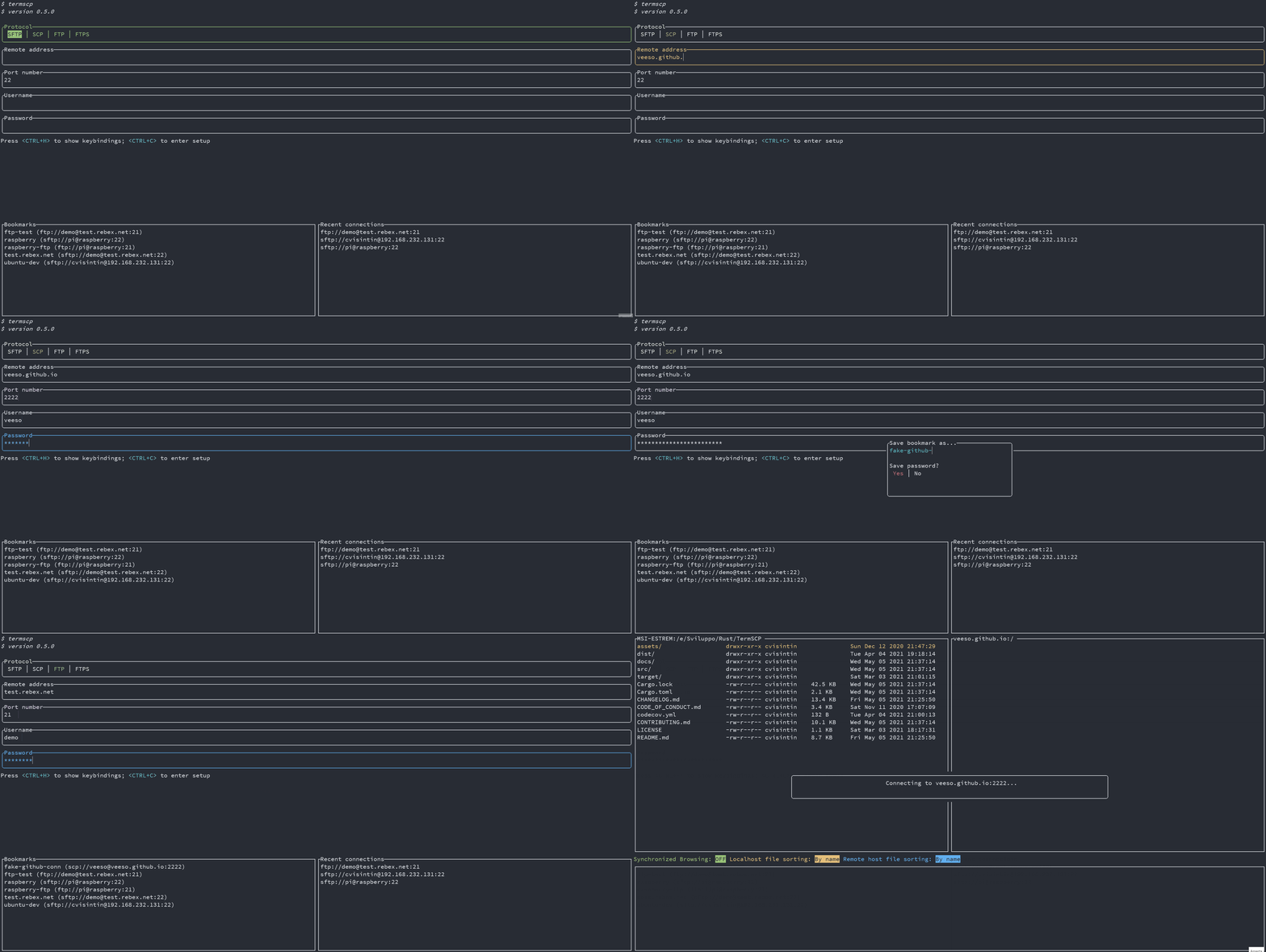
|
||||
|
||||
### Are my passwords Safe 😈
|
||||
|
||||
Sure 😉.
|
||||
As said before, bookmarks are saved in your configuration directory along with passwords. Passwords are obviously not plain text, they are encrypted with **AES-128**. Does this make them safe? Absolutely! (except for BSD and WSL users 😢)
|
||||
|
||||
On **Windows**, **Linux** and **MacOS** the key used to encrypt passwords is stored, if possible (but should be), respectively in the *Windows Vault*, in the *system keyring* and into the *Keychain*. This is actually super-safe and is directly managed by your operating system.
|
||||
|
||||
❗ Please, notice that if you're a Linux user, you'd better to read the [chapter below 👀](#linux-keyring), because the keyring might not be enabled or supported on your system!
|
||||
|
||||
On *BSD* and *WSL*, on the other hand, the key used to encrypt your passwords is stored on your drive (at $HOME/.config/termscp). It is then, still possible to retrieve the key to decrypt passwords. Luckily, the location of the key guarantees your key can't be read by users different from yours, but yeah, I still wouldn't save the password for a server exposed on the internet 😉.
|
||||
|
||||
#### Linux Keyring
|
||||
|
||||
We all love Linux thanks to the freedom it gives to the users. You can basically do anything you want as a Linux user, but this has also some cons, such as the fact that often there is no standard applications across different distributions. And this involves keyring too.
|
||||
This means that on Linux there might be no keyring installed on your system. Unfortunately the library we use to work with the key storage requires a service which exposes `org.freedesktop.secrets` on D-BUS and the worst fact is that there only two services exposing it.
|
||||
|
||||
- ❗ If you use GNOME as desktop environment (e.g. ubuntu users), you should already be fine, since keyring is already provided by `gnome-keyring` and everything should already be working.
|
||||
- ❗ For other desktop environment users there is a nice program you can use to get a keyring which is [KeepassXC](https://keepassxc.org/), which I use on my Manjaro installation (with KDE) and works fine. The only problem is that you have to setup it to be used along with termscp (but it's quite simple). To get started with KeepassXC read more [here](#keepassxc-setup-for-termscp).
|
||||
- ❗ What about you don't want to install any of these services? Well, there's no problem! **termscp will keep working as usual**, but it will save the key in a file, as it usually does for BSD and WSL.
|
||||
|
||||
##### KeepassXC setup for termscp
|
||||
|
||||
Follow these steps in order to setup keepassXC for termscp:
|
||||
|
||||
1. Install KeepassXC
|
||||
2. Go to "tools" > "settings" in toolbar
|
||||
3. Select "Secret service integration" and toggle "Enable KeepassXC freedesktop.org secret service integration"
|
||||
4. Create a database, if you don't have one yet: from toolbar "Database" > "New database"
|
||||
5. From toolbar: "Database" > "Database settings"
|
||||
6. Select "Secret service integration" and toggle "Expose entries under this group"
|
||||
7. Select the group in the list where you want the termscp secret to be kept. Remember that this group might be used by any other application to store secrets via DBUS.
|
||||
|
||||
---
|
||||
|
||||
## Configuration ⚙️
|
||||
|
||||
termscp supports some user defined parameters, which can be defined in the configuration.
|
||||
Underhood termscp has a TOML file and some other directories where all the parameters will be saved, but don't worry, you won't touch any of these files manually, since I made possible to configure termscp from its user interface entirely.
|
||||
|
||||
termscp, like for bookmarks, just requires to have these paths accessible:
|
||||
|
||||
- `$HOME/.config/termscp/` on Linux/BSD
|
||||
- `$HOME/Library/Application Support/termscp` on MacOs
|
||||
- `FOLDERID_RoamingAppData\termscp\` on Windows
|
||||
|
||||
To access configuration, you just have to press `<CTRL+C>` from the home of termscp.
|
||||
|
||||
These parameters can be changed:
|
||||
|
||||
- **Text Editor**: the text editor to use. By default termscp will find the default editor for you; with this option you can force an editor to be used (e.g. `vim`). **Also GUI editors are supported**, unless they `nohup` from the parent process so if you ask: yes, you can use `notepad.exe`, and no: **Visual Studio Code doesn't work**.
|
||||
- **Default Protocol**: the default protocol is the default value for the file transfer protocol to be used in termscp. This applies for the login page and for the address CLI argument.
|
||||
- **Show Hidden Files**: select whether hidden files shall be displayed by default. You will be able to decide whether to show or not hidden files at runtime pressing `A` anyway.
|
||||
- **Check for updates**: if set to `yes`, termscp will fetch the Github API to check if there is a new version of termscp available.
|
||||
- **Prompt when replacing existing files?**: If set to `yes`, termscp will prompt for confirmation you whenever a file transfer would cause an existing file on target host to be replaced.
|
||||
- **Group Dirs**: select whether directories should be groupped or not in file explorers. If `Display first` is selected, directories will be sorted using the configured method but displayed before files, viceversa if `Display last` is selected.
|
||||
- **Remote File formatter syntax**: syntax to display file info for each file in the remote explorer. See [File explorer format](#file-explorer-format)
|
||||
- **Local File formatter syntax**: syntax to display file info for each file in the local explorer. See [File explorer format](#file-explorer-format)
|
||||
- **Enable notifications?**: If set to `Yes`, notifications will be displayed.
|
||||
- **Notifications: minimum transfer size**: if transfer size is greater or equal than the specified value, notifications for transfer will be displayed. The accepted values are in format `{UNSIGNED} B/KB/MB/GB/TB/PB`
|
||||
- **SSH configuration path**: Set SSH configuration file to use when connecting to a SCP/SFTP server. If unset (empty) no file will be used. You can specify a path starting with `~` to indicate the home path (e.g. `~/.ssh/config`)
|
||||
|
||||
### SSH Key Storage 🔐
|
||||
|
||||
Along with configuration, termscp provides also an **essential** feature for **SFTP/SCP clients**: the SSH key storage.
|
||||
|
||||
You can access the SSH key storage, from configuration moving to the `SSH Keys` tab, once there you can:
|
||||
|
||||
- **Add a new key**: just press `<CTRL+N>` and you will be prompted to create a new key. Provide the hostname/ip address and the username associated to the key and finally a text editor will open up: paste the **PRIVATE** ssh key into the text editor, save and quit.
|
||||
- **Remove an existing key**: just press `<DEL>` or `<CTRL+E>` on the key you want to remove, to delete persistently the key from termscp.
|
||||
- **Edit an existing key**: just press `<ENTER>` on the key you want to edit, to change the private key.
|
||||
|
||||
> Q: Wait, my private key is protected with password, can I use it?
|
||||
> A: Of course you can. The password provided for authentication in termscp, is valid both for username/password authentication and for RSA key authentication.
|
||||
|
||||
### File Explorer Format
|
||||
|
||||
It is possible through configuration to define a custom format for the file explorer. This is possible both for local and remote host, so you can have two different syntax in use. These fields, with name `File formatter syntax (local)` and `File formatter syntax (remote)` will define how the file entries will be displayed in the file explorer.
|
||||
The syntax for the formatter is the following `{KEY1}... {KEY2:LENGTH}... {KEY3:LENGTH:EXTRA} {KEYn}...`.
|
||||
Each key in bracket will be replaced with the related attribute, while everything outside brackets will be left unchanged.
|
||||
|
||||
- The key name is mandatory and must be one of the keys below
|
||||
- The length describes the length reserved to display the field. Static attributes doesn't support this (GROUP, PEX, SIZE, USER)
|
||||
- Extra is supported only by some parameters and is an additional options. See keys to check if extra is supported.
|
||||
|
||||
These are the keys supported by the formatter:
|
||||
|
||||
- `ATIME`: Last access time (with default syntax `%b %d %Y %H:%M`); Extra might be provided as the time syntax (e.g. `{ATIME:8:%H:%M}`)
|
||||
- `CTIME`: Creation time (with syntax `%b %d %Y %H:%M`); Extra might be provided as the time syntax (e.g. `{CTIME:8:%H:%M}`)
|
||||
- `GROUP`: Owner group
|
||||
- `MTIME`: Last change time (with syntax `%b %d %Y %H:%M`); Extra might be provided as the time syntax (e.g. `{MTIME:8:%H:%M}`)
|
||||
- `NAME`: File name (Elided if longer than LENGTH)
|
||||
- `PATH`: File absolute path (Elided if longer than LENGHT)
|
||||
- `PEX`: File permissions (UNIX format)
|
||||
- `SIZE`: File size (omitted for directories)
|
||||
- `SYMLINK`: Symlink (if any `-> {FILE_PATH}`)
|
||||
- `USER`: Owner user
|
||||
|
||||
If left empty, the default formatter syntax will be used: `{NAME:24} {PEX} {USER} {SIZE} {MTIME:17:%b %d %Y %H:%M}`
|
||||
|
||||
---
|
||||
|
||||
## Themes 🎨
|
||||
|
||||
Termscp provides you with an awesome feature: the possibility to set the colors for several components in the application.
|
||||
If you want to customize termscp there are two available ways to do so:
|
||||
|
||||
- From the **configuration menu**
|
||||
- Importing a **theme file**
|
||||
|
||||
In order to create your own customization from termscp, all you have to do so is to enter the configuration from the auth activity, pressing `<CTRL+C>` and then `<TAB>` twice. You should have now moved to the `themes` panel.
|
||||
|
||||
Here you can move with `<UP>` and `<DOWN>` to change the style you want to change, as shown in the gif below:
|
||||
|
||||
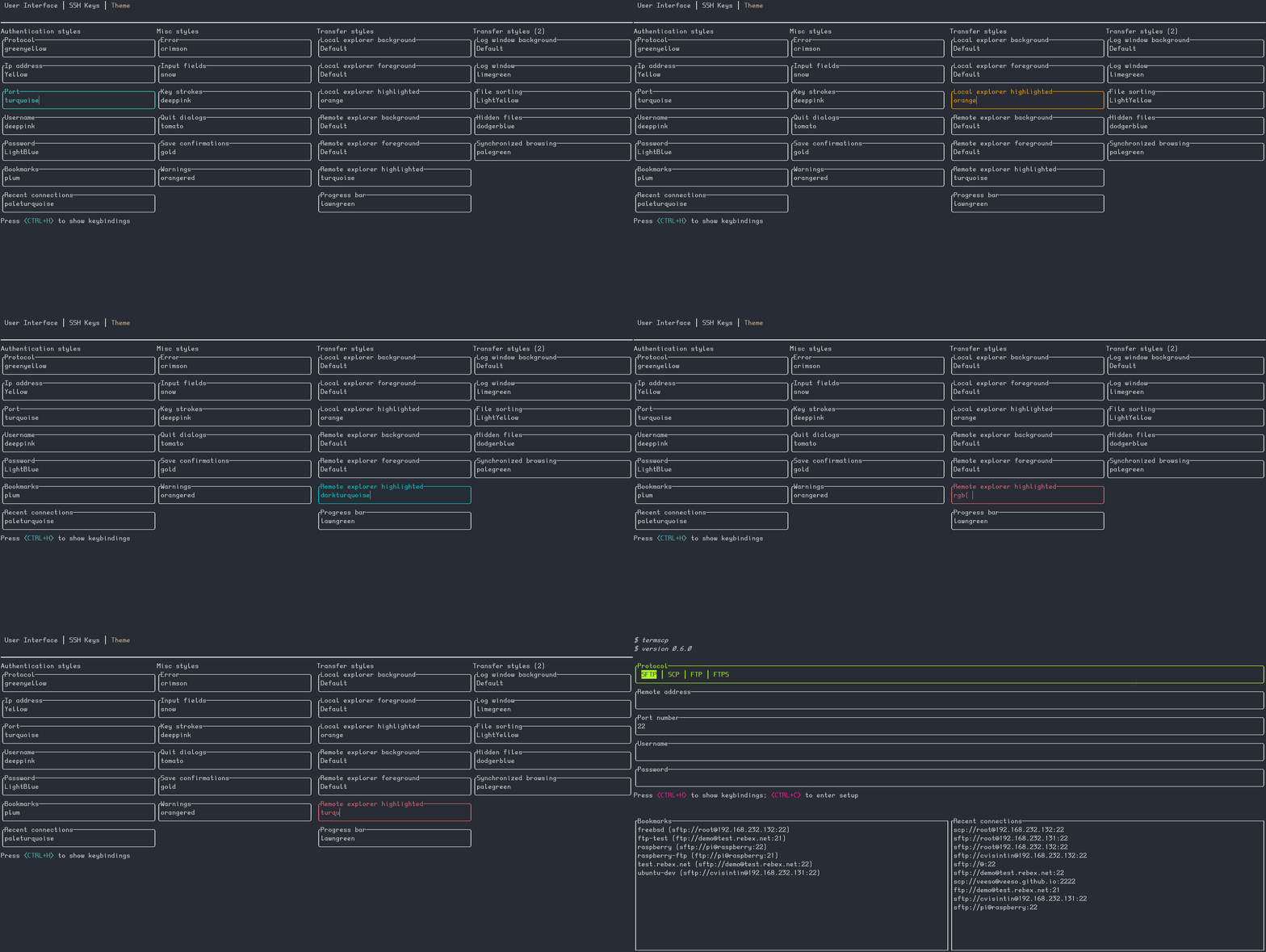
|
||||
|
||||
termscp supports both the traditional explicit hex (`#rrggbb`) and rgb `rgb(r, g, b)` syntax to provide colors, but also **[css colors](https://www.w3schools.com/cssref/css_colors.asp)** (such as `crimson`) are accepted 😉. There is also a special keywork which is `Default`. Default means that the color used will be the default foreground or background color based on the situation (foreground for texts and lines, background for well, guess what).
|
||||
|
||||
As said before, you can also import theme files. You can take inspiration from or directly use one of the themes provided along with termscp, located in the `themes/` directory of this repository and import them running termscp as `termscp -t <theme_file>`. If everything was fine, it should tell you the theme has successfully been imported.
|
||||
|
||||
### My theme won't load 😱
|
||||
|
||||
This is probably due to a recent update which has broken the theme. Whenever I add a new key to themes, the saved theme won't load. To fix this issues there are two really quick-fix solutions:
|
||||
|
||||
1. Reload theme: whenever I release an update I will also patch the "official" themes, so you just have to download it from the repository again and re-import the theme via `-t` option
|
||||
|
||||
```sh
|
||||
termscp -t <theme.toml>
|
||||
```
|
||||
|
||||
2. Fix your theme: If you're using a custom theme, then you can edit via `vim` and add the missing key. The theme is located at `$CONFIG_DIR/termscp/theme.toml` where `$CONFIG_DIR` is:
|
||||
|
||||
- FreeBSD/GNU-Linux: `$HOME/.config/`
|
||||
- MacOs: `$HOME/Library/Application Support`
|
||||
- Windows: `%appdata%`
|
||||
|
||||
❗ Missing keys are reported in the CHANGELOG under `BREAKING CHANGES` for the version you've just installed.
|
||||
|
||||
### Styles 💈
|
||||
|
||||
You can find in the table below, the description for each style field.
|
||||
Please, notice that **styles won't apply to configuration page**, in order to make it always accessible in case you mess everything up
|
||||
|
||||
#### Authentication page
|
||||
|
||||
| Key | Description |
|
||||
|----------------|------------------------------------------|
|
||||
| auth_address | Color of the input field for IP address |
|
||||
| auth_bookmarks | Color of the bookmarks panel |
|
||||
| auth_password | Color of the input field for password |
|
||||
| auth_port | Color of the input field for port number |
|
||||
| auth_protocol | Color of the radio group for protocol |
|
||||
| auth_recents | Color of the recents panel |
|
||||
| auth_username | Color of the input field for username |
|
||||
|
||||
#### Transfer page
|
||||
|
||||
| Key | Description |
|
||||
|--------------------------------------|---------------------------------------------------------------------------|
|
||||
| transfer_local_explorer_background | Background color of localhost explorer |
|
||||
| transfer_local_explorer_foreground | Foreground coloor of localhost explorer |
|
||||
| transfer_local_explorer_highlighted | Border and highlighted color for localhost explorer |
|
||||
| transfer_remote_explorer_background | Background color of remote explorer |
|
||||
| transfer_remote_explorer_foreground | Foreground coloor of remote explorer |
|
||||
| transfer_remote_explorer_highlighted | Border and highlighted color for remote explorer |
|
||||
| transfer_log_background | Background color for log panel |
|
||||
| transfer_log_window | Window color for log panel |
|
||||
| transfer_progress_bar_partial | Partial progress bar color |
|
||||
| transfer_progress_bar_total | Total progress bar color |
|
||||
| transfer_status_hidden | Color for status bar "hidden" label |
|
||||
| transfer_status_sorting | Color for status bar "sorting" label; applies also to file sorting dialog |
|
||||
| transfer_status_sync_browsing | Color for status bar "sync browsing" label |
|
||||
|
||||
#### Misc
|
||||
|
||||
These styles applie to different part of the application.
|
||||
|
||||
| Key | Description |
|
||||
|-------------------|---------------------------------------------|
|
||||
| misc_error_dialog | Color for error messages |
|
||||
| misc_info_dialog | Color for info dialogs |
|
||||
| misc_input_dialog | Color for input dialogs (such as copy file) |
|
||||
| misc_keys | Color of text for key strokes |
|
||||
| misc_quit_dialog | Color for quit dialogs |
|
||||
| misc_save_dialog | Color for save dialogs |
|
||||
| misc_warn_dialog | Color for warn dialogs |
|
||||
|
||||
---
|
||||
|
||||
## Text Editor ✏
|
||||
|
||||
termscp has, as you might have noticed, many features, one of these is the possibility to view and edit text file. It doesn't matter if the file is located on the local host or on the remote host, termscp provides the possibility to open a file in your favourite text editor.
|
||||
In case the file is located on remote host, the file will be first downloaded into your temporary file directory and then, **only** if changes were made to the file, re-uploaded to the remote host. termscp checks if you made changes to the file verifying the last modification time of the file.
|
||||
|
||||
Just a reminder: **you can edit only textual file**; binary files are not supported.
|
||||
|
||||
---
|
||||
|
||||
## Logging 🩺
|
||||
|
||||
termscp writes a log file for each session, which is written at
|
||||
|
||||
- `$HOME/.config/termscp/termscp.log` on Linux/BSD
|
||||
- `$HOME/Library/Application Support/termscp/termscp.log` on MacOs
|
||||
- `FOLDERID_RoamingAppData\termscp\termscp.log` on Windows
|
||||
|
||||
the log won't be rotated, but will just be truncated after each launch of termscp, so if you want to report an issue and you want to attach your log file, keep in mind to save the log file in a safe place before using termscp again.
|
||||
The logging by default reports in *INFO* level, so it is not very verbose.
|
||||
|
||||
If you want to submit an issue, please, if you can, reproduce the issue with the level set to `TRACE`, to do so, launch termscp with
|
||||
the `-D` CLI option.
|
||||
|
||||
I know you might have some questions regarding log files, so I made a kind of a Q/A:
|
||||
|
||||
> I don't want logging, can I turn it off?
|
||||
|
||||
Yes, you can. Just start termscp with `-q or --quiet` option. You can alias termscp to make it persistent. Remember that logging is used to diagnose issues, so since behind every open source project, there should always be this kind of mutual help, keeping log files might be your way to support the project 😉. I don't want you to feel guilty, but just to say.
|
||||
|
||||
> Is logging safe?
|
||||
|
||||
If you're concerned about security, the log file doesn't contain any plain password, so don't worry and exposes the same information the sibling file `bookmarks` reports.
|
||||
|
||||
## Notifications 📫
|
||||
|
||||
Termscp will send Desktop notifications for these kind of events:
|
||||
|
||||
- on **Transfer completed**: The notification will be sent once a transfer has been successfully completed.
|
||||
- ❗ The notification will be displayed only if the transfer total size is at least the specified `Notifications: minimum transfer size` in the configuration.
|
||||
- on **Transfer failed**: The notification will be sent once a transfer has failed due to an error.
|
||||
- ❗ The notification will be displayed only if the transfer total size is at least the specified `Notifications: minimum transfer size` in the configuration.
|
||||
- on **Update available**: Whenever a new version of termscp is available, a notification will be displayed.
|
||||
- on **Update installed**: Whenever a new version of termscp has been installed, a notification will be displayed.
|
||||
- on **Update failed**: Whenever the installation of the update fails, a notification will be displayed.
|
||||
|
||||
❗ If you prefer to keep notifications turned off, you can just enter setup and set `Enable notifications?` to `No` 😉.
|
||||
❗ If you want to change the minimum transfer size to display notifications, you can change the value in the configuration with key `Notifications: minimum transfer size` and set it to whatever suits better for you 🙂.
|
||||
|
||||
## File watcher 🔭
|
||||
|
||||
The file watcher allows you to setup a list of paths to synchronize with the remote hosts.
|
||||
This means that whenever a change on the local file system will be detected on the synchronized path, the change will be automatically reported to the configured remote host path, within 5 seconds.
|
||||
|
||||
You can set as many paths to synchronize as you prefer:
|
||||
|
||||
1. Put the cursor on the local explorer on the directory/file you want to keep synchronized
|
||||
2. Go to the directory you want the changes to be reported to on the remote host
|
||||
3. Press `<T>`
|
||||
4. Answer `<YES>` to the radio popup
|
||||
|
||||
To unwatch, just press `<T>` on the local synchronized path (or to any of its subfolders)
|
||||
OR you can just press `<CTRL+T>` and press `<ENTER>` to the synchronized path you want to unwatch.
|
||||
|
||||
These changes will be reported to the remote host:
|
||||
|
||||
- New files, file changes
|
||||
- File moved/renamed
|
||||
- File removed/unlinked
|
||||
|
||||
> ❗ The watcher works only in one direction (local > remote). It is NOT possible to synchronize automatically the changes from remote to local.
|
||||
@@ -1,35 +0,0 @@
|
||||
# Deploy checklist
|
||||
|
||||
Document audience: project maintainers
|
||||
|
||||
- [Deploy checklist](#deploy-checklist)
|
||||
- [Description](#description)
|
||||
- [Checklist](#checklist)
|
||||
|
||||
## Description
|
||||
|
||||
This document describes the checklist that must be fulfilled before releasing a new version of termscp.
|
||||
|
||||
## Checklist
|
||||
|
||||
- [ ] The latest build didn't report any error in the CI
|
||||
- [ ] All commands when using SFTP work
|
||||
- [ ] All commands when using SCP work
|
||||
- [ ] All commands when using FTP work
|
||||
- [ ] It is possible to load bookmarks
|
||||
- [ ] Recent connections get saved
|
||||
- [ ] Update versions and release date in readme, changelog and cargo.toml
|
||||
- [ ] Build on MacOS
|
||||
- [ ] Update sha256 and version on homebrew repository
|
||||
- [ ] Build on Windows
|
||||
- [ ] Update sha256 and version in chocolatey repository
|
||||
- [ ] Create chocolatey package
|
||||
- [ ] Build Linux version using docker from `dist/build/build.sh`
|
||||
- [ ] Update sha256 and version in AUR files
|
||||
- [ ] Create release and attach the following artifacts
|
||||
- [ ] Deb package
|
||||
- [ ] RPM package
|
||||
- [ ] MacOs tar.gz
|
||||
- [ ] Windows nupkg
|
||||
- [ ] Windows zip
|
||||
- [ ] AUR tar.gz
|
||||
@@ -1,32 +1,33 @@
|
||||
# Developer Manual
|
||||
|
||||
Document audience: developers
|
||||
Revision: 2022-01-05
|
||||
|
||||
- [Developer Manual](#developer-manual)
|
||||
- [How TermSCP works](#how-termscp-works)
|
||||
- [How termscp works](#how-termscp-works)
|
||||
- [Activities](#activities)
|
||||
- [The Context](#the-context)
|
||||
- [Tests fails due to receivers](#tests-fails-due-to-receivers)
|
||||
- [Implementing File Transfers](#implementing-file-transfers)
|
||||
- [Achieving an abstract file transfer client](#achieving-an-abstract-file-transfer-client)
|
||||
|
||||
Welcome to the developer manual for TermSCP. This chapter DOESN'T contain the documentation for TermSCP modules, which can instead be found on Rust Docs at <https://docs.rs/termscp>
|
||||
This chapter describes how TermSCP works and the guide lines to implement stuff such as file transfers and add features to the user interface.
|
||||
Welcome to the developer manual for termscp. This chapter DOESN'T contain the documentation for termscp modules, which can instead be found on Rust Docs at <https://docs.rs/termscp>
|
||||
This chapter describes how termscp works and the guide lines to implement stuff such as file transfers and add features to the user interface.
|
||||
|
||||
## How TermSCP works
|
||||
---
|
||||
|
||||
TermSCP is basically made up of 4 components:
|
||||
## How termscp works
|
||||
|
||||
termscp is basically made up of 3 core modules:
|
||||
|
||||
- the **filetransfer**: the filetransfer takes care of managing the remote file system; it provides function to establish a connection with the remote, operating on the remote server file system (e.g. remove files, make directories, rename files, ...), read files and write files. The FileTransfer, as we'll see later, is actually a trait, and for each protocol a FileTransfer must be implement the trait.
|
||||
- the **host**: the host module provides functions to interact with the local host file system.
|
||||
- the **ui**: this module contains the implementation of the user interface, as we'll see in the next chapter, this is achieved through **activities**.
|
||||
- the **activity_manager**: the activity manager takes care of managing activities, basically it runs the activities of the user interface, and chooses, based on their state, when is the moment to terminate the current activity and which activity to run after the current one.
|
||||
|
||||
In addition to the 4 main components, other have been added through the time:
|
||||
In addition to the 3 core modules, other have been added through the time:
|
||||
|
||||
- **config**: this module provides the configuration schema and serialization methods for it.
|
||||
- **fs**: this modules exposes the FsEntry entity and the explorers. The explorers are structs which hold the content of the current directory; they also they take of filtering files up to your preferences and format file entries based on your configuration.
|
||||
- **system**: the system module provides a way to actually interact with the configuration, the ssh key storage and with the bookmarks.
|
||||
- **utils**: contains the utilities used by pretty much all the project.
|
||||
- **explorer**: this modules exposes the explorer structures, which are used to handle the file explorer in the ui. So, basically they store the current directory model and the view states (e.g. sorting, whether to display hidden files, ...).
|
||||
- **system**: the system module provides a way to interact with the configuration, with the ssh key storage and with the bookmarks.
|
||||
- **utils**: contains the utilities used by pretty much all of the project.
|
||||
|
||||
## Activities
|
||||
|
||||
@@ -35,10 +36,10 @@ I think there are many ways to implement a user interface and I've worked with d
|
||||
|
||||
My approach was this:
|
||||
|
||||
- **Activities on top**: each "page" is an Activity and an `Activity Manager` handles them. I got inspired by Android for this case. I think that's a good way to implement the ui in case like this, where you have different pages, each one with their view, their components and their logics. Activities work with the `Context`, which is a data holder for different data, which are shared and common between the activities.
|
||||
- **Activities display Views**: Each activity can show different views. A view is basically a list of **components**, each one with its properties. The view is a facade to the components and also handles the focus, which is the current active component. You cannot have more than one component active, so you need to handle this; but at the same time you also have to give focus to the previously active component if the current one is destroyed. So basically view takes care of all this stuff.
|
||||
- **Components**: I've decided to write around `tui` in order to re-use widgets. To do so I've implemented the `Component` trait. To implement traits I got inspired by [React](https://reactjs.org/). Each component has its *Properties* and can have its *States*. Then each component must be able to handle input events and to be updated with new properties. Last but not least, each component must provide a method to **render** itself.
|
||||
- **Messages: an Elm based approach**: I was really satisfied with my implementation choices; the problem at this point was solving one of the biggest teardrops I've ever had with this project: **events**. Input events were really a pain to handle, since I had to handle states in the activity to handle which component was enabled etc. To solve this I got inspired by a wonderful language I had recently studied, which is [Elm](https://elm-lang.org/). Basically in Elm you implement your ui using three basic functions: **update**, **view** and **init**. View and init were pretty much already implemented here, but at this point I decided to implement also something like the **elm update function**. I came out with a huge match case to handle events inside a recursive function, which you can basically find in the `update.rs` file inside each activity. This match case handles a tuple, made out of the **component id** and the **input event** received from the view. It matches the two propeties against the input event we want to handle for each component *et voilà*.
|
||||
- **Activities on top**: each "view" is an Activity and an `Activity Manager` handles them. I got inspired by Android for this case. I think that's a good way to implement the ui in case like this, where you have different views, each one with their view, their components and their logic. Activities work with the `Context`, which is a data holder to share data between the activities.
|
||||
- **Activities display Applications**: Each activity can show different **Applications**. An application, contains a **View** is basically a list of **components**, each one with its properties. The view is a facade to the components and also handles the focus, which is the current active component. You cannot have more than one component active, so you need to handle this; but at the same time you also have to give focus to the previously active component if the current one is destroyed. So basically **Application** takes care of all this stuff. If you're interested on how this works, you can read more on <https://github.com/veeso/tui-realm>.
|
||||
- **Components**: I've decided to write around `tui` in order to re-use widgets. To do so I've implemented the `Component` trait. To implement traits I got inspired by [React](https://reactjs.org/). Each component has its *Properties* and can have its *States*. Then each component must be able to handle input events and to be updated with new properties. Last but not least, each component must provide a method to **render** itself. At the beginning this was implemented inside of termscp, but now this has been moved to [tui-realm](https://github.com/veeso/tui-realm).
|
||||
- **Messages: an Elm based approach**: I was really satisfied with my implementation choices; the problem at this point was solving one of the biggest teardrops I've ever had with this project: **events**. Input events were really a pain to handle, since I had to handle states in the activity to handle which component was enabled etc. To solve this I got inspired by a wonderful language I had recently studied, which is [Elm](https://elm-lang.org/). Basically in Elm you implement your ui using three basic functions: **update**, **view** and **init**. View and init were pretty much already implemented here, but at this point I decided to implement also something like the **elm update function**. I came out with a huge match case to handle messages inside a recursive function, which you can basically find in the `update.rs` file inside each activity. This match case handles the messages produced by the components in front of an incoming input event. It matches the messages causing the activity to change its states *et voilà*.
|
||||
|
||||
I've implemented a Trait called `Activity`, which, is a very very reduced version of the Android activity of course.
|
||||
This trait provides only 3 methods:
|
||||
@@ -57,150 +58,16 @@ The context basically holds the following data:
|
||||
- The **File Transfer Params**: the current parameters set to connect to the remote
|
||||
- The **Config Client**: the configuration client is a structure which provides functions to access the user configuration
|
||||
- The **Store**: the store is a key-value storage which can hold any kind of data. This can be used to store states to share between activities or to keep persistence for heavy/slow tasks (such as checking for updates).
|
||||
- The **Input handler**: the input handler is used to read input events from the keyboard
|
||||
- The **Terminal**: the terminal is used to view the tui on the terminal
|
||||
|
||||
---
|
||||
|
||||
## Tests fails due to receivers
|
||||
## Achieving an abstract file transfer client
|
||||
|
||||
Yes. This happens quite often and is related to the fact that I'm using public SSH/SFTP/FTP server to test file receivers and sometimes this server go down for even a day or more. If your tests don't pass due to this, don't worry, submit the pull request and I'll take care of testing them by myself.
|
||||
When I started to implement termscp, in december 2020, the file transfer was at the core of my implementation focus, since, for obvious reasons, it is at the heart of termscp.
|
||||
The first implementation consisted of a `filetransfer` module, which exposed a trait called `FileTransfer`, which exposed different methods to generically interact with the remote file system.
|
||||
This thing has changed over the last year, since different users has asked me to implement a dedicated library to implement this.
|
||||
So in the last quarter of 2021, I dedicated part of my time in implementing an abstract library to work with remote device file systems, and this is how [remotefs](https://github.com/veeso/remotefs-rs) was born.
|
||||
Remotefs provides a `RemoteFs` trait which exposes all of the core file-system functionalities and this has since 0.8.0 version, replaced the `FileTransfer` trait.
|
||||
|
||||
---
|
||||
|
||||
## Implementing File Transfers
|
||||
|
||||
This chapter describes how to implement a file transfer in TermSCP. A file transfer is a module which implements the `FileTransfer` trait. The file transfer provides different modules to interact with a remote server, which in addition to the most obvious methods, used to download and upload files, provides also methods to list files, delete files, create directories etc.
|
||||
|
||||
In the following steps I will describe how to implement a new file transfer, in this case I will be implementing the SCP file transfer (which I'm actually implementing the moment I'm writing this lines).
|
||||
|
||||
1. Add the Scp protocol to the `FileTransferProtocol` enum.
|
||||
|
||||
Move to `src/filetransfer/mod.rs` and add `Scp` to the `FileTransferProtocol` enum
|
||||
|
||||
```rs
|
||||
/// ## FileTransferProtocol
|
||||
///
|
||||
/// This enum defines the different transfer protocol available in TermSCP
|
||||
#[derive(std::cmp::PartialEq, std::fmt::Debug, std::clone::Clone)]
|
||||
pub enum FileTransferProtocol {
|
||||
Sftp,
|
||||
Ftp(bool), // Bool is for secure (true => ftps)
|
||||
Scp, // <-- here
|
||||
}
|
||||
```
|
||||
|
||||
In this case Scp is a "plain" enum type. If you need particular options, follow the implementation of `Ftp` which uses a boolean flag for indicating if using FTPS or FTP.
|
||||
|
||||
2. Implement the FileTransfer struct
|
||||
|
||||
Create a file at `src/filetransfer/mytransfer.rs`
|
||||
|
||||
Declare your file transfer struct
|
||||
|
||||
```rs
|
||||
/// ## ScpFileTransfer
|
||||
///
|
||||
/// SFTP file transfer structure
|
||||
pub struct ScpFileTransfer {
|
||||
session: Option<Session>,
|
||||
sftp: Option<Sftp>,
|
||||
wrkdir: PathBuf,
|
||||
}
|
||||
```
|
||||
|
||||
3. Implement the `FileTransfer` trait for it
|
||||
|
||||
You'll have to implement the following methods for your file transfer:
|
||||
|
||||
- connect: connect to remote server
|
||||
- disconnect: disconnect from remote server
|
||||
- is_connected: returns whether the file transfer is connected to remote
|
||||
- pwd: get working directory
|
||||
- change_dir: change working directory.
|
||||
- list_dir: get files and directories at a certain path
|
||||
- mkdir: make a new directory. Return an error in case the directory already exists
|
||||
- remove: remove a file or a directory. In case the protocol doesn't support recursive removing of directories you MUST implement this through a recursive algorithm
|
||||
- rename: rename a file or a directory
|
||||
- stat: returns detail for a certain path
|
||||
- send_file: opens a stream to a remote path for write purposes (write a remote file)
|
||||
- recv_file: opens a stream to a remote path for read purposes (write a local file)
|
||||
- on_sent: finalize a stream when writing a remote file. In case it's not necessary just return `Ok(())`
|
||||
- on_recv: fianlize a stream when reading a remote file. In case it's not necessary just return `Ok(())`
|
||||
|
||||
In case the protocol you're working on doesn't support any of this features, just return `Err(FileTransferError::new(FileTransferErrorType::UnsupportedFeature))`
|
||||
|
||||
4. Add your transfer to filetransfers:
|
||||
|
||||
Move to `src/filetransfer/mod.rs` and declare your file transfer:
|
||||
|
||||
```rs
|
||||
// Transfers
|
||||
pub mod ftp_transfer;
|
||||
pub mod scp_transfer; // <-- here
|
||||
pub mod sftp_transfer;
|
||||
```
|
||||
|
||||
5. Handle FileTransfer in `FileTransferActivity::new`
|
||||
|
||||
Move to `src/ui/activities/filetransfer_activity/mod.rs` and add the new protocol to the client match
|
||||
|
||||
```rs
|
||||
client: match protocol {
|
||||
FileTransferProtocol::Sftp => Box::new(SftpFileTransfer::new()),
|
||||
FileTransferProtocol::Ftp(ftps) => Box::new(FtpFileTransfer::new(ftps)),
|
||||
FileTransferProtocol::Scp => Box::new(ScpFileTransfer::new()), // <--- here
|
||||
},
|
||||
```
|
||||
|
||||
6. Handle right/left input events in `AuthActivity`:
|
||||
|
||||
Move to `src/ui/activities/auth_activity.rs` and handle the new protocol in `handle_input_event_mode_text` for `KeyCode::Left` and `KeyCode::Right`.
|
||||
Consider that the order they "rotate" must match the way they will be drawned in the interface.
|
||||
For newer protocols, please put them always at the end of the list. In this list I won't, because Scp is more important than Ftp imo.
|
||||
|
||||
```rs
|
||||
KeyCode::Left => {
|
||||
// If current field is Protocol handle event... (move element left)
|
||||
if self.selected_field == InputField::Protocol {
|
||||
self.protocol = match self.protocol {
|
||||
FileTransferProtocol::Sftp => FileTransferProtocol::Ftp(true), // End of list (wrap)
|
||||
FileTransferProtocol::Scp => FileTransferProtocol::Sftp,
|
||||
FileTransferProtocol::Ftp(ftps) => match ftps {
|
||||
false => FileTransferProtocol::Scp,
|
||||
true => FileTransferProtocol::Ftp(false),
|
||||
}
|
||||
};
|
||||
}
|
||||
}
|
||||
KeyCode::Right => {
|
||||
// If current field is Protocol handle event... ( move element right )
|
||||
if self.selected_field == InputField::Protocol {
|
||||
self.protocol = match self.protocol {
|
||||
FileTransferProtocol::Sftp => FileTransferProtocol::Scp,
|
||||
FileTransferProtocol::Scp => FileTransferProtocol::Ftp(false),
|
||||
FileTransferProtocol::Ftp(ftps) => match ftps {
|
||||
false => FileTransferProtocol::Ftp(true),
|
||||
true => FileTransferProtocol::Sftp, // End of list (wrap)
|
||||
}
|
||||
};
|
||||
}
|
||||
}
|
||||
```
|
||||
|
||||
7. Add your new file transfer to the protocol input field
|
||||
|
||||
Move to `AuthActivity::draw_protocol_select` method.
|
||||
Here add your new protocol to the `Spans` vector and to the match case, which chooses which element to highlight.
|
||||
|
||||
```rs
|
||||
let protocols: Vec<Spans> = vec![Spans::from("SFTP"), Spans::from("SCP"), Spans::from("FTP"), Spans::from("FTPS")];
|
||||
let index: usize = match self.protocol {
|
||||
FileTransferProtocol::Sftp => 0,
|
||||
FileTransferProtocol::Scp => 1,
|
||||
FileTransferProtocol::Ftp(ftps) => match ftps {
|
||||
false => 2,
|
||||
true => 3,
|
||||
}
|
||||
};
|
||||
```
|
||||
The file transfer module, still exists though, but its only task is to create a builder from the "file transfer parameters" into the `RemoteFs` client implementation.
|
||||
|
||||
288
docs/es/README.md
Normal file
@@ -0,0 +1,288 @@
|
||||
# termscp
|
||||
|
||||
<p align="center">
|
||||
<img src="/assets/images/termscp.svg" width="256" height="256" />
|
||||
</p>
|
||||
|
||||
<p align="center">~ Una transferencia de archivos de terminal rica en funciones ~</p>
|
||||
<p align="center">
|
||||
<a href="https://veeso.github.io/termscp/" target="_blank">Sitio Web</a>
|
||||
·
|
||||
<a href="https://veeso.github.io/termscp/#get-started" target="_blank">Instalación</a>
|
||||
·
|
||||
<a href="https://veeso.github.io/termscp/#user-manual" target="_blank">Manual de usuario</a>
|
||||
</p>
|
||||
|
||||
<p align="center">
|
||||
<a href="https://github.com/veeso/termscp"
|
||||
><img
|
||||
height="20"
|
||||
src="/assets/images/flags/us.png"
|
||||
alt="English"
|
||||
/></a>
|
||||
|
||||
<a
|
||||
href="/docs/de/README.md"
|
||||
><img
|
||||
height="20"
|
||||
src="/assets/images/flags/de.png"
|
||||
alt="Deutsch"
|
||||
/></a>
|
||||
|
||||
<a
|
||||
href="/docs/es/README.md"
|
||||
><img
|
||||
height="20"
|
||||
src="/assets/images/flags/es.png"
|
||||
alt="Español"
|
||||
/></a>
|
||||
|
||||
<a
|
||||
href="/docs/fr/README.md"
|
||||
><img
|
||||
height="20"
|
||||
src="/assets/images/flags/fr.png"
|
||||
alt="Français"
|
||||
/></a>
|
||||
|
||||
<a
|
||||
href="/docs/it/README.md"
|
||||
><img
|
||||
height="20"
|
||||
src="/assets/images/flags/it.png"
|
||||
alt="Italiano"
|
||||
/></a>
|
||||
|
||||
<a
|
||||
href="/docs/zh-CN/README.md"
|
||||
><img
|
||||
height="20"
|
||||
src="/assets/images/flags/cn.png"
|
||||
alt="简体中文"
|
||||
/></a>
|
||||
</p>
|
||||
|
||||
<p align="center">Desarrollado por <a href="https://veeso.github.io/" target="_blank">@veeso</a></p>
|
||||
<p align="center">Versión actual: 0.11.0 (20/02/2023)</p>
|
||||
|
||||
<p align="center">
|
||||
<a href="https://opensource.org/licenses/MIT"
|
||||
><img
|
||||
src="https://img.shields.io/badge/License-MIT-teal.svg"
|
||||
alt="License-MIT"
|
||||
/></a>
|
||||
<a href="https://github.com/veeso/termscp/stargazers"
|
||||
><img
|
||||
src="https://img.shields.io/github/stars/veeso/termscp.svg"
|
||||
alt="Repo stars"
|
||||
/></a>
|
||||
<a href="https://crates.io/crates/termscp"
|
||||
><img
|
||||
src="https://img.shields.io/crates/d/termscp.svg"
|
||||
alt="Downloads counter"
|
||||
/></a>
|
||||
<a href="https://crates.io/crates/termscp"
|
||||
><img
|
||||
src="https://img.shields.io/crates/v/termscp.svg"
|
||||
alt="Latest version"
|
||||
/></a>
|
||||
<a href="https://ko-fi.com/veeso">
|
||||
<img
|
||||
src="https://img.shields.io/badge/donate-ko--fi-red"
|
||||
alt="Ko-fi"
|
||||
/></a>
|
||||
</p>
|
||||
<p align="center">
|
||||
<a href="https://github.com/veeso/termscp/actions"
|
||||
><img
|
||||
src="https://github.com/veeso/termscp/workflows/Linux/badge.svg"
|
||||
alt="Linux CI"
|
||||
/></a>
|
||||
<a href="https://github.com/veeso/termscp/actions"
|
||||
><img
|
||||
src="https://github.com/veeso/termscp/workflows/MacOS/badge.svg"
|
||||
alt="MacOS CI"
|
||||
/></a>
|
||||
<a href="https://github.com/veeso/termscp/actions"
|
||||
><img
|
||||
src="https://github.com/veeso/termscp/workflows/Windows/badge.svg"
|
||||
alt="Windows CI"
|
||||
/></a>
|
||||
<a href="https://github.com/veeso/termscp/actions"
|
||||
><img
|
||||
src="https://github.com/veeso/termscp/workflows/FreeBSD/badge.svg"
|
||||
alt="FreeBSD CI"
|
||||
/></a>
|
||||
<a href="https://coveralls.io/github/veeso/termscp"
|
||||
><img
|
||||
src="https://coveralls.io/repos/github/veeso/termscp/badge.svg"
|
||||
alt="Coveralls"
|
||||
/></a>
|
||||
</p>
|
||||
|
||||
---
|
||||
|
||||
## Sobre termscp 🖥
|
||||
|
||||
Termscp es un explorador y transferencia de archivos de terminal rico en funciones, con apoyo para SCP/SFTP/FTP/S3. Básicamente, es una utilidad de terminal con una TUI para conectarse a un servidor remoto para recuperar y cargar archivos e interactuar con el sistema de archivos local. Es compatible con **Linux**, **MacOS**, **FreeBSD** y **Windows**.
|
||||
|
||||

|
||||
|
||||
---
|
||||
|
||||
## Características 🎁
|
||||
|
||||
- 📁 Diferentes protocolos de comunicación
|
||||
- **SFTP**
|
||||
- **SCP**
|
||||
- **FTP** y **FTPS**
|
||||
- **S3**
|
||||
- 🖥 Explore y opere en el sistema de archivos de la máquina local y remota con una interfaz de usuario práctica
|
||||
- Cree, elimine, cambie el nombre, busque, vea y edite archivos
|
||||
- ⭐ Conéctese a sus hosts favoritos y conexiones recientes
|
||||
- 📝 Ver y editar archivos con sus aplicaciones favoritas
|
||||
- 💁 Autenticación SFTP / SCP con claves SSH y nombre de usuario / contraseña
|
||||
- 🐧 compatible con Linux, MacOS, FreeBSD y Windows
|
||||
- 🎨 Haz lo tuyo!
|
||||
- Temas
|
||||
- Formato de explorador de archivos personalizado
|
||||
- Editor de texto personalizable
|
||||
- Clasificación de archivos personalizable
|
||||
- y muchos otros parámetros ...
|
||||
- 📫 Reciba una notificación cuando se haya transferido un archivo grande
|
||||
- 🔭 Mantenga los cambios de archivos sincronizados con el host remoto
|
||||
- 🔐 Guarde su contraseña en el almacén de claves de su sistema operativo
|
||||
- 🦀 Rust-powered
|
||||
- 👀 Desarrollado sin perder de vista el rendimiento
|
||||
- 🦄 Actualizaciones frecuentes
|
||||
|
||||
---
|
||||
|
||||
## Para iniciar 🚀
|
||||
|
||||
Si estás considerando instalar termscp, ¡quiero darte las gracias 💜! ¡Espero que disfrutes de termscp!
|
||||
Si desea contribuir a este proyecto, no olvide consultar nuestra [guía de contribución](../../CONTRIBUTING.md).
|
||||
|
||||
Si tu eres un usuario de Linux, FreeBSD o MacOS, este sencillo script de shell instalará termscp en tu sistema con un solo comando:
|
||||
|
||||
```sh
|
||||
curl --proto '=https' --tlsv1.2 -sSLf "https://git.io/JBhDb" | sh
|
||||
```
|
||||
|
||||
mientras que si eres un usuario de Windows, puedes instalar termscp con [Chocolatey](https://chocolatey.org/):
|
||||
|
||||
```sh
|
||||
choco install termscp
|
||||
```
|
||||
|
||||
Para obtener más información u otras plataformas, visite [veeso.github.io](https://veeso.github.io/termscp/#get-started) para ver todos los métodos de instalación.
|
||||
|
||||
⚠️ Si estás buscando cómo actualizar termscp, simplemente ejecute termscp desde CLI con:: `(sudo) termscp --update` ⚠️
|
||||
|
||||
### Requisitos ❗
|
||||
|
||||
- Usuarios **Linux**:
|
||||
- libssh
|
||||
- libdbus-1
|
||||
- pkg-config
|
||||
- Usuarios **FreeBSD**:
|
||||
- libssh
|
||||
- dbus
|
||||
- pkgconf
|
||||
|
||||
### Requisitos opcionales ✔️
|
||||
|
||||
These requirements are not forced required to run termscp, but to enjoy all of its features
|
||||
|
||||
- Usuarios **Linux/FreeBSD**:
|
||||
- Para **abrir** archivos con `V` (al menos uno de estos)
|
||||
- *xdg-open*
|
||||
- *gio*
|
||||
- *gnome-open*
|
||||
- *kde-open*
|
||||
- Usuarios **Linux**:
|
||||
- Un keyring manager: leer más en el [manual de usuario](man.md#linux-keyring)
|
||||
- Usuarios **WSL**
|
||||
- Para **abrir** archivos con `V` (al menos uno de estos)
|
||||
- [wslu](https://github.com/wslutilities/wslu)
|
||||
|
||||
---
|
||||
|
||||
## Apoyame ☕
|
||||
|
||||
Si te gusta termscp y te encantaría que el proyecto crezca y mejore, considera una pequeña donación para apoyarme 🥳
|
||||
|
||||
Puedes hacer una donación con una de estas plataformas:
|
||||
|
||||
[](https://ko-fi.com/veeso)
|
||||
[](https://www.paypal.me/chrisintin)
|
||||
|
||||
---
|
||||
|
||||
## Manual de usuario y documentación 📚
|
||||
|
||||
El manual del usuario se puede encontrar en el [sitio web de termscp](https://veeso.github.io/termscp/#user-manual) o en [Github](man.md).
|
||||
|
||||
---
|
||||
|
||||
## Contribuir y problemas 🤝🏻
|
||||
|
||||
¡Las contribuciones, los informes de errores, las nuevas funciones y las preguntas son bienvenidas! 😉
|
||||
Si tiene alguna pregunta o inquietud, o si desea sugerir una nueva función, o simplemente desea mejorar termscp, no dude en abrir un problema o un PR.
|
||||
|
||||
Sigue [nuestras pautas de contribución](../../CONTRIBUTING.md)
|
||||
|
||||
---
|
||||
|
||||
## Changelog ⏳
|
||||
|
||||
Ver registro de cambios de termscp [AQUÍ](../../CHANGELOG.md)
|
||||
|
||||
---
|
||||
|
||||
## Powered by 💪
|
||||
|
||||
termscp funciona con estos increíbles proyectos:
|
||||
|
||||
- [bytesize](https://github.com/hyunsik/bytesize)
|
||||
- [crossterm](https://github.com/crossterm-rs/crossterm)
|
||||
- [edit](https://github.com/milkey-mouse/edit)
|
||||
- [keyring-rs](https://github.com/hwchen/keyring-rs)
|
||||
- [open-rs](https://github.com/Byron/open-rs)
|
||||
- [rpassword](https://github.com/conradkleinespel/rpassword)
|
||||
- [rust-s3](https://github.com/durch/rust-s3)
|
||||
- [self_update](https://github.com/jaemk/self_update)
|
||||
- [ssh2-rs](https://github.com/alexcrichton/ssh2-rs)
|
||||
- [suppaftp](https://github.com/veeso/suppaftp)
|
||||
- [tui-rs](https://github.com/fdehau/tui-rs)
|
||||
- [tui-realm](https://github.com/veeso/tui-realm)
|
||||
- [whoami](https://github.com/libcala/whoami)
|
||||
- [wildmatch](https://github.com/becheran/wildmatch)
|
||||
|
||||
---
|
||||
|
||||
## Galería 🎬
|
||||
|
||||
> Termscp Home
|
||||
|
||||

|
||||
|
||||
> Bookmarks
|
||||
|
||||

|
||||
|
||||
> Setup
|
||||
|
||||

|
||||
|
||||
> Text editor
|
||||
|
||||

|
||||
|
||||
---
|
||||
|
||||
## Licencia 📃
|
||||
|
||||
termscp tiene la licencia MIT.
|
||||
|
||||
Puede leer la licencia completa [AQUÍ](../../LICENSE)
|
||||
540
docs/es/man.md
Normal file
@@ -0,0 +1,540 @@
|
||||
# User manual 🎓
|
||||
|
||||
- [User manual 🎓](#user-manual-)
|
||||
- [Uso ❓](#uso-)
|
||||
- [Argumento dirección 🌎](#argumento-dirección-)
|
||||
- [Argumento dirección por AWS S3](#argumento-dirección-por-aws-s3)
|
||||
- [Cómo se puede proporcionar la contraseña 🔐](#cómo-se-puede-proporcionar-la-contraseña-)
|
||||
- [S3 parámetros de conexión](#s3-parámetros-de-conexión)
|
||||
- [Credenciales de S3 🦊](#credenciales-de-s3-)
|
||||
- [Explorador de archivos 📂](#explorador-de-archivos-)
|
||||
- [Keybindings ⌨](#keybindings-)
|
||||
- [Trabaja en varios archivos 🥷](#trabaja-en-varios-archivos-)
|
||||
- [Navegación sincronizada ⏲️](#navegación-sincronizada-️)
|
||||
- [Abierta y abierta con 🚪](#abierta-y-abierta-con-)
|
||||
- [Marcadores ⭐](#marcadores-)
|
||||
- [¿Son seguras mis contraseñas? 😈](#son-seguras-mis-contraseñas-)
|
||||
- [Linux Keyring](#linux-keyring)
|
||||
- [KeepassXC setup por termscp](#keepassxc-setup-por-termscp)
|
||||
- [Configuración ⚙️](#configuración--️)
|
||||
- [SSH Key Storage 🔐](#ssh-key-storage-)
|
||||
- [Formato del explorador de archivos](#formato-del-explorador-de-archivos)
|
||||
- [Temas 🎨](#temas-)
|
||||
- [Mi tema no se carga 😱](#mi-tema-no-se-carga-)
|
||||
- [Estilos 💈](#estilos-)
|
||||
- [Authentication page](#authentication-page)
|
||||
- [Transfer page](#transfer-page)
|
||||
- [Misc](#misc)
|
||||
- [Text Editor ✏](#text-editor-)
|
||||
- [Logging 🩺](#logging-)
|
||||
- [Notificaciones 📫](#notificaciones-)
|
||||
- [Observador de archivos 🔭](#observador-de-archivos-)
|
||||
|
||||
> ❗ Este documento ha sido traducido con Google Translator (y luego lo he revisado a grandes rasgos, pero no puedo hablar el idioma muy bien). Si habla l'idioma, abra un [issue](https://github.com/veeso/termscp/issues/new/choose) utilizando la label COPY o abra un PR 🙏
|
||||
|
||||
## Uso ❓
|
||||
|
||||
termscp se puede iniciar con las siguientes opciones:
|
||||
|
||||
`termscp [options]... [protocol://user@address:port:wrkdir] [local-wrkdir]`
|
||||
|
||||
OR
|
||||
|
||||
`termscp [options]... -b [bookmark-name] [local-wrkdir]`
|
||||
|
||||
- `-P, --password <password>` si se proporciona la dirección, la contraseña será este argumento
|
||||
- `-b, --address-as-bookmark` resuelve el argumento de la dirección como un nombre de marcador
|
||||
- `-c, --config` Abrir termscp comenzando desde la página de configuración
|
||||
- `-q, --quiet` Deshabilitar el registro
|
||||
- `-t, --theme <path>` Importar tema especificado
|
||||
- `-u, --update` Actualizar termscp a la última versión
|
||||
- `-v, --version` Imprimir información de la versión
|
||||
- `-h, --help` Imprimir página de ayuda
|
||||
|
||||
termscp se puede iniciar en dos modos diferentes, si no se proporcionan argumentos adicionales, termscp mostrará el formulario de autenticación, donde el usuario podrá proporcionar los parámetros necesarios para conectarse al par remoto.
|
||||
|
||||
Alternativamente, el usuario puede proporcionar una dirección como argumento para omitir el formulario de autenticación e iniciar directamente la conexión al servidor remoto.
|
||||
|
||||
Si se proporciona un argumento de dirección, también puede proporcionar el directorio de inicio de trabajo para el host local
|
||||
|
||||
### Argumento dirección 🌎
|
||||
|
||||
El argumento dirección tiene la siguiente sintaxis:
|
||||
|
||||
```txt
|
||||
[protocol://][username@]<address>[:port][:wrkdir]
|
||||
```
|
||||
|
||||
Veamos algún ejemplo de esta sintaxis en particular, ya que es muy cómoda y probablemente usarás esta en lugar de la otra ...
|
||||
|
||||
- Conéctese usando el protocolo predeterminado (*definido en la configuración*) a 192.168.1.31, el puerto, si no se proporciona, es el predeterminado para el protocolo seleccionado (en este caso, depende de su configuración); nombre de usuario es el nombre del usuario actual
|
||||
|
||||
```sh
|
||||
termscp 192.168.1.31
|
||||
```
|
||||
|
||||
- Conéctese usando el protocolo predeterminado (*definido en la configuración*) a 192.168.1.31; el nombre de usuario es `root`
|
||||
|
||||
```sh
|
||||
termscp root@192.168.1.31
|
||||
```
|
||||
|
||||
- Conéctese usando scp a 192.168.1.31, el puerto es 4022; nombre de usuario es `omar`
|
||||
|
||||
```sh
|
||||
termscp scp://omar@192.168.1.31:4022
|
||||
```
|
||||
|
||||
- Conéctese usando scp a 192.168.1.31, el puerto es 4022; El nombre de usuario es `omar`. Comenzará en el directorio `/ tmp`
|
||||
|
||||
```sh
|
||||
termscp scp://omar@192.168.1.31:4022:/tmp
|
||||
```
|
||||
|
||||
#### Argumento dirección por AWS S3
|
||||
|
||||
Aws S3 tiene una sintaxis diferente para el argumento de la dirección CLI, por razones obvias, pero logré mantenerlo lo más similar posible al argumento de la dirección genérica:
|
||||
|
||||
```txt
|
||||
s3://<bucket-name>@<region>[:profile][:/wrkdir]
|
||||
```
|
||||
|
||||
por ejemplo
|
||||
|
||||
```txt
|
||||
s3://buckethead@eu-central-1:default:/assets
|
||||
```
|
||||
|
||||
#### Cómo se puede proporcionar la contraseña 🔐
|
||||
|
||||
Probablemente haya notado que, al proporcionar la dirección como argumento, no hay forma de proporcionar la contraseña.
|
||||
La contraseña se puede proporcionar básicamente a través de 3 formas cuando se proporciona un argumento de dirección:
|
||||
|
||||
- `-P, --password` opción: simplemente use esta opción CLI proporcionando la contraseña. No recomiendo este método, ya que es muy inseguro (ya que puede mantener la contraseña en el historial de shell)
|
||||
- Con `sshpass`: puede proporcionar la contraseña a través de `sshpass`, p. ej. `sshpass -f ~/.ssh/topsecret.key termscp cvisintin@192.168.1.31`
|
||||
- Se te pedirá que ingreses: si no utilizas ninguno de los métodos anteriores, se te pedirá la contraseña, como ocurre con las herramientas más clásicas como `scp`, `ssh`, etc.
|
||||
|
||||
---
|
||||
|
||||
## S3 parámetros de conexión
|
||||
|
||||
Estos parámetros son necesarios para conectarse a aws s3 y otros servidores compatibles con s3:
|
||||
|
||||
- AWS S3:
|
||||
- **bucket name**
|
||||
- **region**
|
||||
- *profile* (si no se proporciona: "default")
|
||||
- *access key* (A menos que sea pública)
|
||||
- *secret access key* (A menos que sea pública)
|
||||
- *security token* (si es requerido)
|
||||
- *session token* (si es requerido)
|
||||
- new path style: **NO**
|
||||
- Otros puntos finales de S3:
|
||||
- **bucket name**
|
||||
- **endpoint**
|
||||
- *access key* (A menos que sea pública)
|
||||
- *secret access key* (A menos que sea pública)
|
||||
- new path style: **YES**
|
||||
|
||||
### Credenciales de S3 🦊
|
||||
|
||||
Para conectarse a un bucket de Aws S3, obviamente debe proporcionar algunas credenciales.
|
||||
Básicamente, hay tres formas de lograr esto.
|
||||
Entonces, estas son las formas en que puede proporcionar las credenciales para s3:
|
||||
|
||||
1. Authentication form:
|
||||
1. Puede proporcionar la `access_key` (debería ser obligatoria), la `secret_access_kedy` (debería ser obligatoria), el `security_token` y el `session_token`
|
||||
2. Si guarda la conexión s3 como marcador, estas credenciales se guardarán como una cadena AES-256 / BASE64 cifrada en su archivo de marcadores (excepto el token de seguridad y el token de sesión, que deben ser credenciales temporales).
|
||||
2. Use su archivo de credenciales: simplemente configure la cli de AWS a través de `aws configure` y sus credenciales ya deberían estar ubicadas en`~/.aws/credentials`. En caso de que esté usando un perfil diferente al "predeterminado", simplemente proporciónelo en el campo de perfil en el formulario de autenticación.
|
||||
3. **Variables de entorno**: siempre puede proporcionar sus credenciales como variables de entorno. Tenga en cuenta que estas credenciales **siempre anularán** las credenciales ubicadas en el archivo `credentials`. Vea cómo configurar el entorno a continuación:
|
||||
|
||||
Estos siempre deben ser obligatorios:
|
||||
|
||||
- `AWS_ACCESS_KEY_ID`: aws access key ID (generalmente comienza con `AKIA...`)
|
||||
- `AWS_SECRET_ACCESS_KEY`: la secret access key
|
||||
|
||||
En caso de que haya configurado una seguridad más fuerte, *puede* requerir estos también:
|
||||
|
||||
- `AWS_SECURITY_TOKEN`: security token
|
||||
- `AWS_SESSION_TOKEN`: session token
|
||||
|
||||
⚠️ Sus credenciales están seguras: ¡termscp no manipulará estos valores directamente! Sus credenciales son consumidas directamente por la caja **s3**.
|
||||
En caso de que tenga alguna inquietud con respecto a la seguridad, comuníquese con el autor de la biblioteca en [Github](https://github.com/durch/rust-s3) ⚠️
|
||||
|
||||
---
|
||||
|
||||
## Explorador de archivos 📂
|
||||
|
||||
Cuando nos referimos a exploradores de archivos en termscp, nos referimos a los paneles que puede ver después de establecer una conexión con el control remoto.
|
||||
Estos paneles son básicamente 3:
|
||||
|
||||
- Panel del explorador local: se muestra a la izquierda de la pantalla y muestra las entradas del directorio actual para localhost
|
||||
- Panel del explorador remoto: se muestra a la derecha de la pantalla y muestra las entradas del directorio actual para el host remoto.
|
||||
- Panel de resultados de búsqueda: dependiendo de dónde esté buscando archivos (local / remoto), reemplazará el panel local o del explorador. Este panel muestra las entradas que coinciden con la consulta de búsqueda que realizó.
|
||||
|
||||
Para cambiar de panel, debe escribir `<LEFT>` para mover el panel del explorador remoto y `<RIGHT>` para volver al panel del explorador local. Siempre que se encuentre en el panel de resultados de búsqueda, debe presionar `<ESC>` para salir del panel y volver al panel anterior.
|
||||
|
||||
### Keybindings ⌨
|
||||
|
||||
| Key | Command | Reminder |
|
||||
|---------------|----------------------------------------------------------------------------|-------------|
|
||||
| `<ESC>` | Desconecte; volver a la página de autenticación | |
|
||||
| `<BACKSPACE>` | Ir al directorio anterior en la pila | |
|
||||
| `<TAB>` | Cambiar pestaña del explorador | |
|
||||
| `<RIGHT>` | Mover a la pestaña del explorador remoto | |
|
||||
| `<LEFT>` | Mover a la pestaña del explorador local | |
|
||||
| `<UP>` | Subir en la lista seleccionada | |
|
||||
| `<DOWN>` | Bajar en la lista seleccionada | |
|
||||
| `<PGUP>` | Subir 8 filas en la lista seleccionada | |
|
||||
| `<PGDOWN>` | Bajar 8 filas en la lista seleccionada | |
|
||||
| `<ENTER>` | Entrar directorio | |
|
||||
| `<SPACE>` | Cargar / descargar el archivo seleccionado | |
|
||||
| `<BACKTAB>` | Cambiar entre la pestaña de registro y el explorador | |
|
||||
| `<A>` | Alternar archivos ocultos | All |
|
||||
| `<B>` | Ordenar archivos por | Bubblesort? |
|
||||
| `<C|F5>` | Copiar archivo / directorio | Copy |
|
||||
| `<D|F7>` | Hacer directorio | Directory |
|
||||
| `<E|F8|DEL>` | Eliminar archivo | Erase |
|
||||
| `<F>` | Búsqueda de archivos | Find |
|
||||
| `<G>` | Ir a la ruta proporcionada | Go to |
|
||||
| `<H|F1>` | Mostrar ayuda | Help |
|
||||
| `<I>` | Mostrar información sobre el archivo | Info |
|
||||
| `<K>` | Crear un enlace simbólico que apunte a la entrada seleccionada actualmente | symlinK |
|
||||
| `<L>` | Recargar contenido del directorio / Borrar selección | List |
|
||||
| `<M>` | Seleccione un archivo | Mark |
|
||||
| `<N>` | Crear un nuevo archivo con el nombre proporcionado | New |
|
||||
| `<O|F4>` | Editar archivo | Open |
|
||||
| `<P>` | Open log panel | Panel |
|
||||
| `<Q|F10>` | Salir de termscp | Quit |
|
||||
| `<R|F6>` | Renombrar archivo | Rename |
|
||||
| `<S|F2>` | Guardar archivo como... | Save |
|
||||
| `<T>` | Sincronizar los cambios en la ruta seleccionada con el control remoto | Track |
|
||||
| `<U>` | Ir al directorio principal | Upper |
|
||||
| `<V|F3>` | Abrir archivo con el programa predeterminado | View |
|
||||
| `<W>` | Abrir archivo con el programa proporcionado | With |
|
||||
| `<X>` | Ejecutar un comando | eXecute |
|
||||
| `<Y>` | Alternar navegación sincronizada | sYnc |
|
||||
| `<CTRL+A>` | Seleccionar todos los archivos | |
|
||||
| `<CTRL+C>` | Abortar el proceso de transferencia de archivos | |
|
||||
| `<CTRL+T>` | Mostrar todas las rutas sincronizadas | Track |
|
||||
|
||||
### Trabaja en varios archivos 🥷
|
||||
|
||||
Puede optar por trabajar en varios archivos, seleccionándolos presionando `<M>`, para seleccionar el archivo actual, o presionando `<CTRL + A>`, que seleccionará todos los archivos en el directorio de trabajo.
|
||||
Una vez que un archivo está marcado para su selección, se mostrará con un `*` a la izquierda.
|
||||
Al trabajar en la selección, solo se procesará el archivo seleccionado para las acciones, mientras que el elemento resaltado actual se ignorará.
|
||||
También es posible trabajar en varios archivos desde el panel de resultados de búsqueda.
|
||||
Todas las acciones están disponibles cuando se trabaja con varios archivos, pero tenga en cuenta que algunas acciones funcionan de forma ligeramente diferente. Vamos a sumergirnos en:
|
||||
|
||||
- *Copy*: cada vez que copie un archivo, se le pedirá que inserte el nombre de destino. Cuando se trabaja con varios archivos, este nombre se refiere al directorio de destino donde se copiarán todos estos archivos.
|
||||
- *Rename*: igual que copiar, pero moverá archivos allí.
|
||||
- *Save as*: igual que copiar, pero los escribirá allí.
|
||||
|
||||
### Navegación sincronizada ⏲️
|
||||
|
||||
Cuando está habilitada, la navegación sincronizada le permitirá sincronizar la navegación entre los dos paneles.
|
||||
Esto significa que siempre que cambie el directorio de trabajo en un panel, la misma acción se reproducirá en el otro panel. Si desea habilitar la navegación sincronizada, simplemente presione `<Y>`; presione dos veces para deshabilitar. Mientras está habilitado, el estado de navegación sincronizada se informará en la barra de estado en "ON".
|
||||
|
||||
### Abierta y abierta con 🚪
|
||||
|
||||
Al abrir archivos con el comando Ver (`<V>`), se utilizará la aplicación predeterminada del sistema para el tipo de archivo. Para hacerlo, se utilizará el servicio del sistema operativo predeterminado, así que asegúrese de tener al menos uno de estos instalado en su sistema:
|
||||
|
||||
- Usuarios **Windows**: no tiene que preocuparse por eso, ya que la caja usará el comando `start`.
|
||||
- Usuarios **MacOS**: tampoco tiene que preocuparse, ya que la caja usará `open`, que ya está instalado en su sistema.
|
||||
- Usuarios **Linux**: uno de estos debe estar instalado
|
||||
- *xdg-open*
|
||||
- *gio*
|
||||
- *gnome-open*
|
||||
- *kde-open*
|
||||
- Usuarios **WSL**: *wslview* es obligatorio, debe instalar [wslu](https://github.com/wslutilities/wslu).
|
||||
|
||||
> Q: ¿Puedo editar archivos remotos usando el comando de vista?
|
||||
> A: No, al menos no directamente desde el "panel remoto". Primero debe descargarlo en un directorio local, eso se debe al hecho de que cuando abre un archivo remoto, el archivo se descarga en un directorio temporal, pero no hay forma de crear un observador para que el archivo verifique cuándo el programa utilizado para abrirlo estaba cerrado, por lo que termscp no puede saber cuándo ha terminado de editar el archivo.
|
||||
|
||||
---
|
||||
|
||||
## Marcadores ⭐
|
||||
|
||||
En termscp es posible guardar hosts favoritos, que luego se pueden cargar rápidamente desde el diseño principal de termscp.
|
||||
termscp también guardará los últimos 16 hosts a los que se conectó.
|
||||
Esta función le permite cargar todos los parámetros necesarios para conectarse a un determinado control remoto, simplemente seleccionando el marcador en la pestaña debajo del formulario de autenticación.
|
||||
|
||||
Los marcadores se guardarán, si es posible, en:
|
||||
|
||||
- `$HOME/.config/termscp/` en Linux/BSD
|
||||
- `$HOME/Library/Application Support/termscp` en MacOs
|
||||
- `FOLDERID_RoamingAppData\termscp\` en Windows
|
||||
|
||||
Solo para marcadores (esto no se aplicará a hosts recientes) también es posible guardar la contraseña utilizada para autenticarse. La contraseña no se guarda de forma predeterminada y debe especificarse a través del indicador al guardar un nuevo marcador.
|
||||
Si le preocupa la seguridad de la contraseña guardada para sus marcadores, lea el [capítulo siguiente 👀](#are-my-passwords-safe-).
|
||||
|
||||
Para crear un nuevo marcador, simplemente siga estos pasos:
|
||||
|
||||
1. Escriba en el formulario de autenticación los parámetros para conectarse a su servidor remoto
|
||||
2. Presionar `<CTRL + S>`
|
||||
3. Escriba el nombre que desea darle al marcador
|
||||
4. Elija si recordar la contraseña o no
|
||||
5. Presionar `<ENTER>`
|
||||
|
||||
siempre que desee utilizar la conexión previamente guardada, simplemente presione `<TAB>` para navegar a la lista de marcadores y cargue los parámetros del marcador en el formulario presionando `<ENTER>`.
|
||||
|
||||

|
||||
|
||||
### ¿Son seguras mis contraseñas? 😈
|
||||
|
||||
Seguro 😉.
|
||||
Como se dijo antes, los marcadores se guardan en su directorio de configuración junto con las contraseñas. Las contraseñas obviamente no son texto sin formato, están encriptadas con **AES-128**. ¿Esto los hace seguros? ¡Absolutamente! (excepto para usuarios de BSD y WSL 😢)
|
||||
|
||||
En **Windows**, **Linux** y **MacOS**, la clave utilizada para cifrar las contraseñas se almacena, si es posible (pero debería estar), respectivamente, en *Windows Vault*, en el *anillo de claves del sistema* y en el *Llavero*. Esto es realmente muy seguro y lo administra directamente su sistema operativo.
|
||||
|
||||
❗ Por favor, tenga en cuenta que si es un usuario de Linux, es mejor que lea el [capítulo siguiente 👀](#linux-keyring), ¡porque es posible que el llavero no esté habilitado o no sea compatible con su sistema!
|
||||
|
||||
En *BSD* y *WSL*, por otro lado, la clave utilizada para cifrar sus contraseñas se almacena en su disco (en `$HOME/.config/ termscp`). Entonces, todavía es posible recuperar la clave para descifrar las contraseñas. Afortunadamente, la ubicación de la clave garantiza que su clave no pueda ser leída por usuarios diferentes al suyo, pero sí, todavía no guardaría la contraseña para un servidor expuesto en Internet 😉.
|
||||
|
||||
#### Linux Keyring
|
||||
|
||||
A todos nos encanta Linux gracias a la libertad que ofrece a los usuarios. Básicamente, puede hacer lo que quiera como usuario de Linux, pero esto también tiene algunas desventajas, como el hecho de que a menudo no hay aplicaciones estándar en las diferentes distribuciones. Y esto también implica el llavero.
|
||||
Esto significa que en Linux puede que no haya un llavero instalado en su sistema. Desafortunadamente, la biblioteca que usamos para trabajar con el almacenamiento de claves requiere un servicio que exponga `org.freedesktop.secrets` en D-BUS y el peor hecho es que solo hay dos servicios que lo exponen.
|
||||
|
||||
- ❗ Si usa GNOME como entorno de escritorio (por ejemplo, usuarios de ubuntu), ya debería estar bien, ya que `gnome-keyring` ya proporciona el llavero y todo debería estar funcionando.
|
||||
- ❗ Para otros usuarios de entornos de escritorio, hay un buen programa que pueden usar para obtener un llavero que es [KeepassXC](https://keepassxc.org/), que utilizo en mi instalación de Manjaro (con KDE) y funciona bien. El único problema es que debe configurarlo para que se use junto con termscp (pero es bastante simple). Para comenzar con KeepassXC, lea más [aquí](#keepassxc-setup-por-termscp).
|
||||
- ❗ ¿Qué pasa si no desea instalar ninguno de estos servicios? Bueno, ¡no hay problema! **termscp seguirá funcionando como de costumbre**, pero guardará la clave en un archivo, como suele hacer para BSD y WSL.
|
||||
|
||||
##### KeepassXC setup por termscp
|
||||
|
||||
Siga estos pasos para configurar keepassXC para termscp:
|
||||
|
||||
1. Instalar KeepassXC
|
||||
2. Vaya a "tools" > "settings" en la barra de herramientas
|
||||
3. Seleccione "Secret service integration" y abilita "Enable KeepassXC freedesktop.org secret service integration"
|
||||
4. Cree una base de datos, si aún no tiene una: desde la barra de herramientas "Database" > "New database"
|
||||
5. Desde la barra de herramientas: "Database" > "Database settings"
|
||||
6. Seleccione "Secret service integration" y abilita "Expose entries under this group"
|
||||
7. Seleccione el grupo de la lista donde desea que se mantenga el secreto de termscp. Recuerde que este grupo puede ser utilizado por cualquier otra aplicación para almacenar secretos a través de DBUS.
|
||||
|
||||
---
|
||||
|
||||
## Configuración ⚙️
|
||||
|
||||
termscp admite algunos parámetros definidos por el usuario, que se pueden definir en la configuración.
|
||||
Underhood termscp tiene un archivo TOML y algunos otros directorios donde se guardarán todos los parámetros, pero no se preocupe, no tocará ninguno de estos archivos manualmente, ya que hice posible configurar termscp desde su interfaz de usuario por completo.
|
||||
|
||||
termscp, al igual que para los marcadores, solo requiere tener estas rutas accesibles:
|
||||
|
||||
- `$HOME/.config/termscp/` en Linux/BSD
|
||||
- `$HOME/Library/Application Support/termscp` en MacOs
|
||||
- `FOLDERID_RoamingAppData\termscp\` en Windows
|
||||
|
||||
Para acceder a la configuración, solo tiene que presionar `<CTRL + C>` desde el inicio de termscp.
|
||||
|
||||
Estos parámetros se pueden cambiar:
|
||||
|
||||
- **Text Editor**: l editor de texto a utilizar. Por defecto, termscp encontrará el editor predeterminado para usted; con esta opción puede forzar el uso de un editor (por ejemplo, `vim`). **También se admiten los editores de GUI**, a menos que hagan "nohup" del proceso principal.
|
||||
- **Default Protocol**: el protocolo predeterminado es el valor predeterminado para el protocolo de transferencia de archivos que se utilizará en termscp. Esto se aplica a la página de inicio de sesión y al argumento de la CLI de la dirección.
|
||||
- **Show Hidden Files**: seleccione si los archivos ocultos se mostrarán de forma predeterminada. Podrás decidir si mostrar o no archivos ocultos en tiempo de ejecución presionando "A" de todos modos.
|
||||
- **Check for updates**: si se establece en `yes`, termscp buscará la API de Github para comprobar si hay una nueva versión de termscp disponible.
|
||||
- **Prompt when replacing existing files?**: Si se establece en "sí", termscp le pedirá confirmación cada vez que una transferencia de archivo provoque la sustitución de un archivo existente en el host de destino.
|
||||
- **Group Dirs**: seleccione si los directorios deben agruparse o no en los exploradores de archivos. Si se selecciona `Display first`, los directorios se ordenarán usando el método configurado pero se mostrarán antes de los archivos, y viceversa si se selecciona`Display last`.
|
||||
- **Remote File formatter syntax**: sintaxis para mostrar información de archivo para cada archivo en el explorador remoto. Consulte [Formato del explorador de archivos](#formato-del-explorador-de-archivos).
|
||||
- **Local File formatter syntax**: sintaxis para mostrar información de archivo para cada archivo en el explorador local. Consulte [Formato del explorador de archivos](#formato-del-explorador-de-archivos).
|
||||
- **Enable notifications?**: Si se establece en "Sí", se mostrarán las notificaciones.
|
||||
- **Notifications: minimum transfer size**: si el tamaño de la transferencia es mayor o igual que el valor especificado, se mostrarán notificaciones de transferencia. Los valores aceptados están en formato `{UNSIGNED} B/KB/MB/GB/TB/PB`
|
||||
- **SSH configuration path**: Configure el archivo de configuración SSH para usar al conectarse a un servidor SCP / SFTP. Si no se configura (está vacío), no se utilizará ningún archivo. Puede especificar una ruta que comience con `~` para indicar la ruta de inicio (por ejemplo, `~/.ssh/config`)
|
||||
|
||||
### SSH Key Storage 🔐
|
||||
|
||||
Junto con la configuración, termscp también proporciona una característica **esencial** para **clientes SFTP / SCP**: el almacenamiento de claves SSH.
|
||||
|
||||
Puede acceder al almacenamiento de claves SSH, desde la configuración pasando a la pestaña `Claves SSH`, una vez allí puede:
|
||||
|
||||
- **Agregar una nueva clave**: simplemente presione `<CTRL + N>` y se le pedirá que cree una nueva clave. Proporcione el nombre de host / dirección IP y el nombre de usuario asociado a la clave y finalmente se abrirá un editor de texto: pegue la clave ssh **PRIVATE** en el editor de texto, guarde y salga.
|
||||
- **Eliminar una clave existente**: simplemente presione `<DEL>` o `<CTRL + E>` en la clave que desea eliminar, para eliminar persistentemente la clave de termscp.
|
||||
- **Editar una clave existente**: simplemente presione `<ENTER>` en la clave que desea editar, para cambiar la clave privada.
|
||||
|
||||
> Q: Mi clave privada está protegida con contraseña, ¿puedo usarla?
|
||||
> A: Por supuesto que puede. La contraseña proporcionada para la autenticación en termscp es válida tanto para la autenticación de nombre de usuario / contraseña como para la autenticación de clave RSA.
|
||||
|
||||
### Formato del explorador de archivos
|
||||
|
||||
Es posible a través de la configuración definir un formato personalizado para el explorador de archivos. Esto es posible tanto para el host local como para el remoto, por lo que puede tener dos sintaxis diferentes en uso. Estos campos, con el nombre `File formatter syntax (local)` y `File formatter syntax (remote)` definirán cómo se mostrarán las entradas del archivo en el explorador de archivos.
|
||||
La sintaxis del formateador es la siguiente `{KEY1} ... {KEY2:LENGTH} ... {KEY3:LENGTH:EXTRA} {KEYn} ...`.
|
||||
Cada clave entre corchetes se reemplazará con el atributo relacionado, mientras que todo lo que esté fuera de los corchetes se dejará sin cambios.
|
||||
|
||||
- El nombre de la clave es obligatorio y debe ser una de las claves siguientes
|
||||
- La longitud describe la longitud reservada para mostrar el campo. Los atributos estáticos no admiten esto (GROUP, PEX, SIZE, USER)
|
||||
- Extra es compatible solo con algunos parámetros y es una opción adicional. Consulte las claves para comprobar si se admite extra.
|
||||
|
||||
Estas son las claves admitidas por el formateador:
|
||||
|
||||
- `ATIME`: Hora del último acceso (con la sintaxis predeterminada`%b %d %Y %H:%M`); Se puede proporcionar un extra como la sintaxis de tiempo (por ejemplo, "{ATIME: 8:% H:% M}")
|
||||
- `CTIME`: Hora de creación (con sintaxis`%b %d %Y %H:%M`); Se puede proporcionar un extra como sintaxis de tiempo (p. Ej., `{CTIME:8:%H:%M}`)
|
||||
- `GROUP`: Grupo propietario
|
||||
- `MTIME`: Hora del último cambio (con sintaxis`%b %d %Y %H:%M`); Se puede proporcionar extra como sintaxis de tiempo (p. Ej., `{MTIME: 8:% H:% M}`)
|
||||
- `NAME`: nombre de archivo (Las carpetas entre la raíz y los primeros antepasados se eliminan si es más largo que LENGTH)
|
||||
- `PATH`: Percorso completo de archivo (Las carpetas entre la raíz y los primeros antepasados se eliminan si es màs largo que LENGHT)
|
||||
- `PEX`: permisos de archivo (formato UNIX)
|
||||
- `SIZE`: Tamaño del archivo (se omite para directorios)
|
||||
- `SYMLINK`: Symlink (si existe` -> {FILE_PATH} `)
|
||||
- `USER`: Usuario propietario
|
||||
|
||||
Si se deja vacío, se utilizará la sintaxis del formateador predeterminada: `{NAME:24} {PEX} {USER} {SIZE} {MTIME:17:%b %d %Y %H:%M}`
|
||||
|
||||
---
|
||||
|
||||
## Temas 🎨
|
||||
|
||||
Termscp le ofrece una característica asombrosa: la posibilidad de configurar los colores para varios componentes de la aplicación.
|
||||
Si desea personalizar termscp, hay dos formas disponibles de hacerlo:
|
||||
|
||||
- Desde el **menú de configuración**
|
||||
- Importando un **archivo de tema**
|
||||
|
||||
Para crear su propia personalización desde termscp, todo lo que tiene que hacer es ingresar a la configuración desde la actividad de autenticación, presionando `<CTRL + C>` y luego `<TAB>` dos veces. Deberías haberte movido ahora al panel de `temas`.
|
||||
|
||||
Aquí puede moverse con `<UP>` y `<DOWN>` para cambiar el estilo que desea cambiar, como se muestra en el siguiente gif:
|
||||
|
||||

|
||||
|
||||
termscp admite la sintaxis tradicional hexadecimal explícita (`#rrggbb`) y rgb `rgb(r, g, b)` para proporcionar colores, pero se aceptan también **[colores css](https://www.w3schools.com/cssref/css_colors.asp)** (como `crimson`) 😉. También hay un teclado especial que es `Default`. Predeterminado significa que el color utilizado será el color de primer plano o de fondo predeterminado según la situación (primer plano para textos y líneas, fondo para bien, adivinen qué).
|
||||
|
||||
Como se dijo antes, también puede importar archivos de temas. Puede inspirarse o utilizar directamente uno de los temas proporcionados junto con termscp, ubicado en el directorio `themes/` de este repositorio e importarlos ejecutando termscp como `termscp -t <theme_file>`. Si todo estuvo bien, debería decirle que el tema se ha importado correctamente.
|
||||
|
||||
### Mi tema no se carga 😱
|
||||
|
||||
Esto probablemente se deba a una actualización reciente que ha roto el tema. Siempre que agrego una nueva clave a los temas, el tema guardado no se carga. Para solucionar este problema, existen dos soluciones realmente rápidas:
|
||||
|
||||
1. Recargar tema: cada vez que publique una actualización, también parchearé los temas "oficiales", por lo que solo tiene que descargarlo del repositorio nuevamente y volver a importar el tema a través de la opción `-t`
|
||||
|
||||
```sh
|
||||
termscp -t <theme.toml>
|
||||
```
|
||||
|
||||
2. Corrija su tema: si está utilizando un tema personalizado, puede editarlo a través de `vim` y agregar la clave que falta. El tema se encuentra en `$CONFIG_DIR/termscp/theme.toml` donde `$CONFIG_DIR` es:
|
||||
|
||||
- FreeBSD/GNU-Linux: `$HOME/.config/`
|
||||
- MacOs: `$HOME/Library/Application Support`
|
||||
- Windows: `%appdata%`
|
||||
|
||||
❗ Las claves que faltan se informan en el CAMBIO en `BREAKING CHANGES` para la versión que acaba de instalar.
|
||||
|
||||
### Estilos 💈
|
||||
|
||||
Puede encontrar en la tabla siguiente la descripción de cada campo de estilo.
|
||||
Tenga en cuenta que **los estilos no se aplicarán a la página de configuración**, para que sea siempre accesible en caso de que lo estropee todo
|
||||
|
||||
#### Authentication page
|
||||
|
||||
| Key | Description |
|
||||
|----------------|------------------------------------------|
|
||||
| auth_address | Color of the input field for IP address |
|
||||
| auth_bookmarks | Color of the bookmarks panel |
|
||||
| auth_password | Color of the input field for password |
|
||||
| auth_port | Color of the input field for port number |
|
||||
| auth_protocol | Color of the radio group for protocol |
|
||||
| auth_recents | Color of the recents panel |
|
||||
| auth_username | Color of the input field for username |
|
||||
|
||||
#### Transfer page
|
||||
|
||||
| Key | Description |
|
||||
|--------------------------------------|---------------------------------------------------------------------------|
|
||||
| transfer_local_explorer_background | Background color of localhost explorer |
|
||||
| transfer_local_explorer_foreground | Foreground coloor of localhost explorer |
|
||||
| transfer_local_explorer_highlighted | Border and highlighted color for localhost explorer |
|
||||
| transfer_remote_explorer_background | Background color of remote explorer |
|
||||
| transfer_remote_explorer_foreground | Foreground coloor of remote explorer |
|
||||
| transfer_remote_explorer_highlighted | Border and highlighted color for remote explorer |
|
||||
| transfer_log_background | Background color for log panel |
|
||||
| transfer_log_window | Window color for log panel |
|
||||
| transfer_progress_bar_partial | Partial progress bar color |
|
||||
| transfer_progress_bar_total | Total progress bar color |
|
||||
| transfer_status_hidden | Color for status bar "hidden" label |
|
||||
| transfer_status_sorting | Color for status bar "sorting" label; applies also to file sorting dialog |
|
||||
| transfer_status_sync_browsing | Color for status bar "sync browsing" label |
|
||||
|
||||
#### Misc
|
||||
|
||||
These styles applie to different part of the application.
|
||||
|
||||
| Key | Description |
|
||||
|-------------------|---------------------------------------------|
|
||||
| misc_error_dialog | Color for error messages |
|
||||
| misc_info_dialog | Color for info dialogs |
|
||||
| misc_input_dialog | Color for input dialogs (such as copy file) |
|
||||
| misc_keys | Color of text for key strokes |
|
||||
| misc_quit_dialog | Color for quit dialogs |
|
||||
| misc_save_dialog | Color for save dialogs |
|
||||
| misc_warn_dialog | Color for warn dialogs |
|
||||
|
||||
---
|
||||
|
||||
## Text Editor ✏
|
||||
|
||||
termscp tiene, como habrás notado, muchas características, una de ellas es la posibilidad de ver y editar archivos de texto. No importa si el archivo está ubicado en el host local o en el host remoto, termscp brinda la posibilidad de abrir un archivo en su editor de texto favorito.
|
||||
En caso de que el archivo esté ubicado en un host remoto, el archivo se descargará primero en su directorio de archivos temporales y luego, **solo** si se realizaron cambios en el archivo, se volverá a cargar en el host remoto. termscp comprueba si realizó cambios en el archivo verificando la última hora de modificación del archivo.
|
||||
|
||||
> ❗ Just a reminder: **you can edit only textual file**; binary files are not supported.
|
||||
|
||||
---
|
||||
|
||||
## Logging 🩺
|
||||
|
||||
termscp escribe un archivo de registro para cada sesión, que se escribe en
|
||||
|
||||
- `$HOME/.config/termscp/termscp.log` en Linux/BSD
|
||||
- `$HOME/Library/Application Support/termscp/termscp.log` en MacOs
|
||||
- `FOLDERID_RoamingAppData\termscp\termscp.log` en Windows
|
||||
|
||||
el registro no se rotará, sino que se truncará después de cada lanzamiento de termscp, por lo que si desea informar un problema y desea adjuntar su archivo de registro, recuerde guardar el archivo de registro en un lugar seguro antes de usar termscp de nuevo.
|
||||
El registro por defecto informa en el nivel *INFO*, por lo que no es muy detallado.
|
||||
|
||||
Si desea enviar un problema, por favor, si puede, reproduzca el problema con el nivel establecido en "TRACE", para hacerlo, inicie termscp con
|
||||
la opción CLI `-D`.
|
||||
|
||||
Sé que es posible que tenga algunas preguntas sobre los archivos de registro, así que hice una especie de Q/A:
|
||||
|
||||
> No quiero el registro, ¿puedo apagarlo?
|
||||
|
||||
Sí tu puedes. Simplemente inicie termscp con la opción `-q o --quiet`. Puede alias termscp para que sea persistente. Recuerde que el registro se usa para diagnosticar problemas, por lo que, dado que detrás de cada proyecto de código abierto, siempre debe haber este tipo de ayuda mutua, mantener los archivos de registro puede ser su forma de respaldar el proyecto 😉.
|
||||
|
||||
> ¿Es seguro el registro?
|
||||
|
||||
Si le preocupa la seguridad, el archivo de registro no contiene ninguna contraseña simple, así que no se preocupe y expone la misma información que informa el archivo hermano `marcadores`.
|
||||
|
||||
## Notificaciones 📫
|
||||
|
||||
Termscp enviará notificaciones de escritorio para este tipo de eventos:
|
||||
|
||||
- en **Transferencia completada**: la notificación se enviará una vez que la transferencia se haya completado con éxito.
|
||||
- ❗ La notificación se mostrará solo si el tamaño total de la transferencia es al menos el `Notifications: minimum transfer size` especificado en la configuración.
|
||||
- en **Transferencia fallida**: la notificación se enviará una vez que la transferencia haya fallado debido a un error.
|
||||
- ❗ La notificación se mostrará solo si el tamaño total de la transferencia es al menos el `Notifications: minimum transfer size` especificado en la configuración.
|
||||
- en **Actualización disponible**: siempre que haya una nueva versión de termscp disponible, se mostrará una notificación.
|
||||
- en **Actualización instalada**: siempre que se haya instalado una nueva versión de termscp, se mostrará una notificación.
|
||||
- en **Actualización fallida**: siempre que falle la instalación de la actualización, se mostrará una notificación.
|
||||
|
||||
❗ Si prefiere mantener las notificaciones desactivadas, puede simplemente ingresar a la configuración y configurar `Enable notifications?` En `No` 😉.
|
||||
❗ Si desea cambiar el tamaño mínimo de transferencia para mostrar notificaciones, puede cambiar el valor en la configuración con la tecla `Notifications: minimum transfer size` y configurarlo como mejor le convenga 🙂.
|
||||
|
||||
## Observador de archivos 🔭
|
||||
|
||||
El observador de archivos le permite configurar una lista de rutas para sincronizar con los hosts remotos.
|
||||
Esto significa que siempre que se detecte un cambio en el sistema de archivos local en la ruta sincronizada, el cambio se informará automáticamente a la ruta del host remoto configurado, dentro de los 5 segundos.
|
||||
|
||||
Puede establecer tantas rutas para sincronizar como prefiera:
|
||||
|
||||
1. Coloque el cursor en el explorador local en el directorio/archivo que desea mantener sincronizado
|
||||
2. Vaya al directorio en el que desea que se informen los cambios en el host remoto
|
||||
3. Presione `<T>`
|
||||
4. Responda `<YES>` a la ventana emergente de radio
|
||||
|
||||
Para dejar de mirar, simplemente presione `<T>` en la ruta sincronizada local (o en cualquiera de sus subcarpetas)
|
||||
O simplemente puede presionar `<CTRL + T>` y presionar `<ENTER>` en la ruta sincronizada que desea dejar de ver.
|
||||
|
||||
Estos cambios se informarán al host remoto:
|
||||
|
||||
- Nuevos archivos, cambios de archivos
|
||||
- Archivo movido / renombrado
|
||||
- Archivo eliminado/desvinculado
|
||||
|
||||
> ❗ El vigilante trabaja solo en una dirección (local > remota). NO es posible sincronizar automáticamente los cambios de remoto a local.
|
||||
290
docs/fr/README.md
Normal file
@@ -0,0 +1,290 @@
|
||||
# termscp
|
||||
|
||||
<p align="center">
|
||||
<img src="/assets/images/termscp.svg" width="256" height="256" />
|
||||
</p>
|
||||
|
||||
<p align="center">~ Un file transfer de terminal riche en fonctionnalités ~</p>
|
||||
<p align="center">
|
||||
<a href="https://veeso.github.io/termscp/" target="_blank">Site internet</a>
|
||||
·
|
||||
<a href="https://veeso.github.io/termscp/#get-started" target="_blank">Installation</a>
|
||||
·
|
||||
<a href="https://veeso.github.io/termscp/#user-manual" target="_blank">Manuel de l'Utilisateur</a>
|
||||
</p>
|
||||
|
||||
<p align="center">
|
||||
<a href="https://github.com/veeso/termscp"
|
||||
><img
|
||||
height="20"
|
||||
src="/assets/images/flags/us.png"
|
||||
alt="English"
|
||||
/></a>
|
||||
|
||||
<a
|
||||
href="/docs/de/README.md"
|
||||
><img
|
||||
height="20"
|
||||
src="/assets/images/flags/de.png"
|
||||
alt="Deutsch"
|
||||
/></a>
|
||||
|
||||
<a
|
||||
href="/docs/es/README.md"
|
||||
><img
|
||||
height="20"
|
||||
src="/assets/images/flags/es.png"
|
||||
alt="Español"
|
||||
/></a>
|
||||
|
||||
<a
|
||||
href="/docs/fr/README.md"
|
||||
><img
|
||||
height="20"
|
||||
src="/assets/images/flags/fr.png"
|
||||
alt="Français"
|
||||
/></a>
|
||||
|
||||
<a
|
||||
href="/docs/it/README.md"
|
||||
><img
|
||||
height="20"
|
||||
src="/assets/images/flags/it.png"
|
||||
alt="Italiano"
|
||||
/></a>
|
||||
|
||||
<a
|
||||
href="/docs/zh-CN/README.md"
|
||||
><img
|
||||
height="20"
|
||||
src="/assets/images/flags/cn.png"
|
||||
alt="简体中文"
|
||||
/></a>
|
||||
</p>
|
||||
|
||||
<p align="center">Développé par <a href="https://veeso.github.io/" target="_blank">@veeso</a></p>
|
||||
<p align="center">Version actuelle: 0.11.0 (20/02/2023)</p>
|
||||
|
||||
<p align="center">
|
||||
<a href="https://opensource.org/licenses/MIT"
|
||||
><img
|
||||
src="https://img.shields.io/badge/License-MIT-teal.svg"
|
||||
alt="License-MIT"
|
||||
/></a>
|
||||
<a href="https://github.com/veeso/termscp/stargazers"
|
||||
><img
|
||||
src="https://img.shields.io/github/stars/veeso/termscp.svg"
|
||||
alt="Repo stars"
|
||||
/></a>
|
||||
<a href="https://crates.io/crates/termscp"
|
||||
><img
|
||||
src="https://img.shields.io/crates/d/termscp.svg"
|
||||
alt="Downloads counter"
|
||||
/></a>
|
||||
<a href="https://crates.io/crates/termscp"
|
||||
><img
|
||||
src="https://img.shields.io/crates/v/termscp.svg"
|
||||
alt="Latest version"
|
||||
/></a>
|
||||
<a href="https://ko-fi.com/veeso">
|
||||
<img
|
||||
src="https://img.shields.io/badge/donate-ko--fi-red"
|
||||
alt="Ko-fi"
|
||||
/></a>
|
||||
</p>
|
||||
<p align="center">
|
||||
<a href="https://github.com/veeso/termscp/actions"
|
||||
><img
|
||||
src="https://github.com/veeso/termscp/workflows/Linux/badge.svg"
|
||||
alt="Linux CI"
|
||||
/></a>
|
||||
<a href="https://github.com/veeso/termscp/actions"
|
||||
><img
|
||||
src="https://github.com/veeso/termscp/workflows/MacOS/badge.svg"
|
||||
alt="MacOS CI"
|
||||
/></a>
|
||||
<a href="https://github.com/veeso/termscp/actions"
|
||||
><img
|
||||
src="https://github.com/veeso/termscp/workflows/Windows/badge.svg"
|
||||
alt="Windows CI"
|
||||
/></a>
|
||||
<a href="https://github.com/veeso/termscp/actions"
|
||||
><img
|
||||
src="https://github.com/veeso/termscp/workflows/FreeBSD/badge.svg"
|
||||
alt="FreeBSD CI"
|
||||
/></a>
|
||||
<a href="https://coveralls.io/github/veeso/termscp"
|
||||
><img
|
||||
src="https://coveralls.io/repos/github/veeso/termscp/badge.svg"
|
||||
alt="Coveralls"
|
||||
/></a>
|
||||
</p>
|
||||
|
||||
---
|
||||
|
||||
## À propos des termscp 🖥
|
||||
|
||||
Termscp est un file transfer et explorateur de fichiers de terminal riche en fonctionnalités, avec support pour SCP/SFTP/FTP/S3. Essentiellement c'est une utilitaire terminal avec une TUI pour se connecter à un serveur distant pour télécharger de fichiers et interagir avec le système de fichiers local. Il est compatible avec **Linux**, **MacOS**, **FreeBSD** et **Windows**.
|
||||
|
||||

|
||||
|
||||
---
|
||||
|
||||
## Fonctionnalités 🎁
|
||||
|
||||
- 📁 Différents protocoles de communication
|
||||
- **SFTP**
|
||||
- **SCP**
|
||||
- **FTP** et **FTPS**
|
||||
- **S3**
|
||||
- 🖥 Explorer et opérer sur le système de fichiers distant et local avec une interface utilisateur pratique.
|
||||
- Créer, supprimer, renommer, rechercher, afficher et modifier des fichiers
|
||||
- ⭐ Connectez-vous à vos hôtes préférés via des signets et des connexions récentes.
|
||||
- 📝 Affichez et modifiez des fichiers avec vos applications préférées
|
||||
- 💁 Authentication SFTP/SCP avec des clés SSH et nom/mot de passe
|
||||
- 🐧 Compatible avec Windows, Linux, FreeBSD et MacOS
|
||||
- 🎨 Faites en vôtre !
|
||||
- thèmes
|
||||
- format d'explorateur de fichiers personnalisé
|
||||
- éditeur de texte personnalisable
|
||||
- tri de fichiers personallisable
|
||||
- et bien d'autres paramètres...
|
||||
- 📫 Recevez une notification quande un gros fichier est télécharger.
|
||||
- 🔭 Gardez les modifications de fichiers synchronisées avec l'hôte distant
|
||||
- 🔐 Enregistre tes mots de passe dans le key vault du systeme.
|
||||
- 🦀 Rust-powered
|
||||
- 👀 Développé en gardant un œil sur les performances
|
||||
- 🦄 Mises à jour fréquentes
|
||||
|
||||
---
|
||||
|
||||
## Pour commencer 🚀
|
||||
|
||||
Si tu envisage d'installer termscp, je veux te remercier 💜 ! J'espère que tu vas apprécier termscp !
|
||||
Si tu veux contribuer à ce projet, n'oublié pas de consulter notre [guide de contribution](../../CONTRIBUTING.md).
|
||||
|
||||
Si tu es un utilisateur Linux, FreeBSD ou MacOS ce simple shell script installera termscp sur te système en un seule commande:
|
||||
|
||||
```sh
|
||||
curl --proto '=https' --tlsv1.2 -sSLf "https://git.io/JBhDb" | sh
|
||||
```
|
||||
|
||||
tandis que si tu es un utilisateur Windows, tu peux installer termscp avec [Chocolatey](https://chocolatey.org/):
|
||||
|
||||
```sh
|
||||
choco install termscp
|
||||
```
|
||||
|
||||
Pour plus d'informations sur les autres méthodes d'installation, veuillez visiter [veeso.github.io](https://veeso.github.io/termscp/#get-started).
|
||||
|
||||
⚠️ Si tu cherche comme de mettre à jour termscp, tu dois exécuter cette commande dans le terminal: `(sudo) termscp --update` ⚠️
|
||||
|
||||
### Requis ❗
|
||||
|
||||
- utilisateurs **Linux**:
|
||||
- libssh
|
||||
- libdbus-1
|
||||
- pkg-config
|
||||
- utilisateurs **FreeBSD**:
|
||||
- libssh
|
||||
- dbus
|
||||
- pkgconf
|
||||
|
||||
### Requis facultatives ✔️
|
||||
|
||||
Ces requis ne sont pas obligatoires d'exécuter termscp, mais seulement à toutes ses fonctionnalités
|
||||
|
||||
- utilisateurs **Linux/FreeBSD**:
|
||||
- Pour **ouvrir** les fichiers via `V` (au moins un de ces)
|
||||
- *xdg-open*
|
||||
- *gio*
|
||||
- *gnome-open*
|
||||
- *kde-open*
|
||||
- utilisateurs **Linux**:
|
||||
- Un keyring manager: lire plus dans le [manuel d'utilisateur](man.md#linux-keyring)
|
||||
- utilisateurs **WSL**
|
||||
- Pour **ouvrir** les fichiers via `V` (au moins un de ces)
|
||||
- [wslu](https://github.com/wslutilities/wslu)
|
||||
|
||||
---
|
||||
|
||||
## Me soutenir ☕
|
||||
|
||||
Si tu aime termscp et que tu aimerais voir le projet grandir et s'améliorer, voudrais considérer un petit don pour me soutenir
|
||||
|
||||
Tu peux faire un don avec l'une de ces plateformes:
|
||||
|
||||
[](https://ko-fi.com/veeso)
|
||||
[](https://www.paypal.me/chrisintin)
|
||||
|
||||
---
|
||||
|
||||
## Manuel d'utilisateur et Documentation 📚
|
||||
|
||||
Le manuel d'utilisateur peut être trouvé sur le [site de termscp](https://veeso.github.io/termscp/#user-manual) ou sur [Github](man.md).
|
||||
|
||||
La documentation peut être trouvé sur Rust Docs <https://docs.rs/termscp>
|
||||
|
||||
---
|
||||
|
||||
## Contribution et enjeux 🤝🏻
|
||||
|
||||
Les contributions, les rapports de bugs, les nouvelles fonctionnalités et les questions sont les bienvenus ! 😉
|
||||
Si tu ai des questions ou des préoccupations, ou si tu souhaite suggérer une nouvelle fonctionnalité, ou si tu souhaite simplement améliorer les conditions de termscp, n'hésite pas à ouvrir un problème ou un PR.
|
||||
|
||||
Veuillez suivre [nos directives de contribution](../../CONTRIBUTING.md)
|
||||
|
||||
---
|
||||
|
||||
## Journal des modifications ⏳
|
||||
|
||||
Afficher le journal des modifications [ICI](../../CHANGELOG.md)
|
||||
|
||||
---
|
||||
|
||||
## Powered by 💪
|
||||
|
||||
termscp est soutenu par ces projets impressionnants:
|
||||
|
||||
- [bytesize](https://github.com/hyunsik/bytesize)
|
||||
- [crossterm](https://github.com/crossterm-rs/crossterm)
|
||||
- [edit](https://github.com/milkey-mouse/edit)
|
||||
- [keyring-rs](https://github.com/hwchen/keyring-rs)
|
||||
- [open-rs](https://github.com/Byron/open-rs)
|
||||
- [rpassword](https://github.com/conradkleinespel/rpassword)
|
||||
- [rust-s3](https://github.com/durch/rust-s3)
|
||||
- [self_update](https://github.com/jaemk/self_update)
|
||||
- [ssh2-rs](https://github.com/alexcrichton/ssh2-rs)
|
||||
- [suppaftp](https://github.com/veeso/suppaftp)
|
||||
- [tui-rs](https://github.com/fdehau/tui-rs)
|
||||
- [tui-realm](https://github.com/veeso/tui-realm)
|
||||
- [whoami](https://github.com/libcala/whoami)
|
||||
- [wildmatch](https://github.com/becheran/wildmatch)
|
||||
|
||||
---
|
||||
|
||||
## Gallerie 🎬
|
||||
|
||||
> Termscp Home
|
||||
|
||||

|
||||
|
||||
> Bookmarks
|
||||
|
||||

|
||||
|
||||
> Setup
|
||||
|
||||

|
||||
|
||||
> Text editor
|
||||
|
||||

|
||||
|
||||
---
|
||||
|
||||
## Licence 📃
|
||||
|
||||
termscp est sous licence MIT.
|
||||
|
||||
Vous pouvez lire l'intégralité de la licence [ICI](../../LICENSE)
|
||||
539
docs/fr/man.md
Normal file
@@ -0,0 +1,539 @@
|
||||
# User manual 🎓
|
||||
|
||||
- [User manual 🎓](#user-manual-)
|
||||
- [Usage ❓](#usage-)
|
||||
- [Argument d'adresse 🌎](#argument-dadresse-)
|
||||
- [Argument d'adresse AWS S3](#argument-dadresse-aws-s3)
|
||||
- [Comment le mot de passe peut être fourni 🔐](#comment-le-mot-de-passe-peut-être-fourni-)
|
||||
- [S3 paramètres de connexion](#s3-paramètres-de-connexion)
|
||||
- [Identifiants S3 🦊](#identifiants-s3-)
|
||||
- [Explorateur de fichiers 📂](#explorateur-de-fichiers-)
|
||||
- [Raccourcis clavier ⌨](#raccourcis-clavier-)
|
||||
- [Travailler sur plusieurs fichiers 🥷](#travailler-sur-plusieurs-fichiers-)
|
||||
- [Navigation synchronisée ⏲️](#navigation-synchronisée-️)
|
||||
- [Ouvrir et ouvrir avec 🚪](#ouvrir-et-ouvrir-avec-)
|
||||
- [Signets ⭐](#signets-)
|
||||
- [Mes mots de passe sont-ils sûrs 😈](#mes-mots-de-passe-sont-ils-sûrs-)
|
||||
- [Linux Keyring](#linux-keyring)
|
||||
- [Configuration de KeepassXC pour termscp](#configuration-de-keepassxc-pour-termscp)
|
||||
- [Configuration ⚙️](#configuration-️)
|
||||
- [SSH Key Storage 🔐](#ssh-key-storage-)
|
||||
- [Format de l'explorateur de fichiers](#format-de-lexplorateur-de-fichiers)
|
||||
- [Thèmes 🎨](#thèmes-)
|
||||
- [Mon thème ne se charge pas 😱](#mon-thème-ne-se-charge-pas-)
|
||||
- [Modes 💈](#modes-)
|
||||
- [Authentication page](#authentication-page)
|
||||
- [Transfer page](#transfer-page)
|
||||
- [Misc](#misc)
|
||||
- [Éditeur de texte ✏](#éditeur-de-texte-)
|
||||
- [Fichier Journal 🩺](#fichier-journal-)
|
||||
- [Notifications 📫](#notifications-)
|
||||
- [Observateur de fichiers 🔭](#observateur-de-fichiers-)
|
||||
|
||||
## Usage ❓
|
||||
|
||||
termscp peut être démarré avec les options suivantes :
|
||||
|
||||
`termscp [options]... [protocol://user@address:port:wrkdir] [local-wrkdir]`
|
||||
|
||||
ou
|
||||
|
||||
`termscp [options]... -b [bookmark-name] [local-wrkdir]`
|
||||
|
||||
- `-P, --password <password>` si l'adresse est fournie, le mot de passe sera cet argument
|
||||
- `-b, --address-as-bookmark` résoudre l'argument d'adresse en tant que nom de signet
|
||||
- `-c, --config` Ouvrir termscp à partir de la page de configuration
|
||||
- `-q, --quiet` Désactiver la journalisation
|
||||
- `-t, --theme <path>` Importer le thème spécifié
|
||||
- `-u, --update` Mettre à jour termscp vers la dernière version
|
||||
- `-v, --version` Imprimer les informations sur la version
|
||||
- `-h, --help` Imprimer la page d'aide
|
||||
|
||||
termscp peut être démarré dans deux modes différents, si aucun argument supplémentaire n'est fourni, termscp affichera le formulaire d'authentification, où l'utilisateur pourra fournir les paramètres requis pour se connecter au pair distant.
|
||||
|
||||
Alternativement, l'utilisateur peut fournir une adresse comme argument pour ignorer le formulaire d'authentification et démarrer directement la connexion au serveur distant.
|
||||
|
||||
Si l'argument d'adresse est fourni, vous pouvez également fournir le répertoire de démarrage de l'hôte local
|
||||
|
||||
### Argument d'adresse 🌎
|
||||
|
||||
L'argument adresse a la syntaxe suivante :
|
||||
|
||||
```txt
|
||||
[protocole://][nom-utilisateur@]<adresse>[:port][:wrkdir]
|
||||
```
|
||||
|
||||
Voyons un exemple de cette syntaxe particulière, car elle est très confortable et vous allez probablement l'utiliser à la place de l'autre...
|
||||
|
||||
- Se connecter en utilisant le protocole par défaut (*défini dans la configuration*) à 192.168.1.31, le port s'il n'est pas fourni est par défaut pour le protocole sélectionné (dans ce cas dépend de votre configuration) ; nom d'utilisateur est le nom de l'utilisateur actuel
|
||||
|
||||
```sh
|
||||
termscp 192.168.1.31
|
||||
```
|
||||
|
||||
- Se connecter en utilisant le protocole par défaut (*défini dans la configuration*) à 192.168.1.31 ; le nom d'utilisateur est "root"
|
||||
|
||||
```sh
|
||||
termscp root@192.168.1.31
|
||||
```
|
||||
|
||||
- Se connecter en utilisant scp à 192.168.1.31, le port est 4022 ; le nom d'utilisateur est "omar"
|
||||
|
||||
```sh
|
||||
termscp scp://omar@192.168.1.31:4022
|
||||
```
|
||||
|
||||
- Se connecter en utilisant scp à 192.168.1.31, le port est 4022 ; le nom d'utilisateur est "omar". Vous commencerez dans le répertoire `/tmp`
|
||||
|
||||
```sh
|
||||
termscp scp://omar@192.168.1.31:4022:/tmp
|
||||
```
|
||||
|
||||
#### Argument d'adresse AWS S3
|
||||
|
||||
Aws S3 a une syntaxe différente pour l'argument d'adresse CLI, pour des raisons évidentes, mais j'ai réussi à le garder le plus similaire possible à l'argument d'adresse générique :
|
||||
|
||||
```txt
|
||||
s3://<bucket-name>@<region>[:profile][:/wrkdir]
|
||||
```
|
||||
|
||||
e.g.
|
||||
|
||||
```txt
|
||||
s3://buckethead@eu-central-1:default:/assets
|
||||
```
|
||||
|
||||
#### Comment le mot de passe peut être fourni 🔐
|
||||
|
||||
Vous avez probablement remarqué que, lorsque vous fournissez l'adresse comme argument, il n'y a aucun moyen de fournir le mot de passe.
|
||||
Le mot de passe peut être fourni de 3 manières lorsque l'argument d'adresse est fourni :
|
||||
|
||||
- `-P, --password` option : utilisez simplement cette option CLI en fournissant le mot de passe. Je déconseille fortement cette méthode, car elle n'est pas sécurisée (puisque vous pouvez conserver le mot de passe dans l'historique du shell)
|
||||
- Avec `sshpass`: vous pouvez fournir un mot de passe via `sshpass`, par ex. `sshpass -f ~/.ssh/topsecret.key termscp cvisintin@192.168.1.31`
|
||||
- Il vous sera demandé : si vous n'utilisez aucune des méthodes précédentes, le mot de passe vous sera demandé, comme c'est le cas avec les outils plus classiques tels que `scp`, `ssh`, etc.
|
||||
|
||||
---
|
||||
|
||||
## S3 paramètres de connexion
|
||||
|
||||
Ces paramètres sont requis pour se connecter à aws s3 et à d'autres serveurs compatibles s3 :
|
||||
|
||||
- AWS S3:
|
||||
- **bucket name**
|
||||
- **region**
|
||||
- *profile* (si non fourni : "par défaut")
|
||||
- *access key* (sauf si public)
|
||||
- *secret access key* (sauf si public)
|
||||
- *security token* (si nécessaire)
|
||||
- *session token* (si nécessaire)
|
||||
- new path style: **NO**
|
||||
- Autres points de terminaison S3:
|
||||
- **bucket name**
|
||||
- **endpoint**
|
||||
- *access key* (sauf si public)
|
||||
- *secret access key* (sauf si public)
|
||||
- new path style: **YES**
|
||||
|
||||
### Identifiants S3 🦊
|
||||
|
||||
Afin de vous connecter à un compartiment Aws S3, vous devez évidemment fournir des informations d'identification.
|
||||
Il existe essentiellement trois manières d'y parvenir.
|
||||
Voici donc les moyens de fournir les informations d'identification pour s3 :
|
||||
|
||||
1. Authentication form:
|
||||
1. Vous pouvez fournir le `access_key` (devrait être obligatoire), le `secret_access_key` (devrait être obligatoire), `security_token` et le `session_token`
|
||||
2. Si vous enregistrez la connexion s3 en tant que signet, ces informations d'identification seront enregistrées en tant que chaîne AES-256/BASE64 cryptée dans votre fichier de signets (à l'exception du jeton de sécurité et du jeton de session qui sont censés être des informations d'identification temporaires).
|
||||
2. Utilisez votre fichier d'informations d'identification : configurez simplement l'AWS cli via `aws configure` et vos informations d'identification doivent déjà se trouver dans `~/.aws/credentials`. Si vous utilisez un profil différent de "default", fournissez-le simplement dans le champ profile du formulaire d'authentification.
|
||||
3. **Variables d'environnement** : vous pouvez toujours fournir vos informations d'identification en tant que variables d'environnement. Gardez à l'esprit que ces informations d'identification **remplaceront toujours** les informations d'identification situées dans le fichier « credentials ». Voir comment configurer l'environnement ci-dessous :
|
||||
|
||||
Ceux-ci devraient toujours être obligatoires:
|
||||
|
||||
- `AWS_ACCESS_KEY_ID`: aws access key ID (commence généralement par `AKIA...`)
|
||||
- `AWS_SECRET_ACCESS_KEY`: la secret access key
|
||||
|
||||
Au cas où vous auriez configuré une sécurité renforcée, vous *pourriez* également en avoir besoin :
|
||||
|
||||
- `AWS_SECURITY_TOKEN`: security token
|
||||
- `AWS_SESSION_TOKEN`: session token
|
||||
|
||||
⚠️ Vos identifiants sont en sécurité : les termscp ne manipuleront pas ces valeurs directement ! Vos identifiants sont directement consommés par la caisse **s3**.
|
||||
Si vous avez des inquiétudes concernant la sécurité, veuillez contacter l'auteur de la bibliothèque sur [Github](https://github.com/durch/rust-s3) ⚠️
|
||||
|
||||
---
|
||||
|
||||
## Explorateur de fichiers 📂
|
||||
|
||||
Lorsque nous nous référons aux explorateurs de fichiers en termscp, nous nous référons aux panneaux que vous pouvez voir après avoir établi une connexion avec la télécommande.
|
||||
Ces panneaux sont essentiellement 3 (oui, trois en fait):
|
||||
|
||||
- Panneau de l'explorateur local : il s'affiche sur la gauche de votre écran et affiche les entrées du répertoire en cours pour localhost
|
||||
- Panneau de l'explorateur distant : il s'affiche à droite de votre écran et affiche les entrées du répertoire en cours pour l'hôte distant.
|
||||
- Panneau de résultats de recherche : selon l'endroit où vous recherchez des fichiers (local/distant), il remplacera le panneau local ou l'explorateur. Ce panneau affiche les entrées correspondant à la requête de recherche que vous avez effectuée.
|
||||
|
||||
Pour changer de panneau, vous devez taper `<LEFT>` pour déplacer le panneau de l'explorateur distant et `<RIGHT>` pour revenir au panneau de l'explorateur local. Chaque fois que vous êtes dans le panneau des résultats de recherche, vous devez appuyer sur `<ESC>` pour quitter le panneau et revenir au panneau précédent.
|
||||
|
||||
### Raccourcis clavier ⌨
|
||||
|
||||
| Key | Command | Reminder |
|
||||
|---------------|---------------------------------------------------------------------------|-------------|
|
||||
| `<ESC>` | Se Déconnecter de le serveur; retour à la page d'authentification | |
|
||||
| `<BACKSPACE>` | Aller au répertoire précédent dans la pile | |
|
||||
| `<TAB>` | Changer d'onglet explorateur | |
|
||||
| `<RIGHT>` | Déplacer vers l'onglet explorateur distant | |
|
||||
| `<LEFT>` | Déplacer vers l'onglet explorateur local | |
|
||||
| `<UP>` | Remonter dans la liste sélectionnée | |
|
||||
| `<DOWN>` | Descendre dans la liste sélectionnée | |
|
||||
| `<PGUP>` | Remonter dans la liste sélectionnée de 8 lignes | |
|
||||
| `<PGDOWN>` | Descendre dans la liste sélectionnée de 8 lignes | |
|
||||
| `<ENTER>` | Entrer dans le directoire | |
|
||||
| `<SPACE>` | Télécharger le fichier sélectionné | |
|
||||
| `<BACKTAB>` | Basculer entre l'onglet journal et l'explorateur | |
|
||||
| `<A>` | Basculer les fichiers cachés | All |
|
||||
| `<B>` | Trier les fichiers par | Bubblesort? |
|
||||
| `<C|F5>` | Copier le fichier/répertoire | Copy |
|
||||
| `<D|F7>` | Créer un dossier | Directory |
|
||||
| `<E|F8|DEL>` | Supprimer le fichier (Identique à `DEL`) | Erase |
|
||||
| `<F>` | Rechercher des fichiers | Find |
|
||||
| `<G>` | Aller au chemin fourni | Go to |
|
||||
| `<H|F1>` | Afficher l'aide | Help |
|
||||
| `<I>` | Afficher les informations sur le fichier ou le dossier sélectionné | Info |
|
||||
| `<K>` | Créer un lien symbolique pointant vers l'entrée actuellement sélectionnée | symlinK |
|
||||
| `<L>` | Recharger le contenu du répertoire actuel / Effacer la sélection | List |
|
||||
| `<M>` | Sélectionner un fichier | Mark |
|
||||
| `<N>` | Créer un nouveau fichier avec le nom fourni | New |
|
||||
| `<O|F4>` | Modifier le fichier | Open |
|
||||
| `<P>` | Ouvre le panel de journals | Panel |
|
||||
| `<Q|F10>` | Quitter termscp | Quit |
|
||||
| `<R|F6>` | Renommer le fichier | Rename |
|
||||
| `<S|F2>` | Enregistrer le fichier sous... | Save |
|
||||
| `<T>` | Synchroniser les modifications apportées au chemin sélectionné | Track |
|
||||
| `<U>` | Aller dans le répertoire parent | Upper |
|
||||
| `<V|F3>` | Ouvrir le fichier avec le programme défaut pour le type de fichier | View |
|
||||
| `<W>` | Ouvrir le fichier avec le programme spécifié | With |
|
||||
| `<X>` | Exécuter une commande | eXecute |
|
||||
| `<Y>` | Basculer la navigation synchronisée | sYnc |
|
||||
| `<CTRL+A>` | Sélectionner tous les fichiers | |
|
||||
| `<CTRL+C>` | Abandonner le processus de transfert de fichiers | |
|
||||
| `<CTRL+T>` | Afficher tous les chemins synchronisés | Track |
|
||||
|
||||
### Travailler sur plusieurs fichiers 🥷
|
||||
|
||||
Vous pouvez choisir de travailler sur plusieurs fichiers, en les sélectionnant en appuyant sur `<M>`, afin de sélectionner le fichier actuel, ou en appuyant sur `<CTRL+A>`, ce qui sélectionnera tous les fichiers dans le répertoire de travail.
|
||||
Une fois qu'un fichier est marqué pour la sélection, il sera affiché avec un `*` sur la gauche.
|
||||
Lorsque vous travaillez sur la sélection, seul le fichier sélectionné sera traité pour les actions, tandis que l'élément en surbrillance actuel sera ignoré.
|
||||
Il est également possible de travailler sur plusieurs fichiers dans le panneau des résultats de recherche.
|
||||
Toutes les actions sont disponibles lorsque vous travaillez avec plusieurs fichiers, mais sachez que certaines actions fonctionnent de manière légèrement différente. Plongeons dans:
|
||||
|
||||
- *Copy*: chaque fois que vous copiez un fichier, vous serez invité à insérer le nom de destination. Lorsque vous travaillez avec plusieurs fichiers, ce nom fait référence au répertoire de destination où tous ces fichiers seront copiés.
|
||||
- *Rename*: identique à la copie, mais y déplacera les fichiers.
|
||||
- *Save as*: identique à la copie, mais les y écrira.
|
||||
|
||||
### Navigation synchronisée ⏲️
|
||||
|
||||
Lorsqu'elle est activée, la navigation synchronisée vous permettra de synchroniser la navigation entre les deux panneaux.
|
||||
Cela signifie que chaque fois que vous changerez de répertoire de travail sur un panneau, la même action sera reproduite sur l'autre panneau. Si vous souhaitez activer la navigation synchronisée, appuyez simplement sur `<Y>` ; appuyez deux fois pour désactiver. Lorsqu'il est activé, l'état de navigation synchronisé sera signalé dans la barre d'état sur `ON`
|
||||
|
||||
### Ouvrir et ouvrir avec 🚪
|
||||
|
||||
Lors de l'ouverture de fichiers avec la commande Afficher (`<V>`), l'application par défaut du système pour le type de fichier sera utilisée. Pour ce faire, le service du système d'exploitation par défaut sera utilisé, alors assurez-vous d'avoir au moins l'un de ceux-ci installé sur votre système :
|
||||
|
||||
- Utilisateurs **Windows** : vous n'avez pas à vous en soucier, puisque la caisse utilisera la commande `start`.
|
||||
- Utilisateurs **MacOS** : vous n'avez pas à vous inquiéter non plus, puisque le crate utilisera `open`, qui est déjà installé sur votre système.
|
||||
- Utilisateurs **Linux** : l'un d'eux doit être installé
|
||||
- *xdg-open*
|
||||
- *gio*
|
||||
- *gnome-open*
|
||||
- *kde-open*
|
||||
- Utilisateurs **WSL** : *wslview* est requis, vous devez installer [wslu](https://github.com/wslutilities/wslu).
|
||||
|
||||
> Q: Puis-je modifier des fichiers distants à l'aide de la commande view ?
|
||||
> A: Non, du moins pas directement depuis le "panneau distant". Vous devez d'abord le télécharger dans un répertoire local, cela est dû au fait que lorsque vous ouvrez un fichier distant, le fichier est téléchargé dans un répertoire temporaire, mais il n'y a aucun moyen de créer un observateur pour que le fichier vérifie quand le programme que vous utilisé pour l'ouvrir était fermé, donc termscp n'est pas en mesure de savoir quand vous avez fini de modifier le fichier.
|
||||
|
||||
---
|
||||
|
||||
## Signets ⭐
|
||||
|
||||
Dans termscp, il est possible de sauvegarder les hôtes favoris, qui peuvent ensuite être chargés rapidement à partir de la mise en page principale de termscp.
|
||||
termscp enregistrera également les 16 derniers hôtes auxquels vous vous êtes connecté.
|
||||
Cette fonctionnalité vous permet de charger tous les paramètres nécessaires pour vous connecter à une certaine télécommande, en sélectionnant simplement le signet dans l'onglet sous le formulaire d'authentification.
|
||||
|
||||
Les signets seront enregistrés, si possible à l'adresse :
|
||||
|
||||
- `$HOME/.config/termscp/` sous Linux/BSD
|
||||
- `$HOME/Library/Application Support/termscp` sous MacOs
|
||||
- `FOLDERID_RoamingAppData\termscp\` sous Windows
|
||||
|
||||
Pour les signets uniquement (cela ne s'appliquera pas aux hôtes récents), il est également possible de sauvegarder le mot de passe utilisé pour s'authentifier. Le mot de passe n'est pas enregistré par défaut et doit être spécifié via l'invite lors de l'enregistrement d'un nouveau signet.
|
||||
Si vous êtes préoccupé par la sécurité du mot de passe enregistré pour vos favoris, veuillez lire le [chapitre ci-dessous 👀](#mes-mots-de-passe-sont-ils-sûrs-).
|
||||
|
||||
Pour créer un nouveau signet, suivez simplement ces étapes :
|
||||
|
||||
1. Tapez dans le formulaire d'authentification les paramètres pour vous connecter à votre serveur distant
|
||||
2. Appuyez sur `<CTRL+S>`
|
||||
3. Tapez le nom que vous souhaitez donner au signet
|
||||
4. Choisissez de rappeler ou non le mot de passe
|
||||
5. Appuyez sur `<ENTER>` pour soumettre
|
||||
|
||||
chaque fois que vous souhaitez utiliser la connexion précédemment enregistrée, appuyez simplement sur `<TAB>` pour accéder à la liste des signets et chargez les paramètres des signets dans le formulaire en appuyant sur `<ENTER>`.
|
||||
|
||||

|
||||
|
||||
### Mes mots de passe sont-ils sûrs 😈
|
||||
|
||||
Bien sûr 😉.
|
||||
Comme dit précédemment, les signets sont enregistrés dans votre répertoire de configuration avec les mots de passe. Les mots de passe ne sont évidemment pas en texte brut, ils sont cryptés avec **AES-128**. Est-ce que cela les sécurise ? Absolument! (sauf pour les utilisateurs BSD et WSL 😢)
|
||||
|
||||
Sous **Windows**, **Linux** et **MacOS**, la clé utilisée pour crypter les mots de passe est stockée, si possible (mais devrait l'être), respectivement dans le *Windows Vault*, dans le *porte-clés système* et dans le *Porte-clés*. Ceci est en fait super sûr et est directement géré par votre système d'exploitation.
|
||||
|
||||
❗ Veuillez noter que si vous êtes un utilisateur Linux, vous feriez mieux de lire le [chapitre ci-dessous 👀](#linux-keyring), car le trousseau peut ne pas être activé ou pris en charge sur votre système !
|
||||
|
||||
Sur *BSD* et *WSL*, en revanche, la clé utilisée pour crypter vos mots de passe est stockée sur votre disque (dans $HOME/.config/termscp). Il est alors, toujours possible de récupérer la clé pour déchiffrer les mots de passe. Heureusement, l'emplacement de la clé garantit que votre clé ne peut pas être lue par des utilisateurs différents du vôtre, mais oui, je n'enregistrerais toujours pas le mot de passe pour un serveur exposé sur Internet 😉.
|
||||
|
||||
#### Linux Keyring
|
||||
|
||||
Nous aimons tous Linux grâce à la liberté qu'il donne aux utilisateurs. En tant qu'utilisateur Linux, vous pouvez essentiellement faire tout ce que vous voulez, mais cela présente également des inconvénients, tels que le fait qu'il n'y a souvent pas d'applications standard dans différentes distributions. Et cela implique aussi un porte-clés.
|
||||
Cela signifie que sous Linux, aucun trousseau de clés n'est peut-être installé sur votre système. Malheureusement, la bibliothèque que nous utilisons pour travailler avec le stockage des clés nécessite un service qui expose `org.freedesktop.secrets` sur D-BUS et le pire est qu'il n'y a que deux services qui l'exposent.
|
||||
|
||||
- ❗ Si vous utilisez GNOME comme environnement de bureau (par exemple, les utilisateurs d'ubuntu), ça devrait déjà aller, car le trousseau de clés est déjà fourni par `gnome-keyring` et tout devrait déjà fonctionner.
|
||||
- ❗ Pour les autres utilisateurs d'environnement de bureau, il existe un programme sympa que vous pouvez utiliser pour obtenir un trousseau de clés qui est [KeepassXC](https://keepassxc.org/), que j'utilise sur mon installation Manjaro (avec KDE) et qui fonctionne bien. Le seul problème est que vous devez le configurer pour qu'il soit utilisé avec termscp (mais c'est assez simple). Pour commencer avec KeepassXC, lisez la suite [ici](#configuration-de-keepassxc-pour-termscp).
|
||||
- ❗ Et si vous ne souhaitez installer aucun de ces services ? Eh bien, il n'y a pas de problème ! **termscp continuera à fonctionner comme d'habitude**, mais il enregistrera la clé dans un fichier, comme il le fait habituellement pour BSD et WSL.
|
||||
|
||||
##### Configuration de KeepassXC pour termscp
|
||||
|
||||
Suivez ces étapes afin de configurer keepassXC pour termscp :
|
||||
|
||||
1. Installer KeepassXC
|
||||
2. Allez dans "outils" > "paramètres" dans la barre d'outils
|
||||
3. Selectioner "Secret service integration" et basculer "Enable KeepassXC freedesktop.org secret service integration"
|
||||
4. Creer une base de données, si vous n'en avez pas encore : à partir de la barre d'outils "Database" > "New database"
|
||||
5. De la barre d'outils: "Database" > "Database settings"
|
||||
6. Selectioner "Secret service integration" et basculer "Expose entries under this group"
|
||||
7. Sélectionnez le groupe dans la liste où vous souhaitez conserver le secret du termscp. N'oubliez pas que ce groupe peut être utilisé par toute autre application pour stocker des secrets via DBUS.
|
||||
|
||||
---
|
||||
|
||||
## Configuration ⚙️
|
||||
|
||||
termscp prend en charge certains paramètres définis par l'utilisateur, qui peuvent être définis dans la configuration.
|
||||
Underhood termscp a un fichier TOML et quelques autres répertoires où tous les paramètres seront enregistrés, mais ne vous inquiétez pas, vous ne toucherez à aucun de ces fichiers manuellement, car j'ai rendu possible la configuration complète de termscp à partir de son interface utilisateur.
|
||||
|
||||
termscp, comme pour les signets, nécessite juste d'avoir ces chemins accessibles :
|
||||
|
||||
- `$HOME/.config/termscp/` sous Linux/BSD
|
||||
- `$HOME/Library/Application Support/termscp` sous MacOs
|
||||
- `FOLDERID_RoamingAppData\termscp\` sous Windows
|
||||
|
||||
Pour accéder à la configuration, il vous suffit d'appuyer sur `<CTRL+C>` depuis l'accueil de termscp.
|
||||
|
||||
Ces paramètres peuvent être modifiés :
|
||||
|
||||
- **Text Editor**: l'éditeur de texte à utiliser. Par défaut, termscp trouvera l'éditeur par défaut pour vous ; avec cette option, vous pouvez forcer l'utilisation d'un éditeur (par exemple `vim`). **Les éditeurs d'interface graphique sont également pris en charge**, à moins qu'ils ne soient `nohup` à partir du processus parent.
|
||||
- **Default Protocol**: le protocole par défaut est la valeur par défaut du protocole de transfert de fichiers à utiliser dans termscp. Cela s'applique à la page de connexion et à l'argument de l'adresse CLI.
|
||||
- **Show Hidden Files**: sélectionnez si les fichiers cachés doivent être affichés par défaut. Vous pourrez décider d'afficher ou non les fichiers cachés au moment de l'exécution en appuyant sur `A` de toute façon.
|
||||
- **Check for updates**: s'il est défini sur `yes`, Termscp récupère l'API Github pour vérifier si une nouvelle version de Termscp est disponible.
|
||||
- **Prompt when replacing existing files?**: S'il est défini sur `yes`, Termscp vous demandera une confirmation chaque fois qu'un transfert de fichier entraînera le remplacement d'un fichier existant sur l'hôte cible.
|
||||
- **Group Dirs**: sélectionnez si les répertoires doivent être regroupés ou non dans les explorateurs de fichiers. Si `Display first` est sélectionné, les répertoires seront triés en utilisant la méthode configurée mais affichés avant les fichiers, vice-versa si `Display last` est sélectionné.
|
||||
- **Remote File formatter syntax**: syntaxe pour afficher les informations de fichier pour chaque fichier dans l'explorateur distant. Voir [File explorer format](#format-de-lexplorateur-de-fichiers)
|
||||
- **Local File formatter syntax**: syntaxe pour afficher les informations de fichier pour chaque fichier dans l'explorateur local. Voir [File explorer format](#format-de-lexplorateur-de-fichiers)
|
||||
- **Enable notifications?**: S'il est défini sur `Yes`, les notifications seront affichées.
|
||||
- **Notifications: minimum transfer size**: si la taille du transfert est supérieure ou égale à la valeur spécifiée, les notifications de transfert seront affichées. Les valeurs acceptées sont au format `{UNSIGNED} B/KB/MB/GB/TB/PB`
|
||||
- **SSH configuration path** : définissez le fichier de configuration SSH à utiliser lors de la connexion à un serveur SCP/SFTP. S'il n'est pas défini (vide), aucun fichier ne sera utilisé. Vous pouvez spécifier un chemin commençant par `~` pour indiquer le chemin d'accueil (par exemple `~/.ssh/config`)
|
||||
|
||||
### SSH Key Storage 🔐
|
||||
|
||||
n plus de la configuration, termscp fournit également une fonctionnalité **essentielle** pour les **clients SFTP/SCP** : le stockage de clés SSH.
|
||||
|
||||
Vous pouvez accéder au stockage des clés SSH, de la configuration à l'onglet « Clés SSH », une fois là-bas, vous pouvez :
|
||||
|
||||
- **Ajouter une neuf clé SSH**: appuyez simplement sur `<CTRL+N>` et vous serez invité à créer une nouvelle clé. Fournissez le nom d'hôte/l'adresse IP et le nom d'utilisateur associé à la clé et enfin un éditeur de texte s'ouvrira : collez la clé ssh **PRIVÉE** dans l'éditeur de texte, enregistrez et quittez.
|
||||
- **Supprimer une clé existante**: appuyez simplement sur `<DEL>` ou `<CTRL+E>` sur la clé que vous souhaitez supprimer, pour supprimer de manière persistante la clé de termscp.
|
||||
- **Modifier une clé existante**: appuyez simplement sur `<ENTER>` sur la clé que vous souhaitez modifier, pour changer la clé privée.
|
||||
|
||||
> Q: Ma clé privée est protégée par mot de passe, puis-je l'utiliser ?
|
||||
> A: Bien sûr vous pouvez. Le mot de passe fourni pour l'authentification dans termscp est valide à la fois pour l'authentification par nom d'utilisateur/mot de passe et pour l'authentification par clé RSA.
|
||||
|
||||
### Format de l'explorateur de fichiers
|
||||
|
||||
Il est possible via la configuration de définir un format personnalisé pour l'explorateur de fichiers. Ceci est possible à la fois pour l'hôte local et distant, vous pouvez donc utiliser deux syntaxes différentes. Ces champs, nommés `File formatter syntax (local)` et `File formatter syntax (remote)` définiront comment les entrées de fichier seront affichées dans l'explorateur de fichiers.
|
||||
La syntaxe du formateur est la suivante `{KEY1}... {KEY2:LENGTH}... {KEY3:LENGTH:EXTRA} {KEYn}...`.
|
||||
Chaque clé entre crochets sera remplacée par l'attribut associé, tandis que tout ce qui se trouve en dehors des crochets restera inchangé.
|
||||
|
||||
- Le nom de la clé est obligatoire et doit être l'une des clés ci-dessous
|
||||
- La longueur décrit la longueur réservée pour afficher le champ. Les attributs statiques ne prennent pas en charge cela (GROUP, PEX, SIZE, USER)
|
||||
- Extra n'est pris en charge que par certains paramètres et constitue une option supplémentaire. Voir les touches pour vérifier si les extras sont pris en charge.
|
||||
|
||||
Voici les clés prises en charge par le formateur :
|
||||
|
||||
- `ATIME`: Heure du dernier accès (avec la syntaxe par défaut `%b %d %Y %H:%M`) ; Un supplément peut être fourni comme syntaxe de l'heure (par exemple, `{ATIME:8:%H:%M}`)
|
||||
- `CTIME`: Heure de création (avec la syntaxe `%b %d %Y %H:%M`); Un supplément peut être fourni comme syntaxe de l'heure (par exemple, `{CTIME:8:%H:%M}`)
|
||||
- `GROUP`: Groupe de propriétaires
|
||||
- `MTIME`: Heure du dernier changement (avec la syntaxe `%b %d %Y %H:%M`); Un supplément peut être fourni comme syntaxe de l'heure (par exemple, `{MTIME:8:%H:%M}`)
|
||||
- `NAME`: Nom du fichier (élidé si plus long que LENGTH)
|
||||
- `PATH`: Chemin absolu du fichier (les dossiers entre la racine et les premiers ancêtres sont éludés s'ils sont plus longs que LENGTH)
|
||||
- `PEX`: Autorisations de fichiers (format UNIX)
|
||||
- `SIZE`: Taille du fichier (omis pour les répertoires)
|
||||
- `SYMLINK`: Lien symbolique (le cas échéant `-> {FILE_PATH}`)
|
||||
- `USER`: Utilisateur propriétaire
|
||||
|
||||
Si elle est laissée vide, la syntaxe par défaut du formateur sera utilisée : `{NAME:24} {PEX} {USER} {SIZE} {MTIME:17:%b %d %Y %H:%M}`
|
||||
|
||||
---
|
||||
|
||||
## Thèmes 🎨
|
||||
|
||||
Termscp vous offre une fonctionnalité géniale : la possibilité de définir les couleurs de plusieurs composants de l'application.
|
||||
Si vous souhaitez personnaliser termscp, il existe deux manières de le faire :
|
||||
|
||||
- Depuis le **menu de configuration**
|
||||
- Importation d'un **fichier de thème**
|
||||
|
||||
Afin de créer votre propre personnalisation à partir de termscp, il vous suffit de saisir la configuration à partir de l'activité d'authentification, en appuyant sur `<CTRL+C>` puis sur `<TAB>` deux fois. Vous devriez être maintenant passé au panneau `thèmes`.
|
||||
|
||||
Ici, vous pouvez vous déplacer avec `<UP>` et `<DOWN>` pour changer le style que vous souhaitez modifier, comme indiqué dans le gif ci-dessous :
|
||||
|
||||

|
||||
|
||||
termscp prend en charge à la fois la syntaxe hexadécimale explicite traditionnelle (`#rrggbb`) et rgb `rgb(r, g, b)` pour fournir des couleurs, mais aussi **[couleurs css](https://www.w3schools.com/cssref/css_colors.asp)** (comme `crimson`) sont acceptés 😉. Il y a aussi un keywork spécial qui est `Default`. Par défaut signifie que la couleur utilisée sera la couleur de premier plan ou d'arrière-plan par défaut en fonction de la situation (premier plan pour les textes et les lignes, arrière-plan pour bien, devinez quoi)
|
||||
|
||||
Comme dit précédemment, vous pouvez également importer des fichiers de thème. Vous pouvez vous inspirer de ou utiliser directement l'un des thèmes fournis avec termscp, situé dans le répertoire `themes/` de ce référentiel et les importer en exécutant termscp en tant que `termscp -t <theme_file>`. Si tout allait bien, cela devrait vous dire que le thème a été importé avec succès.
|
||||
|
||||
### Mon thème ne se charge pas 😱
|
||||
|
||||
Cela est probablement dû à une mise à jour récente qui a cassé le thème. Chaque fois que j'ajoute une nouvelle clé aux thèmes, le thème enregistré ne se charge pas. Pour résoudre ces problèmes, il existe deux solutions vraiment rapides :
|
||||
|
||||
1. Recharger le thème : chaque fois que je publie une mise à jour, je corrige également les thèmes "officiels", il vous suffit donc de le télécharger à nouveau depuis le référentiel et de réimporter le thème via l'option `-t`
|
||||
|
||||
```sh
|
||||
termscp -t <theme.toml>
|
||||
```
|
||||
|
||||
2. Corrigez votre thème : si vous utilisez un thème personnalisé, vous pouvez le modifier via `vim` et ajouter la clé manquante. Le thème est situé dans `$CONFIG_DIR/termscp/theme.toml` où `$CONFIG_DIR` est :
|
||||
|
||||
- FreeBSD/GNU-Linux: `$HOME/.config/`
|
||||
- MacOs: `$HOME/Library/Application Support`
|
||||
- Windows: `%appdata%`
|
||||
|
||||
❗ Les clés manquantes sont signalées dans le CHANGELOG sous `BREAKING CHANGES` pour la version que vous venez d'installer.
|
||||
|
||||
### Modes 💈
|
||||
|
||||
Vous pouvez trouver dans le tableau ci-dessous, la description de chaque champ de style.
|
||||
Veuillez noter que **les styles ne s'appliqueront pas à la page de configuration**, afin de la rendre toujours accessible au cas où vous gâcheriez tout
|
||||
|
||||
#### Authentication page
|
||||
|
||||
| Key | Description |
|
||||
|----------------|------------------------------------------|
|
||||
| auth_address | Couleur du champ pour adresse IP |
|
||||
| auth_bookmarks | Couleur du panneau des signets |
|
||||
| auth_password | Couleur du champ pour mot de passe |
|
||||
| auth_port | Couleur du champ pour nombre de port |
|
||||
| auth_protocol | Couleur du groupe radio pour protocole |
|
||||
| auth_recents | Couleur du panneau récent |
|
||||
| auth_username | Couleur du champ pour nom d'utilisateur |
|
||||
|
||||
#### Transfer page
|
||||
|
||||
| Key | Description |
|
||||
|--------------------------------------|---------------------------------------------------------------------------|
|
||||
| transfer_local_explorer_background | Couleur d'arrière-plan de l'explorateur localhost |
|
||||
| transfer_local_explorer_foreground | Couleur de premier plan de l'explorateur localhost |
|
||||
| transfer_local_explorer_highlighted | Bordure et couleur surlignée pour l'explorateur localhost |
|
||||
| transfer_remote_explorer_background | Couleur d'arrière-plan de l'explorateur distant |
|
||||
| transfer_remote_explorer_foreground | Couleur de premier plan de l'explorateur distant |
|
||||
| transfer_remote_explorer_highlighted | Bordure et couleur en surbrillance pour l'explorateur distant |
|
||||
| transfer_log_background | Couleur d'arrière-plan du panneau de journal |
|
||||
| transfer_log_window | Couleur de la fenêtre du panneau de journal |
|
||||
| transfer_progress_bar_partial | Couleur de la barre de progression partielle |
|
||||
| transfer_progress_bar_total | Couleur de la barre de progression totale |
|
||||
| transfer_status_hidden | Couleur de l'étiquette "hidden" de la barre d'état |
|
||||
| transfer_status_sorting | Couleur de l'étiquette "sorting" de la barre d'état |
|
||||
| transfer_status_sync_browsing | Couleur de l'étiquette "sync browsing" de la barre d'état |
|
||||
|
||||
#### Misc
|
||||
|
||||
These styles applie to different part of the application.
|
||||
|
||||
| Key | Description |
|
||||
|-------------------|---------------------------------------------|
|
||||
| misc_error_dialog | Couleur des messages d'erreur |
|
||||
| misc_info_dialog | Couleur des messages d'info |
|
||||
| misc_input_dialog | Couleur des messages de input |
|
||||
| misc_keys | Couleur du texte pour les frappes de touches|
|
||||
| misc_quit_dialog | Couleur des messages de quit |
|
||||
| misc_save_dialog | Couleur des messages d'enregistrement |
|
||||
| misc_warn_dialog | Couleur des messages de attention |
|
||||
|
||||
---
|
||||
|
||||
## Éditeur de texte ✏
|
||||
|
||||
termscp a, comme vous l'avez peut-être remarqué, de nombreuses fonctionnalités, l'une d'entre elles est la possibilité de visualiser et de modifier un fichier texte. Peu importe que le fichier se trouve sur l'hôte local ou sur l'hôte distant, termscp offre la possibilité d'ouvrir un fichier dans votre éditeur de texte préféré.
|
||||
Si le fichier se trouve sur l'hôte distant, le fichier sera d'abord téléchargé dans votre répertoire de fichiers temporaires, puis **uniquement** si des modifications ont été apportées au fichier, rechargé sur l'hôte distant. termscp vérifie si vous avez apporté des modifications au fichier en vérifiant l'heure de la dernière modification du fichier.
|
||||
|
||||
> ❗ Juste un rappel : **vous ne pouvez éditer que des fichiers texte** ; les fichiers binaires ne sont pas pris en charge.
|
||||
|
||||
---
|
||||
|
||||
## Fichier Journal 🩺
|
||||
|
||||
termscp écrit un fichier journal pour chaque session, qui est écrit à
|
||||
|
||||
- `$HOME/.config/termscp/termscp.log` sous Linux/BSD
|
||||
- `$HOME/Library/Application Support/termscp/termscp.log` sous MacOs
|
||||
- `FOLDERID_RoamingAppData\termscp\termscp.log` sous Windows
|
||||
|
||||
le journal ne sera pas tourné, mais sera simplement tronqué après chaque lancement de termscp, donc si vous souhaitez signaler un problème et que vous souhaitez joindre votre fichier journal, n'oubliez pas de sauvegarder le fichier journal dans un endroit sûr avant de l'utiliser termescp à nouveau.
|
||||
|
||||
La journalisation par défaut se rapporte au niveau *INFO*, elle n'est donc pas très détaillée.
|
||||
|
||||
Si vous souhaitez soumettre un problème, veuillez, si vous le pouvez, reproduire le problème avec le niveau défini sur `TRACE`, pour ce faire, lancez termscp avec
|
||||
l'option CLI `-D`.
|
||||
|
||||
Je sais que vous pourriez avoir des questions concernant les fichiers journaux, alors j'ai fait une sorte de Q/R :
|
||||
|
||||
> Je ne veux pas me connecter, puis-je le désactiver ?
|
||||
|
||||
Oui, vous pouvez. Démarrez simplement termscp avec l'option `-q ou --quiet`. Vous pouvez créer un alias termcp pour le rendre persistant. N'oubliez pas que la journalisation est utilisée pour diagnostiquer les problèmes, donc puisque derrière chaque projet open source, il devrait toujours y avoir ce genre d'aide mutuelle, la conservation des fichiers journaux peut être votre moyen de soutenir le projet 😉. Je ne veux pas que tu te sentes coupable, mais juste pour dire.
|
||||
|
||||
> La journalisation est-elle sûre ?
|
||||
|
||||
Si vous êtes préoccupé par la sécurité, le fichier journal ne contient aucun mot de passe simple, alors ne vous inquiétez pas et expose les mêmes informations que le fichier frère "signets".
|
||||
|
||||
## Notifications 📫
|
||||
|
||||
Termscp enverra des notifications de bureau pour ce type d'événements :
|
||||
|
||||
- sur **Transfert terminé** : La notification sera envoyée une fois le transfert terminé avec succès.
|
||||
- ❗ La notification ne s'affichera que si la taille totale du transfert est au moins la `Notifications: minimum transfer size` spécifiée dans la configuration.
|
||||
- sur **Transfert échoué** : La notification sera envoyée une fois qu'un transfert a échoué en raison d'une erreur.
|
||||
- ❗ La notification ne s'affichera que si la taille totale du transfert est au moins la `Notifications: minimum transfer size` spécifiée dans la configuration.
|
||||
- sur **Mise à jour disponible** : chaque fois qu'une nouvelle version de Termscp est disponible, une notification s'affiche.
|
||||
- sur **Mise à jour installée** : chaque fois qu'une nouvelle version de Termscp est installée, une notification s'affiche.
|
||||
- sur **Échec de la mise à jour** : chaque fois que l'installation de la mise à jour échoue, une notification s'affiche.
|
||||
|
||||
❗ Si vous préférez désactiver les notifications, vous pouvez simplement accéder à la configuration et définir `Enable notifications?` sur `No` 😉.
|
||||
❗ Si vous souhaitez modifier la taille de transfert minimale pour afficher les notifications, vous pouvez modifier la valeur dans la configuration avec la touche `Notifications: minimum transfer size` et la définir sur ce qui vous convient le mieux 🙂.
|
||||
|
||||
## Observateur de fichiers 🔭
|
||||
|
||||
L'observateur de fichiers vous permet de configurer une liste de chemins à synchroniser avec les hôtes distants.
|
||||
Cela signifie que chaque fois qu'un changement sur le système de fichiers local sera détecté sur le chemin synchronisé, le changement sera automatiquement signalé au chemin de l'hôte distant configuré, dans les 5 secondes.
|
||||
|
||||
Vous pouvez définir autant de chemins à synchroniser que vous préférez :
|
||||
|
||||
1. Placez le curseur de l'explorateur local sur le répertoire/fichier que vous souhaitez conserver synchronisé
|
||||
2. Accédez au répertoire dans lequel vous souhaitez que les modifications soient signalées sur l'hôte distant
|
||||
3. Appuyez sur `<T>`
|
||||
4. Répondez `<YES>` à la fenêtre contextuelle de la radio
|
||||
|
||||
Pour annuler la surveillance, appuyez simplement sur `<T>` sur le chemin synchronisé local (ou sur l'un de ses sous-dossiers)
|
||||
OU vous pouvez simplement appuyer sur `<CTRL + T>` et appuyer sur `<ENTER>` jusqu'au chemin synchronisé que vous souhaitez désactiver.
|
||||
|
||||
Ces modifications seront signalées à l'hôte distant :
|
||||
|
||||
- Nouveaux fichiers, modifications de fichiers
|
||||
- Fichier déplacé / renommé
|
||||
- Fichier supprimé / dissocié
|
||||
|
||||
> ❗ Le watcher ne fonctionne que dans un sens (local > distant). Il n'est PAS possible de synchroniser automatiquement les changements de distant à local.
|
||||
288
docs/it/README.md
Normal file
@@ -0,0 +1,288 @@
|
||||
# termscp
|
||||
|
||||
<p align="center">
|
||||
<img src="/assets/images/termscp.svg" width="256" height="256" />
|
||||
</p>
|
||||
|
||||
<p align="center">~ Un file transfer ricco di funzionalità ~</p>
|
||||
<p align="center">
|
||||
<a href="https://veeso.github.io/termscp/" target="_blank">Sito</a>
|
||||
·
|
||||
<a href="https://veeso.github.io/termscp/#get-started" target="_blank">Installazione</a>
|
||||
·
|
||||
<a href="https://veeso.github.io/termscp/#user-manual" target="_blank">Manuale utente</a>
|
||||
</p>
|
||||
|
||||
<p align="center">
|
||||
<a href="https://github.com/veeso/termscp"
|
||||
><img
|
||||
height="20"
|
||||
src="/assets/images/flags/us.png"
|
||||
alt="English"
|
||||
/></a>
|
||||
|
||||
<a
|
||||
href="https://github.com/veeso/termscp/blob/main/docs/de/README.md"
|
||||
><img
|
||||
height="20"
|
||||
src="/assets/images/flags/de.png"
|
||||
alt="Deutsch"
|
||||
/></a>
|
||||
|
||||
<a
|
||||
href="https://github.com/veeso/termscp/blob/main/docs/es/README.md"
|
||||
><img
|
||||
height="20"
|
||||
src="/assets/images/flags/es.png"
|
||||
alt="Español"
|
||||
/></a>
|
||||
|
||||
<a
|
||||
href="https://github.com/veeso/termscp/blob/main/docs/fr/README.md"
|
||||
><img
|
||||
height="20"
|
||||
src="/assets/images/flags/fr.png"
|
||||
alt="Français"
|
||||
/></a>
|
||||
|
||||
<a
|
||||
href="https://github.com/veeso/termscp/blob/main/docs/it/README.md"
|
||||
><img
|
||||
height="20"
|
||||
src="/assets/images/flags/it.png"
|
||||
alt="Italiano"
|
||||
/></a>
|
||||
|
||||
<a
|
||||
href="https://github.com/veeso/termscp/blob/main/docs/zh-CN/README.md"
|
||||
><img
|
||||
height="20"
|
||||
src="/assets/images/flags/cn.png"
|
||||
alt="简体中文"
|
||||
/></a>
|
||||
</p>
|
||||
|
||||
<p align="center">Sviluppato da <a href="https://veeso.github.io/" target="_blank">@veeso</a></p>
|
||||
<p align="center">Versione corrente: 0.11.0 (20/02/2023)</p>
|
||||
|
||||
<p align="center">
|
||||
<a href="https://opensource.org/licenses/MIT"
|
||||
><img
|
||||
src="https://img.shields.io/badge/License-MIT-teal.svg"
|
||||
alt="License-MIT"
|
||||
/></a>
|
||||
<a href="https://github.com/veeso/termscp/stargazers"
|
||||
><img
|
||||
src="https://img.shields.io/github/stars/veeso/termscp.svg"
|
||||
alt="Repo stars"
|
||||
/></a>
|
||||
<a href="https://crates.io/crates/termscp"
|
||||
><img
|
||||
src="https://img.shields.io/crates/d/termscp.svg"
|
||||
alt="Downloads counter"
|
||||
/></a>
|
||||
<a href="https://crates.io/crates/termscp"
|
||||
><img
|
||||
src="https://img.shields.io/crates/v/termscp.svg"
|
||||
alt="Latest version"
|
||||
/></a>
|
||||
<a href="https://ko-fi.com/veeso">
|
||||
<img
|
||||
src="https://img.shields.io/badge/donate-ko--fi-red"
|
||||
alt="Ko-fi"
|
||||
/></a>
|
||||
</p>
|
||||
<p align="center">
|
||||
<a href="https://github.com/veeso/termscp/actions"
|
||||
><img
|
||||
src="https://github.com/veeso/termscp/workflows/Linux/badge.svg"
|
||||
alt="Linux CI"
|
||||
/></a>
|
||||
<a href="https://github.com/veeso/termscp/actions"
|
||||
><img
|
||||
src="https://github.com/veeso/termscp/workflows/MacOS/badge.svg"
|
||||
alt="MacOS CI"
|
||||
/></a>
|
||||
<a href="https://github.com/veeso/termscp/actions"
|
||||
><img
|
||||
src="https://github.com/veeso/termscp/workflows/Windows/badge.svg"
|
||||
alt="Windows CI"
|
||||
/></a>
|
||||
<a href="https://github.com/veeso/termscp/actions"
|
||||
><img
|
||||
src="https://github.com/veeso/termscp/workflows/FreeBSD/badge.svg"
|
||||
alt="FreeBSD CI"
|
||||
/></a>
|
||||
<a href="https://coveralls.io/github/veeso/termscp"
|
||||
><img
|
||||
src="https://coveralls.io/repos/github/veeso/termscp/badge.svg"
|
||||
alt="Coveralls"
|
||||
/></a>
|
||||
</p>
|
||||
|
||||
---
|
||||
|
||||
## Riguardo a termscp 🖥
|
||||
|
||||
Termscp è un file transfer ed explorer ricco di funzionalità, con supporto a SCP/SFTP/FTP/S3. In pratica è un utility su terminale con una terminal user-interface per connettersi a server remoti per scambiare file ed interagire con il file system sia locale che remoto. È compatibile con **Linux**, **MacOS**, **FreeBSD** e **Windows**.
|
||||
|
||||

|
||||
|
||||
---
|
||||
|
||||
## Funzionalità 🎁
|
||||
|
||||
- 📁 Diversi protocolli di comunicazione
|
||||
- **SFTP**
|
||||
- **SCP**
|
||||
- **FTP** and **FTPS**
|
||||
- **S3**
|
||||
- 🖥 Esplora e opera sia sul file system locale che su quello remoto con una UI di facile utilizzo.
|
||||
- Crea, rimuove, rinomina, cerca, visualizza e modifica file
|
||||
- ⭐ Connettiti ai tuoi host preferiti tramite la funzionalità integrata dei segnalibri e delle connessioni recenti.
|
||||
- 📝 Visualizza e modifica i file tramite le tue applicazioni preferite.
|
||||
- 💁 Autenticazione su server SFTP/SCP tramite chiavi SSH e/o username/password
|
||||
- 🐧 Compatibile con Windows, Linux, FreeBSD e MacOS
|
||||
- 🎨 Customizzalo!
|
||||
- Temi
|
||||
- Formattazione dell'explorer
|
||||
- Impostazione del text editor predefinito
|
||||
- Imposta l'ordinamento di file e cartelle
|
||||
- e tanto altro...
|
||||
- 📫 Ricevi notifiche desktop quando un file di cospicue dimensioni è stato trasferito
|
||||
- 🔭 Mantieni sincronizzate le modifiche con l'host remoto
|
||||
- 🔐 Salva le password degli host remoti nel keyring predefinito dal tuo sistema operativo
|
||||
- 🦀 Rust-powered
|
||||
- 👀 Progettato tenendo conto delle performance
|
||||
- 🦄 Aggiornamenti frequenti con nuove funzionalità
|
||||
|
||||
---
|
||||
|
||||
## Per iniziare 🚀
|
||||
|
||||
Intanto se stai considerando di installare termscp, ti voglio ringraziare 💜 e spero che termscp ti piacerà!
|
||||
Se vuoi contribuire al progetto, non dimenticarti di leggere la [contribute guide](../../CONTRIBUTING.md).
|
||||
|
||||
Se sei un utente che utilizza Linux, FreeBSD o MacOS, questo shell script installerà termscp sul tuo sistema con un comando secco:
|
||||
|
||||
```sh
|
||||
curl --proto '=https' --tlsv1.2 -sSLf "https://git.io/JBhDb" | sh
|
||||
```
|
||||
|
||||
mentre se sei un utente Windows, puoi installare termscp con [Chocolatey](https://chocolatey.org/):
|
||||
|
||||
```sh
|
||||
choco install termscp
|
||||
```
|
||||
|
||||
Per ulteriori informazioni sui metodi di installazione su altre piattaforme, visita [veeso.github.io](https://veeso.github.io/termscp/#get-started).
|
||||
|
||||
⚠️ Se stavi cercando come aggiornare la tua versione di termscp, puoi semplicemente lanciare termscp con questi argomenti: `(sudo) termscp --update` ⚠️
|
||||
|
||||
### Requisiti ❗
|
||||
|
||||
- Utenti **Linux**:
|
||||
- libssh
|
||||
- libdbus-1
|
||||
- pkg-config
|
||||
- Utenti **FreeBSD**:
|
||||
- libssh
|
||||
- dbus
|
||||
- pkgconf
|
||||
|
||||
### Requisiti opzionali ✔️
|
||||
|
||||
Questi requisiti non sono per forza necessari, ma lo sono per sfruttare tutte le sue funzionalità:
|
||||
|
||||
- Utenti **Linux/FreeBSD**:
|
||||
- Per **aprire** i file con `V` (almeno uno di questi)
|
||||
- *xdg-open*
|
||||
- *gio*
|
||||
- *gnome-open*
|
||||
- *kde-open*
|
||||
- Utenti **Linux**:
|
||||
- Un keyring manager: Approfondisci nel [Manuale](man.md#linux-keyring)
|
||||
- Utenti **WSL**
|
||||
- Per **aprire** i file con `V` (almeno uno di questi)
|
||||
- [wslu](https://github.com/wslutilities/wslu)
|
||||
|
||||
---
|
||||
|
||||
## Supporta lo sviluppatore ☕
|
||||
|
||||
Se ti piace termscp e ti piacerebbe vedere il progetto crescere e migliorare, considera una piccola donazione 🥳.
|
||||
|
||||
Puoi fare una donazione tramite una di queste piattaforme:
|
||||
|
||||
[](https://ko-fi.com/veeso)
|
||||
[](https://www.paypal.me/chrisintin)
|
||||
|
||||
---
|
||||
|
||||
## Manuale utente 📚
|
||||
|
||||
Il manuale utente lo puoi trovare sul [sito di termscp](https://veeso.github.io/termscp/#user-manual) o su [Github](man.md).
|
||||
|
||||
---
|
||||
|
||||
## Contributi e issues 🤝🏻
|
||||
|
||||
Contributi, report di bug, nuove funzionalità e domande sono i benvenuti! 😉
|
||||
Se hai qualche domanda o dubbio o vuoi suggerire una nuova funzionalità, sentiti libero di aprire un issue o una PR.
|
||||
|
||||
Per favore segui le nostre [contributing guidelines](../../CONTRIBUTING.md)
|
||||
|
||||
---
|
||||
|
||||
## Changelog ⏳
|
||||
|
||||
Visualizza [Qui](../../CHANGELOG.md) il changelog
|
||||
|
||||
---
|
||||
|
||||
## Un grazie a questi progetti 💪
|
||||
|
||||
se termscp esiste, è anche grazie a questi fantastici progetti:
|
||||
|
||||
- [bytesize](https://github.com/hyunsik/bytesize)
|
||||
- [crossterm](https://github.com/crossterm-rs/crossterm)
|
||||
- [edit](https://github.com/milkey-mouse/edit)
|
||||
- [keyring-rs](https://github.com/hwchen/keyring-rs)
|
||||
- [open-rs](https://github.com/Byron/open-rs)
|
||||
- [rpassword](https://github.com/conradkleinespel/rpassword)
|
||||
- [rust-s3](https://github.com/durch/rust-s3)
|
||||
- [self_update](https://github.com/jaemk/self_update)
|
||||
- [ssh2-rs](https://github.com/alexcrichton/ssh2-rs)
|
||||
- [suppaftp](https://github.com/veeso/suppaftp)
|
||||
- [tui-rs](https://github.com/fdehau/tui-rs)
|
||||
- [tui-realm](https://github.com/veeso/tui-realm)
|
||||
- [whoami](https://github.com/libcala/whoami)
|
||||
- [wildmatch](https://github.com/becheran/wildmatch)
|
||||
|
||||
---
|
||||
|
||||
## Galleria 🎬
|
||||
|
||||
> Termscp Home
|
||||
|
||||

|
||||
|
||||
> Bookmarks
|
||||
|
||||

|
||||
|
||||
> Configurazione
|
||||
|
||||

|
||||
|
||||
> Text editor
|
||||
|
||||

|
||||
|
||||
---
|
||||
|
||||
## Licenza 📃
|
||||
|
||||
termscp è fornito sotto licenza MIT.
|
||||
|
||||
Puoi leggere l'intero documento di licenza [Qui](../../LICENSE)
|
||||
537
docs/it/man.md
Normal file
@@ -0,0 +1,537 @@
|
||||
# Manuale utente 🎓
|
||||
|
||||
- [Manuale utente 🎓](#manuale-utente-)
|
||||
- [Argomenti da linea di comando ❓](#argomenti-da-linea-di-comando-)
|
||||
- [Argomento indirizzo 🌎](#argomento-indirizzo-)
|
||||
- [Argomento indirizzo per AWS S3](#argomento-indirizzo-per-aws-s3)
|
||||
- [Come fornire la password 🔐](#come-fornire-la-password-)
|
||||
- [Parametri di connessione S3](#parametri-di-connessione-s3)
|
||||
- [Credenziali S3 🦊](#credenziali-s3-)
|
||||
- [File explorer 📂](#file-explorer-)
|
||||
- [Abbinamento tasti ⌨](#abbinamento-tasti-)
|
||||
- [Lavora su più file 🥷](#lavora-su-più-file-)
|
||||
- [Synchronized browsing ⏲️](#synchronized-browsing-️)
|
||||
- [Apri e apri con 🚪](#apri-e-apri-con-)
|
||||
- [Segnalibri ⭐](#segnalibri-)
|
||||
- [Le mie password sono al sicuro 😈](#le-mie-password-sono-al-sicuro-)
|
||||
- [Linux Keyring](#linux-keyring)
|
||||
- [KeepassXC setup per termscp](#keepassxc-setup-per-termscp)
|
||||
- [Configurazione ⚙️](#configurazione-️)
|
||||
- [SSH Key Storage 🔐](#ssh-key-storage-)
|
||||
- [File Explorer Format](#file-explorer-format)
|
||||
- [Temi 🎨](#temi-)
|
||||
- [Il tema non carica 😱](#il-tema-non-carica-)
|
||||
- [Stili 💈](#stili-)
|
||||
- [Pagina autenticazione](#pagina-autenticazione)
|
||||
- [Pagina explorer e trasferimento](#pagina-explorer-e-trasferimento)
|
||||
- [Misc](#misc)
|
||||
- [Editor di testo ✏](#editor-di-testo-)
|
||||
- [Logging 🩺](#logging-)
|
||||
- [Notifiche 📫](#notifiche-)
|
||||
- [File watcher 🔭](#file-watcher-)
|
||||
|
||||
## Argomenti da linea di comando ❓
|
||||
|
||||
termscp può essere lanciato con questi argomenti:
|
||||
|
||||
`termscp [options]... [protocol://user@address:port:wrkdir] [local-wrkdir]`
|
||||
|
||||
O
|
||||
|
||||
`termscp [options]... -b [bookmark-name] [local-wrkdir]`
|
||||
|
||||
- `-P, --password <password>` Se viene fornito l'argomento indirizzo, questa sarà la password utilizzata per autenticarsi
|
||||
- `-b, --address-as-bookmark` risolve l'argomento indirizzo come nome di un segnalibro
|
||||
- `-c, --config` Apri la configurazione di termscp
|
||||
- `-q, --quiet` Disabilita i log
|
||||
- `-t, --theme <path>` Importa il tema al percorso fornito
|
||||
- `-u, --update` Aggiorna termscp all'ultima versione
|
||||
- `-v, --version` Mostra a video le informazioni sulla versione attualmente installata
|
||||
- `-h, --help` Mostra la pagina di aiuto.
|
||||
|
||||
termscp può venire lanciato in due modalità diverse. Se nessun argomento posizionale viene fornito, termscp mostrerà il form di autenticazione, dove l'utente potrà fornire i parametri di connessione necessari.
|
||||
Alternativamente, l'utente può fornire l'argomento posizionale "indirizzo" per connettersi direttamente all'host fornito.
|
||||
Se viene fornito anche il secondo argomento posizionale, ovvero la directory locale, termscp avvierà l'explorer locale sul percorso fornito.
|
||||
|
||||
### Argomento indirizzo 🌎
|
||||
|
||||
L'argomento indirizzo ha la sintassi seguente:
|
||||
|
||||
```txt
|
||||
[protocollo://][username@]<indirizzo>[:porta][:wrkdir]
|
||||
```
|
||||
|
||||
Vediamo qualche esempio per questa sintassi, dal momento che risulta molto comodo connettersi tramite questa modalità:
|
||||
|
||||
- Connessione utilizzando il protocollo di default (definito in configurazione) a 192.168.1.31, la porta sarà quella di default per il protocollo di default. Il nome utente è quello attualmente attivo sulla propria macchina:
|
||||
|
||||
```sh
|
||||
termscp 192.168.1.31
|
||||
```
|
||||
|
||||
- Connessione con protocollo di default a 192.168.1.31, utente è `root`:
|
||||
|
||||
```sh
|
||||
termscp root@192.168.1.31
|
||||
```
|
||||
|
||||
- Connessione usando `scp`, la porta è 4022, l'utente è `omar`:
|
||||
|
||||
```sh
|
||||
termscp scp://omar@192.168.1.31:4022
|
||||
```
|
||||
|
||||
- Connessione via `scp`, porta 4022, utente `omar`, l'explorer si avvierà in `/tmp`:
|
||||
|
||||
```sh
|
||||
termscp scp://omar@192.168.1.31:4022:/tmp
|
||||
```
|
||||
|
||||
#### Argomento indirizzo per AWS S3
|
||||
|
||||
Aws S3 ha una sintassi differente dal classico argomento indirizzo, per ovvie ragioni, in quanto S3 non ha la porta o l'host o l'utente. Ho deciso però di mantenere una sintassi il più simile possibile a quella "tradizionale":
|
||||
|
||||
```txt
|
||||
s3://<bucket-name>@<region>[:profile][:/wrkdir]
|
||||
```
|
||||
|
||||
e.g.
|
||||
|
||||
```txt
|
||||
s3://buckethead@eu-central-1:default:/assets
|
||||
```
|
||||
|
||||
#### Come fornire la password 🔐
|
||||
|
||||
Quando si usa l'argomento indirizzo non è possibile fornire la password direttamente nell'argomento, esistono però altri metodi per farlo:
|
||||
|
||||
- Argomento `-P, --password <password>`: Passa direttamente la password nell'argomento. Non lo consiglio particolarmente questo metodo, in quanto la password rimarrebbe nella history della shell in chiaro.
|
||||
- Tramite `sshpass`: puoi fornire la password tramite l'applicazione GNU/Linux sshpass `sshpass -f ~/.ssh/topsecret.key termscp cvisintin@192.168.1.31`
|
||||
- Forniscila quando richiesta: se non la fornisci tramite nessun metodo precedente, alla connessione ti verrà richiesto di fornirla in un prompt che la oscurerà (come avviene con sudo tipo).
|
||||
|
||||
---
|
||||
|
||||
## Parametri di connessione S3
|
||||
|
||||
Questi parametri sono necessari per connettersi ad un bucket Aws s3 o ad uno storage compatibile:
|
||||
|
||||
- AWS S3:
|
||||
- **bucket name**
|
||||
- **region**
|
||||
- *profile* (se non fornito: "default")
|
||||
- *access key* (a meno che non sia pubblico)
|
||||
- *secret access key* (a meno che non sia pubblico)
|
||||
- *security token* (se necessario)
|
||||
- *session token* (se necessario)
|
||||
- new path style: **NO**
|
||||
- Other S3 endpoints:
|
||||
- **bucket name**
|
||||
- **endpoint**
|
||||
- *access key* (a meno che non sia pubblico)
|
||||
- *secret access key* (a meno che non sia pubblico)
|
||||
- new path style: **YES**
|
||||
|
||||
### Credenziali S3 🦊
|
||||
|
||||
Per connettersi ad un bucket S3 devi come già saprai fornire le credenziali fornite da AWS.
|
||||
Ci sono tre modi per passare queste credenziali a termscp.
|
||||
Questi sono quindi i tre modi per passare le chiavi:
|
||||
|
||||
1. Form di autenticazione:
|
||||
1. Puoi fornire la `access_key` (dovrebbe essere obbligatoria), la `secret_access_key` (dovrebbe essere obbligatoria), il `security_token` ed il `session_token`
|
||||
2. Se salvi la connessione s3 come segnalibro e decidi di salvare la password, questi parametri verranno salvati nel file dei segnalibri criptati con AES-256/BASE64; ad eccezion fatta per i due token, che dovrebbero essere credenziali temporanee, quindi inutili da salvare.
|
||||
2. Utilizza il file delle credenziali s3: configurando aws via `aws configure` le tue credenziali dovrebbero già venir salvate in `~/.aws/credentials`. Nel caso tu debba usare un profile diverso da `default`, puoi fornire un profilo diverso nell'authentication form.
|
||||
3. **Variabili d'ambiente**: nel caso il primo metodo non sia utilizzabile, puoi comunque fornirle come variabili d'ambiente. Considera però che queste variabili sovrascriveranno sempre le credenziali situate nel file credentials. Vediamo come impostarle:
|
||||
|
||||
Queste sono sempre obbligatorie:
|
||||
|
||||
- `AWS_ACCESS_KEY_ID`: aws access key ID (di solito inizia per `AKIA...`)
|
||||
- `AWS_SECRET_ACCESS_KEY`: la secret access key
|
||||
|
||||
nel caso tu abbia impostato un maggiore livello di sicurezza, potrebbero servirti anche queste:
|
||||
|
||||
- `AWS_SECURITY_TOKEN`: security token
|
||||
- `AWS_SESSION_TOKEN`: session token
|
||||
|
||||
⚠️ le tue credenziali sono al sicuro: termscp non manipola direttamente questi dati! Le credenziali sono direttamente lette dal crate di **s3**. Nel caso tu abbia dei dubbi sulla sicurezza, puoi contattare l'autore della libreria su [Github](https://github.com/durch/rust-s3) ⚠️
|
||||
|
||||
---
|
||||
|
||||
## File explorer 📂
|
||||
|
||||
Quando ci riferiamo al file explorer in termscp, intendiamo i pannelli che puoi vedere quando stabilisci una connessione con il server remoto.
|
||||
Questi pannelli sono 3 (e non 2 come sembra):
|
||||
|
||||
- Pannello locale: viene visualizzato sulla sinistra del tuo schermo e mostra la cartella sul file system locale.
|
||||
- Pannello remoto: viene visualizzato sulla destra del tuo schermo e mostra la cartella sul file system remoto.
|
||||
- Pannello di ricerca: viene visualizzato a destra o a sinistra in base a dove stai cercando dei file. Questo pannello mostra i file che matchano al pattern cercato sull'host.
|
||||
|
||||
Per cambiare pannello ti puoi muovere con le frecce, `<LEFT>` per andare sul pannello locale e `<RIGHT>` per andare su quello remoto. Attenzione che quando è attivo il pannello ricerca non puoi spostarti sugli altri pannelli e devi prima chiuderlo con `<ESC>`.
|
||||
|
||||
### Abbinamento tasti ⌨
|
||||
|
||||
| Key | Command | Reminder |
|
||||
|---------------|-------------------------------------------------------|-------------|
|
||||
| `<ESC>` | Disconnettiti; chiudi popup | |
|
||||
| `<BACKSPACE>` | Vai alla directory precedente | |
|
||||
| `<TAB>` | Cambia pannello remoto | |
|
||||
| `<RIGHT>` | Vai al pannello remoto | |
|
||||
| `<LEFT>` | Vai al pannello locale | |
|
||||
| `<UP>` | Muovi il cursore verso l'alto | |
|
||||
| `<DOWN>` | Muovi il cursore verso il basso | |
|
||||
| `<PGUP>` | Muovi il cursore verso l'alto di 8 | |
|
||||
| `<PGDOWN>` | Muovi il cursore verso il basso di 8 | |
|
||||
| `<ENTER>` | Entra nella directory | |
|
||||
| `<SPACE>` | Upload / download file selezionato/i | |
|
||||
| `<BACKTAB>` | Cambia tra explorer e pannello di log | |
|
||||
| `<A>` | Mostra/nascondi file nascosti | All |
|
||||
| `<B>` | Ordina file per | Bubblesort? |
|
||||
| `<C|F5>` | Copia file/directory | Copy |
|
||||
| `<D|F7>` | Crea directory | Directory |
|
||||
| `<E|F8|DEL>` | Elimina file | Erase |
|
||||
| `<F>` | Cerca file (wild match supportato) | Find |
|
||||
| `<G>` | Vai al percorso indicato | Go to |
|
||||
| `<H|F1>` | Mostra help | Help |
|
||||
| `<I>` | Mostra informazioni per il file selezionato | Info |
|
||||
| `<K>` | Crea un link simbolico che punta al file selezionato | symlinK |
|
||||
| `<L>` | Ricarica posizione corrente / pulisci selezione file | List |
|
||||
| `<M>` | Seleziona file | Mark |
|
||||
| `<N>` | Crea nuovo file con il nome fornito | New |
|
||||
| `<O|F4>` | Modifica file; Vedi text editor | Open |
|
||||
| `<P>` | Apri pannello log | Panel |
|
||||
| `<Q|F10>` | Termina termscp | Quit |
|
||||
| `<R|F6>` | Rinomina file | Rename |
|
||||
| `<S|F2>` | Salva file con nome | Save |
|
||||
| `<T>` | Sincronizza il percorso locale con l'host remoto | Track |
|
||||
| `<U>` | Vai alla directory padre | Upper |
|
||||
| `<V|F3>` | Apri il file con il programma definito dal sistema | View |
|
||||
| `<W>` | Apri il file con il programma specificato | With |
|
||||
| `<X>` | Esegui comando shell | eXecute |
|
||||
| `<Y>` | Abilita/disabilita Sync-Browsing | sYnc |
|
||||
| `<CTRL+A>` | Seleziona tutti i file | |
|
||||
| `<CTRL+C>` | Annulla trasferimento file | |
|
||||
| `<CTRL+T>` | Visualizza tutti i percorsi sincronizzati | Track |
|
||||
|
||||
### Lavora su più file 🥷
|
||||
|
||||
Puoi lavorare su una selezione di file, marcandoli come selezionati tramite `<M>`, per selezionare il file corrente o con `<CTRL+A` per selezionarli tutti.
|
||||
Una volta che un file è marcato, sarà visualizzato con un `*` prima del nome.
|
||||
Quando lavori con una selezioni, solo i file selezionati saranno presi in considerazione (l'eventuale file evidenziato sarà ignorato).
|
||||
È possibile operare su più file anche nel pannello di ricerca.
|
||||
Tutte le azioni sono disponibili quando si lavora sulle selezioni, ma occhio, che alcune azioni si comporteranno in maniera leggermente differente. Vediamo quali e come:
|
||||
|
||||
- *Copia*: Se copi un file, ti verrà richiesto di inserire il nome delle destinazione, ma quando lavori con la selezione, il nome si riferisce alla directory di destinazione, mentre il nome del file rimarrà inviariato.
|
||||
- *Rinomina*: Come il copia, ma li sposterà.
|
||||
- *Salva con nome*: Come il copia, ma li trasferirà.
|
||||
|
||||
### Synchronized browsing ⏲️
|
||||
|
||||
Quando abilitato, ti permetterà di sincronizzare la navigazione tra i due pannelli.
|
||||
Ciò comporta che quando cambierai directory in uno dei due pannelli, lo stesso verrà fatto nell'altro. Per abilitare la modalità è sufficiente premere `<Y>`; fai lo stesso per disabilitarlo. Mentre abilitato, sull'interfaccia dovrebbe essere visualizzato `Sync Browsing: ON` nella barra di stato.
|
||||
|
||||
### Apri e apri con 🚪
|
||||
|
||||
I comandi "apri" e "apri con" sono forniti da [open-rs](https://docs.rs/crate/open/2.1.0).
|
||||
Quando apri un file (`<V>`), l'applicazione predefinita di sistema sarà utilizzata per aprire il file. Per fare ciò, sul tuo sistema dovrà essere usato il servizio di default del sistema.
|
||||
|
||||
- **Windows**: non devi installare niente, è già presente sul sistema.
|
||||
- **MacOS**: non devi installare niente, è già presente sul sistema.
|
||||
- **Linux**: uno di questi dev'essere presente (potrebbe già esserlo):
|
||||
- *xdg-open*
|
||||
- *gio*
|
||||
- *gnome-open*
|
||||
- *kde-open*
|
||||
- **WSL**: *wslview* è richiesto, lo puoi installare tramite questa suite [wslu](https://github.com/wslutilities/wslu).
|
||||
|
||||
> Q: Posso modificare i file su remoto tramite la funzionalità "apri" / "apri con"?
|
||||
> A: No, almeno non direttamente dal pannello remoto. Devi prima scaricarlo in locale, modificarlo e poi ricaricarlo. Questo perché il file remoto viene scaricato come file temporaneo in locale, ma non esiste poi un modo per sapere quando è stato modificato e quando l'utente ha effettivamente finito di lavorarci.
|
||||
|
||||
---
|
||||
|
||||
## Segnalibri ⭐
|
||||
|
||||
In termscp è possibile salvare i tuoi host preferiti tramite i segnalibri al fine di connettersi velocemente ad essi.
|
||||
Termscp salverà anche gli ultimi 16 host ai quali ti sei connesso.
|
||||
Questa funzionalità ti permette di caricare tutti i parametri necessari per connettersi ad un certo host, semplicemente selezioandolo dal tab dei preferiti nel form di autenticazione.
|
||||
|
||||
I preferiti saranno salvati se possibile presso:
|
||||
|
||||
- `$HOME/.config/termscp/` su Linux/BSD
|
||||
- `$HOME/Library/Application Support/termscp` su MacOs
|
||||
- `FOLDERID_RoamingAppData\termscp\` su Windows
|
||||
|
||||
Per i segnalibri (ma non per le connessioni recenti), è anche possibile salvare la password. La password non viene salvata di default e deve essere specificato tramite apposita opzione, al momento della creazione del segnalibro stesso.
|
||||
Se sei preoccupato riguardo alla sicurezza della password per i segnalibri, dai un'occhiata al capitolo qui sotto 👀.
|
||||
|
||||
Per creare un segnalibro, segui questa procedura:
|
||||
|
||||
1. Inserisci i parametri per connetterti all'host che vuoi inserire come segnalibro nell'authentication form.
|
||||
2. Premi `<CTRL+S>`
|
||||
3. Inserisci il nome che vuoi dare al bookmark
|
||||
4. Seleziona nel radio button se salvare la password
|
||||
5. Premi `<ENTER>` per salvare
|
||||
|
||||
Quando vuoi caricare un segnalibro, premi `<TAB>` e naviga nella lista dei segnalibri fino al segnalibro che vuoi caricare, quindi premi `<ENTER>`.
|
||||
|
||||

|
||||
|
||||
### Le mie password sono al sicuro 😈
|
||||
|
||||
Certo 😉.
|
||||
Come detto in precedenza, i segnalibri sono salvati nella cartella delle configurazioni insieme alle password. Le password però non sono in chiaro, ma bensì sono criptate con **AES-128**. Questo le rende sicure? Sì! Does this make them safe? (salvo che per gli utenti di FreeBSD e WSL 😢)
|
||||
|
||||
In **Windows**, **Linux** and **MacOS** la chiave per criptare le password è salvata, se possibile, rispettivamente nel *Windows Vault*, nel *system keyring* e nel *Keychain*. Questo sistema è super-sicuro, in quanto garantito direttamente dal tuo sistema operativo.
|
||||
|
||||
❗ Attenzione che se sei un utente Linux, dovresti leggere il capitolo qui sotto riguardante il linux keyring 👀, questo perché il keyring potrebbe non essere ancora presente sul tuo sistema.
|
||||
|
||||
Su *FreeBSD* e *WSL*, d'altro canto, la chiave utilizzata per criptare le password è salvata su file presso (at $HOME/.config/termscp). È quindi possibile per un malintenzionato ottenere la chiave. Per fortuna essendo sotto la tua home, non dovrebbe essere possibile accedere al file, se non con il tuo utente, ma comunque per sicurezza ti consiglio di non salvare dati sensibili 😉.
|
||||
|
||||
#### Linux Keyring
|
||||
|
||||
Tutti gli amanti di Linux lo preferiscono per la libertà che questo dà agli utenti nella personalizzazione. Allo stesso tempo però questo spesso comporta degli effetti collaterali, tra cui la mancanza spesso di un'imposizione da parte dei creatori delle distro di standard e applicazioni e questo fatto coinvolge anche la questione del keyring.
|
||||
Su alcuni sistemi di default, non c'è nessun provider di keyring, perché la distro dà all'utente la possibilità di sceglierne uno.
|
||||
termscp richiede un servizio D-BUS che fornisce `org.freedesktop.secrets` e purtroppo ci sono ad oggi solo due servizi mantenuti che lo supportano.
|
||||
|
||||
- ❗ Se usi GNOME come Desktop environment (come gli utenti Ubuntu), dovresti già averne uno installato sul sistema, chiamato `gnome-keyring` e quindi dovrebbe già funzionare tutto.
|
||||
- ❗ Se invece usi un altro DE, dovresti installare [KeepassXC](https://keepassxc.org/), che io per esempio utilizzo sul mio Manjaro Linux (con KDE) e funziona piuttosto bene. L'unico problema è che dovrai fare il setup per farlo funzionare. Per farlo puoi leggere il tutorial [qui](#keepassxc-setup-per-termscp)
|
||||
- ❗ Se non volessi installare uno di questi servizi, termscp funzionerà come sempre, l'unica differenza sarà che salverà la chiave di crittazione su un file, come fa per FreeBSD e WSL.
|
||||
|
||||
##### KeepassXC setup per termscp
|
||||
|
||||
Questo tutorial spiega come impostare KeepassXC per termscp.
|
||||
|
||||
1. Installa KeepassXC dal sito ufficiale <https://keepassxc.org/>
|
||||
2. Una volta avviato, vai su "strumenti" > "impostazioni" nella toolbar
|
||||
3. Seleziona "Secret service integration" e abilita "Enable KeepassXC freedesktop.org secret service integration"
|
||||
4. Crea un database se non ne hai già uno: dalla toolbar "Database" > "Nuovo database"
|
||||
5. Dalla toolbar: "Database" > "Impostazioni database"
|
||||
6. Seleziona "Secret service integration" e abilita "Expose entries under this group"
|
||||
7. Seleziona il gruppo in cui vuoi salvare le chiavi di termscp. Attenzione che questo gruppo sarà utilizzato da tutte le altre eventuali applicazioni che salvano le password via D-BUS.
|
||||
|
||||
---
|
||||
|
||||
## Configurazione ⚙️
|
||||
|
||||
termscp supporta diversi parametri definiti dall'utente, che possono essere impostati nella configurazione.
|
||||
termscp usa un file TOML e altre directory per salvare tutti i parametri, ma non preoccuparti, tutto può essere comodamente configurato da interfaccia grafica.
|
||||
|
||||
Per la configurazione, termscp richiede che i seguenti percorsi siano accessibili (termscp proverà a crearli per te):
|
||||
|
||||
- `$HOME/.config/termscp/` su Linux/BSD
|
||||
- `$HOME/Library/Application Support/termscp` su MacOs
|
||||
- `FOLDERID_RoamingAppData\termscp\` su Windows
|
||||
|
||||
Per accedere alla configurazione è sufficiente premere `<CTRL+C>` dall'authentication form.
|
||||
|
||||
Questi parametri possono essere impostati:
|
||||
|
||||
- **Text Editor**: l'editor di testo da utilizzare per aprire i file. Di default termscp userà quello definito nella variabile `EDITOR` od il primo che troverà installato tra quelli più popolari. Puoi tuttavia definire quello che vuoi (ad esempio `vim`). **Anche gli editor GUI sono supportati**, a meno che loro non partano in `nohup` dal processo padre.
|
||||
- **Default Protocol**: il protocollo di default da visualizzare come prima opzione nell'authentication form. Questa opzione sarà anche utilizzata quando si usa l'argomento indirizzo da CLI e non si specifica un protocollo.
|
||||
- **Show Hidden Files**: seleziona se mostrare di default i file nascosti. A runtime potrai comunque scegliere se visualizzarli o meno premendo `<A>`.
|
||||
- **Check for updates**: se impostato a `YES` all'avvio termscp controllerà l'eventuale presenza di aggiornamenti. Per farlo utilizzerà una chiamata GET all'API di Github.
|
||||
- **Prompt when replacing existing files?**: se impostato a `yes`, termscp ti chiederà una conferma prima di sovrascrivere un file a seguito di un download/upload.
|
||||
- **Group Dirs**: seleziona se e come raggruppare le cartelle negli explorer. Se `Display first` è impostato, le directory verranno ordinate secondo quanto stabilito nel `sort by`, ma verranno messe prima dei file, viceversa se `Display last` è utilizzato. Se invece metti `no`, le cartelle verrano messe in ordine assieme ad i file.
|
||||
- **Remote File formatter syntax**: La formattazione da usare per formattare i file sull'explorer remoto. Vedi [File explorer format](#file-explorer-format)
|
||||
- **Local File formatter syntax**: La formattazione da usare per formattare i file sull'explorer locale. Vedi [File explorer format](#file-explorer-format)
|
||||
- **Enable notifications?**: Se impostato a `yes`, le notifiche desktop saranno abilitate.
|
||||
- **Notifications: minimum transfer size**: se la dimensione di un trasferimento supera o è uguale al valore impostato, al termine del trasferimento riceverai una notifica desktop (se queste sono abilitate). Il formato del valore dev'essere `{UNSIGNED} B/KB/MB/GB/TB/PB`
|
||||
- **SSH configuration path**: Imposta il percorso del file di configurazione per SSH, per quando ci si connette ad un server SFTP/SCP. Se lasciato vuoto, nessun file verrà usato. Il percorso può anche iniziare con `~` per indicare il percorso della home dell'utente attuale (e.s. `~/.ssh/config`).
|
||||
|
||||
### SSH Key Storage 🔐
|
||||
|
||||
Assieme alla configurazione termscp supporta anche una feature essenziale per i client **SFTP/SCP**: lo storage di chiavi SSH.
|
||||
|
||||
Puoi accedere allo storage muovendoti nel tab delle chiavi SSH tramite `<TAB>` dalla configurazione.
|
||||
|
||||
- **Aggiungere chiavi**: premi `<CTRL+N>` e ti verrà chiesto di creare una nuova chiave. Inserisci l'hostname/indirizzo ed il nome utente, infine una volta che premerai invio, ti si aprirà l'editor di testo: incolla la chiave SSH **PRIVATA**, salva ed esci.
|
||||
- **Rimuovi una chiave esistente**: premi `<DEL>` o `<CTRL+E>` selezionando la chiave da rimuovere.
|
||||
- **Aggiorna una chiave esistente**: premi `<ENTER>` sulla chiave che vuoi modificare.
|
||||
|
||||
> Q: Se la mia chiave è protetta da password, posso comunque usarla?
|
||||
> A: Sì, certo. In questo caso dovrai fornire la password come faresti per autenticarti con utente/password, ma in questo caso la password sarà usata per decrittare la chiave.
|
||||
|
||||
### File Explorer Format
|
||||
|
||||
È possibile dalla configurazione impostare la formattazione dei file sull'explorer. È possibile sia farlo per il pannello locale, che per quello remoto; quindi puoi avere due sintassi diverse. Questi campi, con nome `File formatter syntax (local)` and `File formatter syntax (remote)` definiranno come i file devono essere formattati sull'explorer.
|
||||
La sintassi è la seguente `{KEY1}... {KEY2:LENGTH}... {KEY3:LENGTH:EXTRA} {KEYn}...`.
|
||||
Ogni chiave sarà rimpiazzata dal formatter con il relativo attributo, mentre tutto ciò che è fuori dalle parentesi graffe rimarrà inviariato (quindi puoi metterci del testo arbitratio).
|
||||
|
||||
- Il nome della chiave è obbligatorio e dev'essere uno di quelli sotto.
|
||||
- La lunghezza descrive quanto spazio in caratteri riservare al campo. Attributi con dimensione statico (GROUP, PEX, SIZE, USER) non supportano la lunghezza.
|
||||
- L'extra serve a definire degli attributi in più. Solo alcuni lo supportano.
|
||||
|
||||
These are the keys supported by the formatter:
|
||||
|
||||
- `ATIME`: Last access time (con sintassi di default `%b %d %Y %H:%M`); Extra definisce il formato data (e.g. `{ATIME:8:%H:%M}`)
|
||||
- `CTIME`: Creation time (con sintassi di default `%b %d %Y %H:%M`); Extra definisce il formato data (e.g. `{CTIME:8:%H:%M}`)
|
||||
- `GROUP`: Owner group
|
||||
- `MTIME`: Last change time (con sintassi di default `%b %d %Y %H:%M`); Extra definisce il formato data (e.g. `{MTIME:8:%H:%M}`)
|
||||
- `NAME`: Nome file (Le cartelle comprese tra la root ed il genitore del file sono omessi se la lunghezza è maggiore di LENGTH)
|
||||
- `PATH`: Percorso assoluto del file (Le cartelle comprese tra la root ed il genitore del file sono omessi se la lunghezza è maggiore di LENGHT)
|
||||
- `PEX`: Permessi utente (formato UNIX)
|
||||
- `SIZE`: Dimensione file (omesso per le directory)
|
||||
- `SYMLINK`: Link simbolico (se presente `-> {FILE_PATH}`)
|
||||
- `USER`: Owner user
|
||||
|
||||
Se lasciata vuota, la sintassi di default sarà utilizzata: `{NAME:24} {PEX} {USER} {SIZE} {MTIME:17:%b %d %Y %H:%M}`
|
||||
|
||||
---
|
||||
|
||||
## Temi 🎨
|
||||
|
||||
termscp fornisce anche una funzionalità strafiga: la possibilità di impostare i colori per tutta l'interfaccia.
|
||||
Se vuoi impostare i colori, ci sono due modi per farlo:
|
||||
|
||||
- dal **menù di configurazione**
|
||||
- importando un **tema** da file
|
||||
|
||||
Per personalizzare i colori dovrai andare nella configurazione temi, partendo dal menù di autenticazione, premendo `<CTRL+C>` e premendo due volte `<TAB>`. Dovresti essere quindi in configurazione nel tab `themes`.
|
||||
|
||||
Da qui puoi spostarti con le frecce per cambiare lo stile che vuoi, come mostrato nella GIF qua sotto:
|
||||
|
||||

|
||||
|
||||
termscp supporta diverse sintassi per i colori, sia il formato hex (`#rrggbb`) che rgb `rgb(r, g, b)`, ma anche i **[colori CSS](https://www.w3schools.com/cssref/css_colors.asp)** (tipo `crimson`) 😉. C'è anche una chiave speciale `Default`. Default significa che per il colore verrà usato il default in base al tipo di elemento (foreground per i testi e linee, background per gli sfondi e i riempimenti).
|
||||
|
||||
Come detto già in precedenza, puoi anche importare i temi da file. Volendo puoi anche creare un tema prendendo ispirazione da quelli situati nella cartella `themes/` del repository ed importarli su termscp con `termscp -t <theme_file>`. Se l'operazione va a buon fine dovrebbe dirti che l'ha importato con successo.
|
||||
|
||||
### Il tema non carica 😱
|
||||
|
||||
Probabilmente è dovuto ad un aggiornamento che ha rotto il tema. Se viene aggiunta una nuova chiave nel tema (ma questo accade molto raramente), il tema non verrà più caricato. Ci sono diverse soluzioni veloci per questo problema.
|
||||
|
||||
1. Ricarica il tema: se stai usando un tema "ufficiale" fornito nel repository, basterà ricaricarlo, perché li aggiorno sempre quando modifico i temi:
|
||||
|
||||
```sh
|
||||
termscp -t <theme.toml>
|
||||
```
|
||||
|
||||
2. Sistema il tuo tema a mano: puoi modificare il tuo tema con un editor di testo tipo `vim` e aggiungere la chiave mancante. Il il tema si trova in `$CONFIG_DIR/termscp/theme.toml` dove `$CONFIG_DIR` è:
|
||||
|
||||
- FreeBSD/GNU-Linux: `$HOME/.config/`
|
||||
- MacOs: `$HOME/Library/Application Support`
|
||||
- Windows: `%appdata%`
|
||||
|
||||
❗ Le chiavi mancanti vengono riportate nel CHANGELOG sotto `BREAKING CHANGES` per la versione installata.
|
||||
|
||||
### Stili 💈
|
||||
|
||||
Puoi trovare qui sotto la definizione per ogni chiave.
|
||||
Attenzione che gli stili **non coinvolgono la pagina di configurazione**, per renderla sempre accessibile nel caso gli stili siano inutilizzabili.
|
||||
|
||||
#### Pagina autenticazione
|
||||
|
||||
| Key | Description |
|
||||
|----------------|------------------------------------|
|
||||
| auth_address | Colore del campo indirizzo IP |
|
||||
| auth_bookmarks | Colore del pannello segnalibri |
|
||||
| auth_password | Colore del campo password |
|
||||
| auth_port | Colore del campo numero porta |
|
||||
| auth_protocol | Colore del selettore di protocollo |
|
||||
| auth_recents | Colore del pannello recenti |
|
||||
| auth_username | Colore del campo nome utente |
|
||||
|
||||
#### Pagina explorer e trasferimento
|
||||
|
||||
| Key | Description |
|
||||
|--------------------------------------|---------------------------------------------------------------------------|
|
||||
| transfer_local_explorer_background | Sfondo explorer locale |
|
||||
| transfer_local_explorer_foreground | Foreground explorer locale |
|
||||
| transfer_local_explorer_highlighted | Colore bordo e file selezionato explorer locale |
|
||||
| transfer_remote_explorer_background | Sfondo explorer remoto |
|
||||
| transfer_remote_explorer_foreground | Foreground explorer remoto |
|
||||
| transfer_remote_explorer_highlighted | Colore bordo e file selezionato explorer remoto |
|
||||
| transfer_log_background | Sfondo pannello di log |
|
||||
| transfer_log_window | Colore bordi e testo log |
|
||||
| transfer_progress_bar_partial | Colore barra progresso parziale |
|
||||
| transfer_progress_bar_total | Colore barra progresso totale |
|
||||
| transfer_status_hidden | Colore status bar file nascosti |
|
||||
| transfer_status_sorting | Colore status bar ordinamento file; si applica anche al popup ordinamento |
|
||||
| transfer_status_sync_browsing | Colore status bar per sync browsing |
|
||||
|
||||
#### Misc
|
||||
|
||||
Questi stili si applicano a varie componenti dell'applicazione.
|
||||
|
||||
| Key | Description |
|
||||
|-------------------|---------------------------------------------|
|
||||
| misc_error_dialog | Colore dialoghi errore |
|
||||
| misc_info_dialog | Colore per dialoghi informazioni |
|
||||
| misc_input_dialog | Colore per dialoghi input (tipo copia file) |
|
||||
| misc_keys | Colore per abbinamento tasti |
|
||||
| misc_quit_dialog | Colore per dialogo quit |
|
||||
| misc_save_dialog | Colore per dialogo salva |
|
||||
| misc_warn_dialog | Colore per dialoghi avvertimento |
|
||||
|
||||
---
|
||||
|
||||
## Editor di testo ✏
|
||||
|
||||
Con termscp puoi anche modificare i file di testo direttamente da terminale, utilizzando il tuo editor preferito.
|
||||
Non importa se il file si trova in locale od in remoto, termscp ti consente di modificare e sincronizzare le modifiche per entrambi.
|
||||
Nel caso il file si trovi su host remoto, il file verrà prima scaricato temporaneamente in locale, modificato e poi nel caso ci siano state modifiche, reinviato in remoto.
|
||||
|
||||
> ❗ Ricorda: **puoi modificare solo i file testuali**; non puoi modificare i file binari.
|
||||
|
||||
---
|
||||
|
||||
## Logging 🩺
|
||||
|
||||
termscp scrive un file di log per ogni sessione, nel percorso seguente:
|
||||
|
||||
- `$HOME/.config/termscp/termscp.log` su Linux/BSD
|
||||
- `$HOME/Library/Application Support/termscp/termscp.log` su MacOs
|
||||
- `FOLDERID_RoamingAppData\termscp\termscp.log` su Windows
|
||||
|
||||
Il log non viene ruotato, ma viene troncato ad ogni lancio di termscp, quindi se devi riportare un issue, non avviare termscp fino a che non avrai salvato il file di log.
|
||||
I log sono di default riportati a livello *INFO*, quindi non sono particolarmente parlanti.
|
||||
|
||||
Se vuoi riportare un problema, se riesci, riproduci l'errore lanciando termscp in modalità di debug, in modo da fornire un log più dettagliato.
|
||||
Per farlo, lancia termscp con l'opzione `-D`.
|
||||
|
||||
Ho scritto questo FAQ sui log, visto che potresti avere qualche dubbio:
|
||||
|
||||
> Non voglio il log, posso disabilitarlo?
|
||||
|
||||
Sì, puoi. Basta lanciare termscp con `-q or --quiet` come opzione. Puoi mantenerlo persistente salvandolo come alias nella tua shell. Ricorda che i log vengono usati per diagnosticare problemi e considerando che questo è un progetto open-source è anche un modo per contribuire al progetto 😉. Non voglio far sentire in colpa nessuno, ma tanto per dire.
|
||||
|
||||
> Il log è sicuro?
|
||||
|
||||
Se ti chiedi se il log espone dati sensibili, il log non espone nessuna password o dato sensibile.
|
||||
|
||||
## Notifiche 📫
|
||||
|
||||
termscp invierà notifiche destkop per i seguenti eventi:
|
||||
|
||||
- a **Transferimento completato**: La notifica verrà inviata a seguito di un trasferimento completato.
|
||||
- ❗ La notifica verrà mostrata solo se la dimensione totale del trasferimento è uguale o maggiore al parametro `Notifications: minimum transfer size` definito in configurazione.
|
||||
- a **Transferimento fallito**: La notifica verrà inviata a seguito di un trasferimento fallito.
|
||||
- ❗ La notifica verrà mostrata solo se la dimensione totale del trasferimento è uguale o maggiore al parametro `Notifications: minimum transfer size` definito in configurazione.
|
||||
- ad **Aggiornamento disponibile**: Ogni volta che una nuova versione di termscp è disponibile, verrà mostrata una notifica.
|
||||
- ad **Aggiornamento installato**: Al termine dell'installazione di un aggiornamento, verrà mostrata una notifica.
|
||||
- ad **Aggiornamento fallito**: Al fallimento dell'installazione di un aggiornamento, verrà mostrata una notifica.
|
||||
|
||||
❗ Se vuoi disabilitare le notifiche, è sufficiente andare in configurazione ed impostare `Enable notifications?` a `No` 😉.
|
||||
❗ Se vuoi modificare la soglia minima per le notifiche dei trasferimenti, puoi impostare il valore di `Notifications: minimum transfer size` in configurazione 🙂.
|
||||
|
||||
## File watcher 🔭
|
||||
|
||||
Il file watcher ti permette di impostare una lista di percorsi da sincronizzare con l'host remoto.
|
||||
Ciò implica che ogni volta che una modifica verrà rilevata al percorso sincronizzato, la modifica verrà automaticamente sincronizzata con l'host remoto, entro 5 secondi.
|
||||
|
||||
Puoi impostare quanti percorsi preferisci da sincronizzare:
|
||||
|
||||
1. Porta il cursore dell'explorer sulla cartella/file che vuoi sincronizzare
|
||||
2. Vai alla directory sull'explorer remoto dove vuoi riportare le modifiche
|
||||
3. Premi `<T>`
|
||||
4. Rispondi `<YES>` alla domanda se vuoi sincronizzare il percorso
|
||||
|
||||
Per terminare la sincronizzazione, premi `<T>`, al percorso locale sincronizzato (od in qualsiasi sua sottocartella)
|
||||
OPPURE, puoi semplicemente premere `<CTRL+T>` e premi `<ENTER>` sul percorso che vuoi desincronizzare.
|
||||
|
||||
Queste modifiche verranno applicate sull'host remoto:
|
||||
|
||||
- Nuovi file, modifiche
|
||||
- File spostati o rinominati
|
||||
- File rimossi
|
||||
|
||||
> ❗ Il watcher funziona solo in maniera unidirezionale locale > remoto. NON è possibile tracciare le modifiche da remoto a locale.
|
||||
541
docs/man.md
Normal file
@@ -0,0 +1,541 @@
|
||||
# User manual 🎓
|
||||
|
||||
- [User manual 🎓](#user-manual-)
|
||||
- [Usage ❓](#usage-)
|
||||
- [Address argument 🌎](#address-argument-)
|
||||
- [AWS S3 address argument](#aws-s3-address-argument)
|
||||
- [How Password can be provided 🔐](#how-password-can-be-provided-)
|
||||
- [S3 connection parameters](#s3-connection-parameters)
|
||||
- [S3 credentials 🦊](#s3-credentials-)
|
||||
- [File explorer 📂](#file-explorer-)
|
||||
- [Keybindings ⌨](#keybindings-)
|
||||
- [Work on multiple files 🥷](#work-on-multiple-files-)
|
||||
- [Synchronized browsing ⏲️](#synchronized-browsing-️)
|
||||
- [Open and Open With 🚪](#open-and-open-with-)
|
||||
- [Bookmarks ⭐](#bookmarks-)
|
||||
- [Are my passwords Safe 😈](#are-my-passwords-safe-)
|
||||
- [Linux Keyring](#linux-keyring)
|
||||
- [KeepassXC setup for termscp](#keepassxc-setup-for-termscp)
|
||||
- [Configuration ⚙️](#configuration-️)
|
||||
- [SSH Key Storage 🔐](#ssh-key-storage-)
|
||||
- [File Explorer Format](#file-explorer-format)
|
||||
- [Themes 🎨](#themes-)
|
||||
- [My theme won't load 😱](#my-theme-wont-load-)
|
||||
- [Styles 💈](#styles-)
|
||||
- [Authentication page](#authentication-page)
|
||||
- [Transfer page](#transfer-page)
|
||||
- [Misc](#misc)
|
||||
- [Text Editor ✏](#text-editor-)
|
||||
- [Logging 🩺](#logging-)
|
||||
- [Notifications 📫](#notifications-)
|
||||
- [File watcher 🔭](#file-watcher-)
|
||||
|
||||
## Usage ❓
|
||||
|
||||
termscp can be started with the following options:
|
||||
|
||||
`termscp [options]... [protocol://user@address:port:wrkdir] [local-wrkdir]`
|
||||
|
||||
OR
|
||||
|
||||
`termscp [options]... -b [bookmark-name] [local-wrkdir]`
|
||||
|
||||
- `-P, --password <password>` if address is provided, password will be this argument
|
||||
- `-b, --address-as-bookmark` resolve address argument as a bookmark name
|
||||
- `-c, --config` Open termscp starting from the configuration page
|
||||
- `-q, --quiet` Disable logging
|
||||
- `-t, --theme <path>` Import specified theme
|
||||
- `-u, --update` Update termscp to latest version
|
||||
- `-v, --version` Print version info
|
||||
- `-h, --help` Print help page
|
||||
|
||||
termscp can be started in three different modes, if no extra arguments is provided, termscp will show the authentication form, where the user will be able to provide the parameters required to connect to the remote peer.
|
||||
|
||||
Alternatively, the user can provide an address as argument to skip the authentication form and starting directly the connection to the remote server.
|
||||
|
||||
If address argument or bookmark name is provided you can also provide the start working directory for local host
|
||||
|
||||
### Address argument 🌎
|
||||
|
||||
The address argument has the following syntax:
|
||||
|
||||
```txt
|
||||
[protocol://][username@]<address>[:port][:wrkdir]
|
||||
```
|
||||
|
||||
Let's see some example of this particular syntax, since it's very comfortable and you'll probably going to use this instead of the other one...
|
||||
|
||||
- Connect using default protocol (*defined in configuration*) to 192.168.1.31, port if not provided is default for the selected protocol (in this case depends on your configuration); username is current user's name
|
||||
|
||||
```sh
|
||||
termscp 192.168.1.31
|
||||
```
|
||||
|
||||
- Connect using default protocol (*defined in configuration*) to 192.168.1.31; username is `root`
|
||||
|
||||
```sh
|
||||
termscp root@192.168.1.31
|
||||
```
|
||||
|
||||
- Connect using scp to 192.168.1.31, port is 4022; username is `omar`
|
||||
|
||||
```sh
|
||||
termscp scp://omar@192.168.1.31:4022
|
||||
```
|
||||
|
||||
- Connect using scp to 192.168.1.31, port is 4022; username is `omar`. You will start in directory `/tmp`
|
||||
|
||||
```sh
|
||||
termscp scp://omar@192.168.1.31:4022:/tmp
|
||||
```
|
||||
|
||||
#### AWS S3 address argument
|
||||
|
||||
Aws S3 has a different syntax for CLI address argument, for obvious reasons, but I managed to keep it the more similar as possible to the generic address argument:
|
||||
|
||||
```txt
|
||||
s3://<bucket-name>@<region>[:profile][:/wrkdir]
|
||||
```
|
||||
|
||||
e.g.
|
||||
|
||||
```txt
|
||||
s3://buckethead@eu-central-1:default:/assets
|
||||
```
|
||||
|
||||
#### How Password can be provided 🔐
|
||||
|
||||
You have probably noticed, that, when providing the address as argument, there's no way to provide the password.
|
||||
Password can be basically provided through 3 ways when address argument is provided:
|
||||
|
||||
- `-P, --password` option: just use this CLI option providing the password. I strongly unrecommend this method, since it's very insecure (since you might keep the password in the shell history)
|
||||
- Via `sshpass`: you can provide password via `sshpass`, e.g. `sshpass -f ~/.ssh/topsecret.key termscp cvisintin@192.168.1.31`
|
||||
- You will be prompted for it: if you don't use any of the previous methods, you will be prompted for the password, as happens with the more classics tools such as `scp`, `ssh`, etc.
|
||||
|
||||
---
|
||||
|
||||
## S3 connection parameters
|
||||
|
||||
These parameters are required to connect to aws s3 and other s3 compatible servers:
|
||||
|
||||
- AWS S3:
|
||||
- **bucket name**
|
||||
- **region**
|
||||
- *profile* (if not provided: "default")
|
||||
- *access key* (unless if public)
|
||||
- *secret access key* (unless if public)
|
||||
- *security token* (if required)
|
||||
- *session token* (if required)
|
||||
- new path style: **NO**
|
||||
- Other S3 endpoints:
|
||||
- **bucket name**
|
||||
- **endpoint**
|
||||
- *access key* (unless if public)
|
||||
- *secret access key* (unless if public)
|
||||
- new path style: **YES**
|
||||
|
||||
### S3 credentials 🦊
|
||||
|
||||
In order to connect to an Aws S3 bucket you must obviously provide some credentials.
|
||||
There are basically three ways to achieve this:
|
||||
So these are the ways you can provide the credentials for s3:
|
||||
|
||||
1. Authentication form:
|
||||
1. You can provide the `access_key` (should be mandatory), the `secret_access_key` (should be mandatory), `security_token` and the `session_token`
|
||||
2. If you save the s3 connection as a bookmark, these credentials will be saved as an encrypted AES-256/BASE64 string in your bookmarks file (except for the security token and session token which are meant to be temporary credentials).
|
||||
2. Use your credentials file: just configure the AWS cli via `aws configure` and your credentials should already be located at `~/.aws/credentials`. In case you're using a profile different from `default`, just provide it in the profile field in the authentication form.
|
||||
3. **Environment variables**: you can always provide your credentials as environment variables. Keep in mind that these credentials **will always override** the credentials located in the `credentials` file. See how to configure the environment below:
|
||||
|
||||
These should always be mandatory:
|
||||
|
||||
- `AWS_ACCESS_KEY_ID`: aws access key ID (usually starts with `AKIA...`)
|
||||
- `AWS_SECRET_ACCESS_KEY`: the secret access key
|
||||
|
||||
In case you've configured a stronger security, you *may* require these too:
|
||||
|
||||
- `AWS_SECURITY_TOKEN`: security token
|
||||
- `AWS_SESSION_TOKEN`: session token
|
||||
|
||||
⚠️ Your credentials are safe: termscp won't manipulate these values directly! Your credentials are directly consumed by the **s3** crate.
|
||||
In case you've got some concern regarding security, please contact the library author on [Github](https://github.com/durch/rust-s3) ⚠️
|
||||
|
||||
---
|
||||
|
||||
## File explorer 📂
|
||||
|
||||
When we refer to file explorers in termscp, we refer to the panels you can see after establishing a connection with the remote.
|
||||
These panels are basically 3 (yes, three actually):
|
||||
|
||||
- Local explorer panel: it is displayed on the left of your screen and shows the current directory entries for localhost
|
||||
- Remote explorer panel: it is displayed on the right of your screen and shows the current directory entries for the remote host.
|
||||
- Find results panel: depending on where you're searching for files (local/remote) it will replace the local or the explorer panel. This panel shows the entries matching the search query you performed.
|
||||
|
||||
In order to change panel you need to type `<LEFT>` to move the remote explorer panel and `<RIGHT>` to move back to the local explorer panel. Whenever you are in the find results panel, you need to press `<ESC>` to exit panel and go back to the previous panel.
|
||||
|
||||
### Keybindings ⌨
|
||||
|
||||
| Key | Command | Reminder |
|
||||
|---------------|---------------------------------------------------------|-------------|
|
||||
| `<ESC>` | Disconnect from remote; return to authentication page | |
|
||||
| `<BACKSPACE>` | Go to previous directory in stack | |
|
||||
| `<TAB>` | Switch explorer tab | |
|
||||
| `<RIGHT>` | Move to remote explorer tab | |
|
||||
| `<LEFT>` | Move to local explorer tab | |
|
||||
| `<UP>` | Move up in selected list | |
|
||||
| `<DOWN>` | Move down in selected list | |
|
||||
| `<PGUP>` | Move up in selected list by 8 rows | |
|
||||
| `<PGDOWN>` | Move down in selected list by 8 rows | |
|
||||
| `<ENTER>` | Enter directory | |
|
||||
| `<SPACE>` | Upload / download selected file | |
|
||||
| `<BACKTAB>` | Switch between log tab and explorer | |
|
||||
| `<A>` | Toggle hidden files | All |
|
||||
| `<B>` | Sort files by | Bubblesort? |
|
||||
| `<C|F5>` | Copy file/directory | Copy |
|
||||
| `<D|F7>` | Make directory | Directory |
|
||||
| `<E|F8|DEL>` | Delete file | Erase |
|
||||
| `<F>` | Search for files (wild match is supported) | Find |
|
||||
| `<G>` | Go to supplied path | Go to |
|
||||
| `<H|F1>` | Show help | Help |
|
||||
| `<I>` | Show info about selected file or directory | Info |
|
||||
| `<K>` | Create symlink pointing to the currently selected entry | symlinK |
|
||||
| `<L>` | Reload current directory's content / Clear selection | List |
|
||||
| `<M>` | Select a file | Mark |
|
||||
| `<N>` | Create new file with provided name | New |
|
||||
| `<O|F4>` | Edit file; see Text editor | Open |
|
||||
| `<P>` | Open log panel | Panel |
|
||||
| `<Q|F10>` | Quit termscp | Quit |
|
||||
| `<R|F6>` | Rename file | Rename |
|
||||
| `<S|F2>` | Save file as... | Save |
|
||||
| `<T>` | Synchronize changes to selected path to remote | Track |
|
||||
| `<U>` | Go to parent directory | Up |
|
||||
| `<V|F3>` | Open file with default program for filetype | View |
|
||||
| `<W>` | Open file with provided program | With |
|
||||
| `<X>` | Execute a command | eXecute |
|
||||
| `<Y>` | Toggle synchronized browsing | sYnc |
|
||||
| `<CTRL+A>` | Select all files | |
|
||||
| `<CTRL+C>` | Abort file transfer process | |
|
||||
| `<CTRL+T>` | Show all synchronized paths | Track |
|
||||
|
||||
### Work on multiple files 🥷
|
||||
|
||||
You can opt to work on multiple files, selecting them pressing `<M>`, in order to select the current file, or pressing `<CTRL+A>`, which will select all the files in the working directory.
|
||||
Once a file is marked for selection, it will be displayed with a `*` on the left.
|
||||
When working on selection, only selected file will be processed for actions, while the current highlighted item will be ignored.
|
||||
It is possible to work on multiple files also when in the find result panel.
|
||||
All the actions are available when working with multiple files, but be aware that some actions work in a slightly different way. Let's dive in:
|
||||
|
||||
- *Copy*: whenever you copy a file, you'll be prompted to insert the destination name. When working with multiple file, this name refers to the destination directory where all these files will be copied.
|
||||
- *Rename*: same as copy, but will move files there.
|
||||
- *Save as*: same as copy, but will write them there.
|
||||
|
||||
### Synchronized browsing ⏲️
|
||||
|
||||
When enabled, synchronized browsing, will allow you to synchronize the navigation between the two panels.
|
||||
This means that whenever you'll change the working directory on one panel, the same action will be reproduced on the other panel. If you want to enable synchronized browsing just press `<Y>`; press twice to disable. While enabled, the synchronized browsing state will be reported on the status bar on `ON`.
|
||||
|
||||
### Open and Open With 🚪
|
||||
|
||||
Open and open with commands are powered by [open-rs](https://docs.rs/crate/open/1.7.0).
|
||||
When opening files with View command (`<V>`), the system default application for the file type will be used. To do so, the default operting system service will be used, so be sure to have at least one of these installed on your system:
|
||||
|
||||
- **Windows** users: you don't have to worry about it, since the crate will use the `start` command.
|
||||
- **MacOS** users: you don't have to worry either, since the crate will use `open`, which is already installed on your system.
|
||||
- **Linux** users: one of these should be installed
|
||||
- *xdg-open*
|
||||
- *gio*
|
||||
- *gnome-open*
|
||||
- *kde-open*
|
||||
- **WSL** users: *wslview* is required, you must install [wslu](https://github.com/wslutilities/wslu).
|
||||
|
||||
> Q: Can I edit remote files using the view command?
|
||||
> A: No, at least not directly from the "remote panel". You have to download it to a local directory first, that's due to the fact that when you open a remote file, the file is downloaded into a temporary directory, but there's no way to create a watcher for the file to check when the program you used to open it was closed, so termscp is not able to know when you're done editing the file.
|
||||
|
||||
---
|
||||
|
||||
## Bookmarks ⭐
|
||||
|
||||
In termscp it is possible to save favourites hosts, which can be then loaded quickly from the main layout of termscp.
|
||||
termscp will also save the last 16 hosts you connected to.
|
||||
This feature allows you to load all the parameters required to connect to a certain remote, simply selecting the bookmark in the tab under the authentication form.
|
||||
|
||||
Bookmarks will be saved, if possible at:
|
||||
|
||||
- `$HOME/.config/termscp/` on Linux/BSD
|
||||
- `$HOME/Library/Application Support/termscp` on MacOs
|
||||
- `FOLDERID_RoamingAppData\termscp\` on Windows
|
||||
|
||||
For bookmarks only (this won't apply to recent hosts) it is also possible to save the password used to authenticate. The password is not saved by default and must be specified through the prompt when saving a new Bookmark.
|
||||
If you're concerned about the security of the password saved for your bookmarks, please read the [chapter below 👀](#are-my-passwords-safe-).
|
||||
|
||||
In order to create a new bookmark, just follow these steps:
|
||||
|
||||
1. Type in the authentication form the parameters to connect to your remote server
|
||||
2. Press `<CTRL+S>`
|
||||
3. Type in the name you want to give to the bookmark
|
||||
4. Choose whether to remind the password or not
|
||||
5. Press `<ENTER>` to submit
|
||||
|
||||
whenever you want to use the previously saved connection, just press `<TAB>` to navigate to the bookmarks list and load the bookmark parameters into the form pressing `<ENTER>`.
|
||||
|
||||

|
||||
|
||||
### Are my passwords Safe 😈
|
||||
|
||||
Sure 😉.
|
||||
As said before, bookmarks are saved in your configuration directory along with passwords. Passwords are obviously not plain text, they are encrypted with **AES-128**. Does this make them safe? Absolutely! (except for BSD and WSL users 😢)
|
||||
|
||||
On **Windows**, **Linux** and **MacOS** the key used to encrypt passwords is stored, if possible (but should be), respectively in the *Windows Vault*, in the *system keyring* and into the *Keychain*. This is actually super-safe and is directly managed by your operating system.
|
||||
|
||||
❗ Please, notice that if you're a Linux user, you'd better to read the [chapter below 👀](#linux-keyring), because the keyring might not be enabled or supported on your system!
|
||||
|
||||
On *BSD* and *WSL*, on the other hand, the key used to encrypt your passwords is stored on your drive (at $HOME/.config/termscp). It is then, still possible to retrieve the key to decrypt passwords. Luckily, the location of the key guarantees your key can't be read by users different from yours, but yeah, I still wouldn't save the password for a server exposed on the internet 😉.
|
||||
|
||||
#### Linux Keyring
|
||||
|
||||
We all love Linux thanks to the freedom it gives to the users. You can basically do anything you want as a Linux user, but this has also some cons, such as the fact that often there is no standard applications across different distributions. And this involves keyring too.
|
||||
This means that on Linux there might be no keyring installed on your system. Unfortunately the library we use to work with the key storage requires a service which exposes `org.freedesktop.secrets` on D-BUS and the worst fact is that there only two services exposing it.
|
||||
|
||||
- ❗ If you use GNOME as desktop environment (e.g. ubuntu users), you should already be fine, since keyring is already provided by `gnome-keyring` and everything should already be working.
|
||||
- ❗ For other desktop environment users there is a nice program you can use to get a keyring which is [KeepassXC](https://keepassxc.org/), which I use on my Manjaro installation (with KDE) and works fine. The only problem is that you have to setup it to be used along with termscp (but it's quite simple). To get started with KeepassXC read more [here](#keepassxc-setup-for-termscp).
|
||||
- ❗ What about you don't want to install any of these services? Well, there's no problem! **termscp will keep working as usual**, but it will save the key in a file, as it usually does for BSD and WSL.
|
||||
|
||||
##### KeepassXC setup for termscp
|
||||
|
||||
Follow these steps in order to setup keepassXC for termscp:
|
||||
|
||||
1. Install KeepassXC
|
||||
2. Go to "tools" > "settings" in toolbar
|
||||
3. Select "Secret service integration" and toggle "Enable KeepassXC freedesktop.org secret service integration"
|
||||
4. Create a database, if you don't have one yet: from toolbar "Database" > "New database"
|
||||
5. From toolbar: "Database" > "Database settings"
|
||||
6. Select "Secret service integration" and toggle "Expose entries under this group"
|
||||
7. Select the group in the list where you want the termscp secret to be kept. Remember that this group might be used by any other application to store secrets via DBUS.
|
||||
|
||||
---
|
||||
|
||||
## Configuration ⚙️
|
||||
|
||||
termscp supports some user defined parameters, which can be defined in the configuration.
|
||||
Underhood termscp has a TOML file and some other directories where all the parameters will be saved, but don't worry, you won't touch any of these files manually, since I made possible to configure termscp from its user interface entirely.
|
||||
|
||||
termscp, like for bookmarks, just requires to have these paths accessible:
|
||||
|
||||
- `$HOME/.config/termscp/` on Linux/BSD
|
||||
- `$HOME/Library/Application Support/termscp` on MacOs
|
||||
- `FOLDERID_RoamingAppData\termscp\` on Windows
|
||||
|
||||
To access configuration, you just have to press `<CTRL+C>` from the home of termscp.
|
||||
|
||||
These parameters can be changed:
|
||||
|
||||
- **Text Editor**: the text editor to use. By default termscp will find the default editor for you; with this option you can force an editor to be used (e.g. `vim`). **Also GUI editors are supported**, unless they `nohup` from the parent process.
|
||||
- **Default Protocol**: the default protocol is the default value for the file transfer protocol to be used in termscp. This applies for the login page and for the address CLI argument.
|
||||
- **Show Hidden Files**: select whether hidden files shall be displayed by default. You will be able to decide whether to show or not hidden files at runtime pressing `A` anyway.
|
||||
- **Check for updates**: if set to `yes`, termscp will fetch the Github API to check if there is a new version of termscp available.
|
||||
- **Prompt when replacing existing files?**: If set to `yes`, termscp will prompt for confirmation you whenever a file transfer would cause an existing file on target host to be replaced.
|
||||
- **Group Dirs**: select whether directories should be groupped or not in file explorers. If `Display first` is selected, directories will be sorted using the configured method but displayed before files, viceversa if `Display last` is selected.
|
||||
- **Remote File formatter syntax**: syntax to display file info for each file in the remote explorer. See [File explorer format](#file-explorer-format)
|
||||
- **Local File formatter syntax**: syntax to display file info for each file in the local explorer. See [File explorer format](#file-explorer-format)
|
||||
- **Enable notifications?**: If set to `Yes`, notifications will be displayed.
|
||||
- **Notifications: minimum transfer size**: if transfer size is greater or equal than the specified value, notifications for transfer will be displayed. The accepted values are in format `{UNSIGNED} B/KB/MB/GB/TB/PB`
|
||||
- **SSH configuration path**: Set SSH configuration file to use when connecting to a SCP/SFTP server. If unset (empty) no file will be used. You can specify a path starting with `~` to indicate the home path (e.g. `~/.ssh/config`)
|
||||
|
||||
### SSH Key Storage 🔐
|
||||
|
||||
Along with configuration, termscp provides also an **essential** feature for **SFTP/SCP clients**: the SSH key storage.
|
||||
|
||||
You can access the SSH key storage, from configuration moving to the `SSH Keys` tab, once there you can:
|
||||
|
||||
- **Add a new key**: just press `<CTRL+N>` and you will be prompted to create a new key. Provide the hostname/ip address and the username associated to the key and finally a text editor will open up: paste the **PRIVATE** ssh key into the text editor, save and quit.
|
||||
- **Remove an existing key**: just press `<DEL>` or `<CTRL+E>` on the key you want to remove, to delete persistently the key from termscp.
|
||||
- **Edit an existing key**: just press `<ENTER>` on the key you want to edit, to change the private key.
|
||||
|
||||
> Q: Wait, my private key is protected with password, can I use it?
|
||||
> A: Of course you can. The password provided for authentication in termscp, is valid both for username/password authentication and for RSA key authentication.
|
||||
|
||||
### File Explorer Format
|
||||
|
||||
It is possible through configuration to define a custom format for the file explorer. This is possible both for local and remote host, so you can have two different syntax in use. These fields, with name `File formatter syntax (local)` and `File formatter syntax (remote)` will define how the file entries will be displayed in the file explorer.
|
||||
The syntax for the formatter is the following `{KEY1}... {KEY2:LENGTH}... {KEY3:LENGTH:EXTRA} {KEYn}...`.
|
||||
Each key in bracket will be replaced with the related attribute, while everything outside brackets will be left unchanged.
|
||||
|
||||
- The key name is mandatory and must be one of the keys below
|
||||
- The length describes the length reserved to display the field. Static attributes doesn't support this (GROUP, PEX, SIZE, USER)
|
||||
- Extra is supported only by some parameters and is an additional options. See keys to check if extra is supported.
|
||||
|
||||
These are the keys supported by the formatter:
|
||||
|
||||
- `ATIME`: Last access time (with default syntax `%b %d %Y %H:%M`); Extra might be provided as the time syntax (e.g. `{ATIME:8:%H:%M}`)
|
||||
- `CTIME`: Creation time (with syntax `%b %d %Y %H:%M`); Extra might be provided as the time syntax (e.g. `{CTIME:8:%H:%M}`)
|
||||
- `GROUP`: Owner group
|
||||
- `MTIME`: Last change time (with syntax `%b %d %Y %H:%M`); Extra might be provided as the time syntax (e.g. `{MTIME:8:%H:%M}`)
|
||||
- `NAME`: File name (Folders between root and first ancestors are elided if longer than LENGTH)
|
||||
- `PATH`: File absolute path (Folders between root and first ancestors are elided if longer than LENGHT)
|
||||
- `PEX`: File permissions (UNIX format)
|
||||
- `SIZE`: File size (omitted for directories)
|
||||
- `SYMLINK`: Symlink (if any `-> {FILE_PATH}`)
|
||||
- `USER`: Owner user
|
||||
|
||||
If left empty, the default formatter syntax will be used: `{NAME:24} {PEX} {USER} {SIZE} {MTIME:17:%b %d %Y %H:%M}`
|
||||
|
||||
---
|
||||
|
||||
## Themes 🎨
|
||||
|
||||
Termscp provides you with an awesome feature: the possibility to set the colors for several components in the application.
|
||||
If you want to customize termscp there are two available ways to do so:
|
||||
|
||||
- From the **configuration menu**
|
||||
- Importing a **theme file**
|
||||
|
||||
In order to create your own customization from termscp, all you have to do so is to enter the configuration from the auth activity, pressing `<CTRL+C>` and then `<TAB>` twice. You should have now moved to the `themes` panel.
|
||||
|
||||
Here you can move with `<UP>` and `<DOWN>` to change the style you want to change, as shown in the gif below:
|
||||
|
||||

|
||||
|
||||
termscp supports both the traditional explicit hex (`#rrggbb`) and rgb `rgb(r, g, b)` syntax to provide colors, but also **[css colors](https://www.w3schools.com/cssref/css_colors.asp)** (such as `crimson`) are accepted 😉. There is also a special keywork which is `Default`. Default means that the color used will be the default foreground or background color based on the situation (foreground for texts and lines, background for well, guess what).
|
||||
|
||||
As said before, you can also import theme files. You can take inspiration from or directly use one of the themes provided along with termscp, located in the `themes/` directory of this repository and import them running termscp as `termscp -t <theme_file>`. If everything was fine, it should tell you the theme has successfully been imported.
|
||||
|
||||
### My theme won't load 😱
|
||||
|
||||
This is probably due to a recent update which has broken the theme. Whenever I add a new key to themes, the saved theme won't load. To fix this issues there are two really quick-fix solutions:
|
||||
|
||||
1. Reload theme: whenever I release an update I will also patch the "official" themes, so you just have to download it from the repository again and re-import the theme via `-t` option
|
||||
|
||||
```sh
|
||||
termscp -t <theme.toml>
|
||||
```
|
||||
|
||||
2. Fix your theme: If you're using a custom theme, then you can edit via `vim` and add the missing key. The theme is located at `$CONFIG_DIR/termscp/theme.toml` where `$CONFIG_DIR` is:
|
||||
|
||||
- FreeBSD/GNU-Linux: `$HOME/.config/`
|
||||
- MacOs: `$HOME/Library/Application Support`
|
||||
- Windows: `%appdata%`
|
||||
|
||||
❗ Missing keys are reported in the CHANGELOG under `BREAKING CHANGES` for the version you've just installed.
|
||||
|
||||
### Styles 💈
|
||||
|
||||
You can find in the table below, the description for each style field.
|
||||
Please, notice that **styles won't apply to configuration page**, in order to make it always accessible in case you mess everything up
|
||||
|
||||
#### Authentication page
|
||||
|
||||
| Key | Description |
|
||||
|----------------|------------------------------------------|
|
||||
| auth_address | Color of the input field for IP address |
|
||||
| auth_bookmarks | Color of the bookmarks panel |
|
||||
| auth_password | Color of the input field for password |
|
||||
| auth_port | Color of the input field for port number |
|
||||
| auth_protocol | Color of the radio group for protocol |
|
||||
| auth_recents | Color of the recents panel |
|
||||
| auth_username | Color of the input field for username |
|
||||
|
||||
#### Transfer page
|
||||
|
||||
| Key | Description |
|
||||
|--------------------------------------|---------------------------------------------------------------------------|
|
||||
| transfer_local_explorer_background | Background color of localhost explorer |
|
||||
| transfer_local_explorer_foreground | Foreground color of localhost explorer |
|
||||
| transfer_local_explorer_highlighted | Border and highlighted color for localhost explorer |
|
||||
| transfer_remote_explorer_background | Background color of remote explorer |
|
||||
| transfer_remote_explorer_foreground | Foreground color of remote explorer |
|
||||
| transfer_remote_explorer_highlighted | Border and highlighted color for remote explorer |
|
||||
| transfer_log_background | Background color for log panel |
|
||||
| transfer_log_window | Window color for log panel |
|
||||
| transfer_progress_bar_partial | Partial progress bar color |
|
||||
| transfer_progress_bar_total | Total progress bar color |
|
||||
| transfer_status_hidden | Color for status bar "hidden" label |
|
||||
| transfer_status_sorting | Color for status bar "sorting" label; applies also to file sorting dialog |
|
||||
| transfer_status_sync_browsing | Color for status bar "sync browsing" label |
|
||||
|
||||
#### Misc
|
||||
|
||||
These styles applie to different part of the application.
|
||||
|
||||
| Key | Description |
|
||||
|-------------------|---------------------------------------------|
|
||||
| misc_error_dialog | Color for error messages |
|
||||
| misc_info_dialog | Color for info dialogs |
|
||||
| misc_input_dialog | Color for input dialogs (such as copy file) |
|
||||
| misc_keys | Color of text for key strokes |
|
||||
| misc_quit_dialog | Color for quit dialogs |
|
||||
| misc_save_dialog | Color for save dialogs |
|
||||
| misc_warn_dialog | Color for warn dialogs |
|
||||
|
||||
---
|
||||
|
||||
## Text Editor ✏
|
||||
|
||||
termscp has, as you might have noticed, many features, one of these is the possibility to view and edit text file. It doesn't matter if the file is located on the local host or on the remote host, termscp provides the possibility to open a file in your favourite text editor.
|
||||
In case the file is located on remote host, the file will be first downloaded into your temporary file directory and then, **only** if changes were made to the file, re-uploaded to the remote host. termscp checks if you made changes to the file verifying the last modification time of the file.
|
||||
|
||||
> ❗ Just a reminder: **you can edit only textual file**; binary files are not supported.
|
||||
|
||||
---
|
||||
|
||||
## Logging 🩺
|
||||
|
||||
termscp writes a log file for each session, which is written at
|
||||
|
||||
- `$HOME/.config/termscp/termscp.log` on Linux/BSD
|
||||
- `$HOME/Library/Application Support/termscp/termscp.log` on MacOs
|
||||
- `FOLDERID_RoamingAppData\termscp\termscp.log` on Windows
|
||||
|
||||
the log won't be rotated, but will just be truncated after each launch of termscp, so if you want to report an issue and you want to attach your log file, keep in mind to save the log file in a safe place before using termscp again.
|
||||
The logging by default reports in *INFO* level, so it is not very verbose.
|
||||
|
||||
If you want to submit an issue, please, if you can, reproduce the issue with the level set to `TRACE`, to do so, launch termscp with
|
||||
the `-D` CLI option.
|
||||
|
||||
I know you might have some questions regarding log files, so I made a kind of a Q/A:
|
||||
|
||||
> I don't want logging, can I turn it off?
|
||||
|
||||
Yes, you can. Just start termscp with `-q or --quiet` option. You can alias termscp to make it persistent. Remember that logging is used to diagnose issues, so since behind every open source project, there should always be this kind of mutual help, keeping log files might be your way to support the project 😉. I don't want you to feel guilty, but just to say.
|
||||
|
||||
> Is logging safe?
|
||||
|
||||
If you're concerned about security, the log file doesn't contain any plain password, so don't worry and exposes the same information the sibling file `bookmarks` reports.
|
||||
|
||||
## Notifications 📫
|
||||
|
||||
Termscp will send Desktop notifications for these kind of events:
|
||||
|
||||
- on **Transfer completed**: The notification will be sent once a transfer has been successfully completed.
|
||||
- ❗ The notification will be displayed only if the transfer total size is at least the specified `Notifications: minimum transfer size` in the configuration.
|
||||
- on **Transfer failed**: The notification will be sent once a transfer has failed due to an error.
|
||||
- ❗ The notification will be displayed only if the transfer total size is at least the specified `Notifications: minimum transfer size` in the configuration.
|
||||
- on **Update available**: Whenever a new version of termscp is available, a notification will be displayed.
|
||||
- on **Update installed**: Whenever a new version of termscp has been installed, a notification will be displayed.
|
||||
- on **Update failed**: Whenever the installation of the update fails, a notification will be displayed.
|
||||
|
||||
❗ If you prefer to keep notifications turned off, you can just enter setup and set `Enable notifications?` to `No` 😉.
|
||||
❗ If you want to change the minimum transfer size to display notifications, you can change the value in the configuration with key `Notifications: minimum transfer size` and set it to whatever suits better for you 🙂.
|
||||
|
||||
---
|
||||
|
||||
## File watcher 🔭
|
||||
|
||||
The file watcher allows you to setup a list of paths to synchronize with the remote hosts.
|
||||
This means that whenever a change on the local file system will be detected on the synchronized path, the change will be automatically reported to the configured remote host path, within 5 seconds.
|
||||
|
||||
You can set as many paths to synchronize as you prefer:
|
||||
|
||||
1. Put the cursor on the local explorer on the directory/file you want to keep synchronized
|
||||
2. Go to the directory you want the changes to be reported to on the remote host
|
||||
3. Press `<T>`
|
||||
4. Answer `<YES>` to the radio popup
|
||||
|
||||
To unwatch, just press `<T>` on the local synchronized path (or to any of its subfolders)
|
||||
OR you can just press `<CTRL+T>` and press `<ENTER>` to the synchronized path you want to unwatch.
|
||||
|
||||
These changes will be reported to the remote host:
|
||||
|
||||
- New files, file changes
|
||||
- File moved/renamed
|
||||
- File removed/unlinked
|
||||
|
||||
> ❗ The watcher works only in one direction (local > remote). It is NOT possible to synchronize automatically the changes from remote to local.
|
||||
28
docs/misc/README.deb.txt
Normal file
@@ -0,0 +1,28 @@
|
||||
Termscp is a feature rich terminal file transfer and explorer, with support for SCP/SFTP/FTP/S3.
|
||||
Basically is a terminal utility with an TUI to connect to a remote server to retrieve and upload files and
|
||||
to interact with the local file system.
|
||||
|
||||
Features:
|
||||
|
||||
- 📁 Different communication protocols
|
||||
- SFTP
|
||||
- SCP
|
||||
- FTP and FTPS
|
||||
- S3
|
||||
- 🖥 Explore and operate on the remote and on the local machine file system with a handy UI
|
||||
- Create, remove, rename, search, view and edit files
|
||||
- ⭐ Connect to your favourite hosts through built-in bookmarks and recent connections
|
||||
- 📝 View and edit files with your favourite applications
|
||||
- 💁 SFTP/SCP authentication with SSH keys and username/password
|
||||
- 🐧 Compatible with Windows, Linux, FreeBSD and MacOS
|
||||
- 🎨 Make it yours!
|
||||
- Themes
|
||||
- Custom file explorer format
|
||||
- Customizable text editor
|
||||
- Customizable file sorting
|
||||
- and many other parameters...
|
||||
- 📫 Get notified via Desktop Notifications when a large file has been transferred
|
||||
- 🔐 Save your password in your operating system key vault
|
||||
- 🦀 Rust-powered
|
||||
- 👀 Developed keeping an eye on performance
|
||||
- 🦄 Frequent awesome updates
|
||||
293
docs/zh-CN/README.md
Normal file
@@ -0,0 +1,293 @@
|
||||
# termscp
|
||||
|
||||
<p align="center">
|
||||
<img src="/assets/images/termscp.svg" width="256" height="256" />
|
||||
</p>
|
||||
|
||||
<p align="center">~ 功能丰富的终端文件传输工具 ~</p>
|
||||
<p align="center">
|
||||
<a href="https://veeso.github.io/termscp/" target="_blank">网站</a>
|
||||
·
|
||||
<a href="https://veeso.github.io/termscp/#get-started" target="_blank">安装</a>
|
||||
·
|
||||
<a href="https://veeso.github.io/termscp/#user-manual" target="_blank">用户手册</a>
|
||||
</p>
|
||||
|
||||
<p align="center">
|
||||
<a href="https://github.com/veeso/termscp"
|
||||
><img
|
||||
height="20"
|
||||
src="/assets/images/flags/us.png"
|
||||
alt="English"
|
||||
/></a>
|
||||
|
||||
<a
|
||||
href="https://github.com/veeso/termscp/blob/main/docs/de/README.md"
|
||||
><img
|
||||
height="20"
|
||||
src="/assets/images/flags/de.png"
|
||||
alt="Deutsch"
|
||||
/></a>
|
||||
|
||||
<a
|
||||
href="https://github.com/veeso/termscp/blob/main/docs/es/README.md"
|
||||
><img
|
||||
height="20"
|
||||
src="/assets/images/flags/es.png"
|
||||
alt="Español"
|
||||
/></a>
|
||||
|
||||
<a
|
||||
href="https://github.com/veeso/termscp/blob/main/docs/fr/README.md"
|
||||
><img
|
||||
height="20"
|
||||
src="/assets/images/flags/fr.png"
|
||||
alt="Français"
|
||||
/></a>
|
||||
|
||||
<a
|
||||
href="https://github.com/veeso/termscp/blob/main/docs/it/README.md"
|
||||
><img
|
||||
height="20"
|
||||
src="/assets/images/flags/it.png"
|
||||
alt="Italiano"
|
||||
/></a>
|
||||
|
||||
<a
|
||||
href="https://github.com/veeso/termscp/blob/main/docs/zh-CN/README.md"
|
||||
><img
|
||||
height="20"
|
||||
src="/assets/images/flags/cn.png"
|
||||
alt="简体中文"
|
||||
/></a>
|
||||
</p>
|
||||
|
||||
<p align="center">由 <a href="https://veeso.github.io/" target="_blank">@veeso</a> 开发</p>
|
||||
<p align="center">当前版本: 0.11.0 (20/02/2023)</p>
|
||||
|
||||
<p align="center">
|
||||
<a href="https://opensource.org/licenses/MIT"
|
||||
><img
|
||||
src="https://img.shields.io/badge/License-MIT-teal.svg"
|
||||
alt="License-MIT"
|
||||
/></a>
|
||||
<a href="https://github.com/veeso/termscp/stargazers"
|
||||
><img
|
||||
src="https://img.shields.io/github/stars/veeso/termscp.svg"
|
||||
alt="Repo stars"
|
||||
/></a>
|
||||
<a href="https://crates.io/crates/termscp"
|
||||
><img
|
||||
src="https://img.shields.io/crates/d/termscp.svg"
|
||||
alt="Downloads counter"
|
||||
/></a>
|
||||
<a href="https://crates.io/crates/termscp"
|
||||
><img
|
||||
src="https://img.shields.io/crates/v/termscp.svg"
|
||||
alt="Latest version"
|
||||
/></a>
|
||||
<a href="https://ko-fi.com/veeso">
|
||||
<img
|
||||
src="https://img.shields.io/badge/donate-ko--fi-red"
|
||||
alt="Ko-fi"
|
||||
/></a>
|
||||
</p>
|
||||
<p align="center">
|
||||
<a href="https://github.com/veeso/termscp/actions"
|
||||
><img
|
||||
src="https://github.com/veeso/termscp/workflows/Linux/badge.svg"
|
||||
alt="Linux CI"
|
||||
/></a>
|
||||
<a href="https://github.com/veeso/termscp/actions"
|
||||
><img
|
||||
src="https://github.com/veeso/termscp/workflows/MacOS/badge.svg"
|
||||
alt="MacOS CI"
|
||||
/></a>
|
||||
<a href="https://github.com/veeso/termscp/actions"
|
||||
><img
|
||||
src="https://github.com/veeso/termscp/workflows/Windows/badge.svg"
|
||||
alt="Windows CI"
|
||||
/></a>
|
||||
<a href="https://github.com/veeso/termscp/actions"
|
||||
><img
|
||||
src="https://github.com/veeso/termscp/workflows/FreeBSD/badge.svg"
|
||||
alt="FreeBSD CI"
|
||||
/></a>
|
||||
<a href="https://coveralls.io/github/veeso/termscp"
|
||||
><img
|
||||
src="https://coveralls.io/repos/github/veeso/termscp/badge.svg"
|
||||
alt="Coveralls"
|
||||
/></a>
|
||||
</p>
|
||||
|
||||
---
|
||||
|
||||
## 关于 termscp 🖥
|
||||
|
||||
termscp 是一个功能丰富的终端文件浏览和传输工具,支持 SCP/SFTP/FTP/S3。 作为一个带有 TUI 的命令行工具,它可以连接到远程服务器进行文件检索和上传,并能够与本地文件系统进行交互。
|
||||
|
||||
兼容 **Linux**、**MacOS**、**FreeBSD** 和 **Windows** 操作系统。
|
||||
|
||||

|
||||
|
||||
---
|
||||
|
||||
## 特性 🎁
|
||||
|
||||
- 📁 支持多种通信协议
|
||||
- **SFTP**
|
||||
- **SCP**
|
||||
- **FTP** and **FTPS**
|
||||
- **S3**
|
||||
- 🖥 使用便捷的 UI 在远程和本地文件系统上浏览和操作
|
||||
- 创建、删除、重命名、搜索、查看和编辑文件
|
||||
- ⭐ 通过“内置书签”和“最近连接”快速连接到您的主机
|
||||
- 📝 使用您喜欢的应用程序查看和编辑文件
|
||||
- 💁 使用 SSH 密钥和用户名/密码进行 SFTP/SCP 身份验证
|
||||
- 🐧 兼容 Windows、Linux、FreeBSD 和 MacOS 操作系统
|
||||
- 🎨 丰富的个性化设置!
|
||||
- 主题
|
||||
- 自定义文件浏览器格式
|
||||
- 可选择的文本编辑器
|
||||
- 可选择的文件排序
|
||||
- 探索更多功能...
|
||||
- 📫 传输大文件时通过桌面通知获得提醒
|
||||
- 🔭 与远程主机文件更改保持同步
|
||||
- 🔐 将密码保存在操作系统密钥保管库中
|
||||
- 🦀 由 Rust 提供强力支持
|
||||
- 👀 开发时更注重性能
|
||||
- 🦄 快速且精彩迭代
|
||||
|
||||
---
|
||||
|
||||
## 开始 🚀
|
||||
|
||||
非常荣幸您能考虑安装termscp💜! 希望你会喜欢termscp!
|
||||
|
||||
如果您想为此项目做出贡献,请不要忘记查看我们的贡献指南。 [阅读更多](../../CONTRIBUTING.md)
|
||||
|
||||
如果您是 Linux、FreeBSD 或 MacOS 用户,使用以下简单的 shell 脚本通过单行指令在您的系统上安装 termscp:
|
||||
|
||||
```sh
|
||||
curl --proto '=https' --tlsv1.2 -sSLf "https://git.io/JBhDb" | sh
|
||||
```
|
||||
|
||||
如果您是 Windows 用户,则可以使用 [Chocolatey](https://chocolatey.org/) 安装 termscp:
|
||||
|
||||
```sh
|
||||
choco install termscp
|
||||
```
|
||||
|
||||
如需更多信息或其他的平台支持,请访问 [veeso.github.io](https://veeso.github.io/termscp/#get-started) 查看所有安装方法。
|
||||
|
||||
⚠️ 如果您正在寻找如何更新 termscp 只需从 CLI 运行 termscp : `(sudo) termscp --update` ⚠️
|
||||
|
||||
### 依赖 ❗
|
||||
|
||||
- **Linux** 用户:
|
||||
- libssh
|
||||
- libdbus-1
|
||||
- pkg-config
|
||||
- **FreeBSD** 用户:
|
||||
- libssh
|
||||
- dbus
|
||||
- pkgconf
|
||||
|
||||
### 可选项 ✔️
|
||||
|
||||
通过执行以下操作以享受软件的完整功能,但不做强制要求
|
||||
|
||||
- **Linux/FreeBSD** 用户:
|
||||
- 用 `V` **打开** 文件(至少其中之一)
|
||||
- *xdg-open*
|
||||
- *gio*
|
||||
- *gnome-open*
|
||||
- *kde-open*
|
||||
- **Linux** 用户:
|
||||
- keyring manager: [在用户手册中阅读更多内容](man.md#linux-keyring)
|
||||
- **WSL** 用户
|
||||
- 用 `V` **打开** 文件(至少其中之一)
|
||||
- [wslu](https://github.com/wslutilities/wslu)
|
||||
|
||||
---
|
||||
|
||||
## 支持我 ☕
|
||||
|
||||
如果您喜欢 termscp 并且希望看到该项目不断发展和改进,请考虑在 **Buy me a coffee** 上赞赏以支持我🥳
|
||||
|
||||
[](https://ko-fi.com/veeso)
|
||||
|
||||
或者,如果您愿意,您也可以在 PayPal 上赞赏我:
|
||||
|
||||
[](https://www.paypal.me/chrisintin)
|
||||
|
||||
---
|
||||
|
||||
## 用户手册和文档 📚
|
||||
|
||||
用户手册可以在[termscp的网站](https://veeso.github.io/termscp/#user-manual)或者在[Github](man.md)上找到。
|
||||
|
||||
---
|
||||
|
||||
## 贡献和问题 🤝🏻
|
||||
|
||||
欢迎贡献、bug报告、新功能和问题! 😉
|
||||
|
||||
如果您有任何问题或困惑,或者您想建议新功能,或者您只是想改进termscp,请随时打开 issue 或 PR。
|
||||
|
||||
请遵循 [我们的贡献指南](../../CONTRIBUTING.md)
|
||||
|
||||
---
|
||||
|
||||
## 更新日志 ⏳
|
||||
|
||||
查看termscp的 [更新日志](../../CHANGELOG.md)
|
||||
|
||||
---
|
||||
|
||||
## 支持 💪
|
||||
|
||||
termscp 由这些很棒的项目提供支持:
|
||||
|
||||
- [bytesize](https://github.com/hyunsik/bytesize)
|
||||
- [crossterm](https://github.com/crossterm-rs/crossterm)
|
||||
- [edit](https://github.com/milkey-mouse/edit)
|
||||
- [keyring-rs](https://github.com/hwchen/keyring-rs)
|
||||
- [open-rs](https://github.com/Byron/open-rs)
|
||||
- [rpassword](https://github.com/conradkleinespel/rpassword)
|
||||
- [rust-s3](https://github.com/durch/rust-s3)
|
||||
- [self_update](https://github.com/jaemk/self_update)
|
||||
- [ssh2-rs](https://github.com/alexcrichton/ssh2-rs)
|
||||
- [suppaftp](https://github.com/veeso/suppaftp)
|
||||
- [tui-rs](https://github.com/fdehau/tui-rs)
|
||||
- [tui-realm](https://github.com/veeso/tui-realm)
|
||||
- [whoami](https://github.com/libcala/whoami)
|
||||
- [wildmatch](https://github.com/becheran/wildmatch)
|
||||
|
||||
---
|
||||
|
||||
## 演示 🎬
|
||||
|
||||
> 首页
|
||||
|
||||

|
||||
|
||||
> 书签
|
||||
|
||||

|
||||
|
||||
> 设置
|
||||
|
||||

|
||||
|
||||
> 文本编辑器
|
||||
|
||||

|
||||
|
||||
---
|
||||
|
||||
## 许可协议 📃
|
||||
|
||||
“termscp”使用 MIT 许可。
|
||||
|
||||
您可以阅读整个 [许可证](../../LICENSE)
|
||||
531
docs/zh-CN/man.md
Normal file
@@ -0,0 +1,531 @@
|
||||
# 操作指南 🎓
|
||||
|
||||
- [操作指南 🎓](#操作指南-)
|
||||
- [用法](#用法)
|
||||
- [地址参数](#地址参数)
|
||||
- [AWS S3 地址参数](#aws-s3-地址参数)
|
||||
- [如何输入密码](#如何输入密码)
|
||||
- [S3 连接参数](#s3-连接参数)
|
||||
- [Aws S3 凭证](#aws-s3-凭证)
|
||||
- [文件浏览](#文件浏览)
|
||||
- [快捷键](#快捷键)
|
||||
- [处理多个文件](#处理多个文件)
|
||||
- [同步浏览](#同步浏览)
|
||||
- [打开/打开方式](#打开打开方式)
|
||||
- [书签](#书签)
|
||||
- [我的密码安全吗?](#我的密码安全吗)
|
||||
- [Linux Keyring](#linux-keyring)
|
||||
- [用于 termscp 的 KeepassXC 设置](#用于-termscp-的-keepassxc-设置)
|
||||
- [配置](#配置)
|
||||
- [SSH Key Storage](#ssh-key-storage)
|
||||
- [资源管理器格式](#资源管理器格式)
|
||||
- [主题](#主题)
|
||||
- [样式](#样式)
|
||||
- [我的主题无法加载](#我的主题无法加载)
|
||||
- [登录页](#登录页)
|
||||
- [文件传输页](#文件传输页)
|
||||
- [Misc](#misc)
|
||||
- [文本编辑器](#文本编辑器)
|
||||
- [日志](#日志)
|
||||
- [通知](#通知)
|
||||
- [文件观察者🔭](#文件观察者)
|
||||
|
||||
## 用法
|
||||
|
||||
termscp启动时可以使用以下选项:
|
||||
|
||||
`termscp [options]... [protocol://user@address:port:wrkdir] [local-wrkdir]`
|
||||
|
||||
或作为
|
||||
|
||||
`termscp [options]... -b [bookmark-name] [local-wrkdir]`
|
||||
|
||||
- `-P, --password <password>` 登陆密码
|
||||
- `-b, --address-as-bookmark` 将地址参数解析为书签名称
|
||||
- `-c, --config` 打开termscp时打开配置页面
|
||||
- `-q, --quiet` 禁用日志
|
||||
- `-t, --theme <path>` 导入自定义主题
|
||||
- `-v, --version` 打印版本信息
|
||||
- `-h, --help` 打开帮助
|
||||
|
||||
termscp有两种不同的启动模式,不带参数时,termscp将显示登录表单页,用户可以填写连接到远程服务端所需的参数。
|
||||
|
||||
或者,用户可以提供一个url作为参数,跳过认证页,直接与远程服务器进行连接。
|
||||
|
||||
如果提供了url参数,你也可以提供本地主机的起始工作目录。
|
||||
|
||||
### 地址参数
|
||||
|
||||
地址参数的格式如下:
|
||||
|
||||
```txt
|
||||
[protocol://][username@]<address>[:port][:wrkdir]
|
||||
```
|
||||
|
||||
让我们通过一些例子熟悉这个特殊语法,它很好上手,你会很快习惯并且替代其他工具......
|
||||
|
||||
- 使用默认协议(*在配置中定义*)连接到192.168.1.31,如果没有提供端口,则为所选协议的默认端口(取决于你的配置);用户名是系统当前用户名
|
||||
|
||||
```sh
|
||||
termscp 192.168.1.31
|
||||
```
|
||||
|
||||
- 使用默认协议(*在配置中定义*)连接到192.168.1.31,用户名为`root`
|
||||
|
||||
```sh
|
||||
termscp root@192.168.1.31
|
||||
```
|
||||
|
||||
- 使用scp连接到192.168.1.31, 端口号为4022; 用户名为 `omar`
|
||||
|
||||
```sh
|
||||
termscp scp://omar@192.168.1.31:4022
|
||||
```
|
||||
|
||||
- 使用scp连接到192.168.1.31, 端口号为4022; 用户名为 `omar`。工作目录为 `/tmp`
|
||||
|
||||
```sh
|
||||
termscp scp://omar@192.168.1.31:4022:/tmp
|
||||
```
|
||||
|
||||
#### AWS S3 地址参数
|
||||
|
||||
出于显而易见的原因,Aws S3 对 CLI 地址参数有不同的语法,但我设法使其与通用地址参数尽可能相似:
|
||||
|
||||
```txt
|
||||
s3://<bucket-name>@<region>[:profile][:/wrkdir]
|
||||
```
|
||||
|
||||
例如
|
||||
|
||||
```txt
|
||||
s3://buckethead@eu-central-1:default:/assets
|
||||
```
|
||||
|
||||
#### 如何输入密码
|
||||
|
||||
你可能已经注意到,url参数中没有办法直接附加密码,你可以通过以下三种方式提供密码:
|
||||
|
||||
- `-P, --password` 不推荐:直接在参数中填写明文密码。强烈不推荐这种方法,因为它非常不安全(因为你可能会把密码保留在shell历史记录中)。
|
||||
- 通过 `sshpass`: 你可以通过 `sshpass` 传入密码, 例如: `sshpass -f ~/.ssh/topsecret.key termscp cvisintin@192.168.1.31`
|
||||
- 提示输入密码:如果你不使用前面的任何方法,你会被提示输入密码,就像 `scp`、`ssh` 等比较经典的工具上一样。
|
||||
|
||||
---
|
||||
|
||||
## S3 连接参数
|
||||
|
||||
这些参数是连接到 aws s3 和其他 s3 兼容服务器所必需的:
|
||||
|
||||
- AWS S3:
|
||||
- **bucket name**
|
||||
- **region**
|
||||
- *profile* (如果未提供:“default”)
|
||||
- *access key* (除非公开)
|
||||
- *secret access key* (除非公开)
|
||||
- *security token* (如果需要的话)
|
||||
- *session token* (如果需要的话)
|
||||
- new path style: **NO**
|
||||
- 其他 S3 端点:
|
||||
- **bucket name**
|
||||
- **endpoint**
|
||||
- *access key* (如果需要的话)
|
||||
- *secret access key* (如果需要的话)
|
||||
- new path style: **YES**
|
||||
|
||||
### Aws S3 凭证
|
||||
|
||||
为了连接到 Aws S3 存储桶,您显然必须提供一些凭据。
|
||||
因此,您可以通过以下方式为 s3 提供凭据:
|
||||
|
||||
1. 认证形式:
|
||||
1. 您可以提供 `access_key`(应该是强制性的)、`secret_access_key`(应该是强制性的)、`security_token` 和`session_token`
|
||||
2. 如果您将 s3 连接保存为书签,这些凭据将在您的书签文件中保存为加密的 AES-256/BASE64 字符串(安全令牌和会话令牌除外,它们是临时凭据)。.
|
||||
2. 使用您的凭证文件:只需通过`aws configure` 配置AWS cli,您的凭证应该已经位于`~/.aws/credentials`。 如果您使用的配置文件不同于“默认”,只需在身份验证表单的配置文件字段中提供它。
|
||||
3. **环境变量**: 您始终可以将您的凭据作为环境变量提供。 请记住,这些凭据**将始终覆盖**位于 `credentials` 文件中的凭据。 下面看看如何配置环境:
|
||||
|
||||
这些应该始终是强制性的:
|
||||
|
||||
- `AWS_ACCESS_KEY_ID`: aws 访问密钥 ID(通常以 `AKIA...` 开头)
|
||||
- `AWS_SECRET_ACCESS_KEY`: 秘密访问密钥
|
||||
|
||||
如果您配置了更强的安全性,您*可能*也需要这些:
|
||||
|
||||
- `AWS_SECURITY_TOKEN`: 安全令牌
|
||||
- `AWS_SESSION_TOKEN`: 会话令牌
|
||||
|
||||
⚠️ 您的凭据是安全的:termscp 不会直接操作这些值! 您的凭据直接由 **s3** crate 使用。
|
||||
如果您对安全有一些担忧,请联系 [Github](https://github.com/durch/rust-s3) 上的库作者 ⚠️
|
||||
|
||||
---
|
||||
|
||||
## 文件浏览
|
||||
|
||||
termscp中的文件资源管理器是指你与远程建立连接后可以看到的面板。
|
||||
面板由3个部分组成(是的,就这三个):
|
||||
|
||||
- 本地资源管理器面板:它显示在你的屏幕左侧,显示localhost的当前目录文件列表。
|
||||
- 远程资源管理器面板:它显示在你屏幕的右边,显示远程主机的当前目录文件列表。
|
||||
- 查找结果面板:根据你搜索文件的位置(本地/远程),它将取代对应资源管理器面板。这个面板显示与你执行的搜索查询相匹配的条目。
|
||||
|
||||
为了切换面板,你需要输入 `<LEFT>` 来移动远程资源管理器面板,`<RIGHT>` 来移动回本地资源管理器面板。当在查找结果面板时,你需要按`<ESC>`来退出面板,回到前一个面板。
|
||||
|
||||
### 快捷键
|
||||
|
||||
| 按键 | 命令 | 助记词 |
|
||||
|---------------|-------------------------------------------------------|-------------|
|
||||
| `<ESC>` | 断开远程连接;回到登录页 | |
|
||||
| `<BACKSPACE>` | 返回上一次目录 | |
|
||||
| `<TAB>` | 切换资源管理器选项卡 | |
|
||||
| `<RIGHT>` | 切换到远程管理器面板 | |
|
||||
| `<LEFT>` | 切换到本地管理器面板 | |
|
||||
| `<UP>` | 在当前列表中向上移动光标 | |
|
||||
| `<DOWN>` | 在当前列表中向下移动光标 | |
|
||||
| `<PGUP>` | 在当前列表中光标上移8行 | |
|
||||
| `<PGDOWN>` | 在当前列表中光标下移8行 | |
|
||||
| `<ENTER>` | 进入文件夹 | |
|
||||
| `<SPACE>` | 上传 / 下载选中文件 | |
|
||||
| `<BACKTAB>` | 在日志面板和管理器面板之间切换 | |
|
||||
| `<A>` | 是否显示隐藏文件 | All |
|
||||
| `<B>` | 按..排序 | Bubblesort? |
|
||||
| `<C|F5>` | 复制文件(夹) | Copy |
|
||||
| `<D|F7>` | 创建文件夹 | Directory |
|
||||
| `<E|F8|DEL>` | 删除文件 | Erase |
|
||||
| `<F>` | 文件搜索 (支持通配符) | Find |
|
||||
| `<G>` | 跳转到指定路径 | Go to |
|
||||
| `<H|F1>` | 显示帮助 | Help |
|
||||
| `<I>` | 显示选中文件(夹)信息 | Info |
|
||||
| `<K>` | 创建指向当前选定条目的符号链接 | symlinK |
|
||||
| `<L>` | 刷新当前目录列表 / 清除选中状态 | List |
|
||||
| `<M>` | 选中文件 | Mark |
|
||||
| `<N>` | 使用键入的名称新建文件 | New |
|
||||
| `<O|F4>` | 编辑文件;参考文本编辑器文档 | Open |
|
||||
| `<P>` | 打开日志面板 | Panel |
|
||||
| `<Q|F10>` | 退出termscp | Quit |
|
||||
| `<R|F7>` | 重命名文件 | Rename |
|
||||
| `<S|F2>` | 另存为... | Save |
|
||||
| `<T>` | 显示所有同步路径 | Track |
|
||||
| `<U>` | 进入上层目录 | Upper |
|
||||
| `<V|F3>` | 使用默认方式打开文件 | View |
|
||||
| `<W>` | 使用指定程序打开文件 | With |
|
||||
| `<X>` | 运行命令 | eXecute |
|
||||
| `<Y>` | 是否开启同步浏览 | sYnc |
|
||||
| `<CTRL+A>` | 选中所有文件 | |
|
||||
| `<CTRL+C>` | 终止文件传输 | |
|
||||
| `<CTRL+T>` | 显示所有同步路径 | Track |
|
||||
|
||||
### 处理多个文件
|
||||
|
||||
你可以同时操作多个文件,按`<M>`选定它们,或者按`<CTRL+A>` 全选当前工作目录中的所有文件。一旦一个文件被标记为选择,它将在左边显示一个 "*"。在这种模式下,只有选定的文件会被处理,而当前光标高亮显示的项目会被忽略。在查找结果面板中,也可以对多个文件进行处理。
|
||||
在处理多个文件时,所有的操作都是可用的,但请注意,有些操作的工作方式略有不同。让我们深入了解一下:
|
||||
|
||||
- *复制*: 当你复制一个文件时,你会被提示输入完整目标路径名。当处理多个文件时,这个名称指的是所有这些文件将被复制到的目标目录。
|
||||
- *重命名*: 和复制操作类似, 但是会移动文件到目标路径。
|
||||
- *保存为*: 和复制操作类似, 但是会写入文件到目标路径。
|
||||
|
||||
### 同步浏览
|
||||
|
||||
启用时,同步浏览将允许你在两个面板之间同步导航操作。这意味着,每当你在一个面板上改变工作目录时,同样的动作会在另一个面板上重现。如果你想启用同步浏览,只需按下`<Y>`;按两次就可以禁用。当启用时,同步浏览的状态将在状态栏上显示为`ON`。
|
||||
|
||||
### 打开/打开方式
|
||||
|
||||
打开和打开方式的功能是由 [open-rs](https://docs.rs/crate/open/2.1.0)提供的。
|
||||
执行视图命令(`<V>`)时,关联该文件类型的系统默认应用程序会被调用以打开当前文件。这依赖于操作系统默认的服务,所以要确保你的系统中至少安装了一个这样的服务:
|
||||
|
||||
- **Windows** 用户: 无需额外操作,程序内部会调用 `start` 命令。
|
||||
- **MacOS** 用户: 同样无需额外操作,程序内部会调用系统内置的 `open` 命令。
|
||||
- **Linux** 用户: 以下程序之一需要被安装:
|
||||
- *xdg-open*
|
||||
- *gio*
|
||||
- *gnome-open*
|
||||
- *kde-open*
|
||||
- **WSL** 用户: *wslview* 是必要的,你需要安装 [wslu](https://github.com/wslutilities/wslu).
|
||||
|
||||
> Q: 我可以使用V命令编辑远程文件吗?
|
||||
> A: 不可以,至少不能在 "远程管理面板 "上直接操作。你必须先把它下载到本地目录,这是由于当你打开一个远程文件时,该文件会被下载到一个临时目录中,但没有办法监控这个文件的状态,同时也无法得知你用来打开它的程序何时被关闭。也就是说,termscp无法获知你何时完成对该文件的编辑。
|
||||
|
||||
---
|
||||
|
||||
## 书签
|
||||
|
||||
在termscp中,你可以保存常用的服务器,随后可以从termscp的主界面中快速连接到这些服务器。termscp也会在历史记录中保存你最后连接的16个主机。这个功能保留了连接到某个远程服务器的所有参数,只需在登录页下方的Tab中选中书签即可。
|
||||
|
||||
书签会尝试被保存在以下路径:
|
||||
|
||||
- `$HOME/.config/termscp/` -- Linux/BSD
|
||||
- `$HOME/Library/Application Support/termscp` -- MacOs
|
||||
- `FOLDERID_RoamingAppData\termscp\` -- Windows
|
||||
|
||||
对于书签(不包括服务器连接历史记录)而言,也可以保存用于验证的密码。注意默认情况下不保存密码,必须在保存新书签时通过提示指定密码。
|
||||
|
||||
如果您担心为您的书签保存的密码的安全性,请阅读[以下章节](#我的密码安全吗?)👀
|
||||
|
||||
请按照以下步骤新建书签:
|
||||
|
||||
1. 在认证页中输入待连接服务器的参数
|
||||
2. 按 `<CTRL+S>`
|
||||
3. 输入书签名称
|
||||
4. 选择是否保留密码
|
||||
5. 按 `<ENTER>` 提交
|
||||
|
||||
无论何时你想使用以前保存的连接,只需按下`<TAB>`导航到书签列表,然后按`<ENTER>`将书签参数加载到表格中。
|
||||
|
||||

|
||||
|
||||
### 我的密码安全吗?
|
||||
|
||||
这是当然 😉。
|
||||
如前所述,书签与密码一起保存在你的配置目录中。密码显然不是纯文本,它们是用**AES-128**加密的。这够不够安全?绝对够 (BSD和WSL用户除外😢)
|
||||
|
||||
在**Windows**、**Linux**和**MacOS**上,如果可能的话(但应该是),密码会被分别存储在*Windows Vault*、*系统钥匙串*和*Keychain*中。这实际上是超级安全的,并且是由你的操作系统直接管理的。
|
||||
|
||||
❗请注意,如果你是一个Linux用户,你真的应该阅读[下面的章节👀](#linux-keyring),因为你的系统可能没有启用或支持钥匙串功能
|
||||
|
||||
另一方面,在*BSD*和*WSL*上,用于加密密码的密钥是存储在你的驱动器上的(在$HOME/.config/termscp)。那么,仍然有可能检索到密钥来解密密码。幸运的是,密钥的位置保证了你的密钥不能被与你不同的用户读取,但是,是的,我仍然不会为暴露在互联网上的服务器保存密码😉。
|
||||
|
||||
#### Linux Keyring
|
||||
|
||||
我们都喜欢Linux,因为它给了用户自由。作为一个Linux用户,你基本上可以做任何你想做的事情,但这也有一些缺点,比如说,不同的发行版之间往往没有标准的应用程序。这也涉及到钥匙串。
|
||||
这意味着,在Linux上,你的系统可能没有安装钥匙串。不幸的是,我们用来处理钥匙存储的库需要一个在D-BUS上公开`org.freedesktop.secrets`的服务,而最糟糕的事实是,只有两个服务在公开它。
|
||||
|
||||
- ❗ 如果你使用GNOME作为桌面环境(例如ubuntu用户),那么你是幸运的,因为钥匙串已经由`gnome-keyring`提供,一切都应该已经准备就绪了。
|
||||
- ❗对于其他桌面环境的用户,有一个很好的程序,你可以用它来获得钥匙串,这就是[KeepassXC](https://keepassxc.org/),我在我的Manjaro中使用它(带KDE),一切都很正常。唯一的问题是,你必须设置它与termscp一起使用(但这很简单)。要开始使用KeepassXC,请阅读更多[这里](#keepassxc-setup-for-termscp)。
|
||||
- ❗如果你不想安装任何这些服务呢?好吧,这没有问题! **termscp依然能正常工作**,但它会将密钥保存在一个文件中,就像它通常为BSD和WSL做的那样。
|
||||
|
||||
##### 用于 termscp 的 KeepassXC 设置
|
||||
|
||||
参照以下步骤,为termscp配置keepassXC:
|
||||
|
||||
1. 安装KeepassXC
|
||||
2. 进入工具栏的 "工具">"设置"。
|
||||
3. 选择 "秘密服务集成 "并切换 "启用KeepassXC freedesktop.org secret服务集成"
|
||||
4. 创建一个数据库,如果你还没有:在工具栏的 "数据库">"新数据库"
|
||||
5. 从工具条上 "数据库" > "数据库设置"
|
||||
6. 选择 "secret服务集成 "并切换 "在此组下暴露条目"
|
||||
7. 7.在列表中选择你希望termscp secret保存到的组。记住,这个组可能被任何其他应用程序通过DBUS存储密钥。
|
||||
|
||||
---
|
||||
|
||||
## 配置
|
||||
|
||||
termscp支持一些用户定义参数,这些参数可以通过配置来修改。
|
||||
termscp有一个TOML文件和一些其他的目录,所有的参数都会被保存在这些目录中,但是不用担心,你不必手动编辑这些文件,因为我为termscp制作了可交互的用户界面。
|
||||
|
||||
termscp和书签一样,只需要保证这些路径是可访问的:
|
||||
|
||||
- `$HOME/.config/termscp/` -- Linux/BSD
|
||||
- `$HOME/Library/Application Support/termscp` -- MacOs
|
||||
- `FOLDERID_RoamingAppData\termscp\` -- Windows
|
||||
|
||||
要访问配置,你只需在termscp的主界面上按`<CTRL+C>`。
|
||||
|
||||
这些参数可以自定义:
|
||||
|
||||
- **Text Editor**:使用的文本编辑器。默认情况下,termscp将为你找到默认的编辑器;通过这个选项,你可以强制使用一个编辑器(如`vim`)。**也支持GUI编辑器**,除非它们从父进程中`nohup`。所以,如果这是你的问题:是的,你可以使用`notepad.exe`,然而,**Visual Studio Code不工作**。
|
||||
- **Default Protocol**:默认协议是termscp中默认使用的文件传输协议。这适用于登录页和地址中的CLI参数。
|
||||
- **Show Hidden Files**:选择是否应默认显示隐藏文件。你可以在运行时按 `A` 来切换是否显示隐藏的文件。
|
||||
- **Check for updates**:如果设置为 `yes`,termscp将通过Github API检查是否有新版本的termscp。
|
||||
- **Prompt when replacing existing files?**: 如果设置为 `yes`,则在文件传输会导致目标主机上的现有文件被替换时,termscp 将提示您确认。
|
||||
- **Group Dirs**:选择在文件浏览器中是否对文件夹进行分组。如果选择 `Display first`,目录将根据设置的方法排序,但仍显示在文件之前;如果选择 `Display last`,则正好相反。
|
||||
- **Remote File formatter syntax**:在远程资源管理器中为每个文件显示文件信息的语法。参见[资源管理器格式](#资源管理器格式)
|
||||
- **Local File formatter syntax**:在本地资源管理器中显示每个文件的文件信息的语法。参见[资源管理器格式](#资源管理器格式)
|
||||
- **Enable notifications?**: 如果设置为 `Yes`,则会显示通知。
|
||||
- **Notifications: minimum transfer size**: 如果传输大小大于或等于指定值,将显示传输通知。 接受的值格式为 `{UNSIGNED} B/KB/MB/GB/TB/PB`
|
||||
- **SSH Configuration path**:设置连接到 SCP/SFTP 服务器时使用的 SSH 配置文件。 如果未设置(空),则不会使用任何文件。 你可以指定一个以 `~` 开头的路径来表示主路径(例如 `~/.ssh/config`)
|
||||
|
||||
### SSH Key Storage
|
||||
|
||||
配置选项还包括termscp为**SFTP/SCP客户端**提供的一个**必要**功能:SSH密钥存储。
|
||||
|
||||
你可以从配置中切换到到 `SSH Keys` tab页来访问SSH密钥存储,在那里你可以:
|
||||
|
||||
- **添加新密钥**:只需按下`<CTRL+N>`,你将被提示创建一个新的密钥。提供主机名/ip地址和与该钥匙关联的用户名,最后会打开一个文本编辑器:将**PRIVATE** SSH key粘贴到文本编辑器中,保存并退出。
|
||||
- **删除现有密钥**:只要在你想删除的密钥上按下`<DEL>`或`<CTRL+E>`,就可以从 termscp 中永久删除该密钥。
|
||||
- **编辑现有密钥**:只需在你想编辑的密钥上按下`<ENTER>`,就可以修改私钥。
|
||||
|
||||
> 问:等等,我的私钥受密码保护,也是可以用的吗?
|
||||
> 答:当然可以。termscp中提供的认证密码,对用户名/密码认证和RSA密钥认证都有效。
|
||||
|
||||
### 资源管理器格式
|
||||
|
||||
可以为文件浏览器配置自定义的格式,本地和远程主机允许进行单独设定,所以你可以使用两种不同的语法。这些字段的名称为 `File formatter syntax (local)` 和 `File formatter syntax (remote)`,将定义文件条目如何在文件资源管理器中显示。
|
||||
格式化的语法如下 `{KEY1}... {KEY2:LENGTH}... {KEY3:LENGTH:EXTRA} {KEYn}...`。
|
||||
花括号内的每个键将被替换成相关的属性,而括号外的所有内容将保持不变。
|
||||
|
||||
- 键名是固定的,必须是下面的关键字之一
|
||||
- 长度指定了为显示该字段而保留的长度。静态属性不支持这个参数(GROUP、PEX、SIZE、USER)。
|
||||
- Extra只被一些特定字段支持,也是可选的。请看各字段详细描述来判断是否支持Extra参数。
|
||||
|
||||
以下是自定义格式支持的键名:
|
||||
|
||||
- `ATIME`: 最后访问时间(默认语法为`%b %d %Y %H:%M`);Extra参数可以指定时间显示语法(例如:`{ATIME:8:%H:%M}`)
|
||||
- `CTIME`: 创建时间(语法为`%b %d %Y %H:%M`);Extra参数可以指定时间显示语法(例如:`{CTIME:8:%H:%M}`)
|
||||
- `GROUP`: 所属组
|
||||
- `MTIME`: 最后修改时间(语法为`%b %d %Y %H:%M`);Extra参数可以指定时间显示语法(例如:`{MTIME:8:%H:%M}`)
|
||||
- `NAME`: 文件名(超过 LENGTH 个字符的部分会被省略)
|
||||
- `PATH`:文件绝对路径(如果长于 LENGTH,则根目录和第一个祖先之间的文件夹将被排除)
|
||||
- `PEX`: 文件权限(UNIX格式)
|
||||
- `SIZE`: 文件大小(目录不显示)
|
||||
- `SYMLINK`: 超链接(如果存在的话`-> {FILE_PATH}`)。
|
||||
- `USER`: 所属用户
|
||||
|
||||
如果留空,将使用默认的格式化语法。`{NAME:24} {PEX} {USER} {SIZE} {MTIME:17:%b %d %Y %H:%M}`。
|
||||
|
||||
---
|
||||
|
||||
## 主题
|
||||
|
||||
Termscp为你提供了一个很棒的功能:可以为应用程序中的几个组件配置颜色。
|
||||
如果你想自定义termscp,有两种可用的途径:
|
||||
|
||||
- 从**配置菜单**
|
||||
- 导入一个**配置文件**
|
||||
|
||||
为了从termscp创建你的私人定制,你所要做的就是从auth活动页进入配置,按`<CTRL+C>`,然后`<TAB>`两次。你现在应该已经移到了 `themes` 面板。
|
||||
|
||||
在这里你可以用`<UP>`和`<DOWN>`移动来选择你想改变的样式,如下图所示:
|
||||
|
||||

|
||||
|
||||
termscp支持传统的十六进制(`#rrggbb`)和RGB`rgb(r, g, b)`语法来表示颜色,但也接受 **[css颜色](https://www.w3schools.com/cssref/css_colors.asp)**(如`crimson`)😉。还有一个特殊的关键词是`Default`,意味着使用的颜色将是基于情景的默认前景或背景颜色(文本和线条的前景色,以及容器的背景色,你猜是什么)。
|
||||
|
||||
如前所述,你也可以导入主题文件。你可以从themscp提供的主题中获取灵感或直接使用其中的一个,位于这个代码仓库的`themes/`目录下,运行themscp以导入它们 `termscp -t <theme_file>`。最后,如果一切正常,它应该提示你主题已经成功导入。
|
||||
|
||||
### 样式
|
||||
|
||||
你可以在下面的表格中找到每个样式字段的描述。
|
||||
请注意,**样式在配置页面不起作用**,以保证它总是可以访问,以防你把一切都弄乱了。
|
||||
|
||||
### 我的主题无法加载
|
||||
|
||||
这可能是由于最近的更新破坏了主题。 每当我向主题添加新密钥时,保存的主题都不会加载。 要解决此问题,有两个真正的快速修复解决方案:
|
||||
|
||||
1. 重新加载主题:每当我发布更新时,我也会修补“官方”主题,因此您只需再次从存储库下载它并通过 `-t` 选项重新导入主题
|
||||
|
||||
```sh
|
||||
termscp -t <theme.toml>
|
||||
```
|
||||
|
||||
2. 修复您的主题:如果您使用自定义主题,那么您可以通过 `vim` 进行编辑并添加缺少的键。 主题位于 `$CONFIG_DIR/termscp/theme.toml`,其中 `$CONFIG_DIR` 是:
|
||||
|
||||
- FreeBSD/GNU-Linux: `$HOME/.config/`
|
||||
- MacOs: `$HOME/Library/Application Support`
|
||||
- Windows: `%appdata%`
|
||||
|
||||
❗ 对于您刚刚安装的版本,在 `BREAKING CHANGES` 下的 `CHANGELOG` 中报告了丢失的键。
|
||||
|
||||
#### 登录页
|
||||
|
||||
| 字段 | 描述 |
|
||||
|----------------|------------------------------------------|
|
||||
| auth_address | IP地址输入框的颜色 |
|
||||
| auth_bookmarks | 书签面板的颜色 |
|
||||
| auth_password | 密码输入框的颜色 |
|
||||
| auth_port | 端口输入框的颜色 |
|
||||
| auth_protocol | 协议选项组的颜色 |
|
||||
| auth_recents | 历史记录面板的颜色 |
|
||||
| auth_username | 用户名输入框的颜色 |
|
||||
|
||||
#### 文件传输页
|
||||
|
||||
| 字段 | 描述 |
|
||||
|--------------------------------------|---------------------------------------------------------------------------|
|
||||
| transfer_local_explorer_background | 本地资源浏览器的背景色 |
|
||||
| transfer_local_explorer_foreground | 本地资源浏览器的前景色 |
|
||||
| transfer_local_explorer_highlighted | 本地资源浏览器的边框和高亮色 |
|
||||
| transfer_remote_explorer_background | 远程资源浏览器的背景色 |
|
||||
| transfer_remote_explorer_foreground | 远程资源浏览器的前景色 |
|
||||
| transfer_remote_explorer_highlighted | 远程资源浏览器的边框和高亮色 |
|
||||
| transfer_log_background | 日志面板的背景色 |
|
||||
| transfer_log_window | 日志面板的窗口颜色 |
|
||||
| transfer_progress_bar_partial | 进度条完成部分颜色 |
|
||||
| transfer_progress_bar_total | 进度条背景色颜色 |
|
||||
| transfer_status_hidden | 状态栏 "hidden" 标签的颜色 |
|
||||
| transfer_status_sorting | 状态栏 "sorting" 标签的颜色;同时适用于文件排序对话框 |
|
||||
| transfer_status_sync_browsing | 状态栏 "sync browsing" 标签的颜色 |
|
||||
|
||||
#### Misc
|
||||
|
||||
以下这些样式会在程序不同的位置起作用:
|
||||
|
||||
| 字段 | 描述 |
|
||||
|-------------------|---------------------------------------------|
|
||||
| misc_error_dialog | 报错信息的颜色 |
|
||||
| misc_info_dialog | 信息对话框的颜色 |
|
||||
| misc_input_dialog | 输入对话框的颜色(比如拷贝文件时) |
|
||||
| misc_keys | 键盘输入文字的颜色 |
|
||||
| misc_quit_dialog | 退出窗口的颜色 |
|
||||
| misc_save_dialog | 保存窗口的颜色 |
|
||||
| misc_warn_dialog | 警告窗口的颜色 |
|
||||
|
||||
---
|
||||
|
||||
## 文本编辑器
|
||||
|
||||
Termscp有很多功能,你可能已经注意到了,其中之一就是可以查看和编辑文本文件。不管文件是在本地主机还是在远程主机上,termscp都提供了在你喜欢的文本编辑器中打开文件的功能。
|
||||
如果文件位于远程主机上,该文件将首先被下载到你的临时文件目录中,然后,**只有**在对该文件进行了修改的情况下,才会重新上传至远程主机上。
|
||||
|
||||
> ❗ 多说一句,**你只能编辑文本文件**;二进制文件是不可以的。
|
||||
|
||||
---
|
||||
|
||||
## 日志
|
||||
|
||||
termscp会为每个会话创建一个日志文件,该文件在
|
||||
|
||||
- `$HOME/.config/termscp/termscp.log` -- Linux/BSD
|
||||
- `$HOME/Library/Application Support/termscp/termscp.log` -- MacOs
|
||||
- `FOLDERID_RoamingAppData\termscp\termscp.log` -- Windows
|
||||
|
||||
日志不会被轮换,但只会在每次启动 termcp 后被截断,因此如果您想报告问题并希望附加您的日志文件,请记住在使用前将日志文件保存在安全的地方 再次termscp。
|
||||
默认情况下,日志记录在 *INFO* 级别报告,因此它不是很详细。
|
||||
|
||||
如果你想提交一个问题,如果可以的话,请在级别设置为`TRACE`的情况下重现问题,为此,启动termscp
|
||||
`-D` CLI 选项。
|
||||
|
||||
我知道您可能对日志文件有一些疑问,所以我做了一个问答:
|
||||
|
||||
> 我不希望有日志记录,我可以把它关掉吗?
|
||||
|
||||
可以的。只要用`-q or --quiet`选项启动termscp。你可以用别名来启动termscp从而使这个选项一直生效。记住,日志是用来诊断故障的,所以在每个开源项目的背后,都应该有这样的互动反馈,保留日志文件可能是你支持项目的途径😉。我不想让你感到内疚,只是想提一句。
|
||||
|
||||
> 日志是安全的吗?
|
||||
|
||||
如果你担心安全问题,日志文件不包含任何普通的密码,所以不用担心,它暴露的信息与同级文件 `书签` 报告的信息相同。
|
||||
|
||||
## 通知
|
||||
|
||||
termscp 将针对这些类型的事件发送桌面通知:
|
||||
|
||||
- **传输完成**: 传输成功完成后将发送通知。
|
||||
- ❗ 仅当传输总大小至少为配置中指定的 `Notifications: minimum transfer size` 时才会显示通知。
|
||||
- **传输失败**:一旦传输因错误而失败,将发送通知。
|
||||
- ❗ 仅当传输总大小至少为配置中指定的 `Notifications: minimum transfer size` 时才会显示通知。
|
||||
- **更新可用**:每当有新版本的termscp 可用时,都会显示通知。
|
||||
- **更新已安装**:每当安装了新版本的termscp 时,都会显示通知。
|
||||
- **更新失败**:每当更新安装失败时,都会显示通知。
|
||||
|
||||
❗ 如果您希望保持关闭通知,您只需进入设置并将 `Enable notifications?` 设置为 `No`😉。
|
||||
❗ 如果您想更改最小传输大小以显示通知,您可以使用键 `Notifications: minimum transfer size` 更改配置中的值,并将其设置为更适合您的任何值🙂。
|
||||
|
||||
## 文件观察者🔭
|
||||
|
||||
文件观察器允许您设置与远程主机同步的路径列表。
|
||||
这意味着每当在同步路径上检测到本地文件系统的更改时,该更改将在 5 秒内自动报告给配置的远程主机路径。
|
||||
|
||||
您可以根据需要设置尽可能多的同步路径:
|
||||
|
||||
1.将光标放在本地资源管理器上要保持同步的目录/文件上
|
||||
2. 转到远程主机上要向其报告更改的目录
|
||||
3. 按`<T>`
|
||||
4. 对无线电弹出窗口回答 `<YES>`
|
||||
|
||||
要取消观看,只需在本地同步路径(或其任何子文件夹)上按 `<T>`
|
||||
或者,您可以按 `<CTRL + T>` 并按 `<ENTER>` 进入要取消观看的同步路径。
|
||||
|
||||
这些更改将报告给远程主机:
|
||||
|
||||
- 新文件,文件更改
|
||||
- 文件移动/重命名
|
||||
- 文件删除/取消链接
|
||||
|
||||
> ❗ 观察者只在一个方向工作(本地>远程)。不可能自动同步远程到本地的更改。
|
||||
488
install.sh
Executable file
@@ -0,0 +1,488 @@
|
||||
#!/usr/bin/env sh
|
||||
|
||||
# Options
|
||||
#
|
||||
# -V, --verbose
|
||||
# Enable verbose output for the installer
|
||||
#
|
||||
# -f, -y, --force, --yes
|
||||
# Skip the confirmation prompt during installation
|
||||
|
||||
TERMSCP_VERSION="0.11.0"
|
||||
GITHUB_URL="https://github.com/veeso/termscp/releases/download/v${TERMSCP_VERSION}"
|
||||
DEB_URL_AMD64="${GITHUB_URL}/termscp_${TERMSCP_VERSION}_amd64.deb"
|
||||
DEB_URL_AARCH64="${GITHUB_URL}/termscp_${TERMSCP_VERSION}_arm64.deb"
|
||||
RPM_URL_AMD64="${GITHUB_URL}/termscp-${TERMSCP_VERSION}-1.x86_64.rpm"
|
||||
RPM_URL_AARCH64="${GITHUB_URL}/termscp-${TERMSCP_VERSION}-1.aarch64.rpm"
|
||||
|
||||
PATH="$PATH:/usr/sbin"
|
||||
|
||||
set -eu
|
||||
printf "\n"
|
||||
|
||||
BOLD="$(tput bold 2>/dev/null || printf '')"
|
||||
GREY="$(tput setaf 0 2>/dev/null || printf '')"
|
||||
UNDERLINE="$(tput smul 2>/dev/null || printf '')"
|
||||
RED="$(tput setaf 1 2>/dev/null || printf '')"
|
||||
GREEN="$(tput setaf 2 2>/dev/null || printf '')"
|
||||
YELLOW="$(tput setaf 3 2>/dev/null || printf '')"
|
||||
BLUE="$(tput setaf 4 2>/dev/null || printf '')"
|
||||
MAGENTA="$(tput setaf 5 2>/dev/null || printf '')"
|
||||
NO_COLOR="$(tput sgr0 2>/dev/null || printf '')"
|
||||
|
||||
# Functions
|
||||
|
||||
set_termscp_version() {
|
||||
TERMSCP_VERSION="$1"
|
||||
GITHUB_URL="https://github.com/veeso/termscp/releases/download/v${TERMSCP_VERSION}"
|
||||
DEB_URL_AMD64="${GITHUB_URL}/termscp_${TERMSCP_VERSION}_amd64.deb"
|
||||
DEB_URL_AARCH64="${GITHUB_URL}/termscp_${TERMSCP_VERSION}_arm64.deb"
|
||||
RPM_URL_AMD64="${GITHUB_URL}/termscp-${TERMSCP_VERSION}-1.x86_64.rpm"
|
||||
RPM_URL_AARCH64="${GITHUB_URL}/termscp-${TERMSCP_VERSION}-1.aarch64.rpm"
|
||||
}
|
||||
|
||||
info() {
|
||||
printf '%s\n' "${BOLD}${GREY}>${NO_COLOR} $*"
|
||||
}
|
||||
|
||||
warn() {
|
||||
printf '%s\n' "${YELLOW}! $*${NO_COLOR}"
|
||||
}
|
||||
|
||||
error() {
|
||||
printf '%s\n' "${RED}x $*${NO_COLOR}" >&2
|
||||
}
|
||||
|
||||
completed() {
|
||||
printf '%s\n' "${GREEN}✓${NO_COLOR} $*"
|
||||
}
|
||||
|
||||
has() {
|
||||
command -v "$1" 1>/dev/null 2>&1
|
||||
}
|
||||
|
||||
get_tmpfile() {
|
||||
local suffix
|
||||
suffix="$1"
|
||||
if has mktemp; then
|
||||
printf "%s.%s" "$(mktemp)" "${suffix}"
|
||||
else
|
||||
# No really good options here--let's pick a default + hope
|
||||
printf "/tmp/termscp.%s" "${suffix}"
|
||||
fi
|
||||
}
|
||||
|
||||
download() {
|
||||
output="$1"
|
||||
url="$2"
|
||||
|
||||
if has curl; then
|
||||
cmd="curl --fail --silent --location --output $output $url"
|
||||
elif has wget; then
|
||||
cmd="wget --quiet --output-document=$output $url"
|
||||
elif has fetch; then
|
||||
cmd="fetch --quiet --output=$output $url"
|
||||
else
|
||||
error "No HTTP download program (curl, wget, fetch) found, exiting…"
|
||||
return 1
|
||||
fi
|
||||
$cmd && return 0 || rc=$?
|
||||
|
||||
error "Command failed (exit code $rc): ${BLUE}${cmd}${NO_COLOR}"
|
||||
warn "If you believe this is a bug, please report immediately an issue to <https://github.com/veeso/termscp/issues/new>"
|
||||
return $rc
|
||||
}
|
||||
|
||||
test_writeable() {
|
||||
local path
|
||||
path="${1:-}/test.txt"
|
||||
if touch "${path}" 2>/dev/null; then
|
||||
rm "${path}"
|
||||
return 0
|
||||
else
|
||||
return 1
|
||||
fi
|
||||
}
|
||||
|
||||
elevate_priv() {
|
||||
if has sudo; then
|
||||
if ! sudo -v; then
|
||||
error "Superuser not granted, aborting installation"
|
||||
exit 1
|
||||
fi
|
||||
sudo="sudo"
|
||||
elif has doas; then
|
||||
sudo="doas"
|
||||
else
|
||||
error 'Could not find the commands "sudo" or "doas", needed to install termscp on your system.'
|
||||
info "If you are on Windows, please run your shell as an administrator, then"
|
||||
info "rerun this script. Otherwise, please run this script as root, or install"
|
||||
info "sudo or doas."
|
||||
exit 1
|
||||
fi
|
||||
}
|
||||
|
||||
elevate_priv_ex() {
|
||||
check_dir="$1"
|
||||
if test_writeable "$check_dir"; then
|
||||
sudo=""
|
||||
else
|
||||
elevate_priv
|
||||
fi
|
||||
echo $sudo
|
||||
}
|
||||
|
||||
# Currently supporting:
|
||||
# - macos
|
||||
# - linux
|
||||
# - freebsd
|
||||
detect_platform() {
|
||||
local platform
|
||||
platform="$(uname -s | tr '[:upper:]' '[:lower:]')"
|
||||
|
||||
case "${platform}" in
|
||||
linux) platform="linux" ;;
|
||||
darwin) platform="macos" ;;
|
||||
freebsd) platform="freebsd" ;;
|
||||
esac
|
||||
|
||||
printf '%s' "${platform}"
|
||||
}
|
||||
|
||||
# Currently supporting:
|
||||
# - x86_64
|
||||
detect_arch() {
|
||||
local arch
|
||||
arch="$(uname -m | tr '[:upper:]' '[:lower:]')"
|
||||
|
||||
case "${arch}" in
|
||||
amd64) arch="x86_64" ;;
|
||||
armv*) arch="arm" ;;
|
||||
arm64) arch="aarch64" ;;
|
||||
esac
|
||||
|
||||
# `uname -m` in some cases mis-reports 32-bit OS as 64-bit, so double check
|
||||
if [ "${arch}" = "x86_64" ] && [ "$(getconf LONG_BIT)" -eq 32 ]; then
|
||||
arch="i686"
|
||||
elif [ "${arch}" = "aarch64" ] && [ "$(getconf LONG_BIT)" -eq 32 ]; then
|
||||
arch="arm"
|
||||
fi
|
||||
|
||||
printf '%s' "${arch}"
|
||||
}
|
||||
|
||||
confirm() {
|
||||
if [ -z "${FORCE-}" ]; then
|
||||
printf "%s " "${MAGENTA}?${NO_COLOR} $* ${BOLD}[y/N]${NO_COLOR}"
|
||||
set +e
|
||||
read -r yn </dev/tty
|
||||
rc=$?
|
||||
set -e
|
||||
if [ $rc -ne 0 ]; then
|
||||
error "Error reading from prompt (please re-run with the '--yes' option)"
|
||||
exit 1
|
||||
fi
|
||||
if [ "$yn" != "y" ] && [ "$yn" != "yes" ]; then
|
||||
error 'Aborting (please answer "yes" to continue)'
|
||||
exit 1
|
||||
fi
|
||||
fi
|
||||
}
|
||||
|
||||
# Installers
|
||||
|
||||
install_on_bsd() {
|
||||
try_with_cargo "packages for freeBSD are distribuited no more. Only cargo installations are supported." "freebsd"
|
||||
}
|
||||
|
||||
install_on_arch_linux() {
|
||||
pkg="$1"
|
||||
info "Detected ${YELLOW}${pkg}${NO_COLOR} on your system"
|
||||
# check if rust is already installed
|
||||
has cargo
|
||||
CARGO=$?
|
||||
if [ $CARGO -ne 0 ]; then
|
||||
confirm "${YELLOW}rust${NO_COLOR} is required to install ${GREEN}termscp${NO_COLOR}; would you like to proceed?"
|
||||
$pkg -S rust
|
||||
fi
|
||||
info "Installing ${GREEN}termscp${NO_COLOR} AUR package…"
|
||||
$pkg -S termscp
|
||||
}
|
||||
|
||||
install_on_linux() {
|
||||
local msg
|
||||
local sudo
|
||||
local archive
|
||||
if has yay; then
|
||||
install_on_arch_linux yay
|
||||
elif has pakku; then
|
||||
install_on_arch_linux pakku
|
||||
elif has paru; then
|
||||
install_on_arch_linux paru
|
||||
elif has aurutils; then
|
||||
install_on_arch_linux aurutils
|
||||
elif has pamac; then
|
||||
install_on_arch_linux pamac
|
||||
elif has pikaur; then
|
||||
install_on_arch_linux pikaur
|
||||
elif has dpkg; then
|
||||
case "${ARCH}" in
|
||||
x86_64) DEB_URL="$DEB_URL_AMD64" ;;
|
||||
aarch64) DEB_URL="$DEB_URL_AARCH64" ;;
|
||||
*) try_with_cargo "we don't distribute packages for ${ARCH} at the moment" && return $? ;;
|
||||
esac
|
||||
info "Detected dpkg on your system"
|
||||
info "Installing ${GREEN}termscp${NO_COLOR} via Debian package"
|
||||
archive=$(get_tmpfile "deb")
|
||||
download "${archive}" "${DEB_URL}"
|
||||
info "Downloaded debian package to ${archive}"
|
||||
if test_writeable "/usr/bin"; then
|
||||
sudo=""
|
||||
msg="Installing ${GREEN}termscp${NO_COLOR}, please wait…"
|
||||
else
|
||||
warn "Root permissions are required to install ${GREEN}termscp${NO_COLOR}…"
|
||||
elevate_priv
|
||||
sudo="sudo"
|
||||
msg="Installing ${GREEN}termscp${NO_COLOR} as root, please wait…"
|
||||
fi
|
||||
info "$msg"
|
||||
$sudo dpkg -i "${archive}"
|
||||
rm -f ${archive}
|
||||
elif has rpm; then
|
||||
case "${ARCH}" in
|
||||
x86_64) RPM_URL="$RPM_URL_AMD64" ;;
|
||||
aarch64) RPM_URL="$RPM_URL_AARCH64" ;;
|
||||
*) try_with_cargo "we don't distribute packages for ${ARCH} at the moment" && return $? ;;
|
||||
esac
|
||||
info "Detected rpm on your system"
|
||||
info "Installing ${GREEN}termscp${NO_COLOR} via RPM package"
|
||||
archive=$(get_tmpfile "rpm")
|
||||
download "${archive}" "${RPM_URL}"
|
||||
info "Downloaded rpm package to ${archive}"
|
||||
if test_writeable "/usr/bin"; then
|
||||
sudo=""
|
||||
msg="Installing ${GREEN}termscp${NO_COLOR}, please wait…"
|
||||
else
|
||||
warn "Root permissions are required to install ${GREEN}termscp${NO_COLOR}…"
|
||||
elevate_priv
|
||||
sudo="sudo"
|
||||
msg="Installing ${GREEN}termscp${NO_COLOR} as root, please wait…"
|
||||
fi
|
||||
info "$msg"
|
||||
$sudo rpm -U "${archive}"
|
||||
rm -f ${archive}
|
||||
else
|
||||
try_with_cargo "No suitable installation method found for your Linux distribution; if you're running on Arch linux, please install an AUR package manager (such as yay). Currently only Arch, Debian based and Red Hat based distros are supported" "linux"
|
||||
fi
|
||||
}
|
||||
|
||||
install_on_macos() {
|
||||
if has brew; then
|
||||
# get homebrew formula name
|
||||
if [ "${ARCH}" == "x86_64" ]; then
|
||||
FORMULA="termscp"
|
||||
elif [ "$ARCH" == "aarch64" ]; then
|
||||
FORMULA="termscp-m1"
|
||||
else
|
||||
error "unsupported arch: $ARCH"
|
||||
exit 1
|
||||
fi
|
||||
if has termscp; then
|
||||
info "Upgrading ${GREEN}termscp${NO_COLOR}…"
|
||||
# The OR is used since someone could have installed via cargo previously
|
||||
brew update && brew upgrade ${FORMULA} || brew install veeso/termscp/${FORMULA}
|
||||
else
|
||||
info "Installing ${GREEN}termscp${NO_COLOR}…"
|
||||
brew install veeso/termscp/${FORMULA}
|
||||
fi
|
||||
else
|
||||
try_with_cargo "brew is missing on your system; please install it from <https://brew.sh/>" "macos"
|
||||
fi
|
||||
}
|
||||
|
||||
# -- cargo installation
|
||||
|
||||
install_bsd_cargo_deps() {
|
||||
set -e
|
||||
confirm "${YELLOW}libssh, gcc${NO_COLOR} are required to install ${GREEN}termscp${NO_COLOR}; would you like to proceed?"
|
||||
sudo="$(elevate_priv_ex /usr/local/bin)"
|
||||
$sudo pkg install -y curl wget libssh gcc dbus pkgconf
|
||||
info "Dependencies installed successfully"
|
||||
}
|
||||
|
||||
install_linux_cargo_deps() {
|
||||
local debian_deps="gcc pkg-config libdbus-1-dev"
|
||||
local rpm_deps="gcc openssl pkgconfig libdbus-devel openssl-devel"
|
||||
local arch_deps="gcc openssl pkg-config dbus"
|
||||
local deps_cmd=""
|
||||
# Get pkg manager
|
||||
if has apt; then
|
||||
deps_cmd="apt install -y $debian_deps"
|
||||
elif has apt-get; then
|
||||
deps_cmd="apt-get install -y $debian_deps"
|
||||
elif has yum; then
|
||||
deps_cmd="yum -y install $rpm_deps"
|
||||
elif has dnf; then
|
||||
deps_cmd="dnf -y install $rpm_deps"
|
||||
elif has pacman; then
|
||||
deps_cmd="pacman -S --noconfirm $arch_deps"
|
||||
else
|
||||
error "Could not find any suitable package manager for your linux distro 🙄"
|
||||
error "Supported package manager are: 'apt', 'apt-get', 'yum', 'dnf', 'pacman'"
|
||||
exit 1
|
||||
fi
|
||||
set -e
|
||||
confirm "${YELLOW}libssh, gcc, openssl, pkg-config, libdbus${NO_COLOR} are required to install ${GREEN}termscp${NO_COLOR}. The following command will be used to install the dependencies: '${BOLD}${YELLOW}${deps_cmd}${NO_COLOR}'. Would you like to proceed?"
|
||||
sudo="$(elevate_priv_ex /usr/local/bin)"
|
||||
$sudo $deps_cmd
|
||||
info "Dependencies installed successfully"
|
||||
}
|
||||
|
||||
install_cargo() {
|
||||
if has cargo; then
|
||||
return 0
|
||||
fi
|
||||
cargo_env="$HOME/.cargo/env"
|
||||
# Check if cargo is already installed (actually), but not loaded
|
||||
if [ -f $cargo_env ]; then
|
||||
. $cargo_env
|
||||
fi
|
||||
# Check again cargo
|
||||
if has cargo; then
|
||||
return 0
|
||||
else
|
||||
confirm "${YELLOW}rust${NO_COLOR} is required to build termscp with cargo; would you like to install it now?"
|
||||
set -e
|
||||
rustup=$(get_tmpfile "sh")
|
||||
info "Downloading rustup.sh…"
|
||||
download "${rustup}" "https://sh.rustup.rs"
|
||||
chmod +x $rustup
|
||||
$rustup -y
|
||||
rm -f ${archive}
|
||||
info "Rust installed with success"
|
||||
. $cargo_env
|
||||
fi
|
||||
|
||||
}
|
||||
|
||||
try_with_cargo() {
|
||||
err="$1"
|
||||
platform="$2"
|
||||
# Install cargo
|
||||
install_cargo
|
||||
if has cargo; then
|
||||
info "Installing ${GREEN}termscp${NO_COLOR} via Cargo…"
|
||||
case $platform in
|
||||
"freebsd")
|
||||
install_bsd_cargo_deps
|
||||
cargo install --locked --no-default-features termscp
|
||||
;;
|
||||
|
||||
"linux")
|
||||
install_linux_cargo_deps
|
||||
cargo install --locked termscp
|
||||
;;
|
||||
|
||||
*)
|
||||
cargo install --locked termscp
|
||||
;;
|
||||
|
||||
esac
|
||||
else
|
||||
error "$err"
|
||||
error "Alternatively you can opt for installing Cargo <https://www.rust-lang.org/tools/install>"
|
||||
return 1
|
||||
fi
|
||||
}
|
||||
|
||||
# defaults
|
||||
if [ -z "${PLATFORM-}" ]; then
|
||||
PLATFORM="$(detect_platform)"
|
||||
fi
|
||||
|
||||
if [ -z "${BIN_DIR-}" ]; then
|
||||
BIN_DIR=/usr/local/bin
|
||||
fi
|
||||
|
||||
if [ -z "${ARCH-}" ]; then
|
||||
ARCH="$(detect_arch)"
|
||||
fi
|
||||
|
||||
if [ -z "${BASE_URL-}" ]; then
|
||||
BASE_URL="https://github.com/starship/starship/releases"
|
||||
fi
|
||||
|
||||
# parse argv variables
|
||||
while [ "$#" -gt 0 ]; do
|
||||
echo $1
|
||||
case "$1" in
|
||||
|
||||
-V | --verbose)
|
||||
VERBOSE=1
|
||||
shift 1
|
||||
;;
|
||||
-f | -y | --force | --yes)
|
||||
FORCE=1
|
||||
shift 1
|
||||
;;
|
||||
-V=* | --verbose=*)
|
||||
VERBOSE="${1#*=}"
|
||||
shift 1
|
||||
;;
|
||||
-f=* | -y=* | --force=* | --yes=*)
|
||||
FORCE="${1#*=}"
|
||||
shift 1
|
||||
;;
|
||||
-v=* | --version=*)
|
||||
set_termscp_version "${1#*=}"
|
||||
shift 1
|
||||
;;
|
||||
*)
|
||||
error "Unknown option: $1"
|
||||
exit 1
|
||||
;;
|
||||
esac
|
||||
done
|
||||
|
||||
printf " %s\n" "${UNDERLINE}Termscp configuration${NO_COLOR}"
|
||||
info "${BOLD}Platform${NO_COLOR}: ${GREEN}${PLATFORM}${NO_COLOR}"
|
||||
info "${BOLD}Arch${NO_COLOR}: ${GREEN}${ARCH}${NO_COLOR}"
|
||||
|
||||
# non-empty VERBOSE enables verbose untarring
|
||||
if [ -n "${VERBOSE-}" ]; then
|
||||
VERBOSE=v
|
||||
info "${BOLD}Verbose${NO_COLOR}: yes"
|
||||
else
|
||||
VERBOSE=
|
||||
fi
|
||||
|
||||
printf "\n"
|
||||
|
||||
confirm "Install ${GREEN}termscp ${TERMSCP_VERSION}${NO_COLOR}?"
|
||||
|
||||
# Installation based on arch
|
||||
case $PLATFORM in
|
||||
"freebsd")
|
||||
install_on_bsd
|
||||
;;
|
||||
"linux")
|
||||
install_on_linux
|
||||
;;
|
||||
"macos")
|
||||
install_on_macos
|
||||
;;
|
||||
*)
|
||||
error "${PLATFORM} is not supported by this installer"
|
||||
exit 1
|
||||
;;
|
||||
esac
|
||||
|
||||
completed "Congratulations! Termscp has successfully been installed on your system!"
|
||||
info "If you're a new user, you might be interested in reading the user manual <https://veeso.github.io/termscp/#user-manual>"
|
||||
info "While if you've just updated your termscp version, you can find the changelog at this link <https://veeso.github.io/termscp/#changelog>"
|
||||
info "Remember that if you encounter any issue, you can report them on Github <https://github.com/veeso/termscp/issues/new>"
|
||||
info "Feel free to open an issue also if you have an idea which could improve the project"
|
||||
info "If you want to support the project, please, consider a little donation <https://ko-fi.com/veeso>"
|
||||
info "I hope you'll enjoy using termscp :D"
|
||||
|
||||
exit 0
|
||||
BIN
site/assets/images/explorer.gif
Normal file

|
After Width: | Height: | Size: 2.1 MiB |
BIN
site/assets/images/favicon-16x16.png
Normal file

|
After Width: | Height: | Size: 879 B |
BIN
site/assets/images/favicon-32x32.png
Normal file

|
After Width: | Height: | Size: 1.6 KiB |
BIN
site/assets/images/favicon-96x96.png
Normal file

|
After Width: | Height: | Size: 2.8 KiB |
BIN
site/assets/images/og_preview.jpg
Normal file

|
After Width: | Height: | Size: 81 KiB |
BIN
site/assets/images/termscp.webp
Normal file

|
After Width: | Height: | Size: 8.0 KiB |
BIN
site/assets/videos/explorer.mp4
Normal file
45
site/css/get-started.css
Normal file
@@ -0,0 +1,45 @@
|
||||
.start h1 {
|
||||
font-size: 2.5em;
|
||||
}
|
||||
|
||||
.start h2 {
|
||||
font-size: 2em;
|
||||
}
|
||||
|
||||
.start h3 {
|
||||
font-size: 1.6em;
|
||||
}
|
||||
|
||||
.start h2 i,
|
||||
h3 i {
|
||||
color: #606060;
|
||||
}
|
||||
|
||||
.start .sub-system {
|
||||
padding: 0px 2em;
|
||||
}
|
||||
|
||||
.start .sub-system .installation {
|
||||
padding: 0px 2em;
|
||||
width: 80%;
|
||||
}
|
||||
|
||||
.start .installation {
|
||||
padding: 2px 4em;
|
||||
width: 80%;
|
||||
}
|
||||
|
||||
.start .installation p {
|
||||
font-size: 1.3em;
|
||||
font-weight: 300;
|
||||
}
|
||||
|
||||
.start .installation li {
|
||||
font-size: 1.1em;
|
||||
font-weight: 300;
|
||||
}
|
||||
|
||||
.start .installation a {
|
||||
text-decoration: none;
|
||||
color: dodgerblue;
|
||||
}
|
||||
121
site/css/intro.css
Normal file
@@ -0,0 +1,121 @@
|
||||
/** Intro */
|
||||
|
||||
.intro {
|
||||
text-align: center;
|
||||
}
|
||||
|
||||
.intro .title {
|
||||
font-size: 5em;
|
||||
}
|
||||
|
||||
.intro .logo {
|
||||
border-radius: 25%;
|
||||
height: auto;
|
||||
width: 256px;
|
||||
}
|
||||
|
||||
.intro .caption {
|
||||
font-size: 2em;
|
||||
font-weight: 300;
|
||||
width: 100%;
|
||||
}
|
||||
|
||||
.intro .get-started {
|
||||
background-color: #404040;
|
||||
border-radius: 0.5em;
|
||||
color: snow;
|
||||
font-size: 1.5em;
|
||||
}
|
||||
|
||||
.intro .get-started a {
|
||||
color: snow;
|
||||
text-decoration: none;
|
||||
}
|
||||
|
||||
.intro .features {
|
||||
align-content: stretch;
|
||||
align-items: flex-start;
|
||||
border-top: 1px solid #eee;
|
||||
display: flex;
|
||||
flex-wrap: wrap;
|
||||
justify-content: space-between;
|
||||
margin-top: 2.5rem;
|
||||
padding: 1.2rem 0;
|
||||
}
|
||||
|
||||
.intro .feature {
|
||||
flex: auto;
|
||||
}
|
||||
|
||||
@media (min-width: 600px) {
|
||||
.intro .feature {
|
||||
flex-grow: 1;
|
||||
flex-basis: 30%;
|
||||
max-width: 30%;
|
||||
}
|
||||
}
|
||||
|
||||
.intro .feature h3 {
|
||||
color: #101010;
|
||||
font-size: 1.5em;
|
||||
font-weight: 400;
|
||||
}
|
||||
|
||||
.intro .feature p {
|
||||
color: #303030;
|
||||
}
|
||||
|
||||
.intro .preview {
|
||||
border-radius: 5px;
|
||||
padding: 5% 10%;
|
||||
width: 80%;
|
||||
}
|
||||
|
||||
.intro .preview video {
|
||||
height: auto;
|
||||
width: 100%;
|
||||
}
|
||||
|
||||
.intro .discover {
|
||||
align-content: stretch;
|
||||
align-items: flex-start;
|
||||
border-top: 1px solid #eee;
|
||||
display: flex;
|
||||
flex-wrap: wrap;
|
||||
justify-content: space-between;
|
||||
margin-left: 0;
|
||||
margin-top: 2.5rem;
|
||||
padding: 1.2rem 0;
|
||||
width: 100%;
|
||||
}
|
||||
|
||||
@media (min-width: 600px) {
|
||||
.intro .discover {
|
||||
margin-left: 20%;
|
||||
width: 60%;
|
||||
}
|
||||
}
|
||||
|
||||
.intro .discover .hook {
|
||||
flex-grow: 1;
|
||||
flex-basis: 30%;
|
||||
font-size: 1.5em;
|
||||
max-width: 30%;
|
||||
}
|
||||
|
||||
.intro .discover .hook a {
|
||||
text-decoration: none;
|
||||
color: #404040;
|
||||
}
|
||||
|
||||
.intro .discover .hook a i {
|
||||
font-size: 0.8em;
|
||||
}
|
||||
|
||||
.intro .discover .hook a {
|
||||
transition: all 0.4s ease-in;
|
||||
}
|
||||
|
||||
.intro .discover .hook a:hover {
|
||||
color: dodgerblue;
|
||||
}
|
||||
179
site/css/main.css
Normal file
@@ -0,0 +1,179 @@
|
||||
html {
|
||||
scroll-behavior: smooth;
|
||||
}
|
||||
|
||||
body {
|
||||
font-family: -apple-system, BlinkMacSystemFont, Segoe UI, Roboto, Oxygen,
|
||||
Ubuntu, Cantarell, Fira Sans, Droid Sans, Helvetica Neue, sans-serif;
|
||||
}
|
||||
|
||||
pre {
|
||||
font-family: Consolas, "Liberation Mono", Menlo, Courier, monospace;
|
||||
padding: 16px;
|
||||
overflow: auto;
|
||||
font-size: 85%;
|
||||
line-height: 1.45;
|
||||
color: #d0d0d0;
|
||||
background-color: #222629;
|
||||
border-radius: 3px;
|
||||
word-wrap: normal;
|
||||
border-radius: 0.5em;
|
||||
}
|
||||
|
||||
pre .function {
|
||||
color: #f08d49;
|
||||
}
|
||||
|
||||
pre .string {
|
||||
color: #7ec699;
|
||||
}
|
||||
|
||||
h1,
|
||||
h2,
|
||||
h3,
|
||||
h4,
|
||||
h5 {
|
||||
font-weight: 300;
|
||||
}
|
||||
|
||||
header {
|
||||
margin: 0 2em 0 0;
|
||||
}
|
||||
|
||||
.img-circle {
|
||||
border-radius: 50%;
|
||||
}
|
||||
|
||||
.pull-left {
|
||||
float: left;
|
||||
}
|
||||
|
||||
.pull-right {
|
||||
float: right;
|
||||
}
|
||||
|
||||
section.page {
|
||||
width: 100%;
|
||||
height: auto;
|
||||
border-top: 1px solid #aaa;
|
||||
display: inline-block;
|
||||
padding-bottom: 2em;
|
||||
}
|
||||
|
||||
section.page hr {
|
||||
margin: 1em 0 1em 0;
|
||||
}
|
||||
|
||||
.container {
|
||||
width: 90%;
|
||||
height: auto;
|
||||
margin-left: auto;
|
||||
margin-right: auto;
|
||||
overflow: auto;
|
||||
}
|
||||
|
||||
.container header a {
|
||||
color: inherit;
|
||||
text-decoration: none;
|
||||
border-bottom: dotted 1px #80808080;
|
||||
cursor: text;
|
||||
}
|
||||
|
||||
.container header a i {
|
||||
color: #606060;
|
||||
}
|
||||
|
||||
/** Footer */
|
||||
|
||||
footer {
|
||||
text-align: center;
|
||||
background-color: #eee;
|
||||
padding: 1em;
|
||||
}
|
||||
|
||||
footer .contacts {
|
||||
list-style: none;
|
||||
cursor: default;
|
||||
margin-block-start: 0;
|
||||
padding-inline-start: 0;
|
||||
}
|
||||
|
||||
footer .contacts li {
|
||||
display: inline-block;
|
||||
}
|
||||
|
||||
footer .contacts a {
|
||||
border: 0;
|
||||
font-size: 3em;
|
||||
color: #606060;
|
||||
display: inline-block;
|
||||
width: 2em;
|
||||
height: 2em;
|
||||
line-height: 2em;
|
||||
text-align: center;
|
||||
text-decoration: none;
|
||||
}
|
||||
|
||||
footer .contacts a i {
|
||||
transition: all 0.4s ease-in;
|
||||
}
|
||||
|
||||
footer .contacts li a:hover i {
|
||||
color: dodgerblue !important;
|
||||
}
|
||||
|
||||
footer p.copyright {
|
||||
color: #404040;
|
||||
font-weight: 300;
|
||||
text-align: center;
|
||||
}
|
||||
|
||||
.alert {
|
||||
border: 1px solid transparent;
|
||||
border-radius: 0.25rem;
|
||||
margin-top: 1rem;
|
||||
margin-bottom: 1rem;
|
||||
padding: 0.5rem;
|
||||
position: relative;
|
||||
}
|
||||
|
||||
.alert-center {
|
||||
margin-left: auto;
|
||||
margin-right: auto;
|
||||
width: 50%;
|
||||
}
|
||||
|
||||
.alert-warning {
|
||||
background-color: #fff3cd;
|
||||
border-color: #ffeeba;
|
||||
color: #856404;
|
||||
}
|
||||
|
||||
.alert-danger {
|
||||
background-color: #f8d7da;
|
||||
border-color: #f5c6cb;
|
||||
color: #721c24;
|
||||
}
|
||||
|
||||
.alert-success {
|
||||
background-color: #d4edda;
|
||||
border-color: #c3e6cb;
|
||||
color: #155724;
|
||||
}
|
||||
|
||||
.alert-primary {
|
||||
background-color: #cce5ff;
|
||||
border-color: #b8daff;
|
||||
color: #004085;
|
||||
}
|
||||
|
||||
/* ko-fi */
|
||||
.floatingchat-container-wrap {
|
||||
left: auto !important;
|
||||
right: 16px !important;
|
||||
}
|
||||
|
||||
.floating-chat-kofi-popup-iframe {
|
||||
left: auto !important;
|
||||
right: 16px !important;
|
||||
}
|
||||
97
site/css/markdown.css
Normal file
@@ -0,0 +1,97 @@
|
||||
.markdown {
|
||||
font-family: Arial, Helvetica, sans-serif;
|
||||
}
|
||||
|
||||
.markdown a {
|
||||
color: dodgerblue;
|
||||
text-decoration: none;
|
||||
}
|
||||
|
||||
.markdown a:hover {
|
||||
text-decoration: underline;
|
||||
}
|
||||
|
||||
.markdown p {
|
||||
color: #202020;
|
||||
font-size: 1.1em;
|
||||
}
|
||||
|
||||
.markdown h1 {
|
||||
font-size: 2em;
|
||||
}
|
||||
|
||||
.markdown h2 {
|
||||
font-size: 1.6em;
|
||||
}
|
||||
|
||||
.markdown h3 {
|
||||
font-size: 1.4em;
|
||||
}
|
||||
|
||||
.markdown h4 {
|
||||
font-size: 1.2em;
|
||||
}
|
||||
|
||||
.markdown img {
|
||||
display: none;
|
||||
}
|
||||
|
||||
@media (min-width: 600px) {
|
||||
.markdown img {
|
||||
display: block;
|
||||
width: 60%;
|
||||
margin-left: 20%;
|
||||
}
|
||||
}
|
||||
|
||||
.markdown blockquote {
|
||||
border-left: 0.25em solid #ccc;
|
||||
color: #606060;
|
||||
font-size: 90%;
|
||||
padding: 0.1em;
|
||||
padding-left: 0.5em;
|
||||
}
|
||||
|
||||
.markdown blockquote p {
|
||||
color: #606060;
|
||||
}
|
||||
|
||||
.markdown pre code {
|
||||
background-color: inherit;
|
||||
font-size: 100%;
|
||||
}
|
||||
|
||||
.markdown code {
|
||||
background-color: #eee;
|
||||
border-radius: 6px;
|
||||
font-size: 85%;
|
||||
padding: 0.2em 0.4em;
|
||||
}
|
||||
|
||||
.markdown table {
|
||||
border-collapse: collapse;
|
||||
border-spacing: 0;
|
||||
display: block;
|
||||
height: fit-content;
|
||||
max-width: 100%;
|
||||
overflow: auto;
|
||||
width: max-content;
|
||||
}
|
||||
|
||||
.markdown table tr {
|
||||
border-top: 1px solid #c6cbd1;
|
||||
}
|
||||
|
||||
.markdown table tr {
|
||||
background-color: white;
|
||||
}
|
||||
|
||||
.markdown table tr:nth-child(even) {
|
||||
background-color: #dfe2e5;
|
||||
}
|
||||
|
||||
.markdown table td,
|
||||
.markdown table th {
|
||||
border: 1px solid #c6cbd1;
|
||||
padding: 6px 13px;
|
||||
}
|
||||
268
site/css/menu.css
Normal file
@@ -0,0 +1,268 @@
|
||||
/** Menu */
|
||||
|
||||
#menu {
|
||||
margin-left: -20vw; /* "#menu" width */
|
||||
width: 20vw;
|
||||
position: fixed;
|
||||
top: 0;
|
||||
left: 0;
|
||||
bottom: 0;
|
||||
z-index: 1000; /* so the menu or its navicon stays above all content */
|
||||
background: #f0f0f0;
|
||||
overflow-y: auto;
|
||||
}
|
||||
/*
|
||||
All anchors inside the menu should be styled like this.
|
||||
*/
|
||||
#menu a {
|
||||
color: #606060;
|
||||
border: none;
|
||||
padding: 0.6em 0 0.6em 0.6em;
|
||||
font-size: 1.4em;
|
||||
}
|
||||
|
||||
/*
|
||||
Remove all background/borders, since we are applying them to #menu.
|
||||
*/
|
||||
#menu .pure-menu,
|
||||
#menu .pure-menu ul {
|
||||
border: none;
|
||||
background: transparent;
|
||||
}
|
||||
|
||||
/*
|
||||
Add that light border to separate items into groups.
|
||||
*/
|
||||
#menu .pure-menu ul,
|
||||
#menu .pure-menu .menu-item-divided {
|
||||
border-top: 1px solid #808080;
|
||||
}
|
||||
|
||||
#menu .pure-menu i {
|
||||
margin-right: 1ch;
|
||||
}
|
||||
|
||||
#menu .pure-menu-item i {
|
||||
font-size: 0.6em;
|
||||
}
|
||||
|
||||
/*
|
||||
Change color of the anchor links on hover/focus.
|
||||
*/
|
||||
#menu .pure-menu li a:hover,
|
||||
#menu .pure-menu li a:focus {
|
||||
background: #ccc;
|
||||
}
|
||||
|
||||
/*
|
||||
This styles the selected menu item `<li>`.
|
||||
*/
|
||||
#menu .pure-menu-selected {
|
||||
background: #ddd;
|
||||
}
|
||||
|
||||
#menu .pure-menu-selected i {
|
||||
color: dodgerblue;
|
||||
}
|
||||
|
||||
/*
|
||||
This styles a link within a selected menu item `<li>`.
|
||||
*/
|
||||
#menu .pure-menu-selected a {
|
||||
color: dodgerblue;
|
||||
font-weight: 500;
|
||||
}
|
||||
|
||||
/*
|
||||
This styles the menu heading.
|
||||
*/
|
||||
#menu .pure-menu-heading {
|
||||
color: #202020;
|
||||
margin: 0;
|
||||
margin: 10% 5% 10% 5%;
|
||||
position: relative;
|
||||
font-weight: 700;
|
||||
}
|
||||
|
||||
#menu .pure-menu-heading .avatar {
|
||||
width: 30%;
|
||||
border-radius: 0.5em;
|
||||
}
|
||||
|
||||
#menu .pure-menu-heading h1 {
|
||||
font-size: 1.4em;
|
||||
text-transform: none;
|
||||
}
|
||||
|
||||
#menu .pure-menu-heading p {
|
||||
color: #404040;
|
||||
font-size: 1.1em;
|
||||
font-weight: 300;
|
||||
text-transform: none;
|
||||
white-space: normal;
|
||||
}
|
||||
|
||||
#menu .pure-menu-bottom {
|
||||
bottom: 0;
|
||||
display: none;
|
||||
left: 0;
|
||||
position: absolute;
|
||||
text-align: center;
|
||||
width: 100%;
|
||||
}
|
||||
|
||||
@media (min-width: 640px) {
|
||||
#menu .pure-menu-bottom {
|
||||
display: block;
|
||||
}
|
||||
}
|
||||
|
||||
#menu .pure-menu-bottom a {
|
||||
font-size: 1.5em;
|
||||
color: #606060;
|
||||
display: inline-block;
|
||||
text-align: center;
|
||||
border: 0;
|
||||
text-decoration: none;
|
||||
text-align: center;
|
||||
white-space: normal;
|
||||
}
|
||||
|
||||
#menu .pure-menu-bottom a:hover {
|
||||
color: #404040;
|
||||
}
|
||||
|
||||
#menu .pure-menu-bottom ul {
|
||||
list-style: none;
|
||||
cursor: default;
|
||||
margin-block-start: 0;
|
||||
padding-inline-start: 0;
|
||||
}
|
||||
|
||||
#menu .pure-menu-bottom ul li {
|
||||
display: inline-block;
|
||||
text-align: center;
|
||||
}
|
||||
|
||||
/* -- Dynamic Button For Responsive Menu -------------------------------------*/
|
||||
|
||||
/*
|
||||
The button to open/close the Menu is custom-made and not part of Pure. Here's
|
||||
how it works:
|
||||
*/
|
||||
|
||||
/*
|
||||
`.menu-link` represents the responsive menu toggle that shows/hides on
|
||||
small screens.
|
||||
*/
|
||||
.menu-link {
|
||||
position: fixed;
|
||||
display: block; /* show this only on small screens */
|
||||
top: 0;
|
||||
left: 0; /* "#menu width" */
|
||||
background: #eee;
|
||||
background: rgba(0, 0, 0, 0.7);
|
||||
font-size: 10px; /* change this value to increase/decrease button size */
|
||||
z-index: 10;
|
||||
width: 2em;
|
||||
height: auto;
|
||||
padding: 2.1em 1.6em;
|
||||
}
|
||||
|
||||
.menu-link:hover,
|
||||
.menu-link:focus {
|
||||
background: #202020;
|
||||
}
|
||||
|
||||
.menu-link span {
|
||||
position: relative;
|
||||
display: block;
|
||||
}
|
||||
|
||||
.menu-link span,
|
||||
.menu-link span:before,
|
||||
.menu-link span:after {
|
||||
background-color: #fff;
|
||||
pointer-events: none;
|
||||
width: 100%;
|
||||
height: 0.2em;
|
||||
}
|
||||
|
||||
.menu-link span:before,
|
||||
.menu-link span:after {
|
||||
position: absolute;
|
||||
margin-top: -0.6em;
|
||||
content: " ";
|
||||
}
|
||||
|
||||
.menu-link span:after {
|
||||
margin-top: 0.6em;
|
||||
}
|
||||
|
||||
/* -- Responsive Styles (Media Queries) ------------------------------------- */
|
||||
|
||||
#layout,
|
||||
#menu,
|
||||
.menu-link {
|
||||
-webkit-transition: all 0.2s ease-out;
|
||||
-moz-transition: all 0.2s ease-out;
|
||||
-ms-transition: all 0.2s ease-out;
|
||||
-o-transition: all 0.2s ease-out;
|
||||
transition: all 0.2s ease-out;
|
||||
}
|
||||
|
||||
#layout {
|
||||
position: relative;
|
||||
left: 0;
|
||||
padding-left: 0;
|
||||
}
|
||||
|
||||
#layout.active #menu {
|
||||
left: 20vw;
|
||||
width: 240px;
|
||||
}
|
||||
|
||||
#layout.active .menu-link {
|
||||
left: 240px;
|
||||
}
|
||||
|
||||
/*
|
||||
Hides the menu at `640px`, but modify this based on your app's needs.
|
||||
*/
|
||||
@media (min-width: 640px) {
|
||||
.header {
|
||||
padding-left: 2em;
|
||||
padding-right: 2em;
|
||||
}
|
||||
|
||||
#layout {
|
||||
padding-left: 20vw; /* left col width "#menu" */
|
||||
left: 0;
|
||||
}
|
||||
#menu {
|
||||
left: 20vw;
|
||||
}
|
||||
|
||||
.menu-link {
|
||||
position: fixed;
|
||||
left: 20vw;
|
||||
display: none;
|
||||
}
|
||||
|
||||
#layout.active .menu-link {
|
||||
left: 20vw;
|
||||
}
|
||||
}
|
||||
|
||||
@media (max-width: 640px) {
|
||||
/* Only apply this when the window is small. Otherwise, the following
|
||||
case results in extra padding on the left:
|
||||
* Make the window small.
|
||||
* Tap the menu to trigger the active state.
|
||||
* Make the window large again.
|
||||
*/
|
||||
#main.active {
|
||||
position: relative;
|
||||
left: 20vw;
|
||||
}
|
||||
}
|
||||
38
site/css/updates.css
Normal file
@@ -0,0 +1,38 @@
|
||||
.updates h1 {
|
||||
font-size: 2.5em;
|
||||
}
|
||||
|
||||
.updates h2 {
|
||||
font-size: 2em;
|
||||
}
|
||||
|
||||
.updates h3 {
|
||||
font-size: 1.6em;
|
||||
}
|
||||
|
||||
.updates h2 i,
|
||||
h3 i {
|
||||
color: #606060;
|
||||
}
|
||||
|
||||
.updates .desc {
|
||||
font-size: 1.1em;
|
||||
text-align: justify;
|
||||
}
|
||||
|
||||
.updates ol {
|
||||
font-size: 1.2em;
|
||||
}
|
||||
|
||||
.wall-of-text {
|
||||
color: #444;
|
||||
line-height: 1.8em;
|
||||
margin: 0 auto;
|
||||
text-align: justify;
|
||||
width: 90%;
|
||||
}
|
||||
|
||||
.tl-dr {
|
||||
font-size: 1.2em;
|
||||
font-weight: bold;
|
||||
}
|
||||
215
site/html/get-started.html
Normal file
@@ -0,0 +1,215 @@
|
||||
<head>
|
||||
<link rel="stylesheet" href="css/get-started.css" />
|
||||
</head>
|
||||
<body>
|
||||
<section id="start" class="container start">
|
||||
<h1 translate="getStarted.title">Get started</h1>
|
||||
<section>
|
||||
<h2>
|
||||
<i class="fa fa-rocket"></i> <span
|
||||
translate="getStarted.quickSetup"
|
||||
>Quick setup</span
|
||||
>
|
||||
</h2>
|
||||
<div class="installation">
|
||||
<div class="alert alert-primary">
|
||||
<p>
|
||||
<i class="fas fa-info-circle"></i>
|
||||
<span translate="getStarted.suggested"
|
||||
>We strongly suggest this method to install termscp</span
|
||||
>
|
||||
</p>
|
||||
</div>
|
||||
<p translate="getStarted.posixUsers">
|
||||
If you are a Linux, a FreeBSD or a MacOS user, you can install termscp
|
||||
via this simple command , which will use a shell script installer:
|
||||
</p>
|
||||
<pre><span class="function">curl</span> --proto <span class="string">'=https'</span> --tlsv1.2 -sSLf <span class="string">"https://git.io/JBhDb"</span> | sh</pre>
|
||||
</div>
|
||||
</section>
|
||||
<section>
|
||||
<h2>
|
||||
<i class="devicon-windows8-plain"></i> <span
|
||||
translate="getStarted.windows.title"
|
||||
>Windows users</span
|
||||
>
|
||||
</h2>
|
||||
<div class="installation">
|
||||
<p>
|
||||
<span translate="getStarted.windows.intro"
|
||||
>You can install termscp on Windows via</span
|
||||
>
|
||||
<a
|
||||
href="https://community.chocolatey.org/packages/termscp"
|
||||
target="_blank"
|
||||
>Chocolatey</a
|
||||
>
|
||||
</p>
|
||||
<pre><span class="function">choco</span> install <span class="string">termscp</span></pre>
|
||||
<p>
|
||||
<span translate="getStarted.windows.moderation"
|
||||
>Consider that Chocolatey moderation can take up to a few weeks
|
||||
since last release, so if the latest version is not available yet,
|
||||
you can install it downloading the ZIP file from</span
|
||||
>
|
||||
<a
|
||||
href="https://github.com/veeso/termscp/releases/latest/download/termscp.0.11.0.nupkg"
|
||||
target="_blank"
|
||||
>Github</a
|
||||
>
|
||||
<span translate="getStarted.windows.then"
|
||||
>and then, from the ZIP directory, install it via</span
|
||||
>
|
||||
</p>
|
||||
<pre><span class="function">choco</span> install <span class="string">termscp</span> -s .</pre>
|
||||
</div>
|
||||
</section>
|
||||
<section>
|
||||
<h2>
|
||||
<i class="devicon-linux-plain"></i> <span
|
||||
translate="getStarted.linuxUsers"
|
||||
>Linux users</span
|
||||
>
|
||||
</h2>
|
||||
<div class="sub-system">
|
||||
<div class="alert alert-warning">
|
||||
<p>
|
||||
<i class="fas fa-exclamation-triangle"></i>
|
||||
<span translate="getStarted.notConfident"
|
||||
>Opt for these methods instead if you don't feel confident using
|
||||
the shell script</span
|
||||
>
|
||||
</p>
|
||||
</div>
|
||||
<h3>
|
||||
<i class="devicon-linux-plain"></i> <span
|
||||
translate="getStarted.arch.title"
|
||||
>Arch derived users</span
|
||||
>
|
||||
</h3>
|
||||
<div class="installation">
|
||||
<p>
|
||||
<span translate="getStarted.arch.intro"
|
||||
>On Arch Linux based distros, you can install termscp using an AUR
|
||||
package manager such as</span
|
||||
>
|
||||
<a href="https://github.com/Jguer/yay" target="_blank">yay</a>
|
||||
<span translate="getStarted.arch.then">then run:</span>
|
||||
</p>
|
||||
<pre><span class="function">yay</span> -S <span class="string">termscp</span></pre>
|
||||
</div>
|
||||
<h3>
|
||||
<i class="devicon-debian-plain"></i> <span
|
||||
translate="getStarted.debian.title"
|
||||
>Debian derived users</span
|
||||
>
|
||||
</h3>
|
||||
<div class="installation">
|
||||
<p translate="getStarted.debian.body">
|
||||
On Debian based distros, you can install termscp using the Deb
|
||||
package via:
|
||||
</p>
|
||||
<pre><span class="function">wget</span> -O termscp.deb <span class="string">https://github.com/veeso/termscp/releases/latest/download/termscp_0.11.0_amd64.deb</span>
|
||||
sudo <span class="function">dpkg</span> -i <span class="string">termscp.deb</span></pre>
|
||||
</div>
|
||||
<h3>
|
||||
<i class="devicon-redhat-plain"></i> <span
|
||||
translate="getStarted.redhat.title"
|
||||
>Redhat derived users</span
|
||||
>
|
||||
</h3>
|
||||
<div class="installation">
|
||||
<p translate="getStarted.redhat.body">
|
||||
On RedHat based distros, you can install termscp using the RPM
|
||||
package via:
|
||||
</p>
|
||||
<pre><span class="function">wget</span> -O termscp.rpm <span class="string">https://github.com/veeso/termscp/releases/latest/download/termscp-0.11.0-1.x86_64.rpm</span>
|
||||
sudo <span class="function">rpm</span> -U <span class="string">termscp.rpm</span></pre>
|
||||
</div>
|
||||
</div>
|
||||
</section>
|
||||
<section>
|
||||
<h2>
|
||||
<i class="devicon-apple-plain"></i> <span
|
||||
translate="getStarted.macos.title"
|
||||
>MacOS users</span
|
||||
>
|
||||
</h2>
|
||||
<div class="installation">
|
||||
<div class="alert alert-warning">
|
||||
<p>
|
||||
<i class="fas fa-exclamation-triangle"></i>
|
||||
<span translate="getStarted.notConfident"
|
||||
>Opt for this method instead if you don't feel confident using the
|
||||
shell script</span
|
||||
>
|
||||
</p>
|
||||
</div>
|
||||
<p>
|
||||
<span translate="getStarted.macos.install">Install termscp via</span
|
||||
>
|
||||
<a href="https://brew.sh/" target="_blank">Brew</a>
|
||||
</p>
|
||||
<pre><span class="function">brew</span> install <span class="string">veeso/termscp/termscp</span></pre>
|
||||
</div>
|
||||
</section>
|
||||
<section>
|
||||
<h2>
|
||||
<i class="devicon-rust-plain"></i> <span
|
||||
translate="getStarted.cargo.title"
|
||||
>Install with Cargo</span
|
||||
>
|
||||
</h2>
|
||||
<div class="installation">
|
||||
<div class="alert alert-warning">
|
||||
<p>
|
||||
<i class="fas fa-exclamation-triangle"></i>
|
||||
<span translate="getStarted.noBinary"
|
||||
>Opt for this method instead if binaries for your platform are not
|
||||
available</span
|
||||
>
|
||||
</p>
|
||||
</div>
|
||||
<p>
|
||||
<span translate="getStarted.cargo.body"
|
||||
>If a package is not available for your system, you can opt to
|
||||
install termscp via</span
|
||||
>
|
||||
<a href="https://www.rust-lang.org/tools/install" target="_blank"
|
||||
>Cargo</a
|
||||
>.
|
||||
<span translate="getStarted.cargo.requirements"
|
||||
>To install termscp via Cargo, these requirements must be
|
||||
satisfied:</span
|
||||
>
|
||||
</p>
|
||||
<ul>
|
||||
<li>
|
||||
Linux:
|
||||
<ul>
|
||||
<li>pkg-config</li>
|
||||
<li>libssh2</li>
|
||||
<li>openssl-dev</li>
|
||||
</ul>
|
||||
</li>
|
||||
<li>
|
||||
FreeBSD:
|
||||
<ul>
|
||||
<li>libssh</li>
|
||||
<li>dbus</li>
|
||||
<li>pkg-conf</li>
|
||||
<li>gcc</li>
|
||||
</ul>
|
||||
</li>
|
||||
</ul>
|
||||
<p translate="getStarted.cargo.install">Then you can install it via</p>
|
||||
<pre><span class="function">cargo</span> install --locked <span class="string">termscp</span></pre>
|
||||
<p translate="getStarted.cargo.noKeyring">
|
||||
Or if you don't want to have support for keyring or you're building on
|
||||
*BSD:
|
||||
</p>
|
||||
<pre><span class="function">cargo</span> install --locked --no-default-features <span class="string">termscp</span></pre>
|
||||
</div>
|
||||
</section>
|
||||
</section>
|
||||
</body>
|
||||
96
site/html/intro.html
Normal file
@@ -0,0 +1,96 @@
|
||||
<head>
|
||||
<link rel="stylesheet" href="css/intro.css" />
|
||||
</head>
|
||||
<body>
|
||||
<section id="intro" class="container intro">
|
||||
<h1 class="title">termscp</h1>
|
||||
<img class="logo" alt="logo" src="assets/images/termscp.webp" />
|
||||
<h2 class="caption" translate="intro.caption">
|
||||
A feature rich terminal UI file transfer and explorer with support for
|
||||
SCP/SFTP/FTP/S3
|
||||
</h2>
|
||||
<button class="pure-button get-started">
|
||||
<a href="#get-started" translate="intro.getStarted">Get started →</a>
|
||||
</button>
|
||||
<div class="alert alert-center alert-success">
|
||||
<p>
|
||||
<span translate="intro.versionAlert"
|
||||
>termscp 0.11.0 is NOW out! Download it from</span
|
||||
>
|
||||
<a href="#get-started" translate="intro.here">here!</a>
|
||||
</p>
|
||||
</div>
|
||||
<div class="features">
|
||||
<div class="feature">
|
||||
<h3 translate="intro.features.handy.title">Handy UI</h3>
|
||||
<p translate="intro.features.handy.body">
|
||||
Explore and operate on the remote and on the local machine file system
|
||||
with a handy UI.
|
||||
</p>
|
||||
</div>
|
||||
<div class="feature">
|
||||
<h3 translate="intro.features.crossPlatform.title">Cross platform</h3>
|
||||
<p translate="intro.features.crossPlatform.body">
|
||||
Runs on Windows, MacOS, Linux and BSD
|
||||
</p>
|
||||
</div>
|
||||
<div class="feature">
|
||||
<h3 translate="intro.features.customizable.title">Customizable</h3>
|
||||
<p translate="intro.features.customizable.body">
|
||||
Customize the file explorer, the text editor to use and default
|
||||
options
|
||||
</p>
|
||||
</div>
|
||||
<div class="feature">
|
||||
<h3 translate="intro.features.bookmarks.title">Bookmarks</h3>
|
||||
<p translate="intro.features.bookmarks.body">
|
||||
Connect to your favourite hosts through built-in bookmarks and recent
|
||||
connections support
|
||||
</p>
|
||||
</div>
|
||||
<div class="feature">
|
||||
<h3 translate="intro.features.security.title">Security first</h3>
|
||||
<p translate="intro.features.security.body">
|
||||
Save your password into your operating system key vault
|
||||
</p>
|
||||
</div>
|
||||
<div class="feature">
|
||||
<h3 translate="intro.features.performance.title">Eye on performance</h3>
|
||||
<p translate="intro.features.performance.body">
|
||||
termscp has been developed keeping an eye on performance to prevent
|
||||
cpu usage
|
||||
</p>
|
||||
</div>
|
||||
</div>
|
||||
<div class="preview">
|
||||
<video autoplay muted loop>
|
||||
<source
|
||||
src="assets/videos/explorer.mp4"
|
||||
type="video/mp4"
|
||||
resolve-video-fallback="assets/images/explorer.gif"
|
||||
/>
|
||||
</video>
|
||||
</div>
|
||||
<div class="discover">
|
||||
<div class="hook">
|
||||
<h3>
|
||||
<a href="#get-started" translate="intro.footer.getStarted"
|
||||
>Get started</a
|
||||
>
|
||||
</h3>
|
||||
</div>
|
||||
<div class="hook">
|
||||
<h3>
|
||||
<a href="#user-manual" translate="intro.footer.manual">User manual</a>
|
||||
</h3>
|
||||
</div>
|
||||
<div class="hook">
|
||||
<h3>
|
||||
<a href="#updates" translate="intro.footer.updates"
|
||||
>Install updates</a
|
||||
>
|
||||
</h3>
|
||||
</div>
|
||||
</div>
|
||||
</section>
|
||||
</body>
|
||||
106
site/html/updates.html
Normal file
@@ -0,0 +1,106 @@
|
||||
<head>
|
||||
<link rel="stylesheet" href="css/updates.css" />
|
||||
</head>
|
||||
<body>
|
||||
<section id="updates" class="container updates">
|
||||
<h1 translate="updates.title">Keeping termscp up to date</h1>
|
||||
<div class="alert alert-warning">
|
||||
<p>
|
||||
<i class="fas fa-exclamation-triangle"></i>
|
||||
<span translate="updates.disclaimer">
|
||||
Updating termscp with this method is only available for 0.7.x versions
|
||||
or higher. If you have an older version, you have to install updates
|
||||
using the</span> <a href="#get-started">install.sh script</a>
|
||||
</p>
|
||||
</div>
|
||||
<!-- Reasons -->
|
||||
<section>
|
||||
<h2>
|
||||
<i class="fa fa-question-circle"></i> <span translate="updates.reasons.title">Why should you install
|
||||
updates</span>
|
||||
</h2>
|
||||
<div class="wall-of-text">
|
||||
<p translate="updates.reasons.wallOfText">
|
||||
Termscp is an application that is still in its early stage of
|
||||
development, the first version has been released in december in 2020
|
||||
and practically there's only one
|
||||
<a href="https://veeso.github.io/" target="_blank">guy</a> working on
|
||||
it and there's still a lot of work to do in order to improve it and
|
||||
make it fast and reliable. Along to this, you should also consider
|
||||
that since it's an application which works with network protocols and
|
||||
is intended to manipulate secrets and credentials there may always be
|
||||
a security issue. I can't guarantee there's no security issues in the
|
||||
versions I've released in these months, and if there are they might
|
||||
not be even my fault, but they might be contained in the libraries
|
||||
termscp relies on. Because of this, it's always VERY important to keep
|
||||
termscp up to date. To prove how much I care about it, just consider
|
||||
that I've implemented something that many other open source
|
||||
applications won't do: the update check. Whenever you start termscp
|
||||
(unless if deactivated in configuration) termscp will always check if
|
||||
there's a new version available and will notify you immediately. In
|
||||
addition to security concerns, each major update will bring many
|
||||
awesome features 🦄 you can't miss and the application is getting more
|
||||
reliable and stable after each update 😄
|
||||
</p>
|
||||
<p class="tl-dr">
|
||||
<span>TL;DR</span>
|
||||
<span translate="updates.reasons.tldr"></span>
|
||||
</p>
|
||||
</div>
|
||||
</section>
|
||||
<!-- Gui method -->
|
||||
<section>
|
||||
<h2><i class="fa fa-desktop"></i> <span translate="updates.gui.title">GUI method</span></h2>
|
||||
<div class="installation">
|
||||
<p translate="updates.gui.body" class="description">
|
||||
The GUI method just consists in starting termscp with no options, you
|
||||
then should be in front of the authentication form. If there's an
|
||||
update available a message like "termscp x.y.z is OUT! Update and read
|
||||
release notes with CTRL+R". All you have to do at this point to update
|
||||
termscp, is:
|
||||
</p>
|
||||
<ol>
|
||||
<li translate="updates.gui.steps.st">press CTRL+R. The release notes should now be displayed.</li>
|
||||
<li translate="updates.gui.steps.nd">Select "YES" in the "Install update?" radio input</li>
|
||||
<li translate="updates.gui.steps.rd">Press "ENTER"</li>
|
||||
</ol>
|
||||
<p translate="updates.gui.then" class="description">
|
||||
If everything worked correctly a green message "termscp x.y.z has been
|
||||
installed!" will be displayed. Just restart termscp and enjoy the
|
||||
update 😄
|
||||
</p>
|
||||
<div class="alert alert-warning">
|
||||
<p>
|
||||
<i class="fas fa-exclamation-triangle"></i>
|
||||
<span translate="updates.gui.pex">
|
||||
If you have previously installed termscp via Deb/RPM package, you
|
||||
may need to use the CLI method running termscp with sudo
|
||||
</span>
|
||||
</p>
|
||||
</div>
|
||||
</div>
|
||||
</section>
|
||||
<!-- CLI method -->
|
||||
<section>
|
||||
<h2><i class="fa fa-glasses"></i> <span translate="updates.cli.title">CLI method</span></h2>
|
||||
<div class="installation">
|
||||
<p translate="updates.cli.body" class="description">
|
||||
If you prefer, you can install a new update just using the dedicated
|
||||
CLI option:
|
||||
</p>
|
||||
<pre><span class="function">termscp</span> --update</pre>
|
||||
<div class="alert alert-warning">
|
||||
<p>
|
||||
<i class="fas fa-exclamation-triangle"></i>
|
||||
<span translate="updates.cli.pex">Run with sudo if necessary (Debian/FreeBSD/RedHat users)</span>
|
||||
</p>
|
||||
</div>
|
||||
<p translate="updates.cli.then" class="description">
|
||||
Once started, you will be prompted whether to install or not the
|
||||
update. Confirm the installation and ta-dah, the new version of
|
||||
termscp should now be available on your machine
|
||||
</p>
|
||||
</div>
|
||||
</section>
|
||||
</section>
|
||||
</body>
|
||||
221
site/index.html
Normal file
@@ -0,0 +1,221 @@
|
||||
<!DOCTYPE html>
|
||||
<html>
|
||||
<head>
|
||||
<meta charset="utf-8" />
|
||||
<meta
|
||||
name="viewport"
|
||||
content="minimum-scale=1, initial-scale=1, width=device-width"
|
||||
/>
|
||||
<meta
|
||||
property="og:image"
|
||||
content="https://termscp.veeso.dev/assets/images/og_preview.jpg"
|
||||
/>
|
||||
<meta property="og:image:type" content="image/jpg" />
|
||||
<meta property="og:image:width" content="1024" />
|
||||
<meta property="og:image:height" content="820" />
|
||||
<meta property="og:type" content="website" />
|
||||
<meta property="og:url" content="https://termscp.veeso.dev" />
|
||||
<meta property="og:title" content="termscp" />
|
||||
<meta property="og:description" content="terminal UI file transfer" />
|
||||
<!-- Pure.css -->
|
||||
<link
|
||||
rel="stylesheet"
|
||||
href="https://unpkg.com/purecss@2.0.5/build/pure-min.css"
|
||||
/>
|
||||
<!-- Icons -->
|
||||
<link
|
||||
rel="stylesheet"
|
||||
href="https://cdn.jsdelivr.net/gh/devicons/devicon@v2.11.0/devicon.min.css"
|
||||
/>
|
||||
<link
|
||||
rel="stylesheet"
|
||||
href="https://cdnjs.cloudflare.com/ajax/libs/font-awesome/5.15.3/css/all.min.css"
|
||||
integrity="sha512-iBBXm8fW90+nuLcSKlbmrPcLa0OT92xO1BIsZ+ywDWZCvqsWgccV3gFoRBv0z+8dLJgyAHIhR35VZc2oM/gI1w=="
|
||||
crossorigin="anonymous"
|
||||
/>
|
||||
<link
|
||||
rel="stylesheet"
|
||||
href="https://cdnjs.cloudflare.com/ajax/libs/font-awesome/5.15.3/css/fontawesome.min.css"
|
||||
integrity="sha512-OdEXQYCOldjqUEsuMKsZRj93Ht23QRlhIb8E/X0sbwZhme8eUw6g8q7AdxGJKakcBbv7+/PX0Gc2btf7Ru8cZA=="
|
||||
crossorigin="anonymous"
|
||||
/>
|
||||
<!-- Main -->
|
||||
<link rel="stylesheet" href="css/markdown.css" />
|
||||
<link rel="stylesheet" href="css/menu.css" />
|
||||
<link rel="stylesheet" href="css/main.css" />
|
||||
<!-- Favicons -->
|
||||
<link
|
||||
rel="icon"
|
||||
type="image/png"
|
||||
sizes="96x96"
|
||||
href="assets/images/favicon-96x96.png"
|
||||
/>
|
||||
<link
|
||||
rel="icon"
|
||||
type="image/png"
|
||||
sizes="32x32"
|
||||
href="assets/images/favicon-32x32.png"
|
||||
/>
|
||||
<link
|
||||
rel="icon"
|
||||
type="image/png"
|
||||
sizes="16x16"
|
||||
href="assets/images/favicon-16x16.png"
|
||||
/>
|
||||
<title>termscp: terminal UI file transfer</title>
|
||||
</head>
|
||||
<body>
|
||||
<div id="layout">
|
||||
<!-- Menu toggle -->
|
||||
<a href="#menu" id="menu-burger" class="menu-link">
|
||||
<!-- Hamburger icon -->
|
||||
<span></span>
|
||||
</a>
|
||||
<!-- Menu -->
|
||||
<header id="menu">
|
||||
<div class="pure-menu">
|
||||
<div class="pure-menu-heading">
|
||||
<div class="pic-box">
|
||||
<img class="avatar" alt="logo" src="assets/images/termscp.webp" />
|
||||
</div>
|
||||
<h1>termscp</h1>
|
||||
<p translate="menu.desc">A feature rich terminal UI file transfer</p>
|
||||
<a href="https://github.com/veeso/termscp/stargazers/">
|
||||
<img
|
||||
src="https://img.shields.io/github/stars/veeso/termscp.svg?style=social&label=Star&maxAge=2592000"
|
||||
/>
|
||||
</a>
|
||||
</div>
|
||||
<ul class="pure-menu-list">
|
||||
<li class="pure-menu-item pure-menu-selected">
|
||||
<a href="#intro" class="pure-menu-link" translate="menu.intro">Intro</a>
|
||||
</li>
|
||||
<li class="pure-menu-item">
|
||||
<a href="#get-started" class="pure-menu-link" translate="menu.getStarted">Get started</a>
|
||||
</li>
|
||||
<li class="pure-menu-item">
|
||||
<a href="#updates" class="pure-menu-link" translate="menu.updates">Install updates</a>
|
||||
</li>
|
||||
<li class="pure-menu-item">
|
||||
<a href="#user-manual" class="pure-menu-link" translate="menu.manual">User manual</a>
|
||||
</li>
|
||||
<li class="pure-menu-item">
|
||||
<a href="#changelog" class="pure-menu-link" translate="menu.changelog">Release history</a>
|
||||
</li>
|
||||
<li class="pure-menu-item">
|
||||
<a
|
||||
href="https://github.com/veeso/termscp"
|
||||
class="pure-menu-link"
|
||||
target="_blank"
|
||||
>Github <i class="fas fa-external-link-alt"></i
|
||||
></a>
|
||||
</li>
|
||||
<li class="pure-menu-item">
|
||||
<a
|
||||
href="https://veeso.dev/"
|
||||
class="pure-menu-link"
|
||||
target="_blank"
|
||||
><span translate="menu.author">About the author</span> <i class="fas fa-external-link-alt"></i
|
||||
></a>
|
||||
</li>
|
||||
<li class="pure-menu-item">
|
||||
<a
|
||||
href="https://ko-fi.com/veeso"
|
||||
class="pure-menu-link"
|
||||
target="_blank"
|
||||
><span translate="menu.support">Support me</span> <i class="fas fa-external-link-alt"></i
|
||||
></a>
|
||||
</li>
|
||||
</ul>
|
||||
<div class="pure-menu-bottom">
|
||||
<ul>
|
||||
<li>
|
||||
<a href="https://github.com/veeso/termscp" target="_blank"
|
||||
><i class="devicon-github-original"></i
|
||||
></a>
|
||||
</li>
|
||||
<li>
|
||||
<a href="https://crates.io/crates/termscp" target="_blank"
|
||||
><i class="devicon-rust-plain"></i
|
||||
></a>
|
||||
</li>
|
||||
<li>
|
||||
<a
|
||||
href="https://community.chocolatey.org/packages/termscp"
|
||||
target="_blank"
|
||||
><i class="devicon-windows8-plain"></i
|
||||
></a>
|
||||
</li>
|
||||
<li>
|
||||
<a href="https://ko-fi.com/veeso" target="_blank"
|
||||
><i class="fa fa-coffee"></i
|
||||
></a>
|
||||
</li>
|
||||
</ul>
|
||||
</div>
|
||||
</div>
|
||||
</header>
|
||||
<main>
|
||||
<div id="main"></div>
|
||||
</main>
|
||||
<footer>
|
||||
<div class="container">
|
||||
<ul class="contacts">
|
||||
<li>
|
||||
<a href="https://github.com/veeso/termscp" target="_blank"
|
||||
><i class="devicon-github-original"></i
|
||||
></a>
|
||||
</li>
|
||||
<li>
|
||||
<a href="https://crates.io/crates/termscp" target="_blank"
|
||||
><i class="devicon-rust-plain"></i
|
||||
></a>
|
||||
</li>
|
||||
<li>
|
||||
<a
|
||||
href="https://community.chocolatey.org/packages/termscp"
|
||||
target="_blank"
|
||||
><i class="devicon-windows8-plain"></i
|
||||
></a>
|
||||
</li>
|
||||
<li>
|
||||
<a href="https://ko-fi.com/veeso" target="_blank"
|
||||
><i class="fa fa-coffee"></i
|
||||
></a>
|
||||
</li>
|
||||
</ul>
|
||||
<!-- Copyright -->
|
||||
<p class="copyright">
|
||||
<span>Christian Visintin © All Rights Reserved | </span
|
||||
><span resolve-copyright></span>
|
||||
</p>
|
||||
</div>
|
||||
</footer>
|
||||
</div>
|
||||
<!-- Scripts -->
|
||||
<!-- jQuery -->
|
||||
<script src="https://cdnjs.cloudflare.com/ajax/libs/jquery/3.6.0/jquery.min.js"></script>
|
||||
<!-- Showdown JS-->
|
||||
<script
|
||||
src="https://cdnjs.cloudflare.com/ajax/libs/showdown/1.9.1/showdown.min.js"
|
||||
integrity="sha512-L03kznCrNOfVxOUovR6ESfCz9Gfny7gihUX/huVbQB9zjODtYpxaVtIaAkpetoiyV2eqWbvxMH9fiSv5enX7bw=="
|
||||
crossorigin="anonymous"
|
||||
referrerpolicy="no-referrer"
|
||||
></script>
|
||||
<!-- Local -->
|
||||
<script src="js/lang.min.js"></script>
|
||||
<script src="js/core.js"></script>
|
||||
<script src="js/events.js"></script>
|
||||
<script src="js/resolvers.js"></script>
|
||||
<!-- ko-fi -->
|
||||
<script src='https://storage.ko-fi.com/cdn/scripts/overlay-widget.js'></script>
|
||||
<script>
|
||||
kofiWidgetOverlay.draw('veeso', {
|
||||
'type': 'floating-chat',
|
||||
'floating-chat.donateButton.text': 'Support me',
|
||||
'floating-chat.donateButton.background-color': '#323842',
|
||||
'floating-chat.donateButton.text-color': '#fff'
|
||||
});
|
||||
</script>
|
||||
</body>
|
||||
</html>
|
||||
35
site/js/core.js
Normal file
@@ -0,0 +1,35 @@
|
||||
/**
|
||||
* @description return navigator language. If language is not supported default will be returned
|
||||
* @returns {string}
|
||||
*/
|
||||
|
||||
function getNavigatorLanguage() {
|
||||
let lang = navigator.language;
|
||||
// Complete lang
|
||||
if (languageSupported(lang)) {
|
||||
return lang;
|
||||
}
|
||||
// Reduced lang
|
||||
lang = lang.split(/[-_]/)[0] || "en";
|
||||
if (!languageSupported(lang)) {
|
||||
return "en";
|
||||
}
|
||||
return lang;
|
||||
}
|
||||
|
||||
/**
|
||||
* @description check whether provided language is supported by the website
|
||||
* @param {string} lang
|
||||
* @returns {boolean}
|
||||
*/
|
||||
function languageSupported(lang) {
|
||||
return ["en", "zh-CN", "it", "fr", "es"].includes(lang);
|
||||
}
|
||||
|
||||
/**
|
||||
* @description update website language
|
||||
* @param {string} lang
|
||||
*/
|
||||
function setSiteLanguage(lang) {
|
||||
setLanguage(lang);
|
||||
}
|
||||
133
site/js/events.js
Normal file
@@ -0,0 +1,133 @@
|
||||
const hashBlacklist = ["#menu"];
|
||||
const converter = new showdown.Converter({ tables: true });
|
||||
|
||||
/**
|
||||
* @description handle hash change
|
||||
*/
|
||||
function onHashChange() {
|
||||
const hash = location.hash;
|
||||
if (!hashBlacklist.includes(hash) && hash.length > 0) {
|
||||
selectMenuEntry(location.hash);
|
||||
loadPage(hash);
|
||||
} else if (hash.length === 0 || hash === "#") {
|
||||
loadPage("#intro");
|
||||
}
|
||||
}
|
||||
|
||||
/**
|
||||
* @description select menu entry
|
||||
* @param {*} hash
|
||||
*/
|
||||
function selectMenuEntry(hash) {
|
||||
// Remove current entry
|
||||
$(".pure-menu-selected").removeClass("pure-menu-selected");
|
||||
$('a[href$="' + hash + '"]')
|
||||
.parent()
|
||||
.addClass("pure-menu-selected");
|
||||
}
|
||||
|
||||
/**
|
||||
* @description load page associated to hash
|
||||
* @param {string} hash
|
||||
*/
|
||||
function loadPage(hash) {
|
||||
switch (hash) {
|
||||
case "#intro":
|
||||
loadHtml("intro.html");
|
||||
break;
|
||||
case "#get-started":
|
||||
loadHtml("get-started.html");
|
||||
break;
|
||||
case "#user-manual":
|
||||
loadUserManual();
|
||||
break;
|
||||
case "#updates":
|
||||
loadHtml("updates.html");
|
||||
break;
|
||||
case "#changelog":
|
||||
loadMarkdown(
|
||||
"https://raw.githubusercontent.com/veeso/termscp/main/CHANGELOG.md"
|
||||
);
|
||||
break;
|
||||
}
|
||||
window.scrollTo(0, 0);
|
||||
}
|
||||
|
||||
function loadHtml(page) {
|
||||
const url = "html/" + page;
|
||||
$("#main").load(url, function () {
|
||||
onPageLoaded();
|
||||
});
|
||||
}
|
||||
|
||||
function loadMarkdown(page) {
|
||||
getMarkdown(page, function (md) {
|
||||
const div = jQuery("<div/>", {
|
||||
id: page,
|
||||
class: "container markdown",
|
||||
});
|
||||
div.html(converter.makeHtml(md));
|
||||
$("#main").empty();
|
||||
$("#main").append(div);
|
||||
onPageLoaded();
|
||||
});
|
||||
}
|
||||
|
||||
/**
|
||||
* @description get markdown and pass result to onLoaded
|
||||
* @param {string} url
|
||||
* @param {function} onLoaded
|
||||
*/
|
||||
function getMarkdown(url, onLoaded) {
|
||||
$.ajax({
|
||||
url,
|
||||
type: "GET",
|
||||
dataType: "text",
|
||||
success: onLoaded,
|
||||
});
|
||||
}
|
||||
|
||||
function onMenuBurgerClick() {
|
||||
const active = $("#menu").hasClass("active");
|
||||
if (active) {
|
||||
$("#layout").removeClass("active");
|
||||
$("#menu").removeClass("active");
|
||||
} else {
|
||||
$("#layout").addClass("active");
|
||||
$("#menu").addClass("active");
|
||||
}
|
||||
}
|
||||
|
||||
function loadUserManual() {
|
||||
// Load language
|
||||
const lang = getNavigatorLanguage();
|
||||
if (lang === "en") {
|
||||
loadMarkdown(
|
||||
`https://raw.githubusercontent.com/veeso/termscp/main/docs/man.md`
|
||||
);
|
||||
} else {
|
||||
loadMarkdown(
|
||||
`https://raw.githubusercontent.com/veeso/termscp/main/docs/${lang}/man.md`
|
||||
);
|
||||
}
|
||||
}
|
||||
|
||||
function onPageLoaded() {
|
||||
reloadTranslations();
|
||||
}
|
||||
|
||||
// Register
|
||||
window.onhashchange = onHashChange;
|
||||
|
||||
// Startup
|
||||
$(function () {
|
||||
onHashChange();
|
||||
// Init language
|
||||
setSiteLanguage(getNavigatorLanguage());
|
||||
// Burger event listener
|
||||
$("#menu-burger").on("click", onMenuBurgerClick);
|
||||
$(".pure-menu-heading").on("click", function () {
|
||||
location.hash = "#";
|
||||
onHashChange();
|
||||
});
|
||||
});
|
||||
1
site/js/lang.min.js
vendored
Normal file
@@ -0,0 +1 @@
|
||||
var currentLanguage=null;var languagePath="lang/";var currentLanguageDict=null;function setLanguage(lang){currentLanguage=lang;const jsonFile=languagePath+currentLanguage+".json";$.getJSON(jsonFile,function(langData){currentLanguageDict=flatDict(langData);reloadTranslations()})}function reloadTranslations(){$("[translate]").each(function(){const translationAttr=$(this).attr("translate");$(this).text(getInstantTranslation(translationAttr))})}function getInstantTranslation(key){if(currentLanguageDict!==null&&key in currentLanguageDict){return currentLanguageDict[key]}else{return"{{ "+key+" }}"}}function flatDict(dict){const iterNode=(flatten,path,node)=>{for(const key of Object.keys(node)){const child=node[key];const childKey=path?path+"."+key:key;if(typeof child==="object"){flatten=iterNode(flatten,childKey,child)}else{flatten[childKey]=child}}return flatten};return iterNode({},null,dict)}
|
||||
32
site/js/resolvers.js
Normal file
@@ -0,0 +1,32 @@
|
||||
/**
|
||||
* @description resolve copyright year
|
||||
*/
|
||||
|
||||
function resolveCopyright() {
|
||||
const year = new Date().getFullYear();
|
||||
$("[resolve-copyright]").each(function () {
|
||||
$(this).text(year);
|
||||
});
|
||||
}
|
||||
|
||||
/**
|
||||
* @description resolve video fallback source in case fails. Uses an image instead
|
||||
*/
|
||||
function resolveVideoFallback() {
|
||||
$("[resolve-video-fallback]").each(function () {
|
||||
const fallback = $(this).attr("resolve-video-fallback");
|
||||
// Add listener
|
||||
$(this).on("error", function () {
|
||||
const image = document.createElement("img");
|
||||
image.src = fallback;
|
||||
image.classList = ["preview"];
|
||||
$(this).parent().replaceWith(image);
|
||||
});
|
||||
});
|
||||
}
|
||||
|
||||
// init
|
||||
$(function () {
|
||||
resolveCopyright();
|
||||
resolveVideoFallback();
|
||||
});
|
||||
114
site/lang/en.json
Normal file
@@ -0,0 +1,114 @@
|
||||
{
|
||||
"menu": {
|
||||
"desc": "A feature rich terminal UI file transfer",
|
||||
"intro": "Intro",
|
||||
"getStarted": "Get started",
|
||||
"updates": "Install updates",
|
||||
"manual": "User manual",
|
||||
"changelog": "Release history",
|
||||
"author": "About the author",
|
||||
"support": "Support me"
|
||||
},
|
||||
"intro": {
|
||||
"caption": "A feature rich terminal UI file transfer and explorer with support for SCP/SFTP/FTP/S3",
|
||||
"getStarted": "Get started →",
|
||||
"versionAlert": "termscp 0.11.0 is NOW out! Download it from",
|
||||
"here": "here",
|
||||
"features": {
|
||||
"handy": {
|
||||
"title": "Handy UI",
|
||||
"body": "Explore and operate on the remote and on the local machine file system with a handy UI."
|
||||
},
|
||||
"crossPlatform": {
|
||||
"title": "Cross platform",
|
||||
"body": "Runs on Windows, MacOS, Linux and FreeBSD"
|
||||
},
|
||||
"customizable": {
|
||||
"title": "Customizable",
|
||||
"body": "Customize the file explorer, the UI and many other parameters..."
|
||||
},
|
||||
"bookmarks": {
|
||||
"title": "Bookmarks",
|
||||
"body": "Connect to your favourite hosts through built-in bookmarks and recent connections"
|
||||
},
|
||||
"security": {
|
||||
"title": "Security first",
|
||||
"body": "Save your passwords into your operating system key vault"
|
||||
},
|
||||
"performance": {
|
||||
"title": "Eye on performance",
|
||||
"body": "termscp has been developed keeping an eye on performance to prevent high cpu usage"
|
||||
}
|
||||
},
|
||||
"footer": {
|
||||
"getStarted": "Get started",
|
||||
"manual": "User manual",
|
||||
"updates": "Install updates"
|
||||
}
|
||||
},
|
||||
"getStarted": {
|
||||
"title": "Get started",
|
||||
"quickSetup": "Quick setup",
|
||||
"suggested": "We strongly suggest this method to install termscp",
|
||||
"posixUsers": "If you are a Linux, a FreeBSD or a MacOS user, you can install termscp via this simple command , which will use a shell script installer:",
|
||||
"windows": {
|
||||
"title": "Windows users",
|
||||
"intro": "You can install termscp on Windows via",
|
||||
"moderation": "Consider that Chocolatey moderation can take up to a few weeks since last release, so if the latest version is not available yet, you can install it downloading the ZIP file from",
|
||||
"then": "and then, from the ZIP directory, install it via"
|
||||
},
|
||||
"linuxUsers": "Linux users",
|
||||
"notConfident": "Opt for these methods instead if you don't feel confident using the shell script",
|
||||
"noBinary": "Opt for this method instead if binaries for your platform are not available",
|
||||
"arch": {
|
||||
"title": "Arch derived users",
|
||||
"intro": "On Arch Linux based distros, you can install termscp using an AUR package manager such as",
|
||||
"then": "then run"
|
||||
},
|
||||
"debian": {
|
||||
"title": "Debian derived users",
|
||||
"body": "On Debian based distros, you can install termscp using the Deb package via:"
|
||||
},
|
||||
"redhat": {
|
||||
"title": "Redhat derived users",
|
||||
"body": "On RedHat based distros, you can install termscp using the RPM package via:"
|
||||
},
|
||||
"macos": {
|
||||
"title": "MacOS users",
|
||||
"install": "Install termscp via"
|
||||
},
|
||||
"cargo": {
|
||||
"title": "Install with Cargo",
|
||||
"body": "If a package is not available for your system, you can opt to install termscp via",
|
||||
"requirements": "To install termscp via Cargo, these requirements must be satisfied",
|
||||
"install": "Then you can install termscp via",
|
||||
"noKeyring": "Or if you don't want to have support for keyring or you're building on *BSD:"
|
||||
}
|
||||
},
|
||||
"updates": {
|
||||
"title": "Keeping termscp up to date",
|
||||
"disclaimer": " Updating termscp with this method is only available for 0.7.x versions or higher. If you have an older version, you have to install updates using the",
|
||||
"reasons": {
|
||||
"title": "Why you should install updates",
|
||||
"wallOfText": "Termscp is an application that is still in its early stage of development, the first version has been released in december in 2020 and practically there's only one guy working on it and there's still a lot of work to do in order to improve it and make it fast and reliable. Along to this, you should also consider that since it's an application which works with network protocols and is intended to manipulate secrets and credentials there may always be a security issue. I can't guarantee there's no security issues in the versions I've released in these months, and if there are they might not be even my fault, but they might be contained in the libraries termscp relies on. Because of this, it's always VERY important to keep termscp up to date. To prove how much I care about it, just consider that I've implemented something that many other open source applications won't do: the update check. Whenever you start termscp (unless if deactivated in configuration) termscp will always check if there's a new version available and will notify you immediately. In addition to security concerns, each major update will bring many awesome features 🦄 you can't miss and the application is getting more reliable and stable after each update 😄",
|
||||
"tldr": "Possible security issues; new awesome features; performance and stability; Bugfixes"
|
||||
},
|
||||
"gui": {
|
||||
"title": "GUI method",
|
||||
"body": "The GUI method just consists in starting termscp with no options, you then should be in front of the authentication form. If there's an update available a message like \"termscp x.y.z is OUT! Update and read release notes with CTRL+R\". All you have to do at this point to update termscp, is:",
|
||||
"steps": {
|
||||
"st": "press CTRL+R. The release notes should now be displayed",
|
||||
"nd": "Select \"YES\" in the \"Install update?\" radio input",
|
||||
"rd": "Press \"Enter\""
|
||||
},
|
||||
"then": "If everything worked correctly a green message \"termscp x.y.z has been installed!\" will be displayed. Just restart termscp and enjoy the update 😄",
|
||||
"pex": " If you have previously installed termscp via Deb/RPM package, you may need to use the CLI method running termscp with sudo"
|
||||
},
|
||||
"cli": {
|
||||
"title": "CLI method",
|
||||
"body": "If you prefer, you can install a new update just using the dedicated CLI option:",
|
||||
"pex": "Run with sudo if necessary (installed with RPM/DEB)",
|
||||
"then": "Once started, you will be prompted whether to install or not the update. Confirm the installation and ta-dah, the new version of termscp should now be available on your machine"
|
||||
}
|
||||
}
|
||||
}
|
||||
114
site/lang/es.json
Normal file
@@ -0,0 +1,114 @@
|
||||
{
|
||||
"menu": {
|
||||
"desc": "Una transferencia de archivos de terminal rica en funciones",
|
||||
"intro": "Sobre termscp",
|
||||
"getStarted": "Para iniciar",
|
||||
"updates": "Actualizaciones",
|
||||
"manual": "Manual de usuario",
|
||||
"changelog": "Historial de versiones",
|
||||
"author": "Sobre el autor",
|
||||
"support": "Apoyame"
|
||||
},
|
||||
"intro": {
|
||||
"caption": "Un explorador y transferencia de archivos de terminal rico en funciones, con apoyo para SCP/SFTP/FTP/S3",
|
||||
"getStarted": "Para iniciar →",
|
||||
"versionAlert": "termscp 0.11.0 ya está disponible! Descárgalo desde",
|
||||
"here": "aquì",
|
||||
"features": {
|
||||
"handy": {
|
||||
"title": "Interfaz de usuario práctica",
|
||||
"body": "Explore y opere en el sistema de archivos de la máquina local y remota con una interfaz de usuario práctica."
|
||||
},
|
||||
"crossPlatform": {
|
||||
"title": "Multiplataforma",
|
||||
"body": "Funciona en Windows, MacOS, Linux y FreeBSD"
|
||||
},
|
||||
"customizable": {
|
||||
"title": "Personalizable",
|
||||
"body": "Personalice el explorador de archivos, la interfaz de usuario y muchos otros parámetros ..."
|
||||
},
|
||||
"bookmarks": {
|
||||
"title": "Marcadores",
|
||||
"body": "Conéctese a sus hosts favoritos a través de marcadores integrados y conexiones recientes"
|
||||
},
|
||||
"security": {
|
||||
"title": "Seguridad primero",
|
||||
"body": "Guarde sus contraseñas en la bóveda de claves de su sistema operativo"
|
||||
},
|
||||
"performance": {
|
||||
"title": "Ojo en el rendimiento",
|
||||
"body": "termscp se ha desarrollado teniendo en cuenta el rendimiento para evitar un uso elevado de la CPU"
|
||||
}
|
||||
},
|
||||
"footer": {
|
||||
"getStarted": "Para iniciar",
|
||||
"manual": "Manual de usuario",
|
||||
"updates": "Actualizaciones"
|
||||
}
|
||||
},
|
||||
"getStarted": {
|
||||
"title": "Para iniciar",
|
||||
"quickSetup": "Configuración rápida",
|
||||
"suggested": "Recomendamos encarecidamente este método para instalar termscp",
|
||||
"posixUsers": "Si es un usuario de Linux, FreeBSD o MacOS, puede instalar termscp a través de este sencillo comando, que utilizará un instalador de scripts de shell:",
|
||||
"windows": {
|
||||
"title": "Usuarios Windows",
|
||||
"intro": "Puede instalar termscp en Windows a través de",
|
||||
"moderation": "Tenga en cuenta que la moderación de Chocolatey puede tardar hasta algunas semanas desde la última versión, por lo que si la última versión aún no está disponible, puede instalarla descargando el archivo ZIP de",
|
||||
"then": "y luego, desde el directorio ZIP, instálelo a través de"
|
||||
},
|
||||
"linuxUsers": "Usuarios Linux",
|
||||
"notConfident": "En su lugar, opte por estos métodos si no se siente seguro al usar el script de shell",
|
||||
"noBinary": "Opte por este método en su lugar si los binarios para su plataforma no están disponibles",
|
||||
"arch": {
|
||||
"title": "Usuarios derivadas Arch",
|
||||
"intro": "En las distribuciones basadas en Arch Linux, puede instalar termscp usando un administrador de paquetes AUR como",
|
||||
"then": "then run"
|
||||
},
|
||||
"debian": {
|
||||
"title": "Usuarios derivadas Debian",
|
||||
"body": "En las distribuciones basadas en Debian, puede instalar termscp usando el paquete Deb a través de:"
|
||||
},
|
||||
"redhat": {
|
||||
"title": "Usuarios derivadas RedHat",
|
||||
"body": "En las distribuciones basadas en RedHat, puede instalar termscp usando el paquete RPM a través de:"
|
||||
},
|
||||
"macos": {
|
||||
"title": "Usuarios MacOS",
|
||||
"install": "Instalar termscp a través de"
|
||||
},
|
||||
"cargo": {
|
||||
"title": "Instalar con Cargo",
|
||||
"body": "Si un paquete no está disponible para su sistema, puede optar por instalar termscp a través de",
|
||||
"requirements": "Para instalar termscp a través de Cargo, se deben cumplir estos requisitos",
|
||||
"install": "Entonces puedes instalar termscp a través de",
|
||||
"noKeyring": "O si no desea tener soporte para llavero o está construyendo sobre *BSD:"
|
||||
}
|
||||
},
|
||||
"updates": {
|
||||
"title": "Mantener termscp actualizado",
|
||||
"disclaimer": " La actualización de termscp con este método solo está disponible para las versiones 0.7.xo superiores. Si tiene una versión anterior, debe instalar actualizaciones utilizando el",
|
||||
"reasons": {
|
||||
"title": "Why you should install updates",
|
||||
"wallOfText": "Termscp es una aplicación que aún se encuentra en su etapa inicial de desarrollo, la primera versión se lanzó en diciembre de 2020 y prácticamente solo hay un chico trabajando en ella y aún hay mucho trabajo por hacer para mejorarla y hacerla. rápido y confiable. Junto con esto, también debe considerar que, dado que es una aplicación que funciona con protocolos de red y está destinada a manipular secretos y credenciales, siempre puede haber un problema de seguridad. No puedo garantizar que no haya problemas de seguridad en las versiones que lancé en estos meses, y si los hay, puede que ni siquiera sea mi culpa, pero pueden estar contenidos en las bibliotecas en las que se basa termscp. Debido a esto, siempre es MUY importante mantener el termcp actualizado. Para demostrar cuánto me importa, solo considere que he implementado algo que muchas otras aplicaciones de código abierto no harán: la verificación de actualizaciones. Siempre que inicie termscp (a menos que esté desactivado en la configuración), termscp siempre comprobará si hay una nueva versión disponible y le notificará inmediatamente. Además de las preocupaciones de seguridad, cada actualización importante traerá muchas características increíbles 🦄 no puede perderse y la aplicación se vuelve más confiable y estable después de cada actualización 😄",
|
||||
"tldr": "Posibles problemas de seguridad; nuevas funciones asombrosas; rendimiento y estabilidad; Corrección de errores"
|
||||
},
|
||||
"gui": {
|
||||
"title": "Método GUI",
|
||||
"body": "El método GUI solo consiste en iniciar termscp sin opciones, luego debe estar frente al formulario de autenticación. Si hay una actualización disponible, aparecerá un mensaje como \"termscp x.y.z is OUT! Install update and read release notes with <CTRL + R>\". Todo lo que tiene que hacer en este punto para actualizar termscp es:",
|
||||
"steps": {
|
||||
"st": "presione CTRL + R. Las notas de la versión deberían mostrarse ahora",
|
||||
"nd": "Seleccione \"Yes\" en la entrada de radio \"Install update? \"",
|
||||
"rd": "presione \"Enter\""
|
||||
},
|
||||
"then": "If everything worked correctly a green message \"termscp x.y.z has been installed!\" will be displayed. Just restart termscp and enjoy the update 😄",
|
||||
"pex": " Si ha instalado previamente termscp a través del paquete Deb / RPM, es posible que deba utilizar el método CLI ejecutando termscp con sudo"
|
||||
},
|
||||
"cli": {
|
||||
"title": "Método CLI",
|
||||
"body": "Si lo prefiere, puede instalar una nueva actualización simplemente usando la opción CLI dedicada:",
|
||||
"pex": "Ejecute con sudo si es necesario (instalado con RPM / DEB)",
|
||||
"then": "Una vez iniciado, se le preguntará si desea instalar o no la actualización. Confirme la instalación y ta-dah, la nueva versión de termscp ahora debería estar disponible en su máquina"
|
||||
}
|
||||
}
|
||||
}
|
||||
114
site/lang/fr.json
Normal file
@@ -0,0 +1,114 @@
|
||||
{
|
||||
"menu": {
|
||||
"desc": "Un file transfer de terminal riche en fonctionnalités",
|
||||
"intro": "Intro",
|
||||
"getStarted": "Pour commencer",
|
||||
"updates": "Mise à jours",
|
||||
"manual": "Manuel utilisateur",
|
||||
"changelog": "Changelog",
|
||||
"author": "A propos de l'auteur",
|
||||
"support": "Me soutenir"
|
||||
},
|
||||
"intro": {
|
||||
"caption": "Un file transfer et navigateur de terminal riche en fonctionnalités avec support pour SCP/SFTP/FTP/S3",
|
||||
"getStarted": "Pour commencer →",
|
||||
"versionAlert": "termscp 0.11.0 est maintenant sorti! Télécharge-le depuis",
|
||||
"here": "ici",
|
||||
"features": {
|
||||
"handy": {
|
||||
"title": "Interface utilisateur pratique",
|
||||
"body": "Explorez et utilisez le système de fichiers distant et local avec une interface utilisateur pratique."
|
||||
},
|
||||
"crossPlatform": {
|
||||
"title": "Multi-plateforme",
|
||||
"body": "Fonctionne sur Windows, MacOS, Linux et FreeBSD"
|
||||
},
|
||||
"customizable": {
|
||||
"title": "Personnalisable",
|
||||
"body": "Personnalisez l'explorateur de fichiers, l'interface utilisateur et bien d'autres paramètres..."
|
||||
},
|
||||
"bookmarks": {
|
||||
"title": "Signets",
|
||||
"body": "Connectez-vous à vos hôtes préférés via des signets intégrés et des connexions récentes"
|
||||
},
|
||||
"security": {
|
||||
"title": "Sécurité avant tout",
|
||||
"body": "Enregistrez vos mots de passe dans le coffre-fort de votre système"
|
||||
},
|
||||
"performance": {
|
||||
"title": "Regard sur les performances",
|
||||
"body": "termscp a été développé en gardant un œil sur les performances pour éviter une utilisation élevée du processeur"
|
||||
}
|
||||
},
|
||||
"footer": {
|
||||
"getStarted": "Pour commencer",
|
||||
"manual": "Manuel d'utilisateur",
|
||||
"updates": "Mise à jour"
|
||||
}
|
||||
},
|
||||
"getStarted": {
|
||||
"title": "Pour commencer",
|
||||
"quickSetup": "Installation rapide",
|
||||
"suggested": "Nous suggérons fortement cette méthode pour installer termscp",
|
||||
"posixUsers": "Si vous êtes un utilisateur Linux, FreeBSD ou MacOS, vous pouvez installer termscp via cette simple commande , qui utilisera un installateur de script shell :",
|
||||
"windows": {
|
||||
"title": "Utilisateurs Windows",
|
||||
"intro": "Vous pouvez installer termscp sur Windows via",
|
||||
"moderation": "Considérez que la modération Chocolatey peut prendre jusqu'à quelques semaines depuis la dernière version, donc si la dernière version n'est pas encore disponible, vous pouvez l'installer en téléchargeant le fichier ZIP depuis",
|
||||
"then": "puis, depuis le répertoire ZIP, installez-le via"
|
||||
},
|
||||
"linuxUsers": "Utilisateurs Linux",
|
||||
"notConfident": "Optez plutôt pour ces méthodes si vous ne vous sentez pas à l'aise avec le script shell",
|
||||
"noBinary": "Optez plutôt pour cette méthode si les binaires pour votre plate-forme ne sont pas disponibles",
|
||||
"arch": {
|
||||
"title": "Utilisateurs dérivés Arch",
|
||||
"intro": "Sur les distributions basées sur Arch Linux, vous pouvez installer termscp à l'aide d'un gestionnaire de packages AUR tel que",
|
||||
"then": "puis, installez-le via"
|
||||
},
|
||||
"debian": {
|
||||
"title": "Utilisateurs dérivés Debian",
|
||||
"body": "Sur les distributions basées sur Debian, vous pouvez installer termscp en utilisant le paquet Deb via :"
|
||||
},
|
||||
"redhat": {
|
||||
"title": "Utilisateurs dérivés RedHat",
|
||||
"body": "Sur les distributions basées sur RedHat, vous pouvez installer termscp à l'aide du package RPM via :"
|
||||
},
|
||||
"macos": {
|
||||
"title": "Utilisateurs MacOS",
|
||||
"install": "Installez termscp via"
|
||||
},
|
||||
"cargo": {
|
||||
"title": "Installer avec Cargo",
|
||||
"body": "Si un package n'est pas disponible pour votre système, vous pouvez choisir d'installer Termscp via",
|
||||
"requirements": "Pour installer termscp via Cargo, ces conditions doivent être remplies",
|
||||
"install": "Ensuite, vous pouvez installer termscp via",
|
||||
"noKeyring": "Ou si vous ne voulez pas avoir de support pour le trousseau de clés ou si vous construisez sur *BSD :"
|
||||
}
|
||||
},
|
||||
"updates": {
|
||||
"title": "Tenir à jour termscp",
|
||||
"disclaimer": " La mise à jour de termscp avec cette méthode n'est disponible que pour les versions 0.7.x ou supérieures. Si vous avez une ancienne version, vous devez installer les mises à jour en utilisant le",
|
||||
"reasons": {
|
||||
"title": "Pourquoi devriez-vous installer les mises à jour",
|
||||
"wallOfText": "termscp est une application qui est encore à ses débuts de développement, la première version est sortie en décembre 2020 et pratiquement il n'y a qu'un seul gars qui travaille dessus et il y a encore beaucoup de travail à faire pour l'améliorer et le faire rapide et fiable. Parallèlement à cela, vous devez également considérer que, puisqu'il s'agit d'une application qui fonctionne avec des protocoles réseau et est destinée à manipuler des secrets et des informations d'identification, il peut toujours y avoir un problème de sécurité. Je ne peux pas garantir qu'il n'y ait pas de problèmes de sécurité dans les versions que j'ai publiées au cours de ces mois, et s'il y en a, ce n'est peut-être même pas de ma faute, mais ils pourraient être contenus dans les bibliothèques sur lesquelles s'appuie Termscp. Pour cette raison, il est toujours TRÈS important de maintenir termscp à jour. Pour prouver à quel point j'y tiens, considérez simplement que j'ai implémenté quelque chose que de nombreuses autres applications open source ne feront pas : la vérification des mises à jour. Chaque fois que vous démarrez termscp (sauf s'il est désactivé dans la configuration), termscp vérifiera toujours si une nouvelle version est disponible et vous en informera immédiatement. En plus des problèmes de sécurité, chaque mise à jour majeure apportera de nombreuses fonctionnalités impressionnantes 🦄 vous ne pouvez pas manquer et l'application devient plus fiable et stable après chaque mise à jour 😄",
|
||||
"tldr": "Problèmes de sécurité possibles ; de nouvelles fonctionnalités impressionnantes ; performances et stabilité; Corrections de bugs"
|
||||
},
|
||||
"gui": {
|
||||
"title": "Méthode GUI",
|
||||
"body": "La méthode GUI consiste simplement à démarrer termscp sans options, vous devriez alors être devant le formulaire d'authentification. S'il y a une mise à jour disponible, un message comme \"termscp x.y.z is now OUT ! Install updated and read the release notes with CTRL+R\". Tout ce que vous avez à faire à ce stade pour mettre à jour termscp, c'est :",
|
||||
"steps": {
|
||||
"st": "appuyez sur CTRL+R. Les notes de version devraient maintenant être affichées",
|
||||
"nd": "Sélectionnez \"YES\" dans l'entrée radio \"Install update?\"",
|
||||
"rd": "appuyez \"Enter\""
|
||||
},
|
||||
"then": "Si tout a fonctionné correctement, un message vert \"termscp x.y.z has been installed!\" s'affichera. Redémarrez simplement Termscp et profitez de la mise à jour",
|
||||
"pex": " Si vous avez déjà installé termscp via le package Deb/RPM, vous devrez peut-être utiliser la méthode CLI exécutant termscp avec sudo"
|
||||
},
|
||||
"cli": {
|
||||
"title": "Méthode CLI",
|
||||
"body": "Si vous préférez, vous pouvez installer le mise à jour avec l'option CLI dédié :",
|
||||
"pex": "Exécuter avec sudo si nécessaire (installé avec RPM/DEB)",
|
||||
"then": "Une fois démarré, vous serez invité à installer ou non la mise à jour. Confirmez l'installation et ta-dah, la nouvelle version de termscp devrait maintenant être disponible sur votre machine"
|
||||
}
|
||||
}
|
||||
}
|
||||
114
site/lang/it.json
Normal file
@@ -0,0 +1,114 @@
|
||||
{
|
||||
"menu": {
|
||||
"desc": "Un file transfer ricco di funzionalità",
|
||||
"intro": "Intro",
|
||||
"getStarted": "Per iniziare",
|
||||
"updates": "Aggiornamenti",
|
||||
"manual": "Manuale",
|
||||
"changelog": "Rilasci",
|
||||
"author": "Sull'autore",
|
||||
"support": "Supportami"
|
||||
},
|
||||
"intro": {
|
||||
"caption": "Un file transfer ed explorer ricco di funzionalità con supporto per SFTP/SCP/FTP/S3",
|
||||
"getStarted": "Installa termscp →",
|
||||
"versionAlert": "termscp 0.11.0 è ORA disponbile! Scaricalo da",
|
||||
"here": "qui",
|
||||
"features": {
|
||||
"handy": {
|
||||
"title": "UI ergonomica",
|
||||
"body": "Naviga e lavora sulla macchina remote e locale attraverso una UI di facile utilizzo"
|
||||
},
|
||||
"crossPlatform": {
|
||||
"title": "Multi piattaforma",
|
||||
"body": "Gira su Windows, MacOS, Linux e FreeBSD"
|
||||
},
|
||||
"customizable": {
|
||||
"title": "Personalizzabile",
|
||||
"body": "Personalizza l'explorer, l'interfaccia e molto altro..."
|
||||
},
|
||||
"bookmarks": {
|
||||
"title": "Preferiti",
|
||||
"body": "Connetitit ai tuoi host preferiti e accedi in velocemente alle tue ultime sessioni"
|
||||
},
|
||||
"security": {
|
||||
"title": "Sicurezza in prima classe",
|
||||
"body": "Salva le tue password nel vault del tuo sistema operativo"
|
||||
},
|
||||
"performance": {
|
||||
"title": "Focus sulle performance",
|
||||
"body": "termscp è stato sviluppato tenendo conto delle performance, per garantirti il minor consumo di risore possibile"
|
||||
}
|
||||
},
|
||||
"footer": {
|
||||
"getStarted": "Per iniziare",
|
||||
"manual": "Manuale utente",
|
||||
"updates": "Aggiornamenti"
|
||||
}
|
||||
},
|
||||
"getStarted": {
|
||||
"title": "Installazione",
|
||||
"quickSetup": "Installazione veloce",
|
||||
"suggested": "Suggeriamo questo metodo per installare termscp",
|
||||
"posixUsers": "Se sei un utente Linux, MacOS o *BSD puoi installare termscp con questo semplice comando, che utilizzerà un semplice script per installare l'applicazione;",
|
||||
"windows": {
|
||||
"title": "Utenti Windows",
|
||||
"intro": "Puoi installare termscp su Windows tramite",
|
||||
"moderation": "Attenzione che i moderatori di chocolatey potrebbero metterci qualche settimana ad approvare l'ultima versione, quindi se l'ultima versione non fosse ancora disponibile, puoi installarla tramite il file ZIP da",
|
||||
"then": "e poi, dalla directory dello ZIP, lo installi con"
|
||||
},
|
||||
"linuxUsers": "Utenti Linux",
|
||||
"notConfident": "Opta per questi metodi nel caso non ti fidi dello script install.sh",
|
||||
"noBinary": "Opta per questo metodo nel caso non fosse disponibile un binario per la tua piattaforma",
|
||||
"arch": {
|
||||
"title": "Utenti derivate Arch",
|
||||
"intro": "Sulle distro derivate da Arch puoi installare termscp tramite un package manager AUR come",
|
||||
"then": "e poi lanciare"
|
||||
},
|
||||
"debian": {
|
||||
"title": "Utenti derivate Debian",
|
||||
"body": "Sulle distro derivate Debian puoi installare termscp tramite il pacchetto Deb, con:"
|
||||
},
|
||||
"redhat": {
|
||||
"title": "Utenti derivate RedHat",
|
||||
"body": "Sulle distro derivate RedHat puoi installare termscp tramite il pacchetto RPM, con:"
|
||||
},
|
||||
"macos": {
|
||||
"title": "Utenti MacOS",
|
||||
"install": "Installa termscp con"
|
||||
},
|
||||
"cargo": {
|
||||
"title": "Installa con Cargo",
|
||||
"body": "Se un pacchetto non è disponibile per il tuo sistema, puoi installare termscp con cargo con",
|
||||
"requirements": "Per installare con Cargo, questi requisiti di sistema devono essere soddisfatti",
|
||||
"install": "Infine puoi installare termscp con",
|
||||
"noKeyring": "O se non hai il supporto a DBUS o sei un utente *BSD:"
|
||||
}
|
||||
},
|
||||
"updates": {
|
||||
"title": "Mantenere termscp all'ultima versione",
|
||||
"disclaimer": "L'aggiornamento di termscp con il metodo descritto è disponibile solo per le versioni suaccessive o uguali alla 0.7.x. Nel caso tu abbia una versione precedente, puoi aggiornare termscp tramite il",
|
||||
"reasons": {
|
||||
"title": "Perché dovresti aggiornare termscp",
|
||||
"wallOfText": "Termscp è un'applicazione che è ancora all'inizio del suo ciclo di vita, la prima versione è infatti risalente a dicembre 2020 e praticamente c'è solo una persona che ci lavora. C'è ancora molto da fare prima di renderlo veloce, sicuro al 100% ed affidabile. Oltre a questo devi considerare che lavorando con protocolli di rete che utilizzano autenticazione ci potrebbero sempre essere delle falle di sicurezza nelle librerie su cui ci appoggiamo e non ho modo ad oggi di garantire che non ce ne siano. Per questo motivo è sempre importante mantenere termscp all'ultima versione e leggere i changelog del progetto. Tanto per capirci su quanto ci tenga a mantenere le versioni all'ultima versione, questo è uno dei pochi progetti CLI ad avere la possibilità di installarlo direttamente dall'applicazione Comunque oltre a possibili falle di sicurezza e bug, ad ogni aggiornamento introdurrò nuove fantastiche funzionalità 🦄 da non perdere 😄",
|
||||
"tldr": "Possibili problemi di sicurezza; nuove features; performance e stabilità; bug fix"
|
||||
},
|
||||
"gui": {
|
||||
"title": "Metodo da interfaccia grafica",
|
||||
"body": "Il metodo da interfaccia grafica richiede di lanciare termscp senza argomenti, a questo punto nella pagina dell'autenticazione dovresti essere notificato di una nuova versione disponibile, tramite un messaggio tipo \"termscp x.y.z is OUT! Update and read release notes with CTRL+R\". A questo punto ti basterà:",
|
||||
"steps": {
|
||||
"st": "Premere CTRL+R. Le note di rilascio saranno visualizzate in un popup",
|
||||
"nd": "Seleziona \"YES\" nel dialogo radio \"Install update?\"",
|
||||
"rd": "Premi \"Invio\""
|
||||
},
|
||||
"then": "Se tutto è andato a buon fine un messaggio con scritto \"termscp x.y.z has been installed!\" sarà visualizzato. A questo punto riavvia termscp e goditi le novità 😄",
|
||||
"pex": " Se in precedenza hai installato termscp con pacchetto Deb/RPM, dovresti aver bisogno di lanciare termscp da utente sudo. Nel caso ti consiglio il metodo CLI."
|
||||
},
|
||||
"cli": {
|
||||
"title": "Metodo da linea di comando",
|
||||
"body": "Se preferisci o devi installare con sudo, puoi installare termscp lanciandolo con l'opzione da linea di comando:",
|
||||
"pex": "Lancialo con sudo se necessario (tipo se l'hai installato con pacchetto RPM/DEB)",
|
||||
"then": "Una volta lanciato, se c'è un aggiornamento disponibile ti chiederà se procedere. Conferma e a questo punto dovrebbe installarlo. Se tutto è andato a buon fine, riavviando termscp dovrebbe essere l'ultima versione."
|
||||
}
|
||||
}
|
||||
}
|
||||
114
site/lang/zh-CN.json
Normal file
@@ -0,0 +1,114 @@
|
||||
{
|
||||
"menu": {
|
||||
"desc": "功能丰富的终端文件传输",
|
||||
"intro": "介绍",
|
||||
"getStarted": "开始",
|
||||
"updates": "安装更新",
|
||||
"manual": "用户手册",
|
||||
"changelog": "发布历史",
|
||||
"author": "关于作者",
|
||||
"support": "支持我"
|
||||
},
|
||||
"intro": {
|
||||
"caption": "功能丰富的终端 UI 文件传输和浏览器,支持 SCP/SFTP/FTP/S3",
|
||||
"getStarted": "开始 →",
|
||||
"versionAlert": "termscp 0.11.0 现已发布! 从下载",
|
||||
"here": "这里",
|
||||
"features": {
|
||||
"handy": {
|
||||
"title": "方便的用户界面",
|
||||
"body": "使用方便的 UI 在远程和本地机器文件系统上探索和操作。"
|
||||
},
|
||||
"crossPlatform": {
|
||||
"title": "跨平台",
|
||||
"body": "在 Windows、MacOS、Linux 和 FreeBSD 上运行"
|
||||
},
|
||||
"customizable": {
|
||||
"title": "可定制",
|
||||
"body": "自定义文件浏览器、UI 和许多其他参数..."
|
||||
},
|
||||
"bookmarks": {
|
||||
"title": "书签",
|
||||
"body": "通过内置书签和最近的连接连接到您最喜欢的主机"
|
||||
},
|
||||
"security": {
|
||||
"title": "安全第一",
|
||||
"body": "将您的密码保存到您的操作系统密钥保管库中"
|
||||
},
|
||||
"performance": {
|
||||
"title": "关注性能",
|
||||
"body": "已经开发了 termscp 关注性能以防止高 CPU 使用率"
|
||||
}
|
||||
},
|
||||
"footer": {
|
||||
"getStarted": "开始",
|
||||
"manual": "用户手册",
|
||||
"updates": "安装更新"
|
||||
}
|
||||
},
|
||||
"getStarted": {
|
||||
"title": "开始",
|
||||
"quickSetup": "快速设置",
|
||||
"suggested": "我们强烈建议使用这种方法来安装termscp",
|
||||
"posixUsers": "如果您是 Linux、FreeBSD 或 MacOS 用户,您可以通过这个简单的命令安装 termscp,它将使用 shell 脚本安装程序:",
|
||||
"windows": {
|
||||
"title": "Windows 用户",
|
||||
"intro": "安装",
|
||||
"moderation": "考虑到 Chocolatey 审核自上次发布以来可能需要长达数周的时间,因此如果最新版本尚不可用,您可以从以下位置下载 ZIP 文件进行安装",
|
||||
"then": "然后,从 ZIP 目录,安装它"
|
||||
},
|
||||
"linuxUsers": "Linux 用户",
|
||||
"notConfident": "如果您对使用 shell 脚本没有信心,请选择这些方法",
|
||||
"noBinary": "如果您的平台的二进制文件不可用,请改用此方法",
|
||||
"arch": {
|
||||
"title": "Arch派生用户",
|
||||
"intro": "在基于 Arch Linux 的发行版上,您可以使用 AUR 包管理器安装 termscp,例如",
|
||||
"then": "然后运行"
|
||||
},
|
||||
"debian": {
|
||||
"title": "Debian派生用户",
|
||||
"body": "在基于 Debian 的发行版上,您可以通过以下方式使用 Deb 包安装 termscp:"
|
||||
},
|
||||
"redhat": {
|
||||
"title": "Redhat派生用户",
|
||||
"body": "在基于 RedHat 的发行版上,您可以通过以下方式使用 RPM 包安装 termscp:"
|
||||
},
|
||||
"macos": {
|
||||
"title": "MacOS 用户",
|
||||
"install": "通过以下方式安装termscp:"
|
||||
},
|
||||
"cargo": {
|
||||
"title": "使用“Cargo”安装",
|
||||
"body": "如果您的系统没有可用的软件包,您可以选择通过以下方式安装 termscp:",
|
||||
"requirements": "要通过 Cargo 安装termscp,必须满足这些要求",
|
||||
"install": "然后你可以通过安装termscp",
|
||||
"noKeyring": "或者,如果您不想支持密钥环,或者您正在构建 *BSD:"
|
||||
}
|
||||
},
|
||||
"updates": {
|
||||
"title": "使termscp保持最新",
|
||||
"disclaimer": " 使用此方法更新 termscp 仅适用于 0.7.x 版本或更高版本。 如果您有旧版本,则必须使用",
|
||||
"reasons": {
|
||||
"title": "为什么要安装更新",
|
||||
"wallOfText": "termscp 是一个仍处于早期开发阶段的应用程序,第一个版本已于 2020 年 12 月发布,实际上只有一个人在开发它,为了改进它并使其成功,还有很多工作要做快速可靠。除此之外,您还应该考虑到,由于它是一个使用网络协议的应用程序,旨在操纵机密和凭据,因此可能始终存在安全问题。我不能保证我这几个月发布的版本没有安全问题,如果有,它们甚至可能不是我的错,但它们可能包含在 termscp 依赖的库中。因此,保持termscp 最新总是非常重要的。为了证明我有多关心它,请考虑一下我已经实现了许多其他开源应用程序不会做的事情:更新检查。每当您启动termscp(除非在配置中停用)termscp 将始终检查是否有新版本可用并立即通知您。除了安全问题,每次重大更新都会带来许多很棒的功能🦄你不能错过,每次更新后应用程序都变得更加可靠和稳定😄",
|
||||
"tldr": "可能的安全问题; 新的很棒的功能; 性能和稳定性; Bug修复"
|
||||
},
|
||||
"gui": {
|
||||
"title": "图形用户界面方式",
|
||||
"body": "GUI 方法只包括启动没有选项的 termscp,然后您应该位于身份验证表单的前面。 如果有可用更新,则会显示类似\"termscp x.y.z is OUT! Update and read release notes with CTRL+R\"之类的消息。 此时更新termscp所需要做的就是:",
|
||||
"steps": {
|
||||
"st": "按 CTRL+R。 现在应该显示发行说明",
|
||||
"nd": "在 \"Install update?\" 单选输入中选择 \"YES\"",
|
||||
"rd": "按 \"Enter\""
|
||||
},
|
||||
"then": "termscp x.y.z has been installed!”。 只需重新启动termscp并享受更新😄",
|
||||
"pex": " 如果您之前已经通过 Deb/RPM 包安装了 termscp,您可能需要使用 CLI 方法通过 sudo 运行 termscp"
|
||||
},
|
||||
"cli": {
|
||||
"title": "命令行方式",
|
||||
"body": "如果您愿意,可以仅使用专用 CLI 选项安装新更新:",
|
||||
"pex": "如有必要,使用 sudo 运行(使用 RPM/DEB 安装)",
|
||||
"then": "启动后,系统将提示您是否安装更新。 确认安装和 ta-dah,新版本的termscp 现在应该可以在你的机器上使用了"
|
||||
}
|
||||
}
|
||||
}
|
||||