
15 KiB
Executable File
⚠ Disclaimer
Highly experimental feature. Follow the below very carefully and check example plugin(s). Plugin UI is not my priority right now, happy to approve PRs if you are interested in extending/improvintg the UI experience (e.g. making the tables sortable/filterable).
❗ Known issues:
These issues will be hopefully fixed with time, so please don't report them. Instead, if you know how, feel free to investigate and submit a PR to fix the below. Keep the PRs small as it's easier to approve them:
- Existing plugin objects sometimes not interpreted correctly and a new object is created instead, resulting in duplicate entries.
- Occasional (experienced twice) hanging of processing plugin script file.
- UI displaying outdated values until the API endpoints get refreshed.
Overview
PiAlert comes with a plugin system to feed events from third-party scripts into the UI and then send notifications if desired.
If you wish to develop a plugin, please check the existing plugin structure. Once the settings are saved by the user they need to be removed from the pialert.conf file manually if you want to re-initialize them from the config.json of the plugin.
Again, please read the below carefully if you'd like to contribute with a plugin yourself. This documentation file might be outdated, so double check the sample plugins as well.
Plugin file structure overview
Folder name must be the same as the code name value in:
"code_name": "<value>"Unique prefix needs to be unique compared to the other settings prefixes, e.g.: the prefixAPPRISEis already in use.
| File | Required | Description |
|---|---|---|
config.json |
yes | Contains the plugin configuration (manifest) including the settings available to the user. |
script.py |
yes (script) | The Python script itself |
last_result.log |
yes (script) | The file used to interface between PiAlert and the plugin (script). |
script.log |
no | Logging output (recommended) |
README.md |
no | Any setup considerations or overview (recommended) |
More on specifics below.
Supported data sources
Currently only two data sources are supported:
- Script
- SQL query on the PiAlert database
You need to set the data_source to either pialert-db-query or python-script:
"data_source": "pialert-db-query"
Any of the above datasources have to return a "table" of the exact structure as outlined below.
Column order and values
| Order | Represented Column | Required | Description |
|---|---|---|---|
| 0 | Object_PrimaryID |
yes | The primary ID used to group Events under. |
| 1 | Object_SecondaryID |
no | Optionalsecondary ID to create a relationship beween other entities, such as a MAC address |
| 2 | DateTime |
yes | When the event occured in the format 2023-01-02 15:56:30 |
| 3 | Watched_Value1 |
yes | A value that is watched and users can receive notifications if it changed compared to the previously saved entry. For example IP address |
| 4 | Watched_Value2 |
no | As above |
| 5 | Watched_Value3 |
no | As above |
| 6 | Watched_Value4 |
no | As above |
| 7 | Extra |
no | Any other data you want to pass and display in PiAlert and the notifications |
| 8 | ForeignKey |
no | A foreign key that can be used to link to the parent object (usually a MAC address) |
"data_source": "python-script"
Used to interface between PiAlert and the plugin (script). After every scan it should contain only the results from the latest scan/execution.
- The format is a
csv-like file with the pipe|separator. 8 (eight) values need to be supplied, so every line needs to contain 7 pipe separators. Empty values are represented bynull - Don't render "headers" for these "columns"
- Every scan result / event entry needs to be on a new line
- You can find which "columns" need to be present in the script results and if the value is required below.
- The order of these "columns" can't be changed
Examples
Valid CSV:
https://www.google.com|null|2023-01-02 15:56:30|200|0.7898|null|null|null|null
https://www.duckduckgo.com|192.168.0.1|2023-01-02 15:56:30|200|0.9898|null|null|Best search engine|ff:ee:ff:11:ff:11
Invalid CSV with different errors on each line:
https://www.google.com|null|2023-01-02 15:56:30|200|0.7898||null|null|null
https://www.duckduckgo.com|null|2023-01-02 15:56:30|200|0.9898|null|null|Best search engine|
|https://www.duckduckgo.com|null|2023-01-02 15:56:30|200|0.9898|null|null|Best search engine|null
null|192.168.1.1|2023-01-02 15:56:30|200|0.9898|null|null|Best search engine
https://www.duckduckgo.com|192.168.1.1|2023-01-02 15:56:30|null|0.9898|null|null|Best search engine
https://www.google.com|null|2023-01-02 15:56:30|200|0.7898|||
https://www.google.com|null|2023-01-02 15:56:30|200|0.7898|
"data_source": "pialert-db-query"
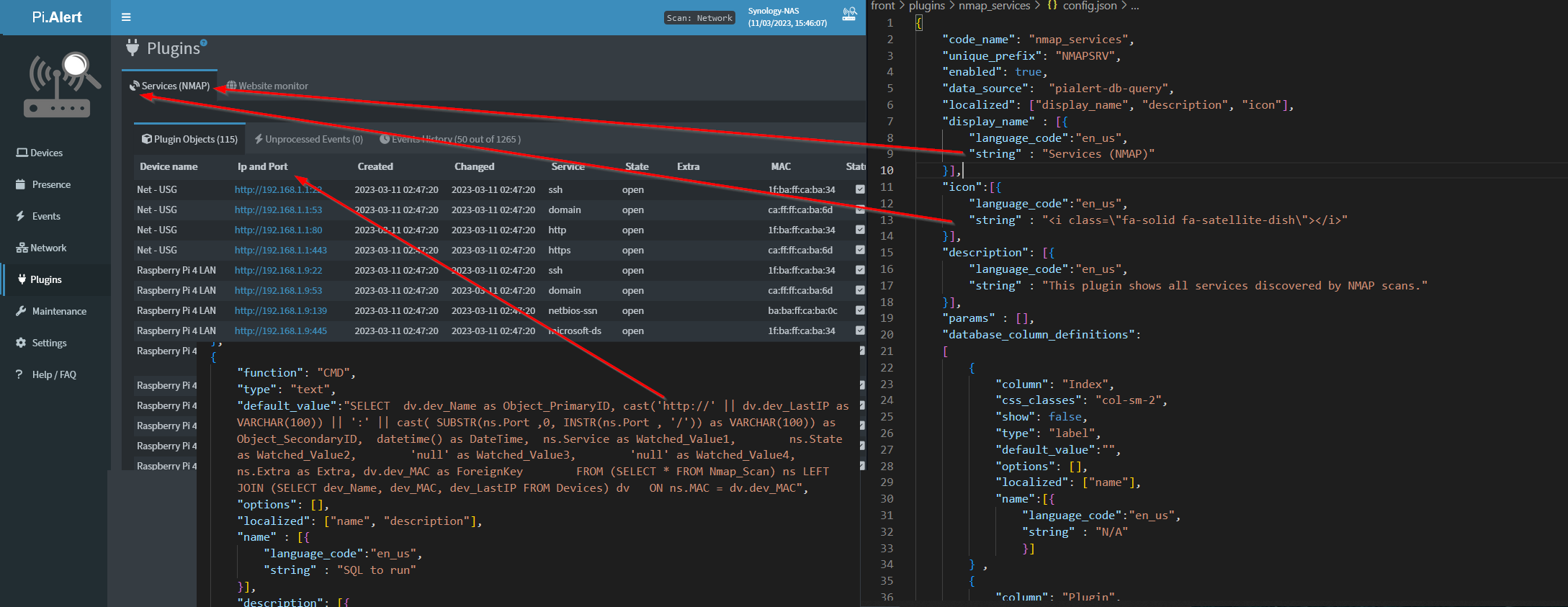
If the datasource is set to pialert-db-query the CMD setting needs to contain a SQL query rendering the columns as defined in the "Column order and values" section above. The order of columns is important.
Examples
SQL query example:
SELECT  dv.dev_Name as Object_PrimaryID,
    cast(dv.dev_LastIP as VARCHAR(100)) || ':' || cast( SUBSTR(ns.Port ,0, INSTR(ns.Port , '/')) as VARCHAR(100)) as Object_SecondaryID,
    datetime() as DateTime,
    ns.Service as Watched_Value1,
    ns.State as Watched_Value2,
    'null' as Watched_Value3,
    'null' as Watched_Value4,
    ns.Extra as Extra,
    dv.dev_MAC as ForeignKey
FROM
    (SELECT * FROM Nmap_Scan) ns
LEFT JOIN
    (SELECT dev_Name, dev_MAC, dev_LastIP FROM Devices) dv
ON ns.MAC = dv.dev_MAC
Required CMD setting example with above query (you can set "type": "label" if you want it to make uneditable in the UI):
{
            "function": "CMD",
            "type": "text",
            "default_value":"SELECT  dv.dev_Name as Object_PrimaryID, cast(dv.dev_LastIP as VARCHAR(100)) || ':' || cast( SUBSTR(ns.Port ,0, INSTR(ns.Port , '/')) as VARCHAR(100)) as Object_SecondaryID,  datetime() as DateTime,  ns.Service as Watched_Value1,        ns.State as Watched_Value2,        'null' as Watched_Value3,        'null' as Watched_Value4,        ns.Extra as Extra        FROM (SELECT * FROM Nmap_Scan) ns LEFT JOIN (SELECT dev_Name, dev_MAC, dev_LastIP FROM Devices) dv   ON ns.MAC = dv.dev_MAC",
            "options": [],
            "localized": ["name", "description"],
            "name" : [{
                "language_code":"en_us",
                "string" : "SQL to run"
            }],
            "description": [{
                "language_code":"en_us",
                "string" : "This SQL query is used to populate the coresponding UI tables under the Plugins section."
            }]
        }
config.json
params
"name":"name_value"- is used as a wildcard replacement in theCMDsetting value by using curly brackets{name_value}. The wildcard is replaced by the result of the"value" : "param_value"and"type":"type_value"combo configuration below."type":"<sql|setting>"- is used to specify the type of the params, currently only 2 supported (sql,setting)."type":"sql"- will execute the SQL query specified in thevalueproperty. The sql query needs to return only one column. The column is flattened and separated by commas (,), e.g:SELECT dev_MAC from DEVICES->Internet,74:ac:74:ac:74:ac,44:44:74:ac:74:ac. This is then used to replace the wildcards in theCMDsetting."type":"setting"- The setting code name. A combination of the value fromunique_prefix+_+functionvalue, or otherwise the code name you can find in the Settings page under the Setting dispaly name, e.g.SCAN_CYCLE_MINUTES.
"value" : "param_value"- Needs to contain a setting code name or sql query without wildcards.
Example:
{
    "params" : [{
            "name"  : "macs",
            "type"  : "sql",
            "value" : "SELECT dev_MAC from DEVICES"
        },
        {
            "name"  : "urls",
            "type"  : "setting",
            "value" : "WEBMON_urls_to_check"
        },
        {
            "name"  : "internet_ip",
            "type"  : "setting",
            "value" : "WEBMON_SQL_internet_ip"
        }]
}
Setting object struncture
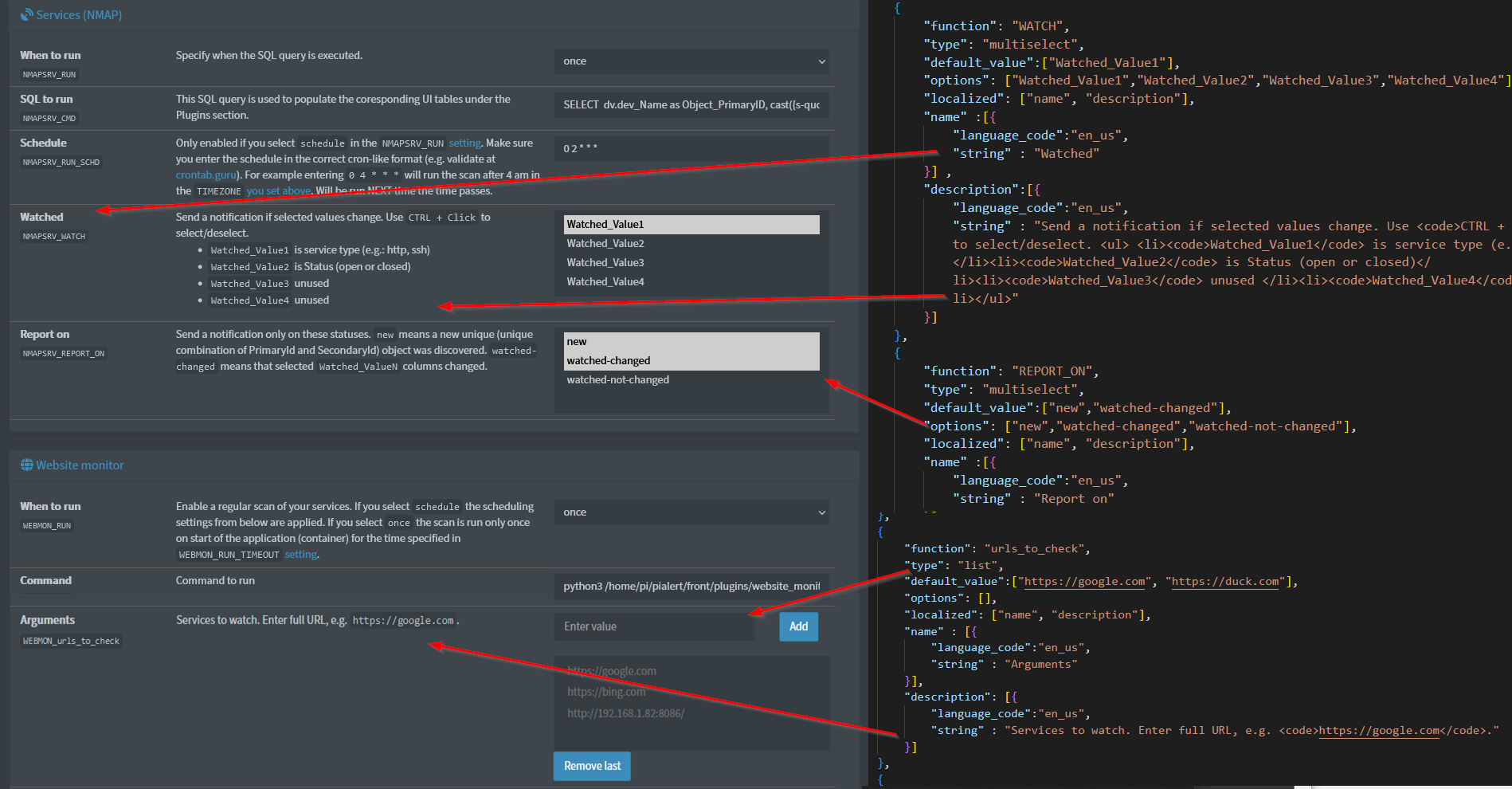
"function": "<see Supported settings function values>"- What function the setting drives or a simple unique code name"type": "<text|integer|boolean|password|readonly|selectinteger|selecttext|multiselect|list>"- The form control used for the setting displayed in the Settings page and what values are accepted."localized"- a list of properties on the current JSON level which need to be localized"name"and"description"- Displayed in the Settings page. An array of localized strings. (see Localized strings below).
Supported settings function values
RUN- (required) Specifies when the service is executed- Supported Options: "disabled", "once", "schedule" (if included then a
RUN_SCHDsetting needs to be specified), "always_after_scan", "on_new_device"
- Supported Options: "disabled", "once", "schedule" (if included then a
RUN_SCHD- (required if you include theRUN) Cron-like scheduling used if theRUNsetting set toscheduleCMD- (required) What command should be executed.API_SQL- (optional) Generates atable_+ code_name +.jsonfile as per API docs.RUN_TIMEOUT- (optional) Max execution time of the script. If not specified a default value of 10 seconds is used to prevent hanging.WATCH- (optional) Which database columns are watched for changes for this particular plugin. If not specified no notifications are sent.REPORT_ON- (optional) Send a notification only on these statuses. Supported options are:newmeans a new unique (unique combination of PrimaryId and SecondaryId) object was discovered.watched-changed- means that selectedWatched_ValueNcolumns changedwatched-not-changed- reports even on events where selectedWatched_ValueNdid not change
Example:
{
    "function": "RUN",
    "type": "selecttext",
    "default_value":"disabled",
    "options": ["disabled", "once", "schedule", "always_after_scan", "on_new_device"],
    "localized": ["name", "description"],
    "name" :[{
        "language_code":"en_us",
        "string" : "When to run"
    }],
    "description": [{
        "language_code":"en_us",
        "string" : "Enable a regular scan of your services. If you select <code>schedule</code> the scheduling settings from below are applied. If you select <code>once</code> the scan is run only once on start of the application (container) for the time specified in <a href=\"#WEBMON_RUN_TIMEOUT\"><code>WEBMON_RUN_TIMEOUT</code> setting</a>."
    }]
}
Localized strings
"language_code":"<en_us|es_es|de_de>"- code name of the language string. Only these three currently supported. At least the"language_code":"en_us"variant has to be defined."string"- The string to be displayed in the given language.
Example:
    {
        "language_code":"en_us",
        "string" : "When to run"
    }
UI settings in database_column_definitions
The UI will adjust how columns are displayed in the UI based on the definition of the database_column_definitions object. Thease are the supported form controls and related functionality:
- Only columns with
"show": trueand also with at least an english translation will be shown in the UI. - Supported types:
label,text,threshold,replacelabelmakes a column display onlytextmakes a column editable- See below for information on
threshold,replace
- The
optionsproperty is used in conjunction with these types:threshold- Theoptionsarray contains objects from lowestmaximumto highest with correspondinghexColorused for the value background color if it's less than the specifiedmaximum, but more than the previous one in theoptionsarrayreplace- Theoptionsarray contains objects with anequalsproperty, that is compared to the "value" and if the values are the same, the string inreplacementis displayed in the UI instead of the actual "value"devicemac- The value is considered to be a mac adress and a link pointing to the device with the given mac address is generated.url- The value is considered to be a url so a link is generated.
{
            "column": "Watched_Value1",
            "css_classes": "col-sm-2",
            "show": true,
            "type": "threshold",
            "default_value":"",
            "options": [
                {
                    "maximum": 199,
                    "hexColor": "#792D86"
                },
                {
                    "maximum": 299,
                    "hexColor": "#5B862D"
                },
                {
                    "maximum": 399,
                    "hexColor": "#7D862D"
                },
                {
                    "maximum": 499,
                    "hexColor": "#BF6440"
                },
                {
                    "maximum": 599,
                    "hexColor": "#D33115"
                }
            ],
            "localized": ["name"],
            "name":[{
                "language_code":"en_us",
                "string" : "Status code"
                }]
        },
        {
            "column": "Status",
            "show": true,
            "type": "replace",
            "default_value":"",
            "options": [
                {
                    "equals": "watched-not-changed",
                    "replacement": "<i class='fa-solid fa-square-check'></i>"
                },
                {
                    "equals": "watched-changed",
                    "replacement": "<i class='fa-solid fa-triangle-exclamation'></i>"
                },
                {
                    "equals": "new",
                    "replacement": "<i class='fa-solid fa-circle-plus'></i>"
                }
            ],
            "localized": ["name"],
            "name":[{
                "language_code":"en_us",
                "string" : "Status"
                }]
        }
Full Examples
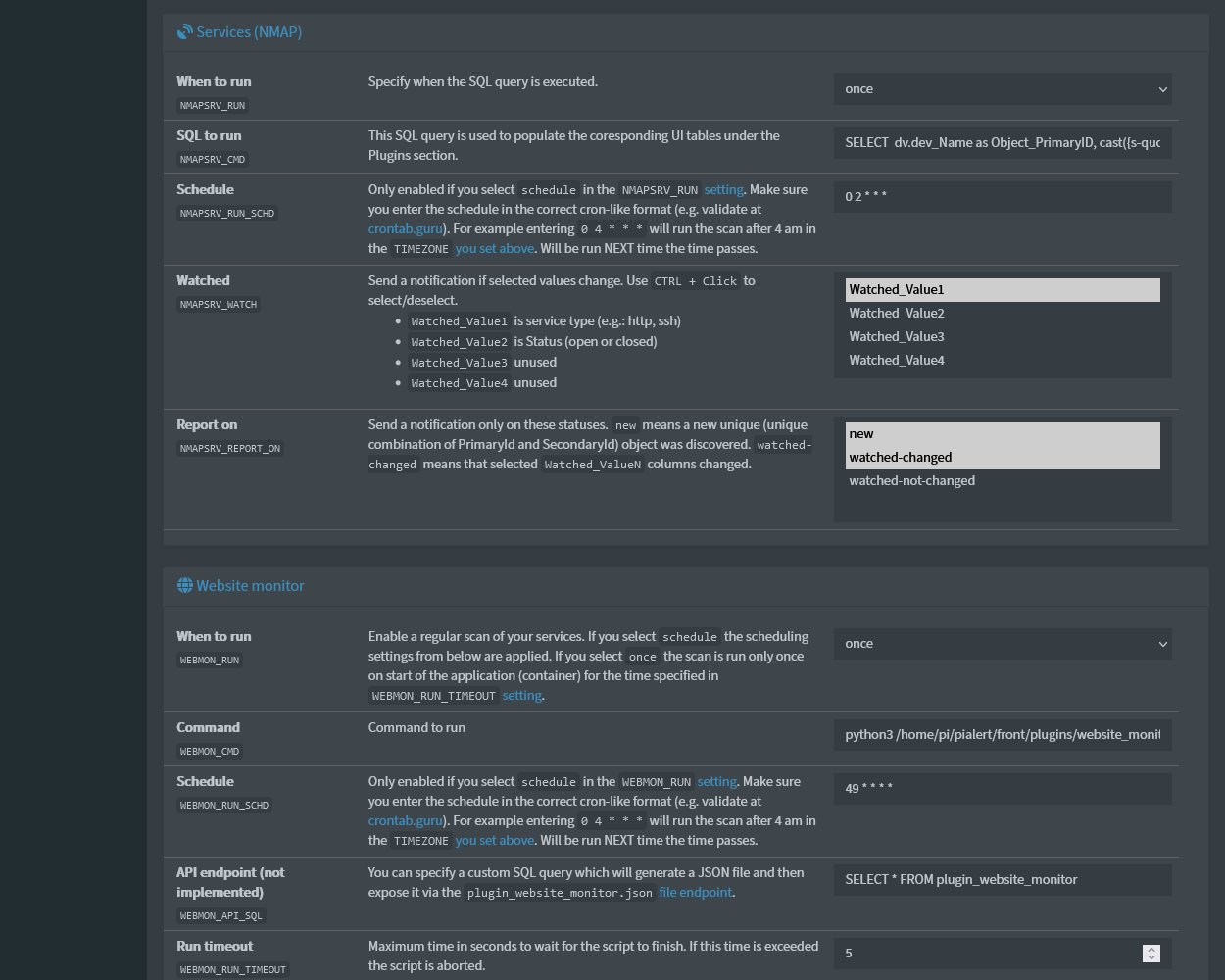
- Script based plugin: Check the website_monitor WEBMON) config.json file for details.
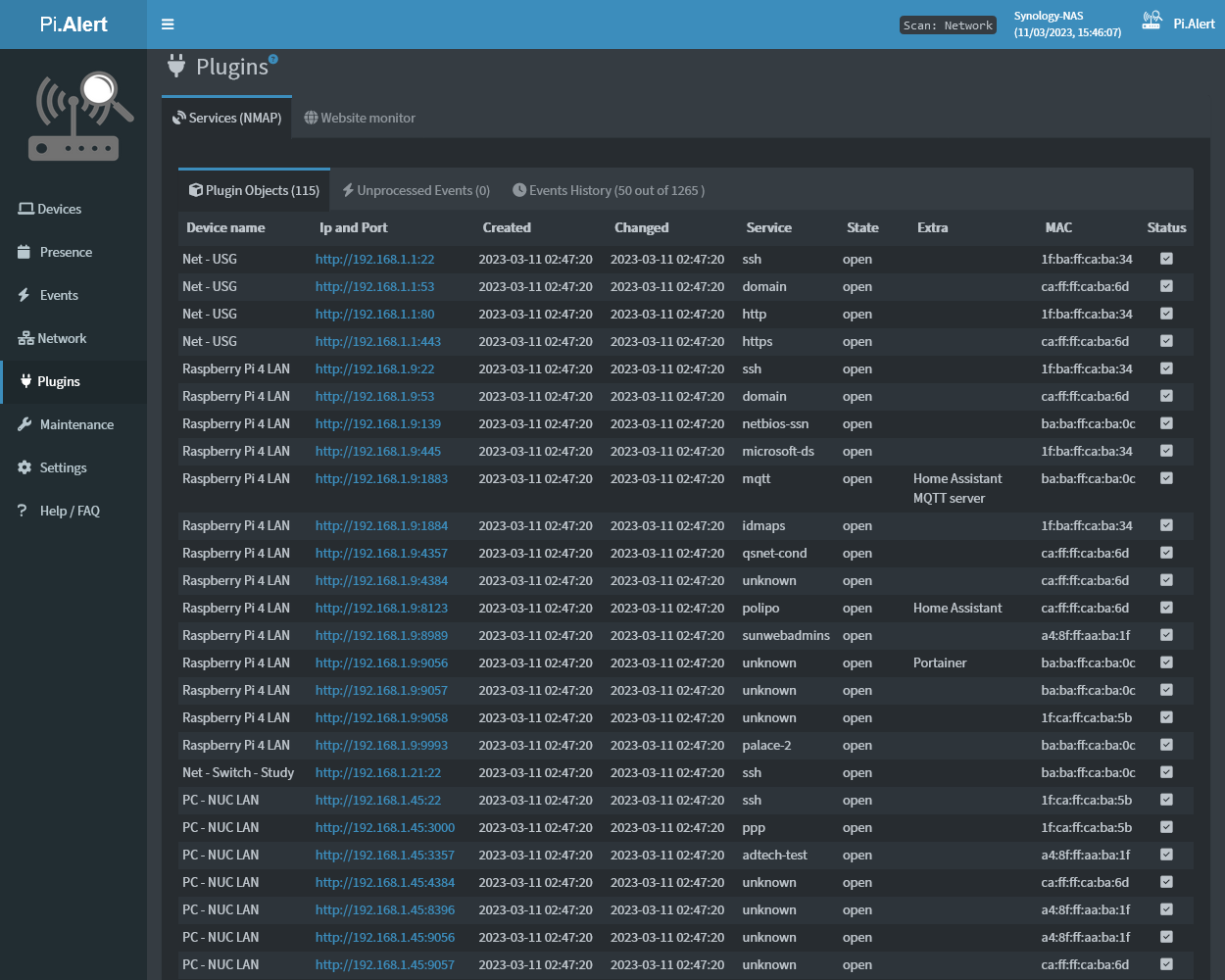
- SQL query nased plugin: Check the nmap_services NMAPSERV) config.json file for details.
Screenshots
 |
 |
|---|---|
 |
 |