mirror of
https://github.com/jokob-sk/NetAlertX.git
synced 2026-04-15 22:51:37 -07:00
 xfilo
xfilo🔍 Overview
- This plugin imports online devices and clients from the Omada SDN (Omada Controller) through the provided OpenAPI.
✨ Features
- Import online devices (gateways, switches, and access points) compatible with Omada SDN and send them to NetAlertX.
- Import online clients (e.g., computers and smartphones) and send them to NetAlertX.
📌 Requirements
- Omada Controller with Open API support.
✅ Officially supported controllers - Source
- All Omada Pro versions support Open API
- Omada Software/Hardware Controller support Open API since Controller v5.12
⚙️ Setup guide & settings
- Login to your Omada Controller.
- In the Global Dashboard, navigate to Settings, select Platform Integration, then click on Open API.
- Create new credentials by clicking Add New App.
- The
App Namecan be anything. - Set the
ModetoClient. - Set the
RoletoViewerorAdministrator. - For
Site Privileges, chooseAll (Including all new-created sites)or select specific site(s). - Click
Applyto create the application.
- The
- From the created application, you will need the following fields.
Omada ID- visible by clicking the eye icon next to the edit and delete buttons.Client IDClient Secret
- Open NetAlertX's Settings, head to Omada SDN using OpenAPI
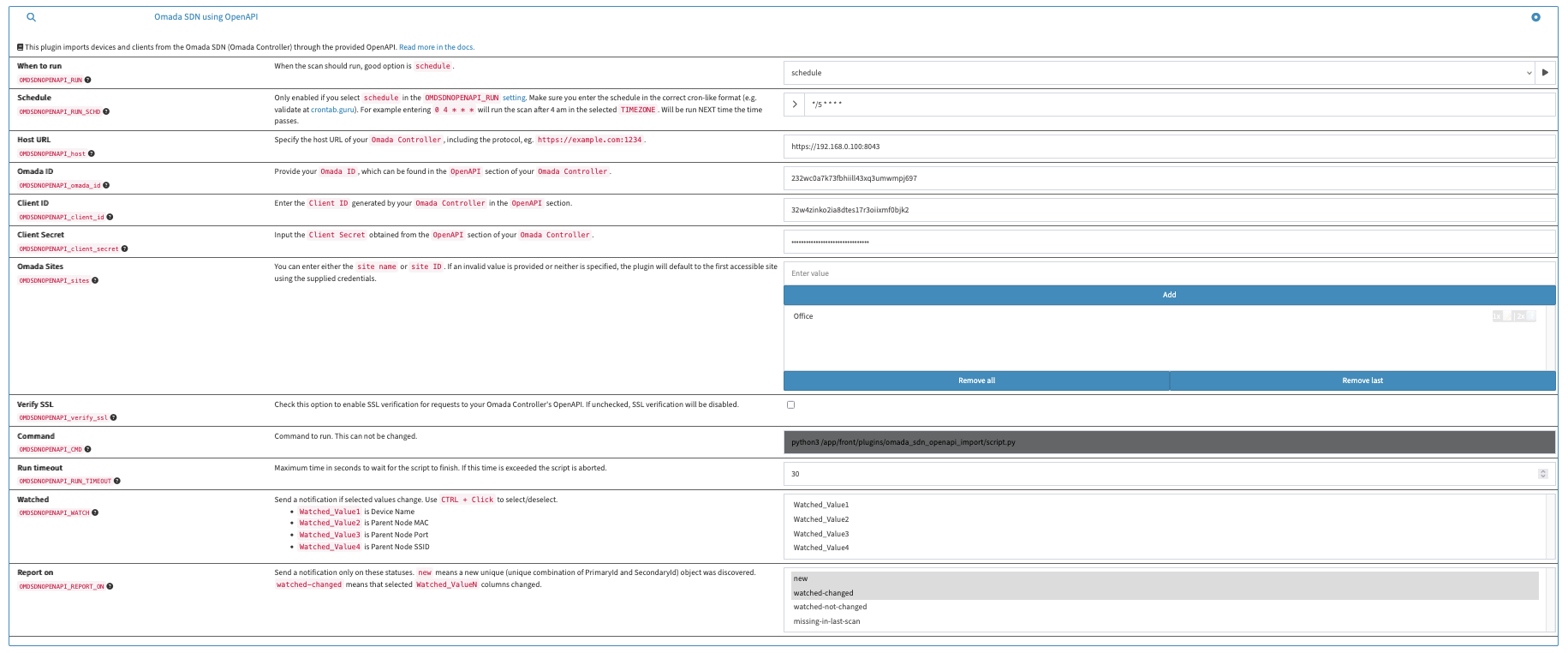
(OMDSDNOPENAPI)and configure the plugin.OMDSDNOPENAPI_RUN- When the scan should run, good option isschedule.OMDSDNOPENAPI_host- Specify the host URL of your Omada Controller, including the protocol, e.g.,https://example.com:1234.OMDSDNOPENAPI_omada_id- Enter the Omada ID obtained in the previous step.OMDSDNOPENAPI_client_id- Enter the Client ID obtained in the previous step.OMDSDNOPENAPI_client_secret- Enter the Client Secret obtained in the previous step.OMDSDNOPENAPI_sites(optional) - You can enter either the site name or site ID. If an invalid value is provided or neither is specified, the plugin will default to the first accessible site using the supplied credentials.OMDSDNOPENAPI_verify_ssl- Check this option to enable SSL verification for requests to your Omada Controller's OpenAPI. If unchecked, SSL verification will be disabled.
📋 Data populated by the plugin
- This table outlines the data fields populated by the plugin, their conditions, descriptions, and where they are visible.
| 🔹 Field | 🔄 Population Condition | 📖 Description | 👀 Visibility |
|---|---|---|---|
| MAC | Always populated | The device's unique MAC address | Device details |
| Last IP | Always populated | The device's assigned IP address | Device details |
| Name | Always populated | The device name retrieved from Omada | Device details |
| Parent Node | Only if available | MAC address of the parent device (switch, AP, or gateway) | Device details |
| Parent Node Port | Only if available | The port number used to connect to the parent device | Device details |
| SSID | Only if available | The SSID through which the device is connected | Device details |
| Device Type | Only if available | Detected device type (e.g., iPhone, PC, Android) | Device details |
| Last Seen | Always populated | Last recorded time the device was active on the network | Plugin details |
| Omada Site | Always populated | Omada site to which the device is assigned | Device details |
| VLAN ID | Only if available | VLAN ID assigned to the device | Plugin details |
⚠️ Limitations and warnings
- The plugin can fetch up to 1000 devices and 1000 clients from the Omada Controller.
- Using non-Omada SDN compatible devices (e.g., switches, APs) may result in incomplete or inaccurate data.
🖼️ Examples
-
Settings:
-

ℹ️ Other info
- Version: 1.0
- Author : xfilo
- Release Date: 24-February-2025
- Omada Open API documentation: https://use1-omada-northbound.tplinkcloud.com/doc.html#/home (may take a moment to load)