[](https://github.com/jokob-sk/Pi.Alert/actions/workflows/docker_prod.yml)
[](https://github.com/jokob-sk/Pi.Alert)
[](https://hub.docker.com/r/jokobsk/pi.alert)
[](https://hub.docker.com/r/jokobsk/pi.alert)
[](https://hub.docker.com/r/jokobsk/pi.alert)
# 🐳 A docker image for Pi.Alert
🐳 [Docker hub](https://registry.hub.docker.com/r/jokobsk/pi.alert) | 📄 [Dockerfile](https://github.com/jokob-sk/Pi.Alert/blob/main/Dockerfile) | 📚 [Docker instructions](https://github.com/jokob-sk/Pi.Alert/blob/main/dockerfiles/README.md) | 🆕 [Release notes](https://github.com/jokob-sk/Pi.Alert/releases)
 ## 📕 Basic Usage
- You will have to run the container on the host network, e.g:
```yaml
docker run -d --rm --network=host \
-v local/path/pialert/config:/home/pi/pialert/config \
-v local/path/pialert/db:/home/pi/pialert/db \
-e TZ=Europe/Berlin \
-e PORT=20211 \
jokobsk/pi.alert:latest
```
- The initial scan can take up-to 15min (with 50 devices and MQTT). Subsequent ones 3 and 5 minutes so wait that long for all of the scans to run.
### Docker environment variables
| Variable | Description | Default |
| :------------- |:-------------| -----:|
| `PORT` |Port of the web interface | `20211` |
|`TZ` |Time zone to display stats correctly. Find your time zone [here](https://en.wikipedia.org/wiki/List_of_tz_database_time_zones) | `Europe/Berlin` |
|`HOST_USER_GID` |User ID (UID) to map the user in the container to a server user with sufficient read&write permissions on the mapped files | `1000` |
|`HOST_USER_ID` |User Group ID (GID) to map the user group in the container to a server user group with sufficient read&write permissions on the mapped files | `1000` |
### Docker paths
| | Path | Description |
| :------------- | :------------- |:-------------|
| **Required** | `:/home/pi/pialert/config` | Folder which will contain the `pialert.conf` file (see below for details) |
| **Required** | `:/home/pi/pialert/db` | Folder which will contain the `pialert.db` file |
|Optional| `:/home/pi/pialert/front/log` | Logs folder useful for debugging if you have issues setting up the container |
|Optional| `:/etc/pihole/pihole-FTL.db` | PiHole's `pihole-FTL.db` database file. Required if you want to use PiHole |
|Optional| `:/etc/pihole/dhcp.leases` | PiHole's `dhcp.leases` file. Required if you want to use PiHole |
|Optional| `:/home/pi/pialert/front/api` | A simple [API endpoint](https://github.com/jokob-sk/Pi.Alert/blob/main/docs/API.md) containing static (but regularly updated) json and other files. |
### Config (`pialert.conf`)
- If unavailable, the app generates a default `pialert.conf` and `pialert.db` file on the first run.
- The preferred way is to manage the configuration via the Settings section in the UI.
- You can modify [pialert.conf](https://github.com/jokob-sk/Pi.Alert/tree/main/config) directly, if needed.
#### Important settings
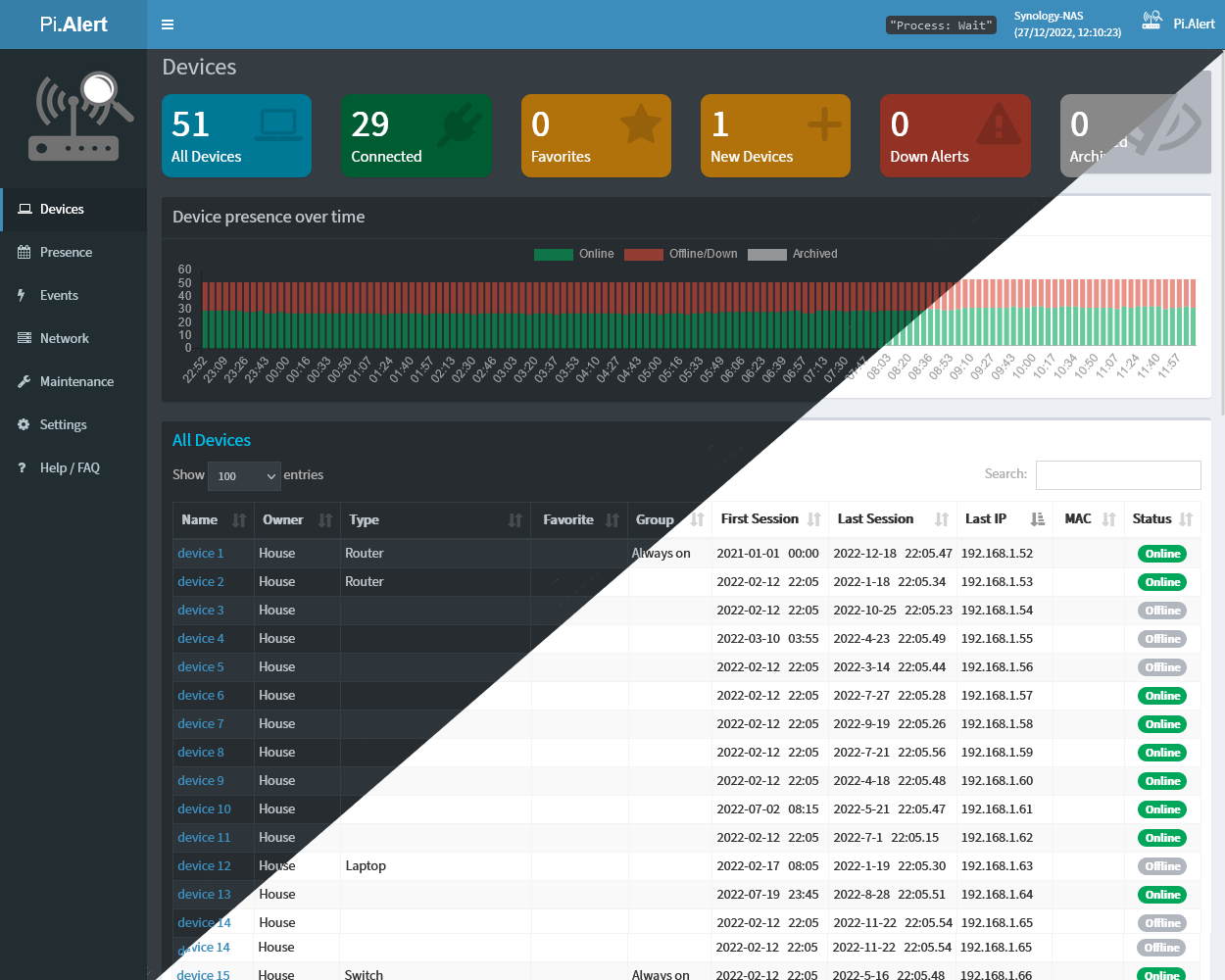
These are the most important settings to get at least some output in your Devices screen. Usually, only one approach is used, but you should be able to combine these approaches.
##### For arp-scan: ENABLE_ARPSCAN, SCAN_SUBNETS
- ❗ To use the arp-scan method, you need to set the `SCAN_SUBNETS` variable.
* The adapter will probably be `eth0` or `eth1`. (Run `iwconfig` to find your interface name(s))
* Specify the network filter (which **significantly** speeds up the scan process). For example, the filter `192.168.1.0/24` covers IP ranges 192.168.1.0 to 192.168.1.255.
* Examples for one and two subnets (❗ Note the `['...', '...']` format):
* One subnet: `SCAN_SUBNETS = ['192.168.1.0/24 --interface=eth0']`
* Two subnets: `SCAN_SUBNETS = ['192.168.1.0/24 --interface=eth0', '192.168.1.0/24 --interface=eth1 -vlan=107']`
* More documentation on how to e.g. [setup vlans & limitations](https://github.com/jokob-sk/Pi.Alert/blob/main/docs/SUBNETS.md)
##### For pihole: PIHOLE_ACTIVE, DHCP_ACTIVE
* `PIHOLE_ACTIVE`: You need to map `:/etc/pihole/pihole-FTL.db in the docker-compose.yml` file if you enable this setting.
* `DHCP_ACTIVE` : You need to map `:/etc/pihole/dhcp.leases in the docker-compose.yml` file if you enable this setting.
### **Common issues**
💡 Before creating a new issue, please check if a similar issue was [already resolved](https://github.com/jokob-sk/Pi.Alert/issues?q=is%3Aissue+is%3Aclosed).
**Permissions**
* If facing issues (AJAX errors, can't write to DB, empty screen, etc,) make sure permissions are set correctly, and check the logs under `/home/pi/pialert/front/log`.
* To solve permission issues you can try setting the owner and group of the `pialert.db` by executing the following on the host system: `docker exec pialert chown -R www-data:www-data /home/pi/pialert/db/pialert.db`.
* Map to local User and Group IDs. Specify the enviroment variables `HOST_USER_ID` and `HOST_USER_GID` if needed.
* If still facing issues, try to map the pialert.db file (⚠ not folder) to `:/home/pi/pialert/db/pialert.db` (see Examples below for details)
**Container restarts / crashes**
* Check the logs for details. Often a required setting for a notification method is missing.
**unable to resolve host**
* Check that your `SCAN_SUBNETS` variable is using the correct mask and `--interface` as outlined in the instructions above.
Docker-compose examples can be found below.
## 📄 Examples
### Example 1
```yaml
version: "3"
services:
pialert:
container_name: pialert
image: "jokobsk/pi.alert:latest"
network_mode: "host"
restart: unless-stopped
volumes:
- local/path/pialert/config:/home/pi/pialert/config
- local/path/pialert/db:/home/pi/pialert/db
# (optional) useful for debugging if you have issues setting up the container
- local/path/logs:/home/pi/pialert/front/log
environment:
- TZ=Europe/Berlin
- HOST_USER_ID=1000
- HOST_USER_GID=1000
- PORT=20211
```
To run the container execute: `sudo docker-compose up -d`
### Example 2
Example by [SeimuS](https://github.com/SeimusS).
```yaml
pialert:
container_name: PiAlert
hostname: PiAlert
privileged: true
image: jokobsk/pi.alert:latest
environment:
- TZ=Europe/Bratislava
restart: always
volumes:
- ./pialert/pialert_db:/home/pi/pialert/db
- ./pialert/pialert_config:/home/pi/pialert/config
network_mode: host
```
To run the container execute: `sudo docker-compose up -d`
### Example 3
`docker-compose.yml`
```yaml
version: "3"
services:
pialert:
container_name: pialert
image: "jokobsk/pi.alert:latest"
network_mode: "host"
restart: unless-stopped
volumes:
- ${APP_DATA_LOCATION}/pialert/config:/home/pi/pialert/config
- ${APP_DATA_LOCATION}/pialert/db/pialert.db:/home/pi/pialert/db/pialert.db
# (optional) useful for debugging if you have issues setting up the container
- ${LOGS_LOCATION}:/home/pi/pialert/front/log
environment:
- TZ=${TZ}
- HOST_USER_ID=${HOST_USER_ID}
- HOST_USER_GID=${HOST_USER_GID}
- PORT=${PORT}
```
`.env` file
```yaml
#GLOBAL PATH VARIABLES
APP_DATA_LOCATION=/path/to/docker_appdata
APP_CONFIG_LOCATION=/path/to/docker_config
LOGS_LOCATION=/path/to/docker_logs
#ENVIRONMENT VARIABLES
TZ=Europe/Paris
HOST_USER_ID=1000
HOST_USER_GID=1000
PORT=20211
#DEVELOPMENT VARIABLES
DEV_LOCATION=/path/to/local/source/code
```
To run the container execute: `sudo docker-compose --env-file /path/to/.env up`
### Example 4
Courtesy of [pbek](https://github.com/pbek). The volume `pialert_db` is used by the db directory. The two config files are mounted directly from a local folder to their places in the config folder. You can backup the `docker-compose.yaml` folder and the docker volumes folder.
```yaml
pialert:
image: jokobsk/pi.alert
ports:
- "80:20211/tcp"
environment:
- TZ=Europe/Vienna
networks:
local:
ipv4_address: 192.168.1.2
restart: unless-stopped
volumes:
- pialert_db:/home/pi/pialert/db
- ./pialert/pialert.conf:/home/pi/pialert/config/pialert.conf
```
## 🏅 Recognitions
Big thanks to @Macleykun for help and tips&tricks for Dockerfile(s):
## 📕 Basic Usage
- You will have to run the container on the host network, e.g:
```yaml
docker run -d --rm --network=host \
-v local/path/pialert/config:/home/pi/pialert/config \
-v local/path/pialert/db:/home/pi/pialert/db \
-e TZ=Europe/Berlin \
-e PORT=20211 \
jokobsk/pi.alert:latest
```
- The initial scan can take up-to 15min (with 50 devices and MQTT). Subsequent ones 3 and 5 minutes so wait that long for all of the scans to run.
### Docker environment variables
| Variable | Description | Default |
| :------------- |:-------------| -----:|
| `PORT` |Port of the web interface | `20211` |
|`TZ` |Time zone to display stats correctly. Find your time zone [here](https://en.wikipedia.org/wiki/List_of_tz_database_time_zones) | `Europe/Berlin` |
|`HOST_USER_GID` |User ID (UID) to map the user in the container to a server user with sufficient read&write permissions on the mapped files | `1000` |
|`HOST_USER_ID` |User Group ID (GID) to map the user group in the container to a server user group with sufficient read&write permissions on the mapped files | `1000` |
### Docker paths
| | Path | Description |
| :------------- | :------------- |:-------------|
| **Required** | `:/home/pi/pialert/config` | Folder which will contain the `pialert.conf` file (see below for details) |
| **Required** | `:/home/pi/pialert/db` | Folder which will contain the `pialert.db` file |
|Optional| `:/home/pi/pialert/front/log` | Logs folder useful for debugging if you have issues setting up the container |
|Optional| `:/etc/pihole/pihole-FTL.db` | PiHole's `pihole-FTL.db` database file. Required if you want to use PiHole |
|Optional| `:/etc/pihole/dhcp.leases` | PiHole's `dhcp.leases` file. Required if you want to use PiHole |
|Optional| `:/home/pi/pialert/front/api` | A simple [API endpoint](https://github.com/jokob-sk/Pi.Alert/blob/main/docs/API.md) containing static (but regularly updated) json and other files. |
### Config (`pialert.conf`)
- If unavailable, the app generates a default `pialert.conf` and `pialert.db` file on the first run.
- The preferred way is to manage the configuration via the Settings section in the UI.
- You can modify [pialert.conf](https://github.com/jokob-sk/Pi.Alert/tree/main/config) directly, if needed.
#### Important settings
These are the most important settings to get at least some output in your Devices screen. Usually, only one approach is used, but you should be able to combine these approaches.
##### For arp-scan: ENABLE_ARPSCAN, SCAN_SUBNETS
- ❗ To use the arp-scan method, you need to set the `SCAN_SUBNETS` variable.
* The adapter will probably be `eth0` or `eth1`. (Run `iwconfig` to find your interface name(s))
* Specify the network filter (which **significantly** speeds up the scan process). For example, the filter `192.168.1.0/24` covers IP ranges 192.168.1.0 to 192.168.1.255.
* Examples for one and two subnets (❗ Note the `['...', '...']` format):
* One subnet: `SCAN_SUBNETS = ['192.168.1.0/24 --interface=eth0']`
* Two subnets: `SCAN_SUBNETS = ['192.168.1.0/24 --interface=eth0', '192.168.1.0/24 --interface=eth1 -vlan=107']`
* More documentation on how to e.g. [setup vlans & limitations](https://github.com/jokob-sk/Pi.Alert/blob/main/docs/SUBNETS.md)
##### For pihole: PIHOLE_ACTIVE, DHCP_ACTIVE
* `PIHOLE_ACTIVE`: You need to map `:/etc/pihole/pihole-FTL.db in the docker-compose.yml` file if you enable this setting.
* `DHCP_ACTIVE` : You need to map `:/etc/pihole/dhcp.leases in the docker-compose.yml` file if you enable this setting.
### **Common issues**
💡 Before creating a new issue, please check if a similar issue was [already resolved](https://github.com/jokob-sk/Pi.Alert/issues?q=is%3Aissue+is%3Aclosed).
**Permissions**
* If facing issues (AJAX errors, can't write to DB, empty screen, etc,) make sure permissions are set correctly, and check the logs under `/home/pi/pialert/front/log`.
* To solve permission issues you can try setting the owner and group of the `pialert.db` by executing the following on the host system: `docker exec pialert chown -R www-data:www-data /home/pi/pialert/db/pialert.db`.
* Map to local User and Group IDs. Specify the enviroment variables `HOST_USER_ID` and `HOST_USER_GID` if needed.
* If still facing issues, try to map the pialert.db file (⚠ not folder) to `:/home/pi/pialert/db/pialert.db` (see Examples below for details)
**Container restarts / crashes**
* Check the logs for details. Often a required setting for a notification method is missing.
**unable to resolve host**
* Check that your `SCAN_SUBNETS` variable is using the correct mask and `--interface` as outlined in the instructions above.
Docker-compose examples can be found below.
## 📄 Examples
### Example 1
```yaml
version: "3"
services:
pialert:
container_name: pialert
image: "jokobsk/pi.alert:latest"
network_mode: "host"
restart: unless-stopped
volumes:
- local/path/pialert/config:/home/pi/pialert/config
- local/path/pialert/db:/home/pi/pialert/db
# (optional) useful for debugging if you have issues setting up the container
- local/path/logs:/home/pi/pialert/front/log
environment:
- TZ=Europe/Berlin
- HOST_USER_ID=1000
- HOST_USER_GID=1000
- PORT=20211
```
To run the container execute: `sudo docker-compose up -d`
### Example 2
Example by [SeimuS](https://github.com/SeimusS).
```yaml
pialert:
container_name: PiAlert
hostname: PiAlert
privileged: true
image: jokobsk/pi.alert:latest
environment:
- TZ=Europe/Bratislava
restart: always
volumes:
- ./pialert/pialert_db:/home/pi/pialert/db
- ./pialert/pialert_config:/home/pi/pialert/config
network_mode: host
```
To run the container execute: `sudo docker-compose up -d`
### Example 3
`docker-compose.yml`
```yaml
version: "3"
services:
pialert:
container_name: pialert
image: "jokobsk/pi.alert:latest"
network_mode: "host"
restart: unless-stopped
volumes:
- ${APP_DATA_LOCATION}/pialert/config:/home/pi/pialert/config
- ${APP_DATA_LOCATION}/pialert/db/pialert.db:/home/pi/pialert/db/pialert.db
# (optional) useful for debugging if you have issues setting up the container
- ${LOGS_LOCATION}:/home/pi/pialert/front/log
environment:
- TZ=${TZ}
- HOST_USER_ID=${HOST_USER_ID}
- HOST_USER_GID=${HOST_USER_GID}
- PORT=${PORT}
```
`.env` file
```yaml
#GLOBAL PATH VARIABLES
APP_DATA_LOCATION=/path/to/docker_appdata
APP_CONFIG_LOCATION=/path/to/docker_config
LOGS_LOCATION=/path/to/docker_logs
#ENVIRONMENT VARIABLES
TZ=Europe/Paris
HOST_USER_ID=1000
HOST_USER_GID=1000
PORT=20211
#DEVELOPMENT VARIABLES
DEV_LOCATION=/path/to/local/source/code
```
To run the container execute: `sudo docker-compose --env-file /path/to/.env up`
### Example 4
Courtesy of [pbek](https://github.com/pbek). The volume `pialert_db` is used by the db directory. The two config files are mounted directly from a local folder to their places in the config folder. You can backup the `docker-compose.yaml` folder and the docker volumes folder.
```yaml
pialert:
image: jokobsk/pi.alert
ports:
- "80:20211/tcp"
environment:
- TZ=Europe/Vienna
networks:
local:
ipv4_address: 192.168.1.2
restart: unless-stopped
volumes:
- pialert_db:/home/pi/pialert/db
- ./pialert/pialert.conf:/home/pi/pialert/config/pialert.conf
```
## 🏅 Recognitions
Big thanks to @Macleykun for help and tips&tricks for Dockerfile(s):
 ## ☕ Support me


 BTC: 1N8tupjeCK12qRVU2XrV17WvKK7LCawyZM